
Adding Custom Fonts to the Email Builder
Custom fonts in Engage
You can add your own custom fonts to the Drag & Drop Email Builder, allowing you to use fonts that match your brand in your Engage emails.
Custom fonts are managed from your store's Engage Settings page. To get there, head to Engage > Engage Settings > Custom Fonts, or go directly to: https://app.metorik.com/engage/settings/custom-fonts
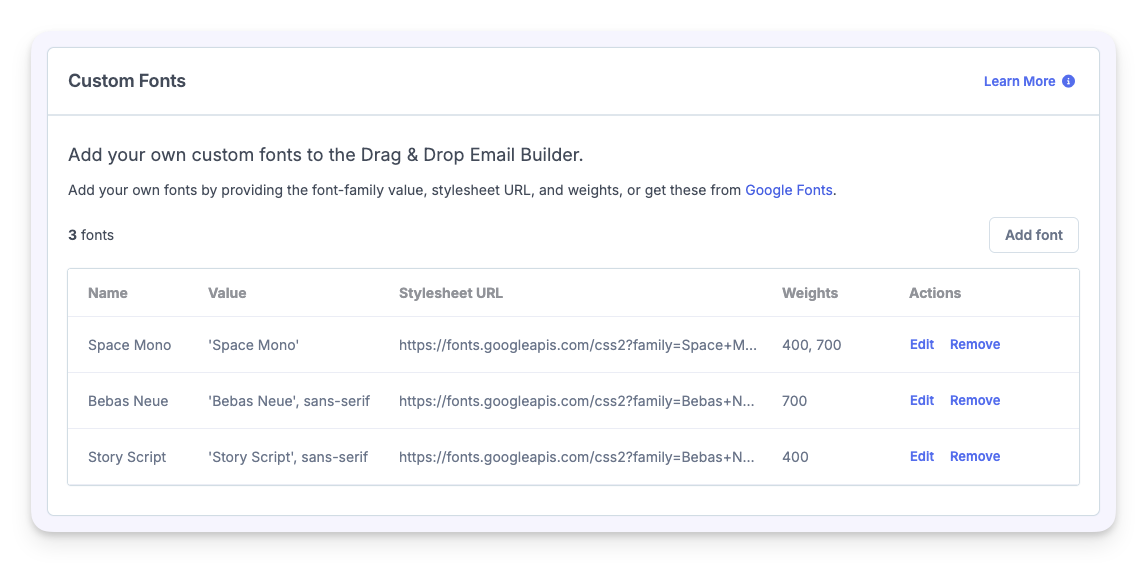
Adding a custom font
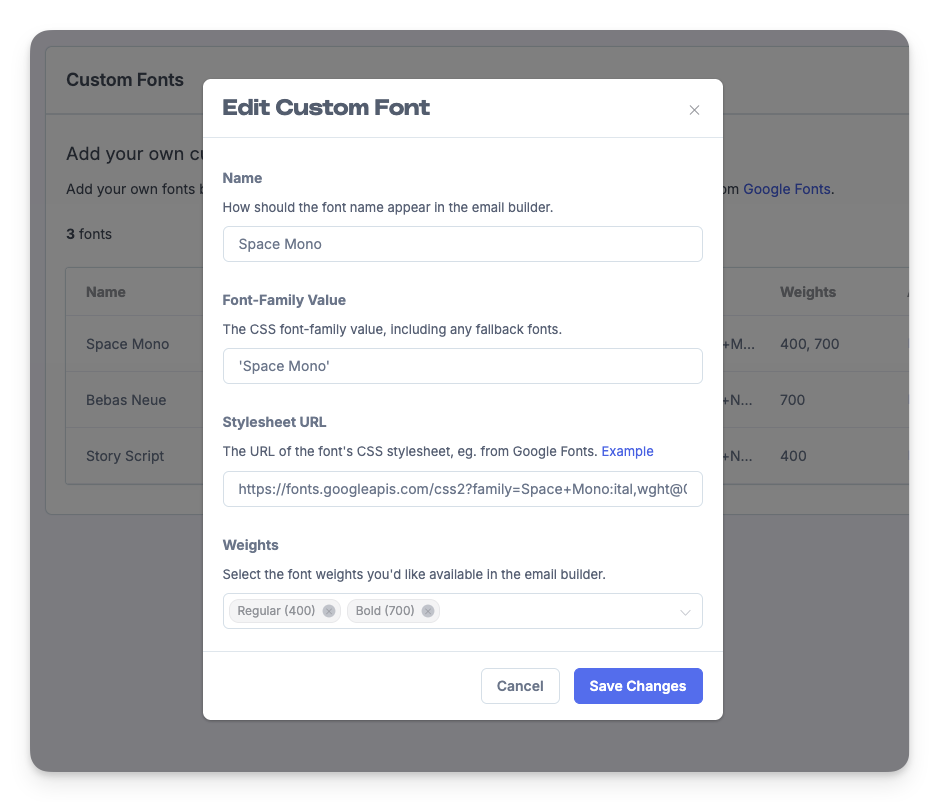
To add a new font, click the Add font button. You'll be presented with a form where you need to provide four things:
Enter the font name
Name – How the font will appear in the email builder's font picker.
Provide the Font-Family Value
Font-Family Value – The CSS font-family value, including any fallback fonts (e.g. "Bebas Neue", sans-serif).
Add the Stylesheet URL
Stylesheet URL – The URL of the font's CSS stylesheet from Google Fonts (or another font provider).
Select the font weights
Weights – The font weights you'd like available in the email builder (e.g. Regular 400, Bold 700).
Getting font details from Google Fonts
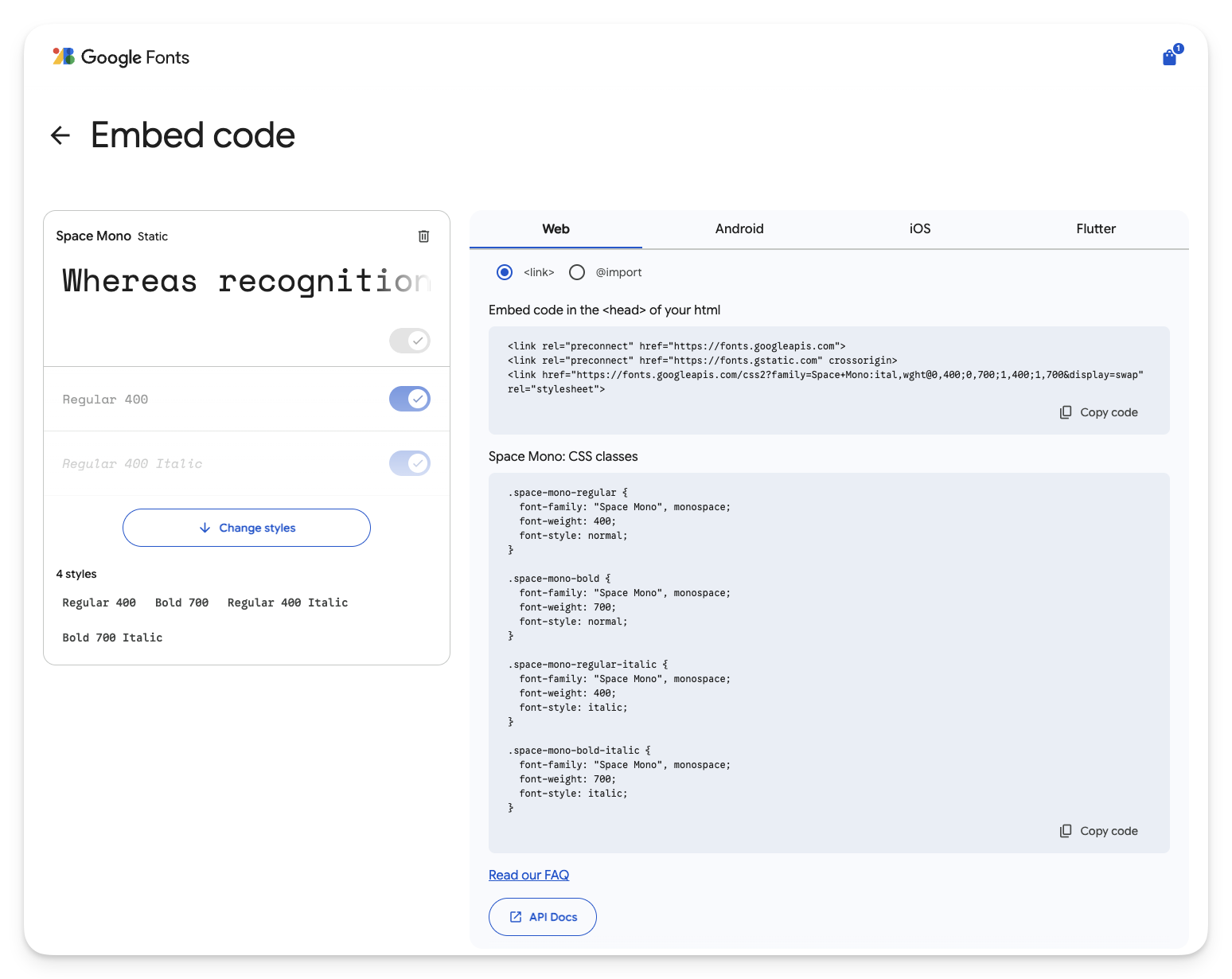
The easiest way to get the font-family value and stylesheet URL is from Google Fonts. Here's how:
Find and select your font
Head to Google Fonts and search for the font you'd like to use. Click on it to open the font's page.
Select the styles you want
Choose the specific styles/weights you want to use in your emails (e.g. Regular 400, Bold 700) by clicking the "Get font" button and then "Get embed code".
Copy the Stylesheet URL
On the embed code page, you'll see a code snippet under "Embed code in the <head> of your html". The stylesheet URL is the href value in the last <link> tag. It will look something like:
https://fonts.googleapis.com/css2?family=Space+Mono:ital,wght@0,400;0,700;1,400;1,700&display=swapCopy this URL and paste it into the Stylesheet URL field in Metorik.
Copy the Font-Family Value
On the same page, scroll down to the CSS classes section. You'll see the font-family value listed there. For example:
font-family: "Space Mono", monospace;Copy the value (e.g. "Space Mono", monospace) and paste it into the Font-Family Value field in Metorik. You can also use just the font name in quotes (e.g. 'Space Mono') if you prefer.
Select weights and save
Back in Metorik, select the font weights you'd like available from the Weights dropdown. These should match the weights you selected on Google Fonts. Then click Add Font to save.
Your new font will now be available in the Drag & Drop Email Builder's font picker when composing Engage emails.
Managing fonts
From the Custom Fonts settings page, you can Edit or Remove any font you've added. Removing a font won't affect emails that have already been sent, but it will no longer be available as an option in the email builder going forward.
A note on email font support
Keep in mind that not all email clients support custom fonts. If a recipient's email client doesn't support the font, it will fall back to the fallback fonts specified in your font-family value (e.g. sans-serif). This is why it's a good idea to always include a fallback font in the Font-Family Value field.
Still need help? Contact Us