
Create Metorik Profiles Using Zapier
Zapier is a powerful automation tool allowing you to connect apps that don't have a native integration.
In the case of Metorik, you may want to import a subscriber from one app (like Mailchimp or Klaviyo) into Metorik as a Profile. You can use Zapier as the bridge to sync Profiles between Metorik and these platforms.
For this example we're going to connect Metorik with Mailchimp, but of course the steps will be similar if you are using another email platform.
This guide uses the Metorik Engage API.
Using Zapier Webhooks required a paid Zapier plan.
Part 1: Connect Mailchimp to Zapier
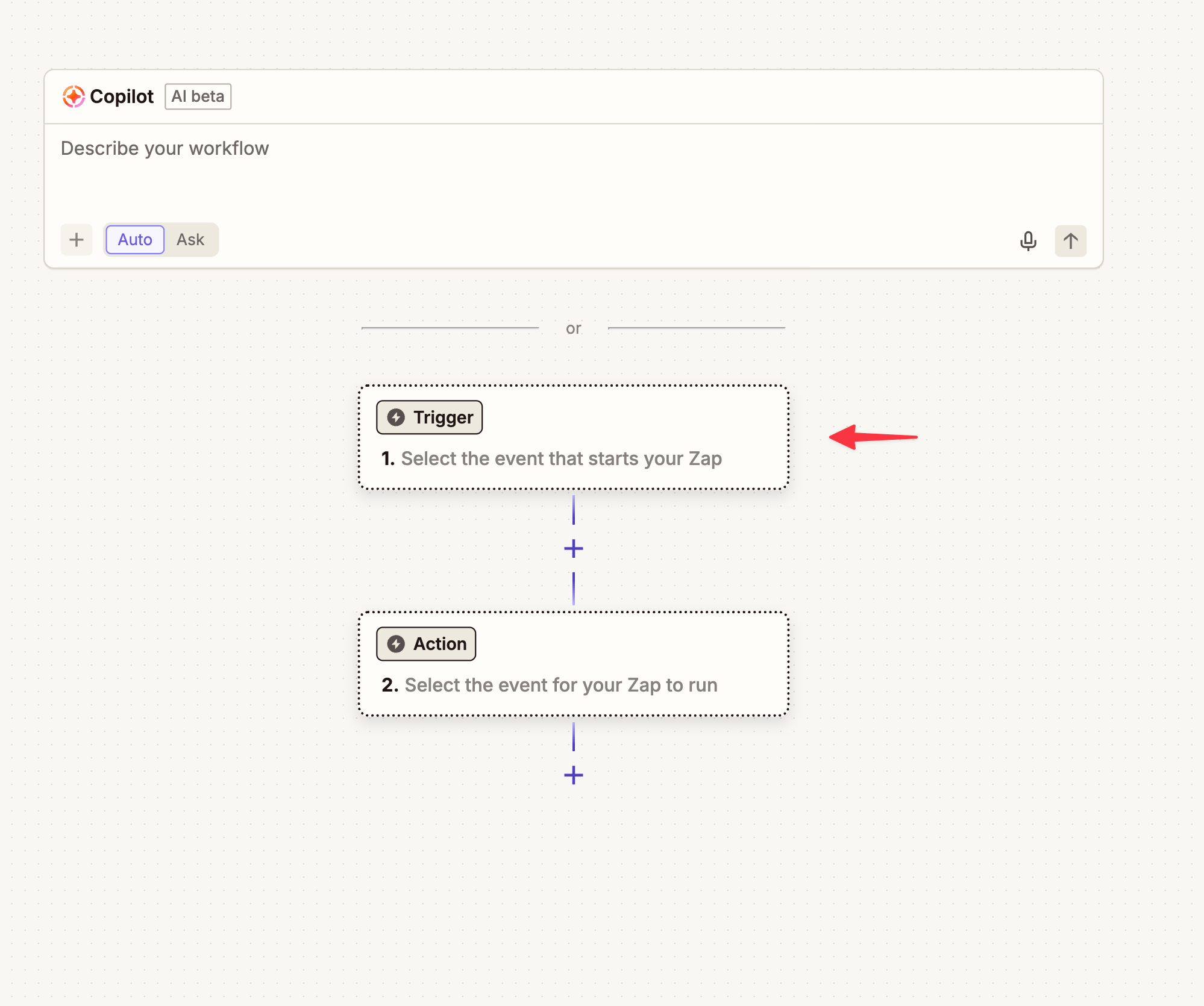
- Click the Create Button in Zapier

- Click on the Trigger box:
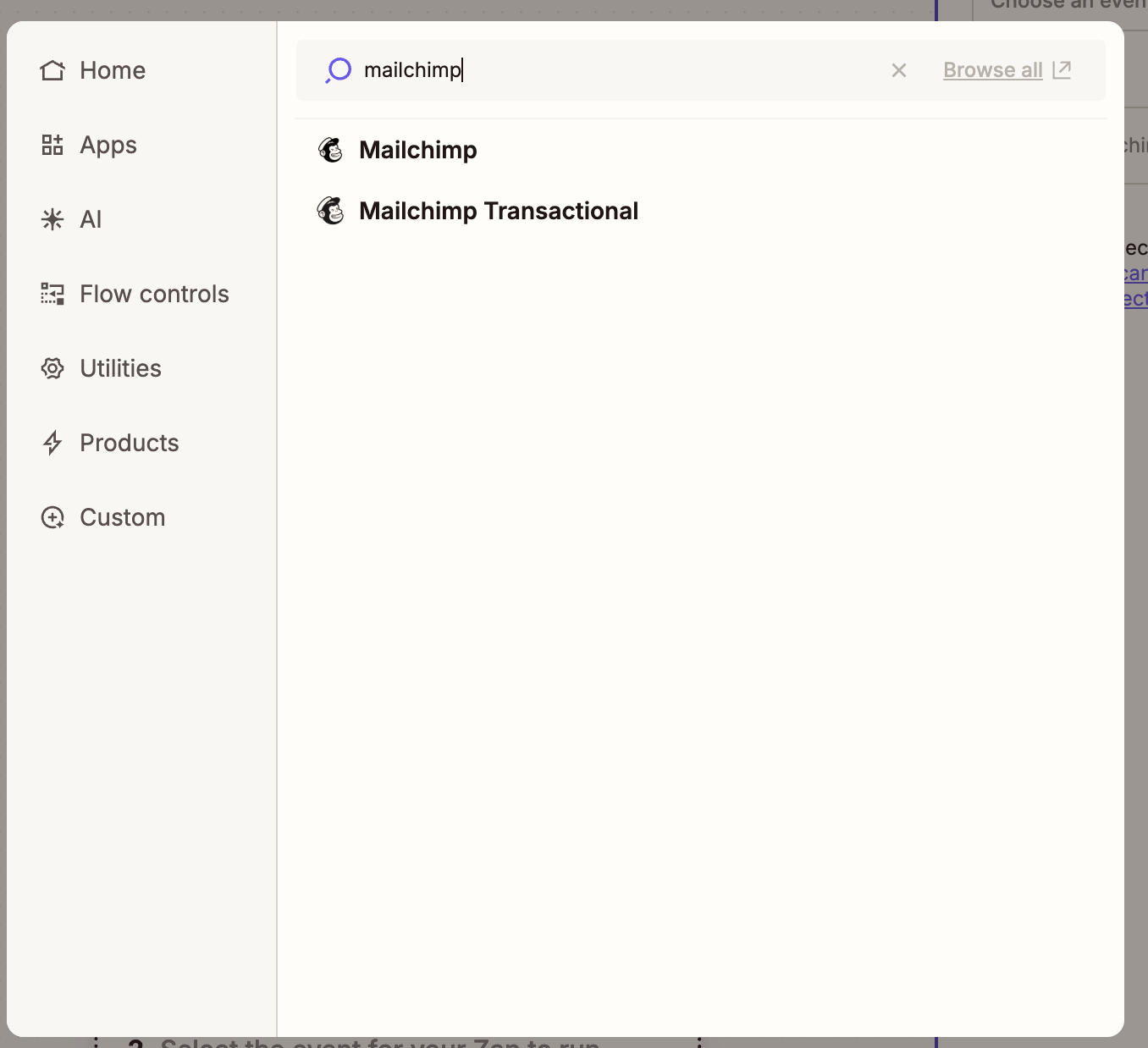
- Select Mailchimp:
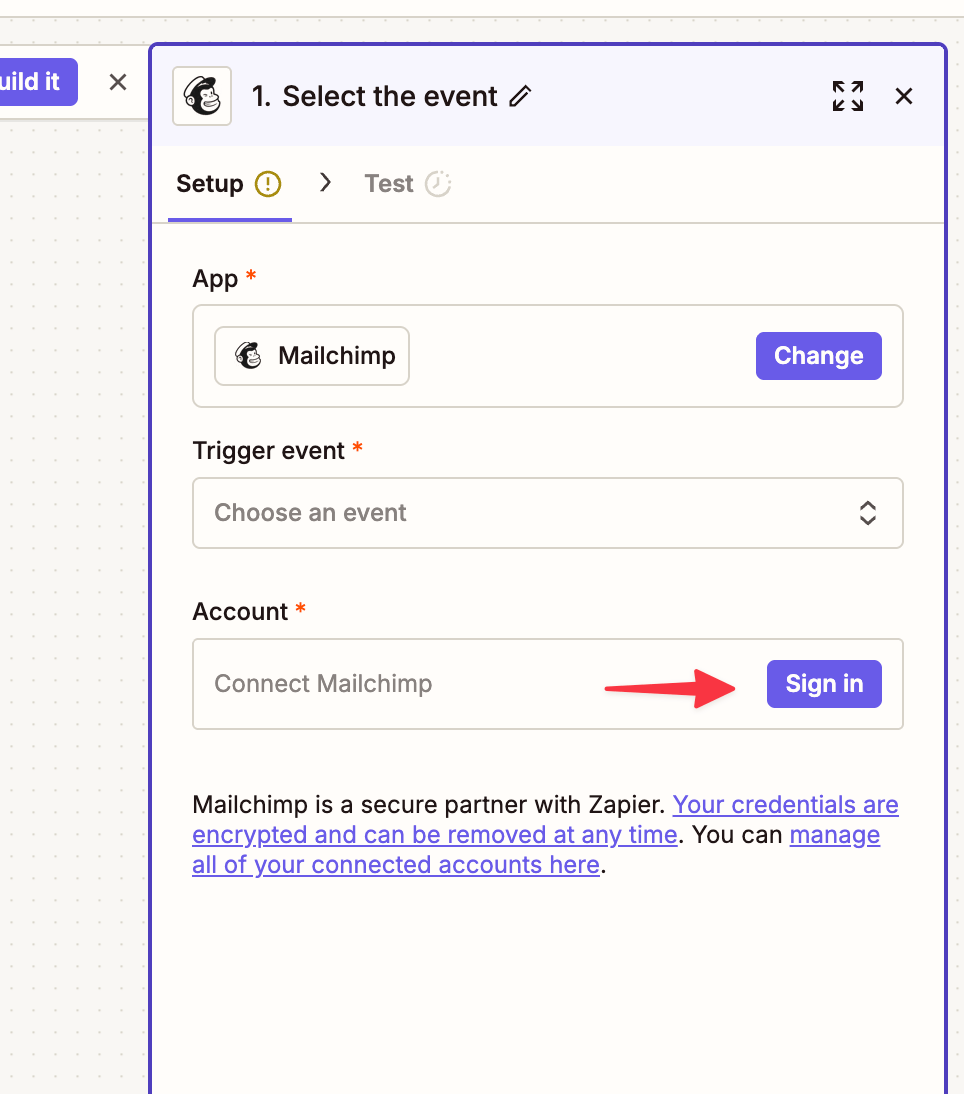
- Click Sign in to connect your Mailchimp account:
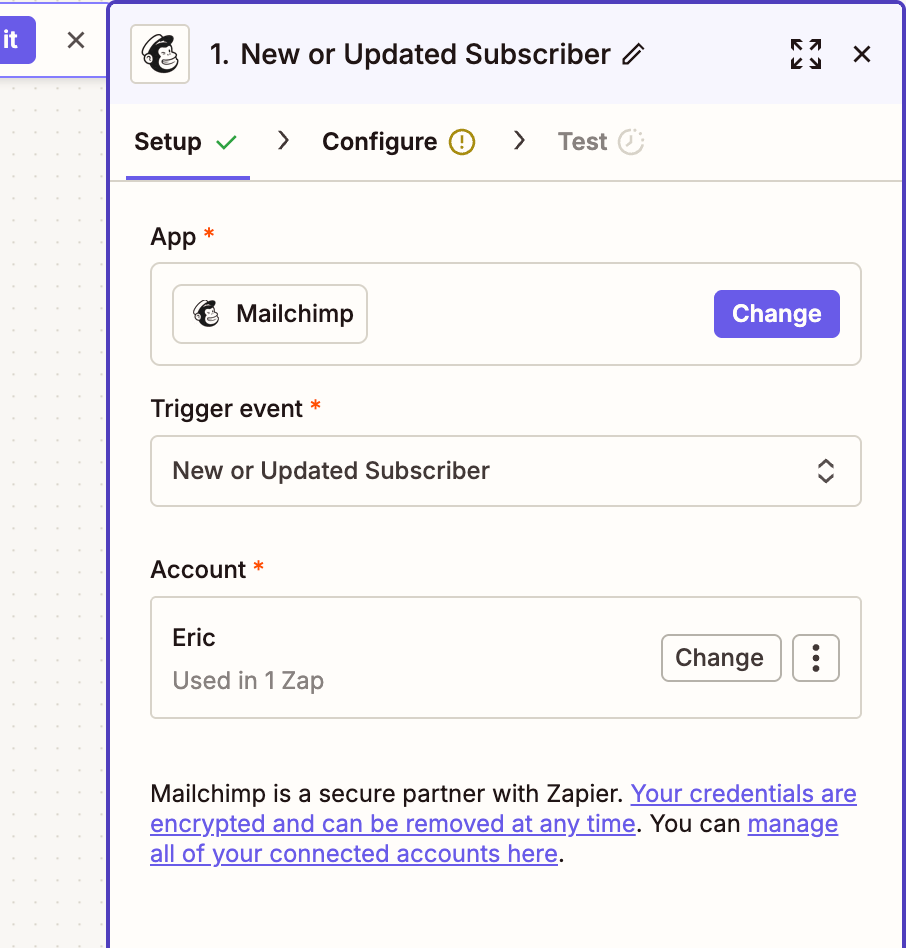
- Select New or Updated Subscriber as the Trigger event:
- Under configure, select the audience you want to sync to Metorik:

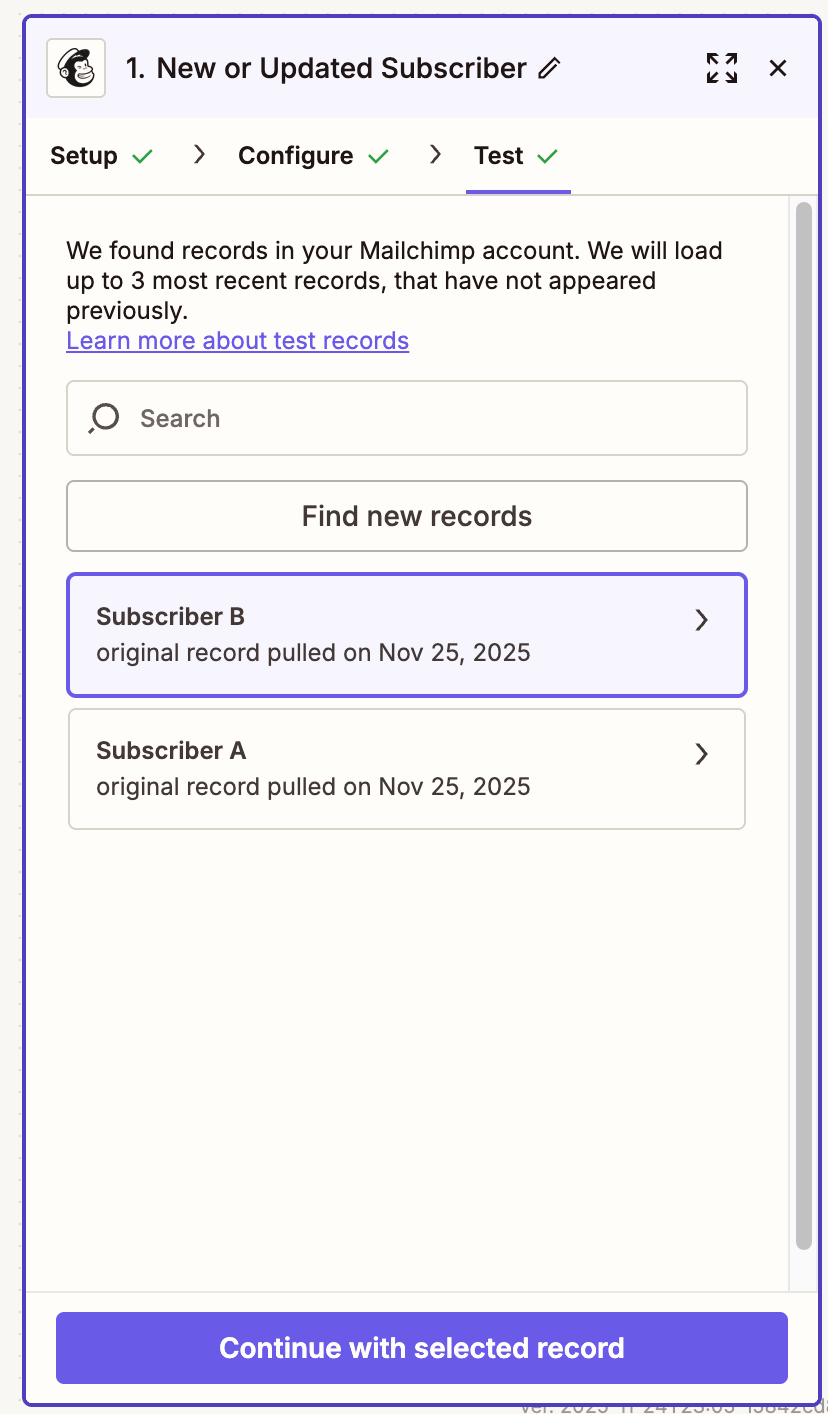
- Select a subscriber to use as a test, then click Continue with selected Record
Step 2: Setup Zapier Webooks to POST to Metorik
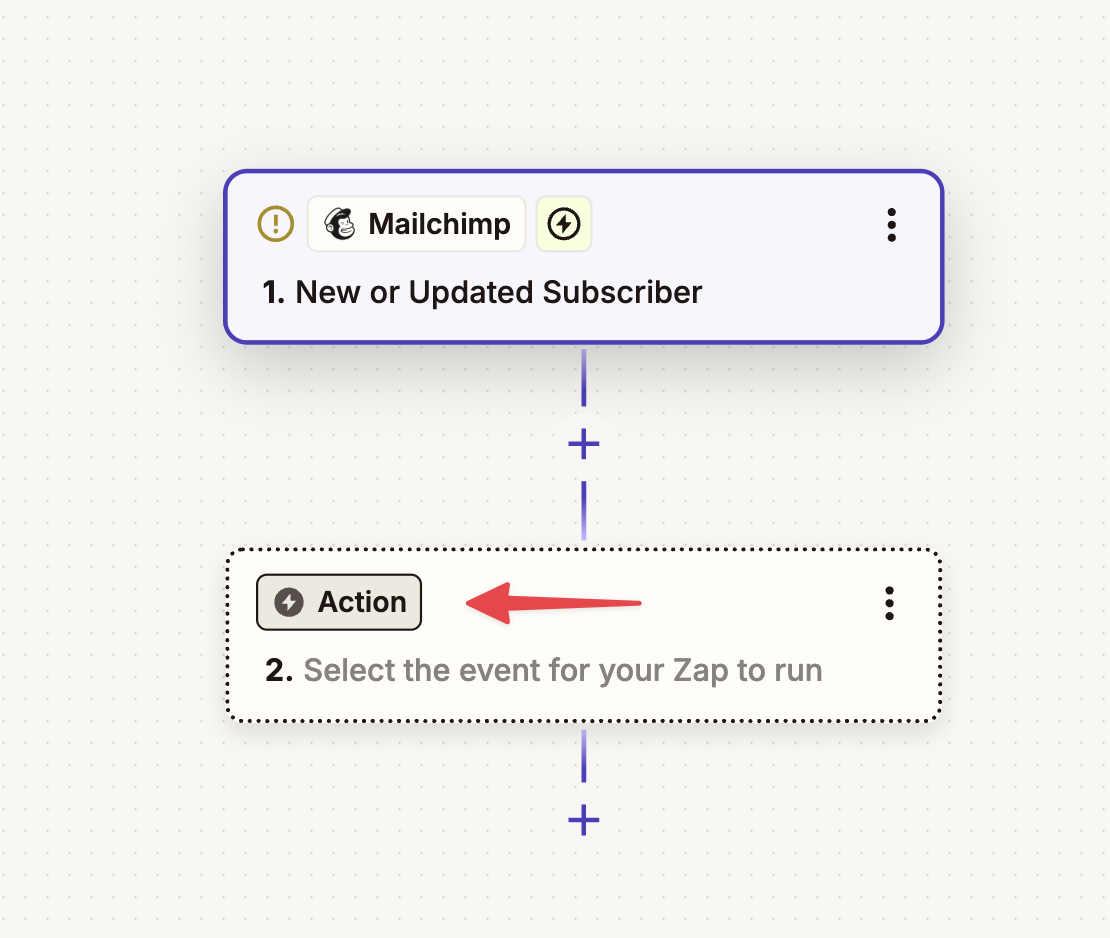
- Click on the Action Box:
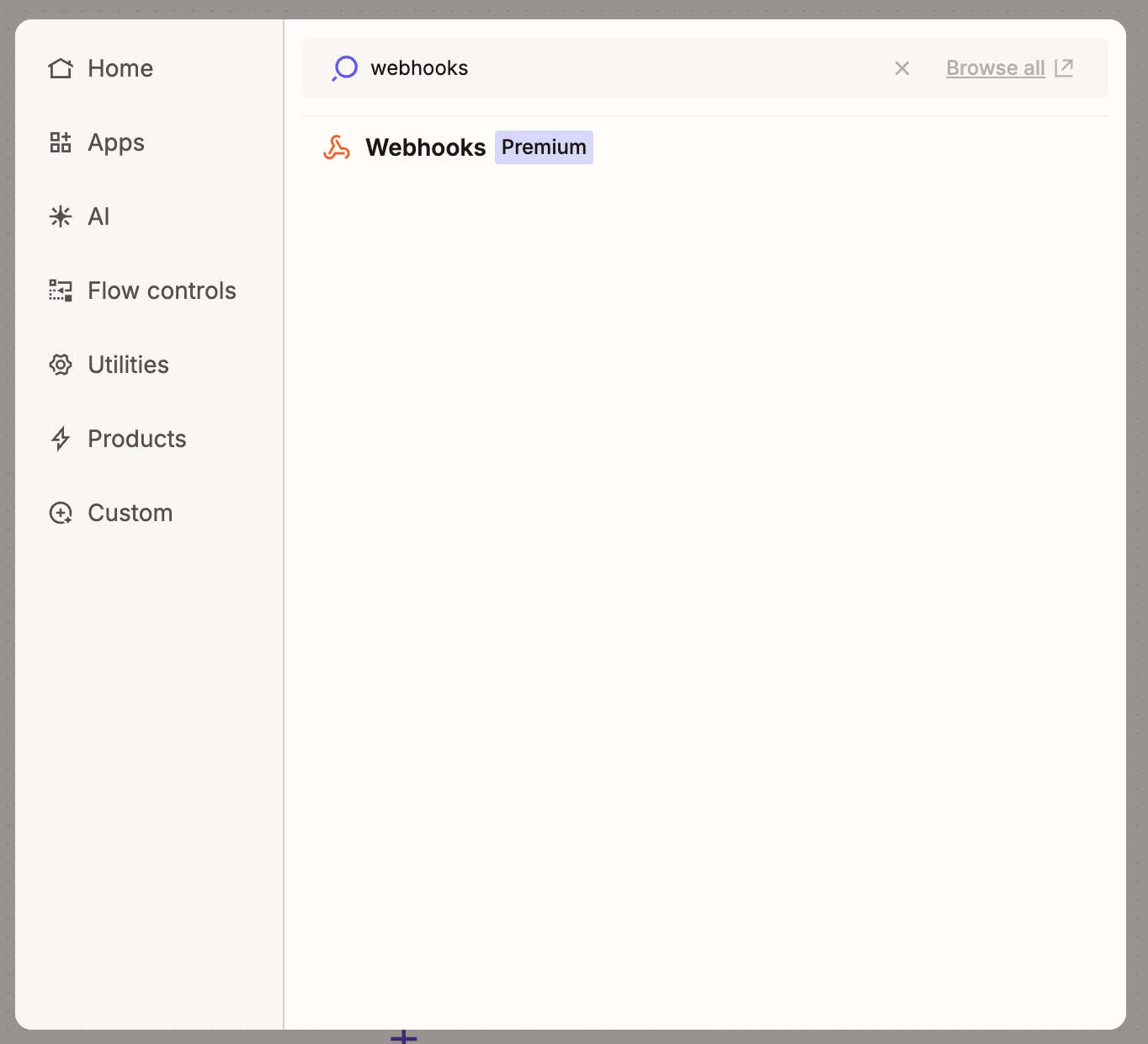
- Select Webhooks:
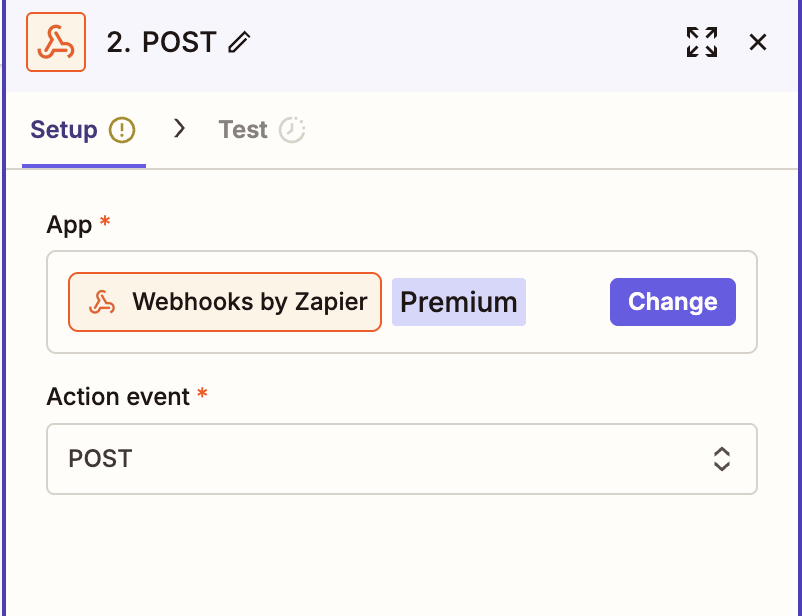
- Select POST as the action event, and then click Continue
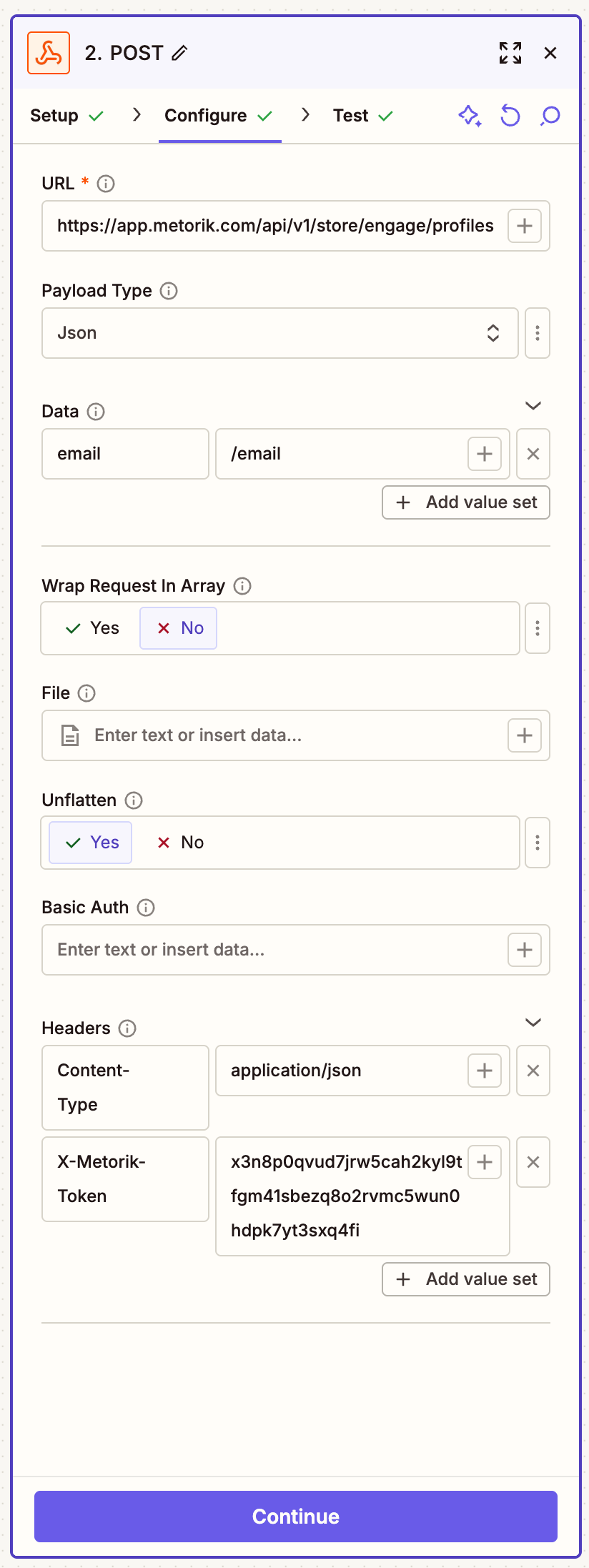
4a. Under configure add the following details
- URL https://app.metorik.com/api/v1/store/engage/profiles
- Payload Type: JSON
- Data:
- Email (look at 4b for details on how to add this field).
- You can map other fields too like company, consent etc...)
- Headers:
- Content-Type: application/json
- X-Metorik-Token: Your Metorik API Key
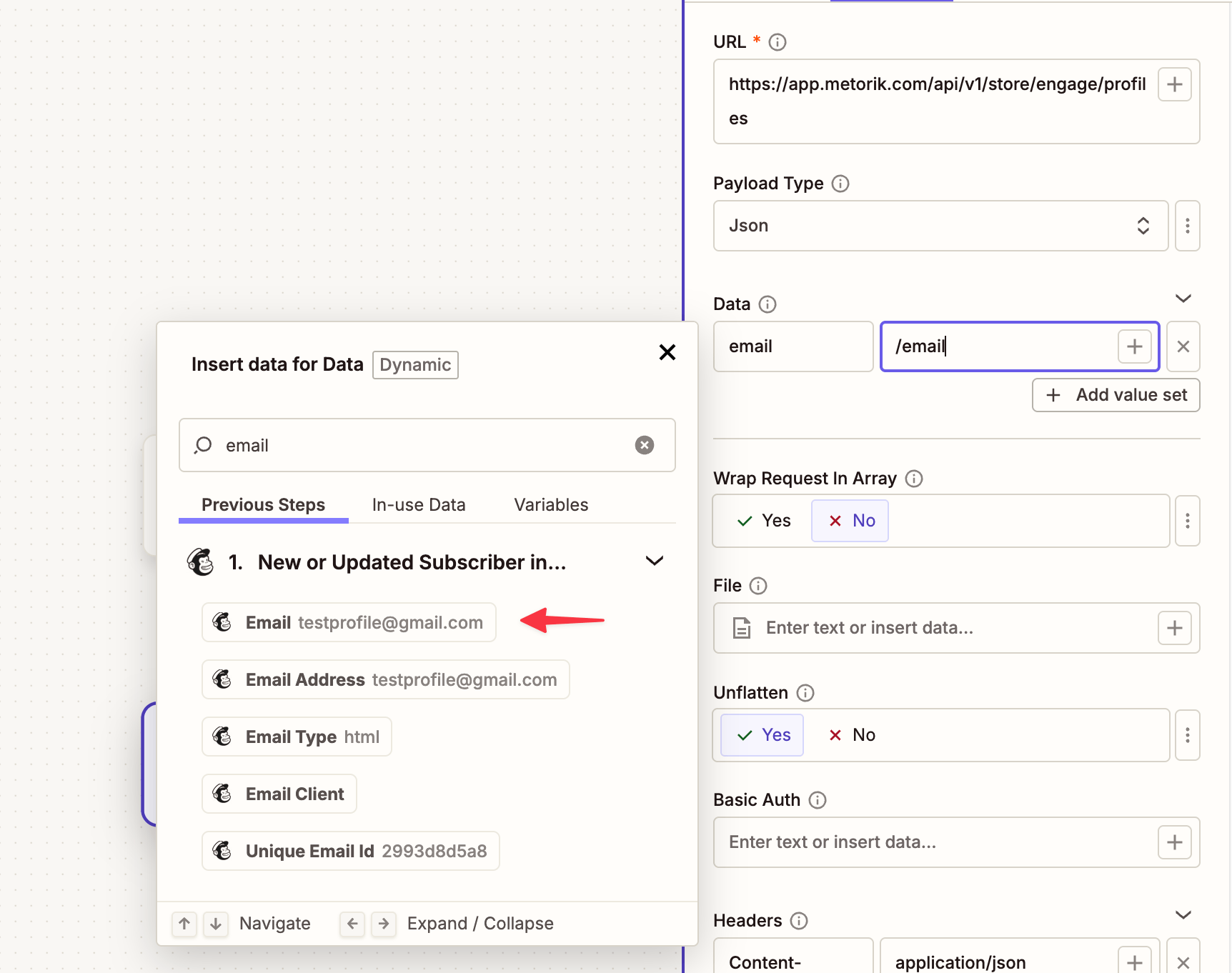
4b. For Email, press / to bring up a the field mapping, and select email:
Here is what the entire page should look like, click continue at the bottom:
- That's everything! You can click test, to trigger a test run, if that works you should now see a the test record appear in your Metorik account.
- Publish your Zap and you're good to go.
You can read more about creating Zaps directly in the Zapier Docs