
Operational Costs
Operational costs let you fully track day-to-day business overhead (for example: rent, salaries, subscriptions, software, agencies, etc.) alongside your store’s other costs and profit reporting.
Setting costs
Operational costs support one‑off and recurring schedules (and you can optionally assign a category to keep reports organised) Where to add costs Go to Costs → Operational
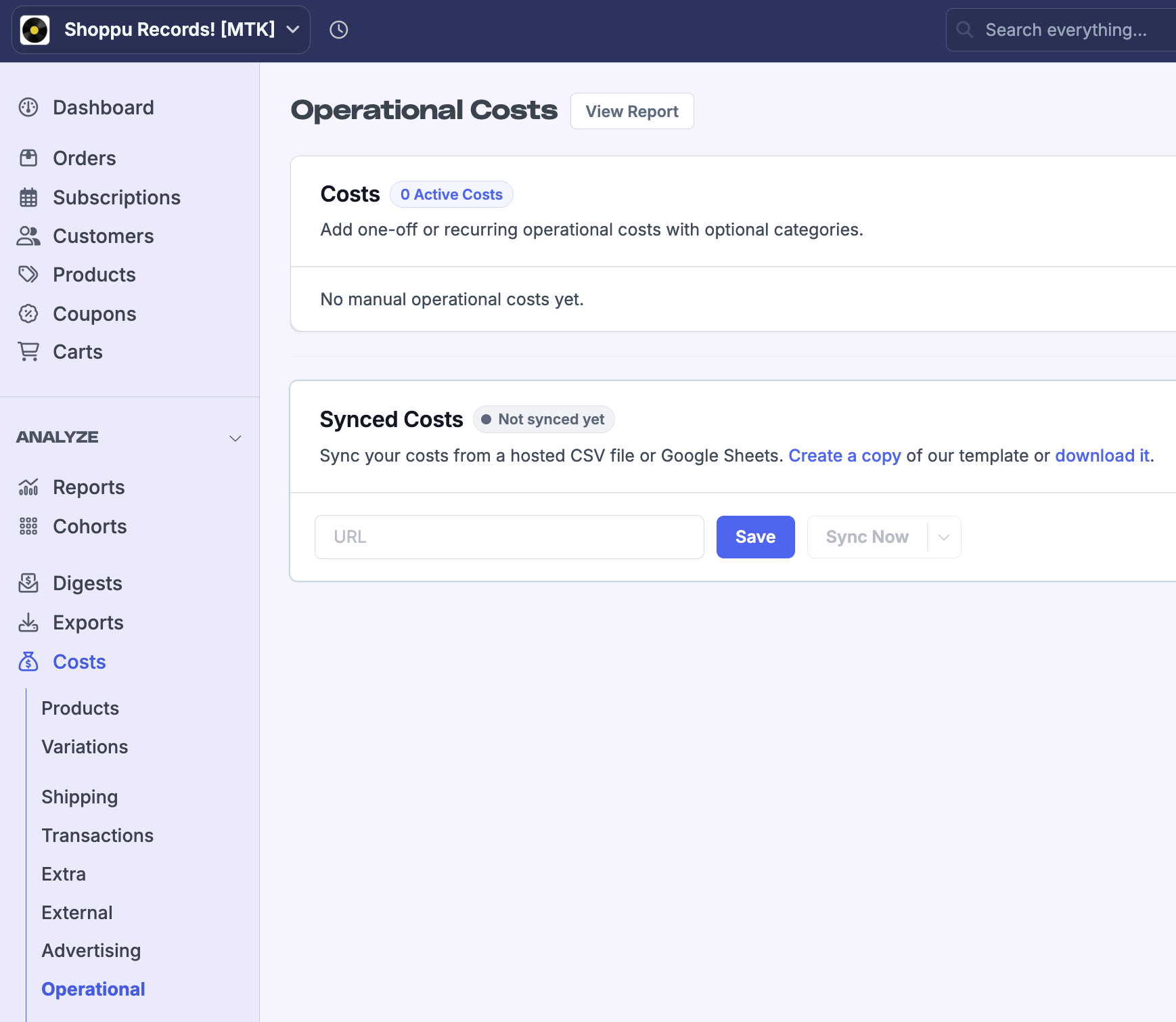
Then from the Costs section you can start to add a new Cost by clicking the Add Cost button.

Add a Recurring cost
Use recurring costs for expenses like rent, subscriptions, software, salaries, etc.
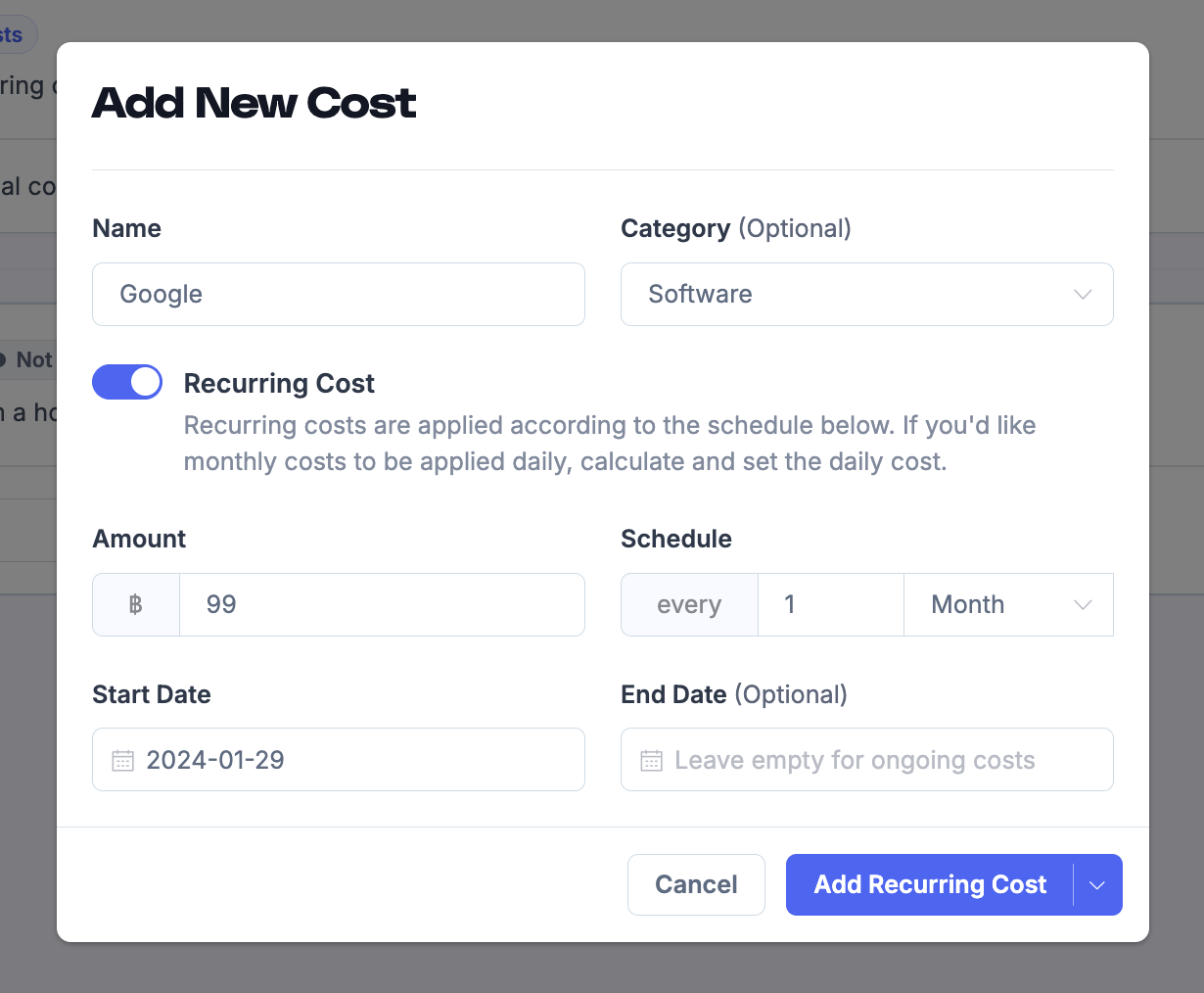
Enter a Name.
(Optional) Choose or create a Category.
Toggle Recurring Cost on.
Enter the Amount.
Set the Schedule (every X day/week/month).
Choose a Start Date.
(Optional) Set an End Date or leave blank for ongoing costs.
How recurring monthly costs are applied
Recurring monthly costs are applied on the same calendar day as the Start Date.
If the start date is the 1st–28th, the cost is applied on that day every month.
If the start date is the 29th–31st, the cost is applied on the last day of the month instead.
For example, a cost that starts on the 3rd will apply on the 3rd of every month. A cost that starts on the 30th will apply on June 30th, then July 31st, August 31st, and so on.
Add a One‑Off cost
Use one‑off costs for expenses that happen once or not on a regular schedule (equipment, one-off services,fees, etc.).
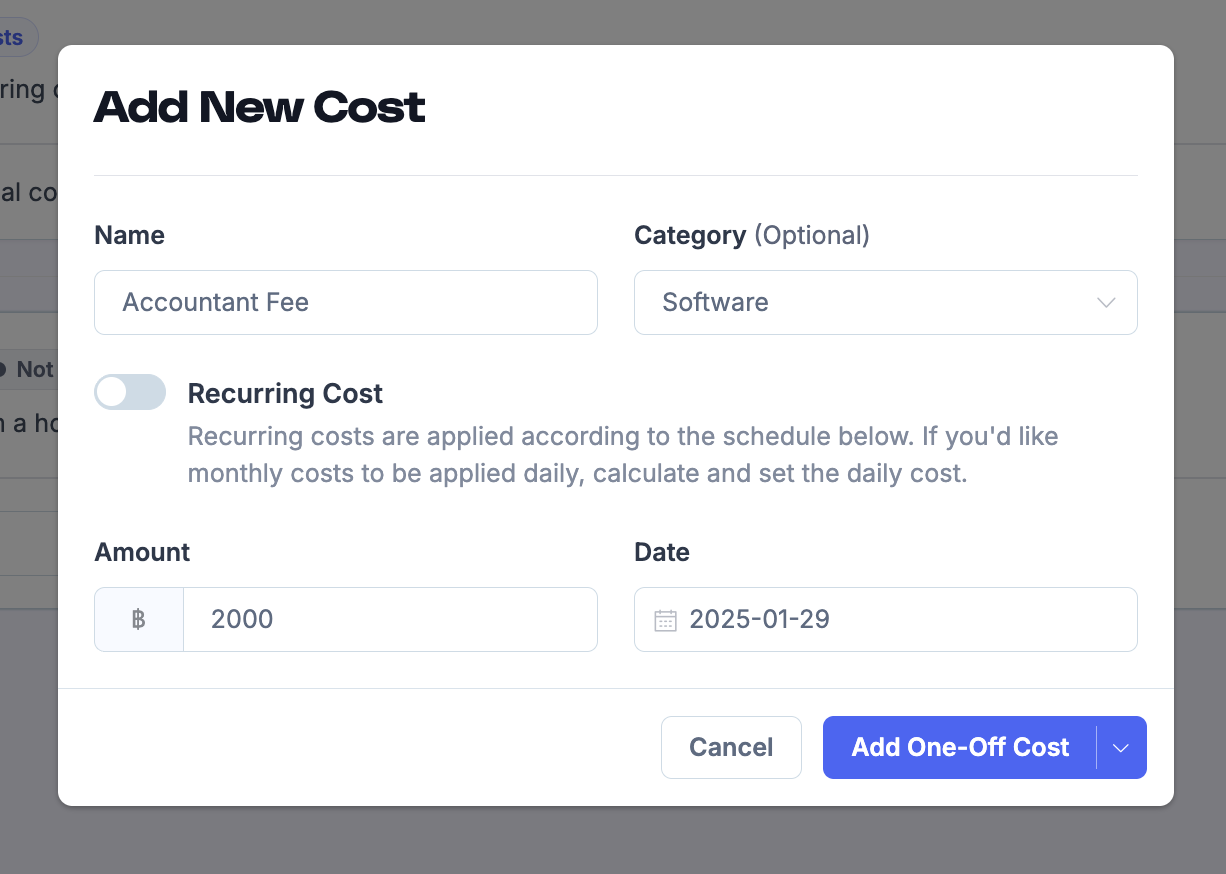
Enter a Name.
(Optional) Choose or create a Category.
Toggle Recurring Cost off.
Enter the Amount.
Choose a Date.
Categories are optional, but recommended if you have a lot of different costs to add as they help you filter costs in the list and group costs in reports.
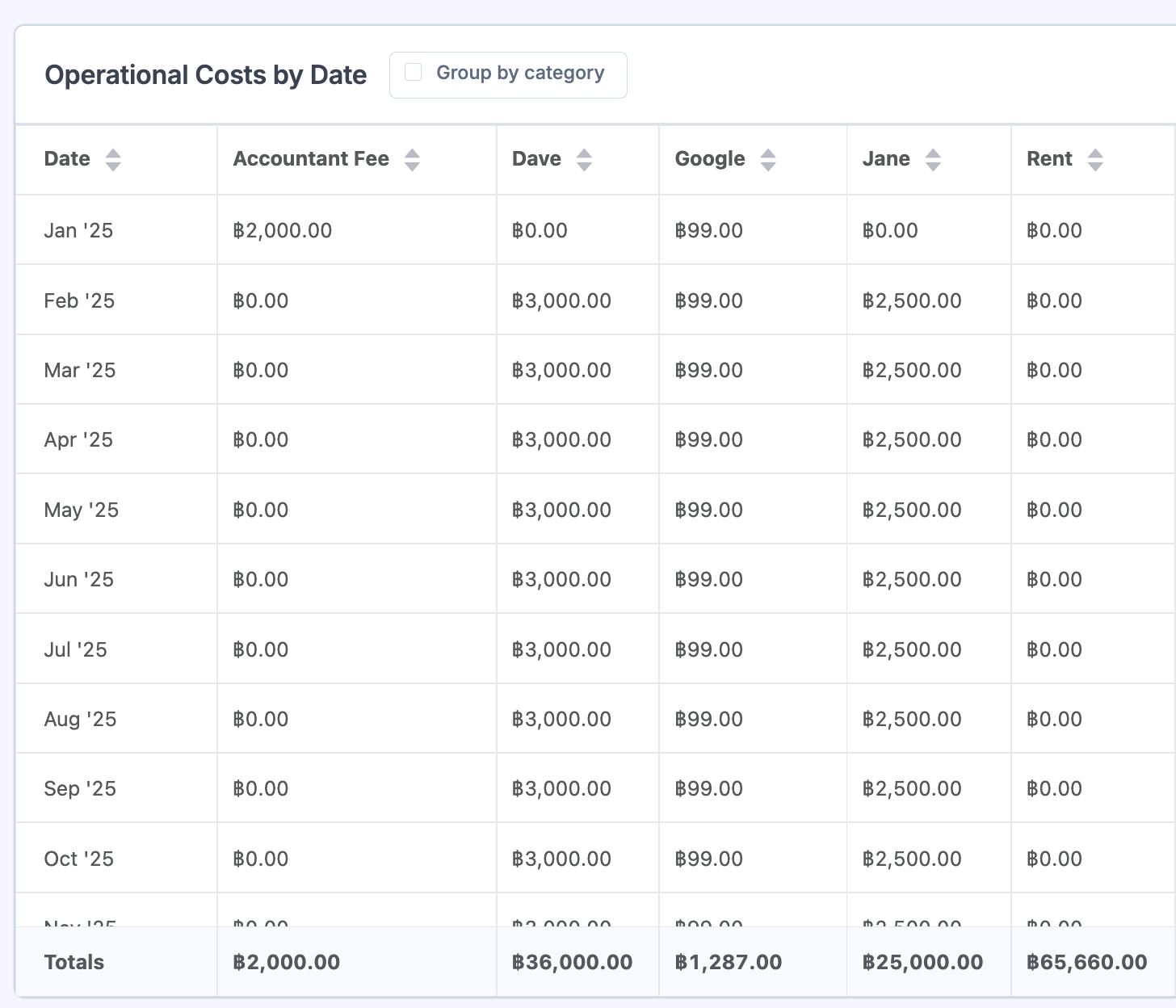
Once you have set up your costs, you can view them on the Profit report, or by clicking on the View Report button at the top.
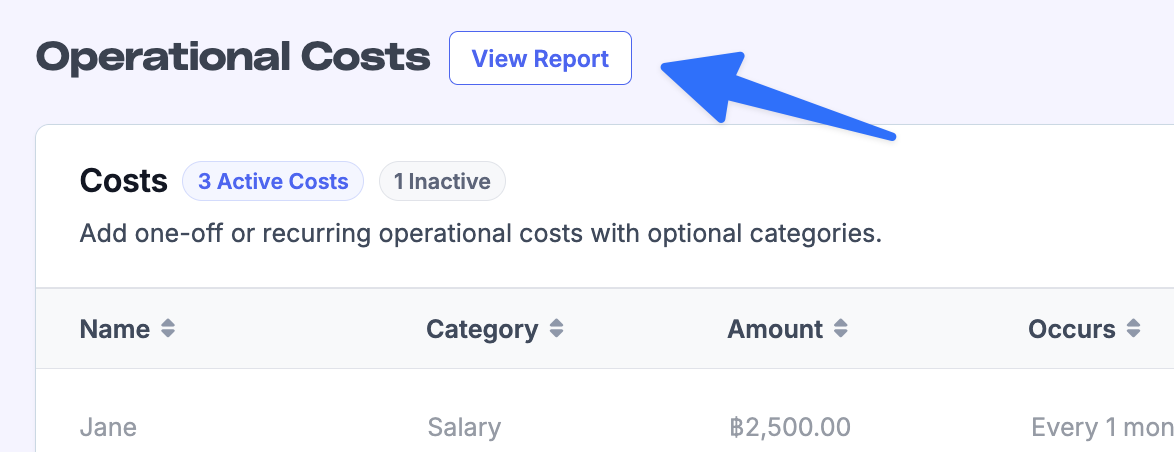
Each cost is then broken down by either day/month/year depending on the date range selected and the display frequency.
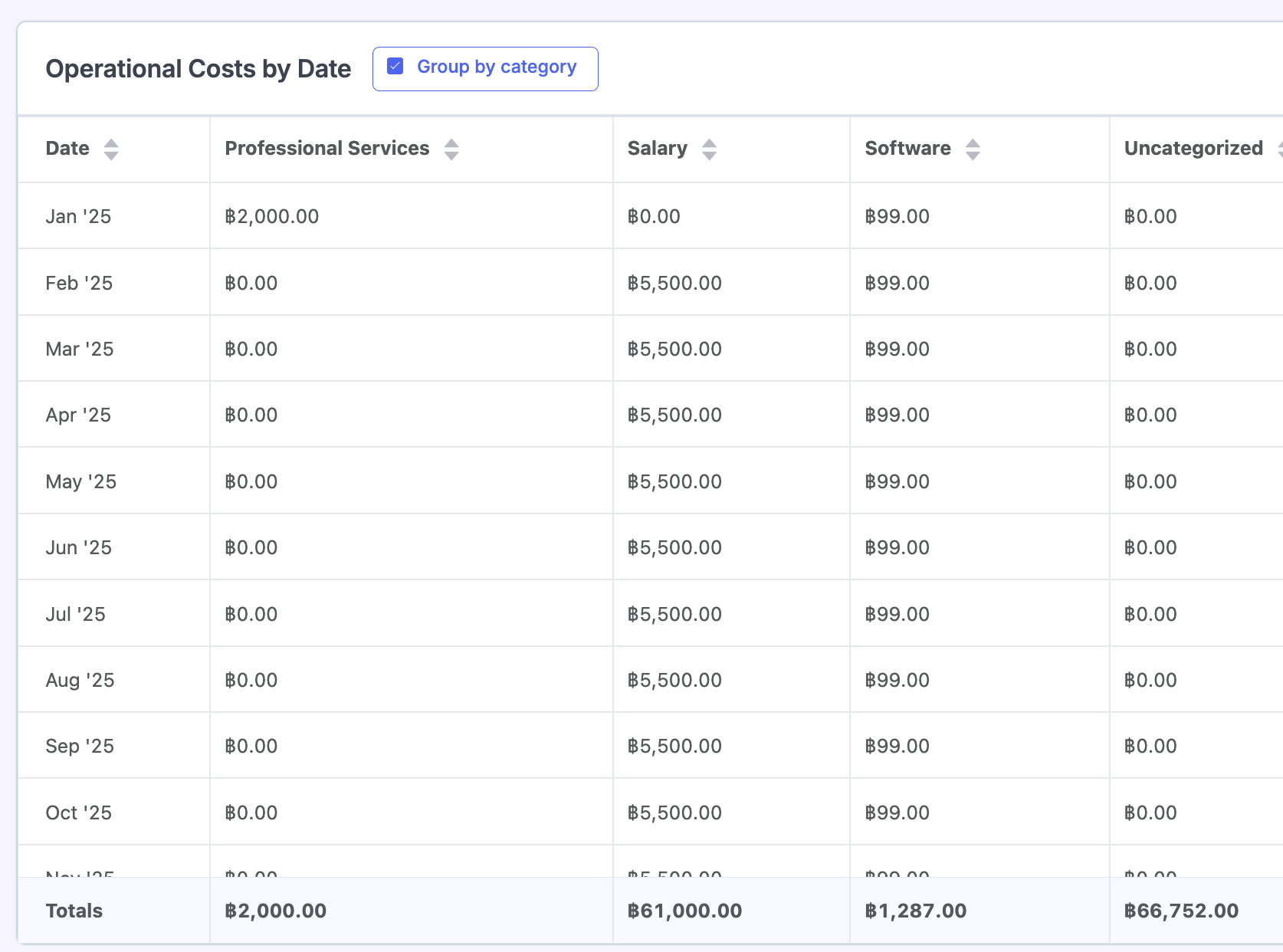
You can also Group by category
Managing existing costs
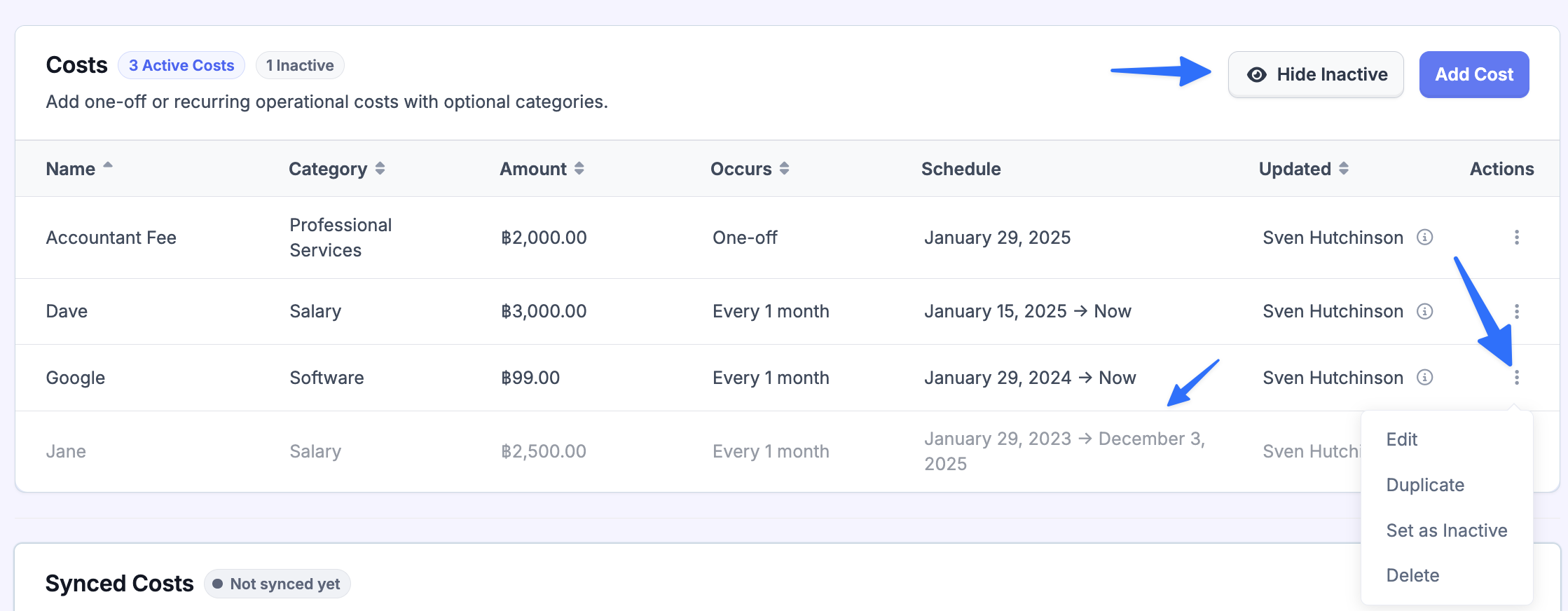
You can show/hide inactive rules. (set to hidden by default)
From the costs list, you can:
Edit a cost rule
Duplicate a rule
Set as Inactive (stops future scheduled costs from tomorrow)
Delete a rule (removes the rule and generated costs)
Setting Costs with CSV
There may be certain situations where you would prefer to sync costs with a CSV (i.e if you already have a workflow that automatically updates your costs into a spreadsheet)
You can add these costs from the Operational Costs settings page in Metorik by syncing them from a published CSV containing your daily/monthly/yearly operational costs. Metorik will then sync the CSV and import the data into your store.
CSV format
Your CSV should follow this structure:
First column:
dateAdditional columns: one column per operational cost “source” (eg.
rent,salary,subscriptions,software. You can add as many as you like. )One row per date with the cost amount for each source
Example:
date | subscriptions | rent | salary |
2026-01-01 | 50 | 2000 | 10000 |
2026-02-01 | 50 | 3000 | 12000 |
2026-03-01 | 50 | 3000 | 12000 |
Date format
The date should be YYYY-MM-DD (eg. 2026-02-01 ).
Important notes
Don’t use commas in cost amounts: Metorik reads CSV columns by splitting on commas. If you include commas inside a number (eg.
1,234.56), the import will fail because the column count won’t match the headers. Use1234.56instead.Blank / zero values remove costs: If a cell is blank or
0, Metorik will delete any existing operational cost for thatdate+source. This is useful if you want to “unset” a cost for a day.Negative values are allowed: If you need to record a negative adjustment (eg. a refund/credit), you can use a negative number.
Column names are truncated: Source names are taken from your header row and truncated to 50 characters.
Publishing a CSV (Google Sheets)
Create your sheet based on the operational cost CSV template:
The CSV should be based off this template
If you have a Google account you can click here to create a copy :
Fill in your daily operational costs.
In Google Sheets, click File > Publish to the web.
Choose Comma-separated values (.csv) as the format.
Copy the published CSV URL.
Setting up the sync in Metorik
Go to Costs → Operational → CSV Sync.
Paste your published CSV URL into the URL field.
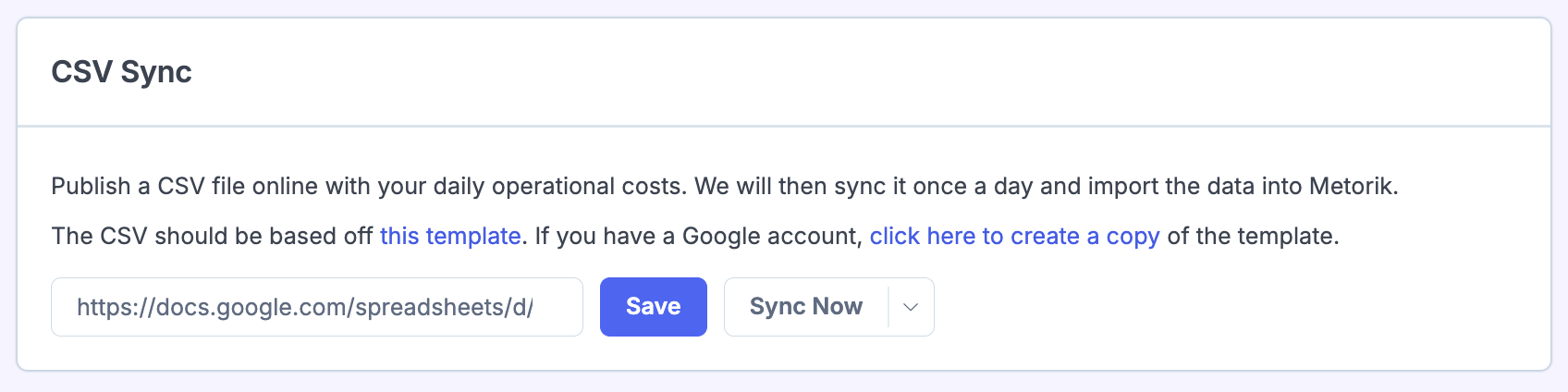
Click Save.
Click Sync Now to trigger an import immediately (optional).
Sync frequency: We sync your operational costs CSV automatically every 6 hours
Future Costs
You can add future dates and costs so that you don't have to be updating the sheet all the time. Metorik will simply bring in and show that cost when the date arrives.
Wrong link warning (Google Sheets)
If you paste a normal Google Sheets “edit” URL (it usually contains google and edit ), Metorik will warn you that it’s the wrong link. You must publish the sheet to the web and use the published CSV URL instead.
Once synced, you will be able to see the full breakdown and totals on the Profit report.
Clearing CSV operational costs
If you want to remove your CSV-synced operational costs, open the dropdown next to Sync Now and choose Clear existing CSV costs.
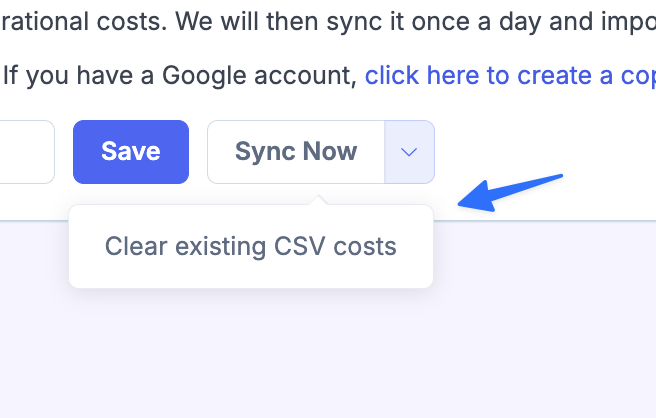
This will delete all operational costs for the store.
This cannot be undone.
Related documentation
If you’re looking for ad spend syncing (ad platforms + ad cost CSV), see the Advertising Costs doc: Syncing Advertising Costs (CSV section).