
How to filter your order report by SKU
By default, the Orders report shows data for all successful orders. You can narrow this down to specific products using the Line Item SKU filter, then group and analyze results by location, customer type, payment method, and more. This works for both WooCommerce and Shopify stores.
Open the Orders report
Go to app.metorik.com/reports/orders. You'll see an overview of all your successful orders.
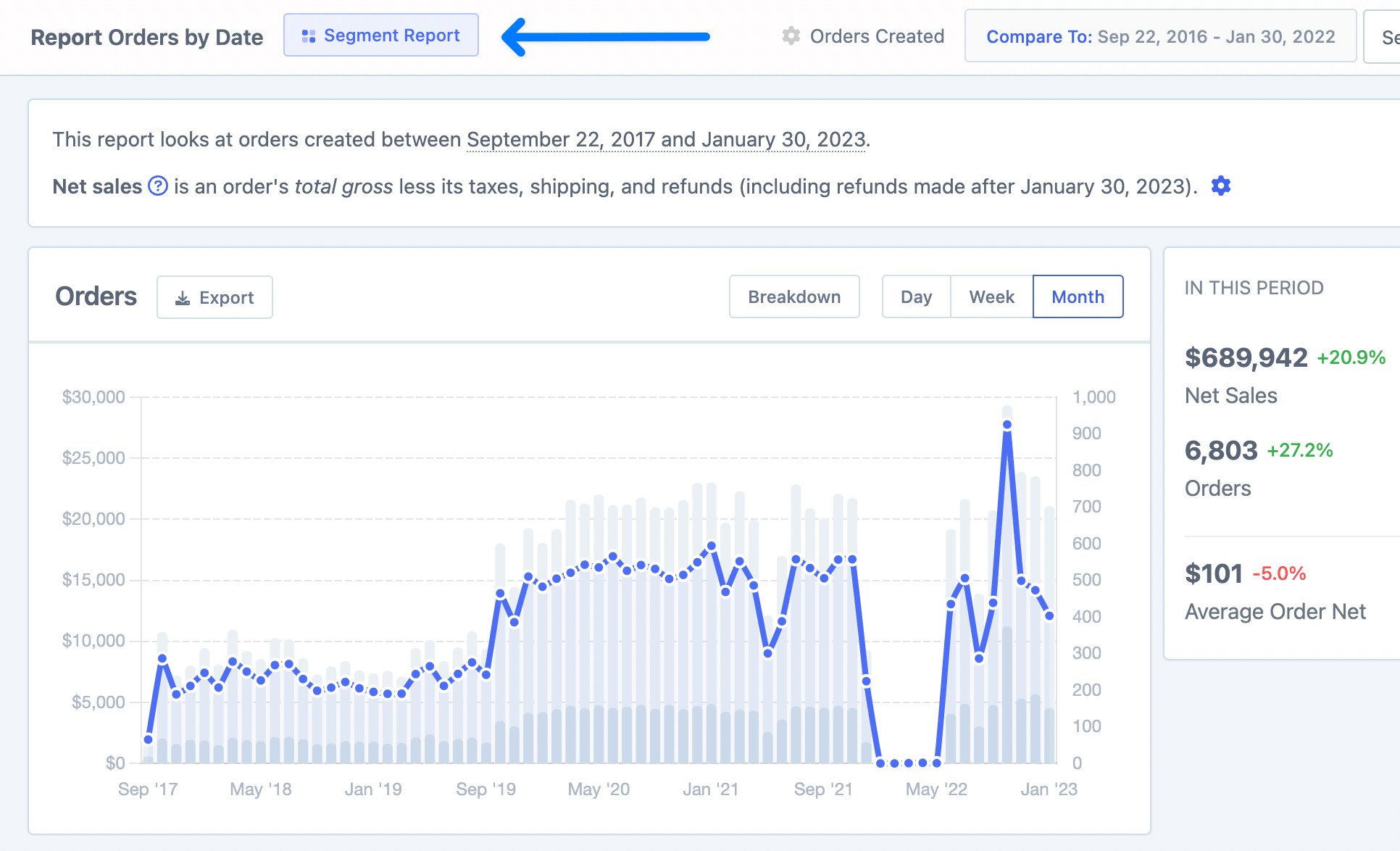
Click Segment Report
Click the Segment Report button at the top of the page to open the Segmenting Tool.
Add the Line Item SKU filter
In the Segmenting Tool, select Line Item SKU from the filter dropdown. Enter the SKU you want to filter by.
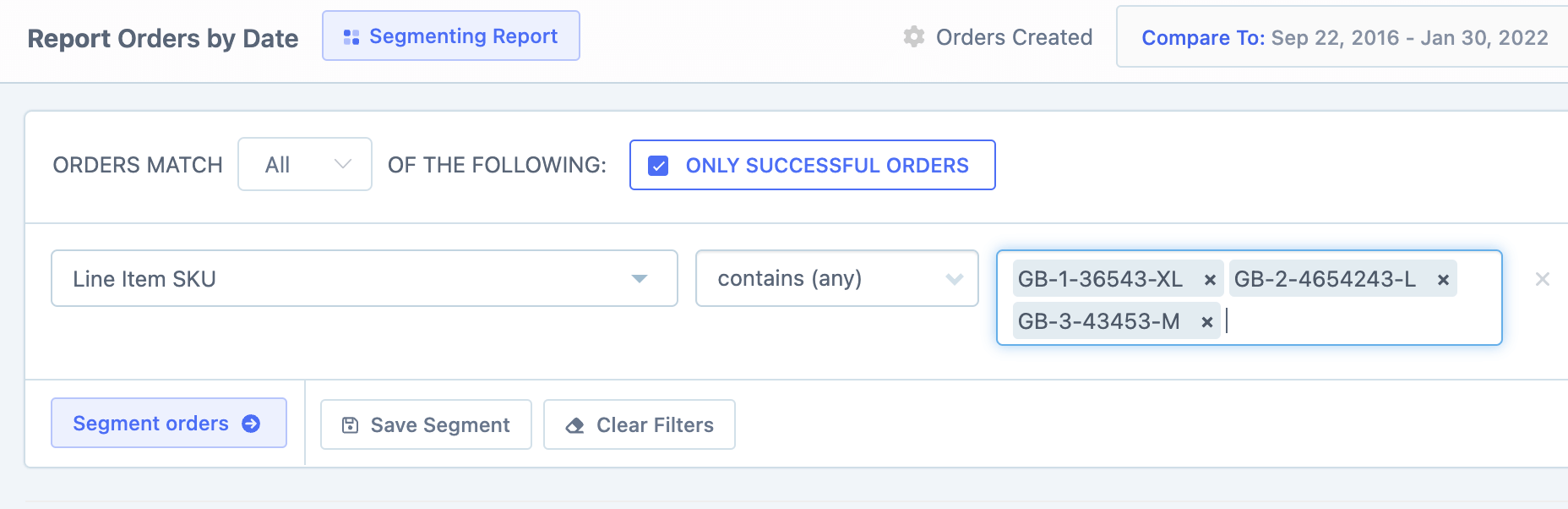
Segment the orders
Click Segment Orders to apply the filter. The report will now show only orders containing those SKUs.
Group and analyze your results
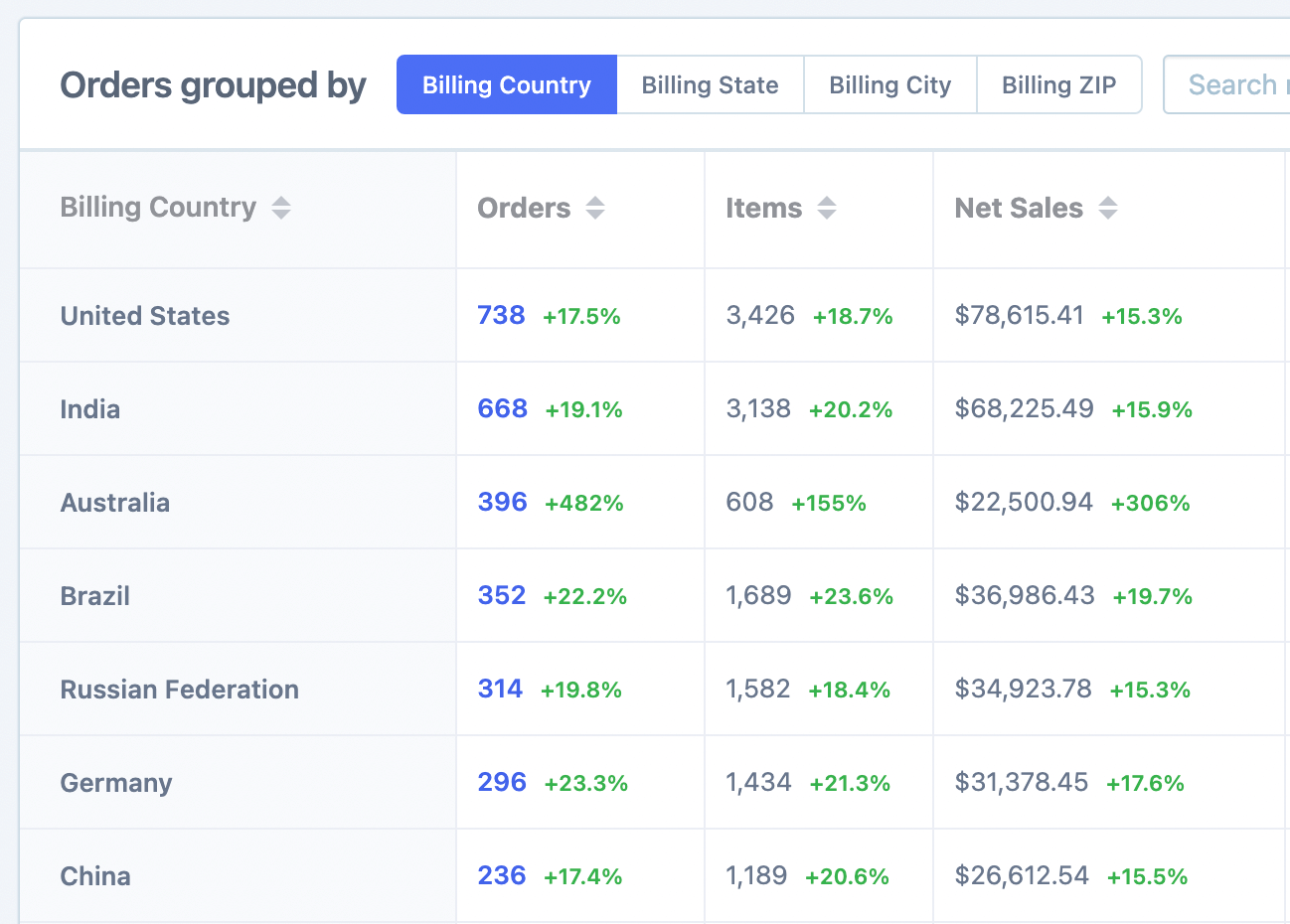
Once filtered, you can group the results to analyze patterns. Available groupings include:
Location: Billing Country, Billing State, Billing City, Billing ZIP
Customer type: New vs Returning customers
Payment: Payment method, Currency
Add additional filters (optional)
You can add more filters to further refine the report — for example, filtering by date range, order total, or customer tags. Just like when segmenting your orders directly, combine as many filters as you need.
Examples of useful groupings
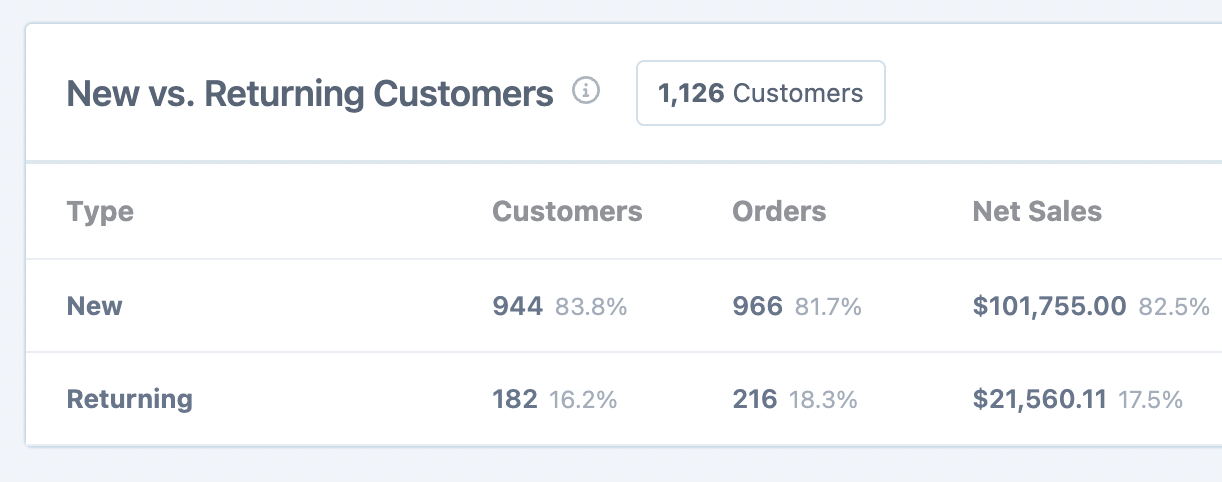
New vs Returning customers
Compare how many orders for a specific SKU come from new customers versus returning ones:
Payment method
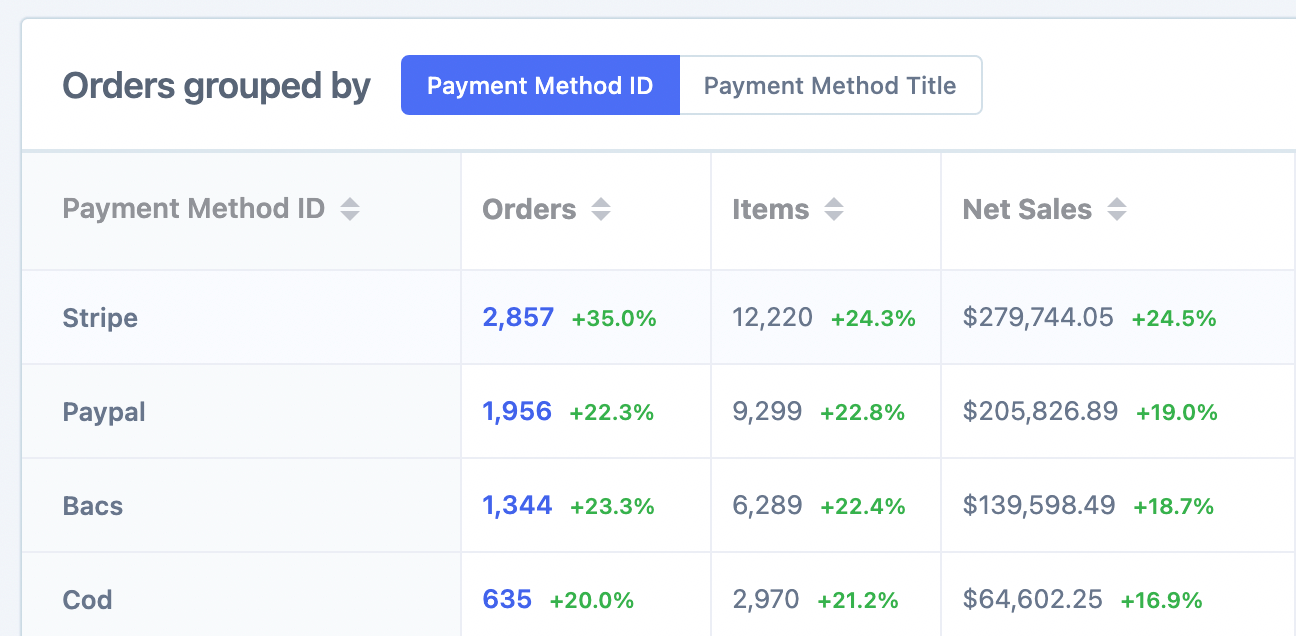
See which payment methods customers use most often when purchasing a particular SKU:
Currency
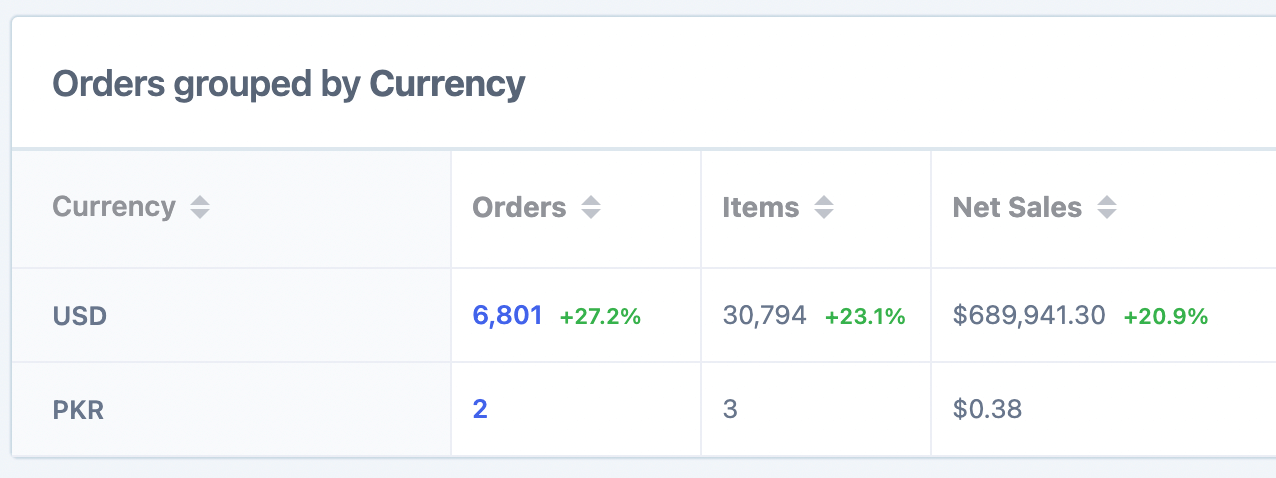
View orders by currency to understand international sales distribution for a product:
Related: Segmenting Data