
Finding customers with a certain total spend in a given time period
Need to identify your high-value customers from a specific time period? Whether you're planning a loyalty campaign, analyzing customer behavior, or creating a targeted promotion, Metorik's segmenting tools make it easy to find customers based on their total spend within any date range.
This guide shows you how to find customers who spent over a certain amount during a specific period, and what you can do with that segment once you've created it.
Go to the Customers page
Head to the Customers segmenting page. By default, you'll see a list of all the customers in your store.
Set the date range
The key to analyzing spend within a specific period is the date picker at the top of the page. This controls which orders are included in the customer metrics you'll see.
Click the date picker and select the period you want to analyze. For this example, we'll look at orders from last year — select Last Year from the dropdown:
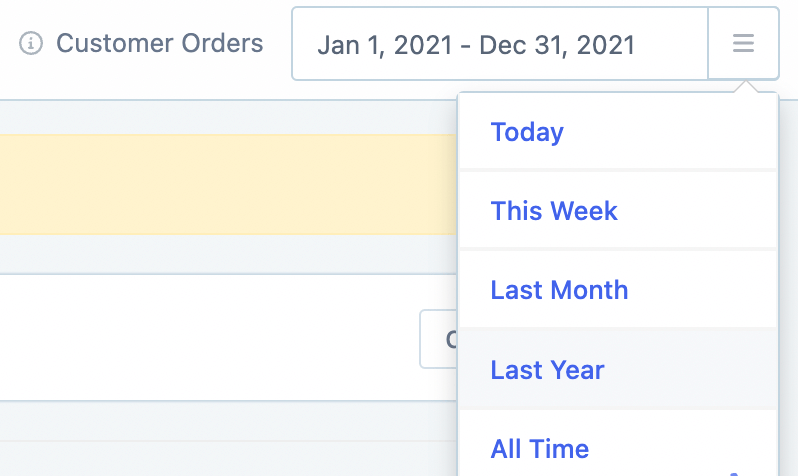
The date range filter ensures customer metrics like total spent and order count reflect only the orders placed during that period, rather than the customer's entire lifetime history.
Add a Total Spent filter
Now add a filter to find customers who spent more than a specific amount. Click the filter dropdown and select Total Spent, then choose greater than and enter your threshold amount (e.g., $200):
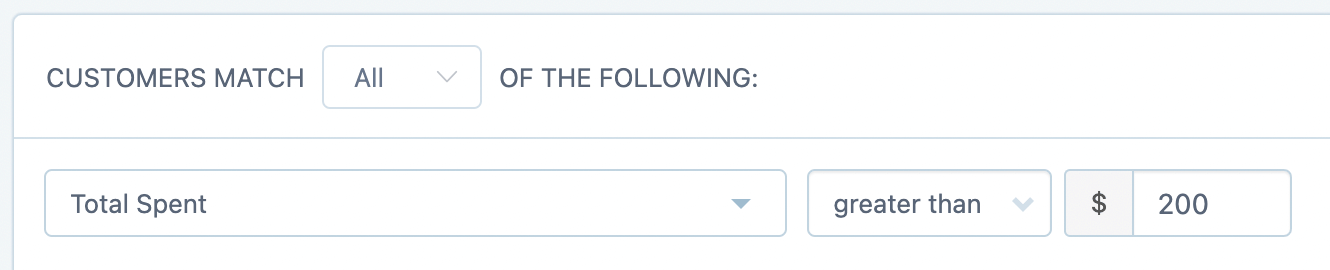
You can use any comparison operator (greater than, less than, between, equals) and any dollar amount that makes sense for your analysis.
Run the segment
Click the Segment Customers button to run the segment. You'll see all customers who match your criteria — in this example, customers who spent more than $200 on orders placed last year.
The totals footer at the bottom of the results shows key stats for your segment, including the total number of customers, their combined lifetime value, and average spend.
What to do with your segment
Once you've created your segment, there are several ways to put that data to work:
Export to CSV
Click the Export button to download your segment as a CSV file. You can customize the export columns to include only the data you need — customer email, total spent, order count, or any other fields relevant to your purpose.
Email the segment with Metorik Engage
Use Engage Automations to send targeted emails to this segment. For example, you could:
Send a thank-you email to customers once they reach a certain spend threshold
Include a dynamic coupon code as an incentive for their next purchase
Create a loyalty campaign for your top spenders
Save the segment for later
If you'll need this segment again, click Save Segment at the bottom of the segmenting area. Give it a name and choose whether to share it with your team or keep it private. Saved segments appear in the Choose a Segment dropdown for quick access later.
Learn more about saving and managing segments in the Segmenting Data guide.