
Creating a daily email of your best & worst selling products
Stay on top of your product performance by setting up an automated daily (or weekly) digest that shows your top-selling and worst-selling products directly in your inbox. This guide walks you through creating a digest focused on product performance.
What you'll see in the email
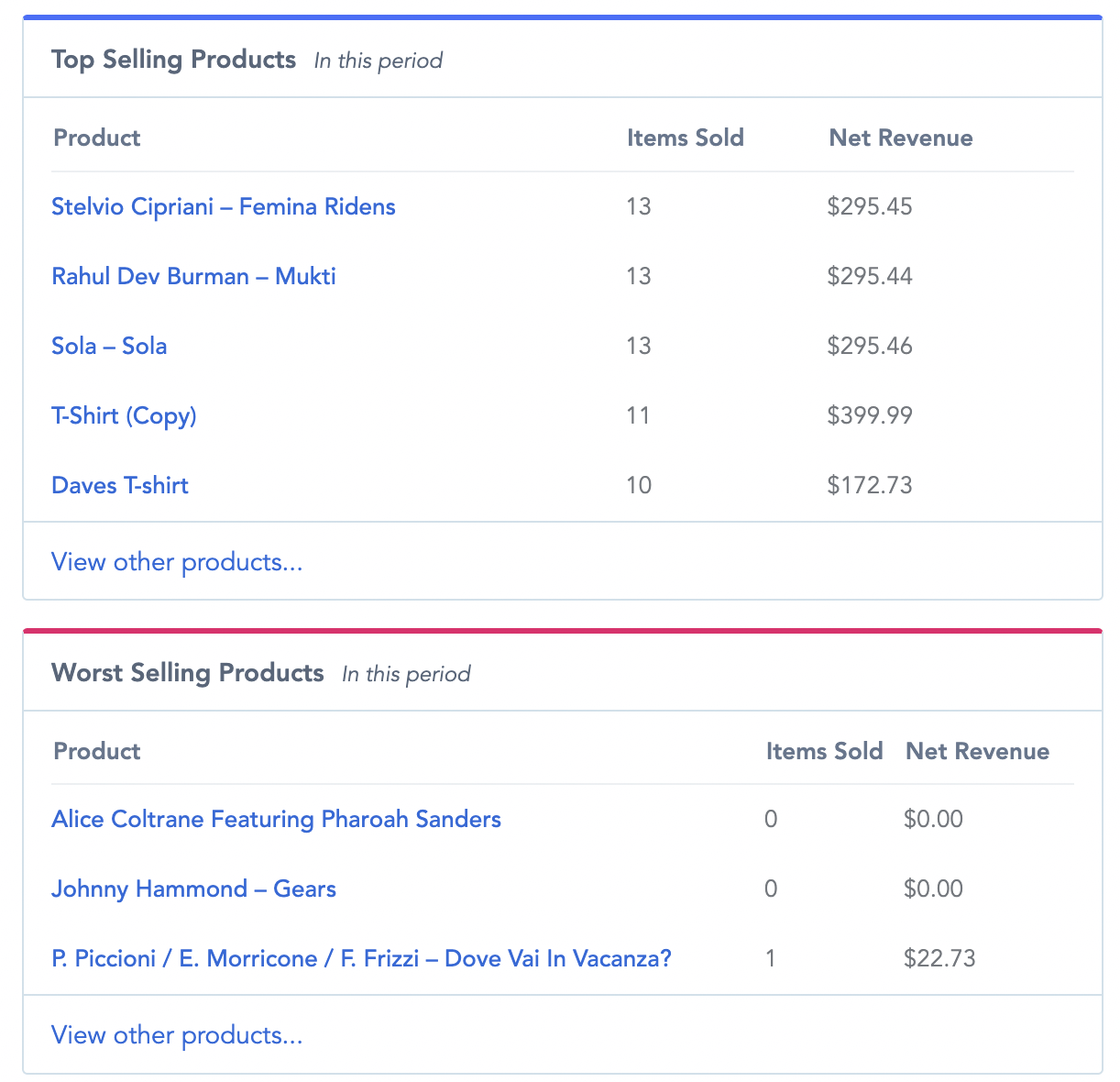
Your digest email will include two key product cards:
Top-selling products: Your best performers for the selected period
Worst-selling products: Products that aren't moving, helping you identify slow movers
Each card shows the number of products you specify, and clicking View other products takes you directly to the Products page in Metorik for deeper analysis.
Creating the digest
First, head to the Digests page to create a new digest. If this is your first time setting up a digest, check out the Creating Digests guide for a complete walkthrough.
Start a new digest
Click New Digest and follow the prompts to set up your digest (name, recipients, and schedule).
Choose the Products template
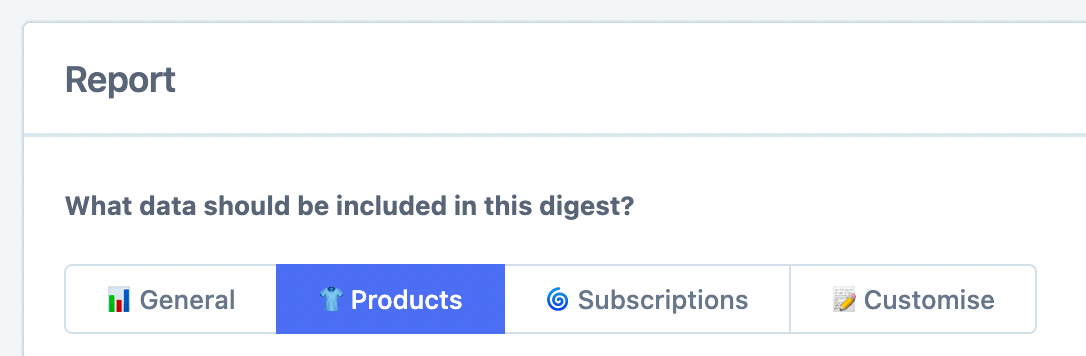
On step 4 (Add your report data), select the Products digest template. This template already includes the top-selling and worst-selling product cards, so most of the work is done for you.
Customize the cards (optional)
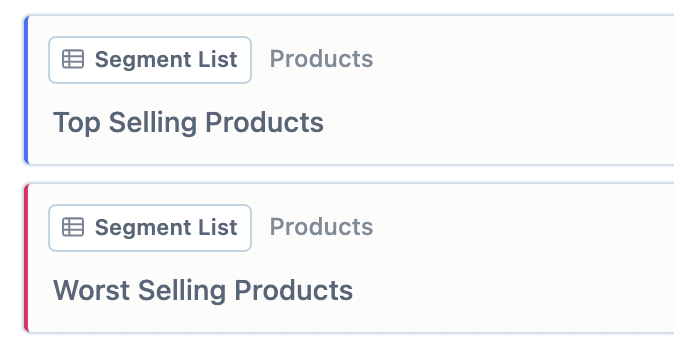
If you want to keep all other cards in the digest, you can simply activate it now. But if you'd like to receive only your best and worst sellers, click the Customize tab:

Remove any cards you don't want by clicking the trash icon, then click Save.
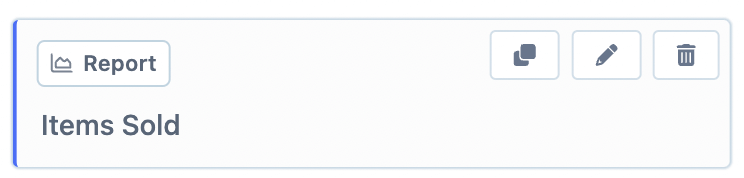
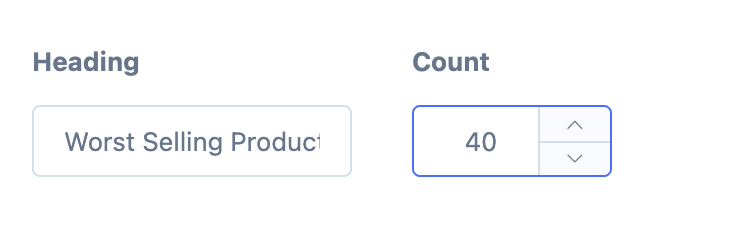
You can also control how many products appear in each list by clicking the pencil icon on a card and changing the Count value:
Save and activate
Click Save & Activate. Metorik will now automatically send this report to your email on the schedule you chose.
What's next
Learn more about Creating Digests for other report types
Explore the Products page for deeper product analytics