
Creating an automated vendor sales summary email
If you work with vendors who supply products to your store, you can automate sending them regular updates about their sales. Metorik offers two approaches: send a visual summary via a Digest, or send detailed CSV data via a Recurring Export.
Step 1: Create a vendor segment
First, create a saved segment that filters products by vendor. Go to the Products page, open the segmenting tool, filter by Vendor and select the vendor name:
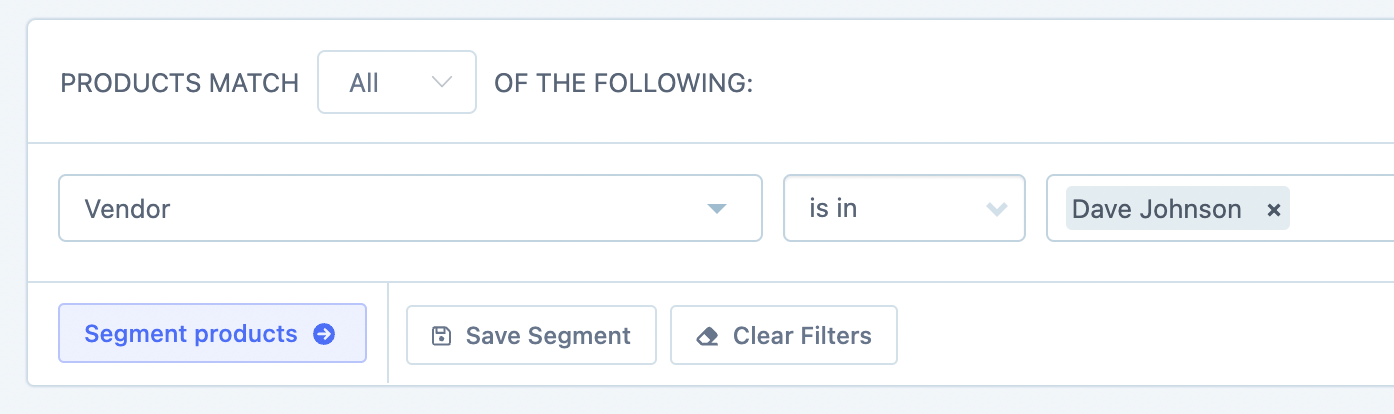
Click Segment Products, then Save Segment and name it (e.g., "Dave Johnson Weekly Sales"):
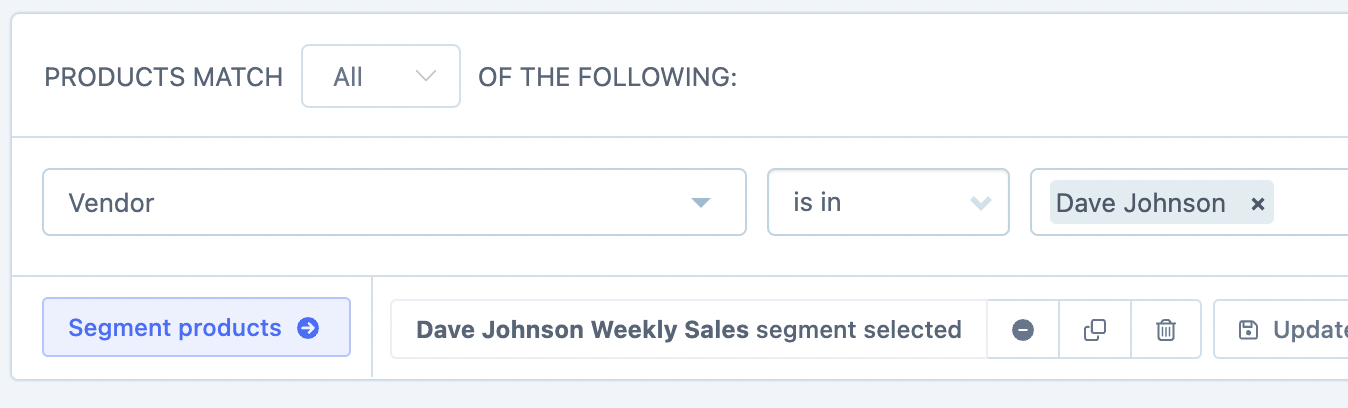
Step 2: Choose your notification method
Option 1: Create a Digest (visual summary email)
Create a new Digest
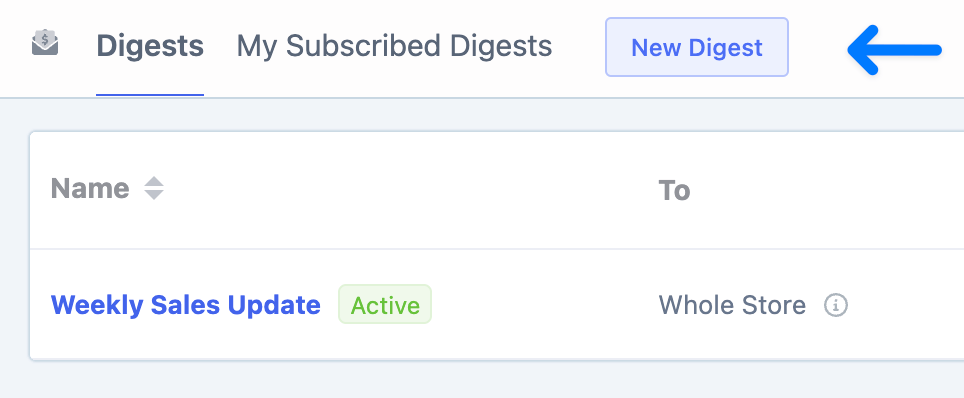
Go to Digests and click New Digest:
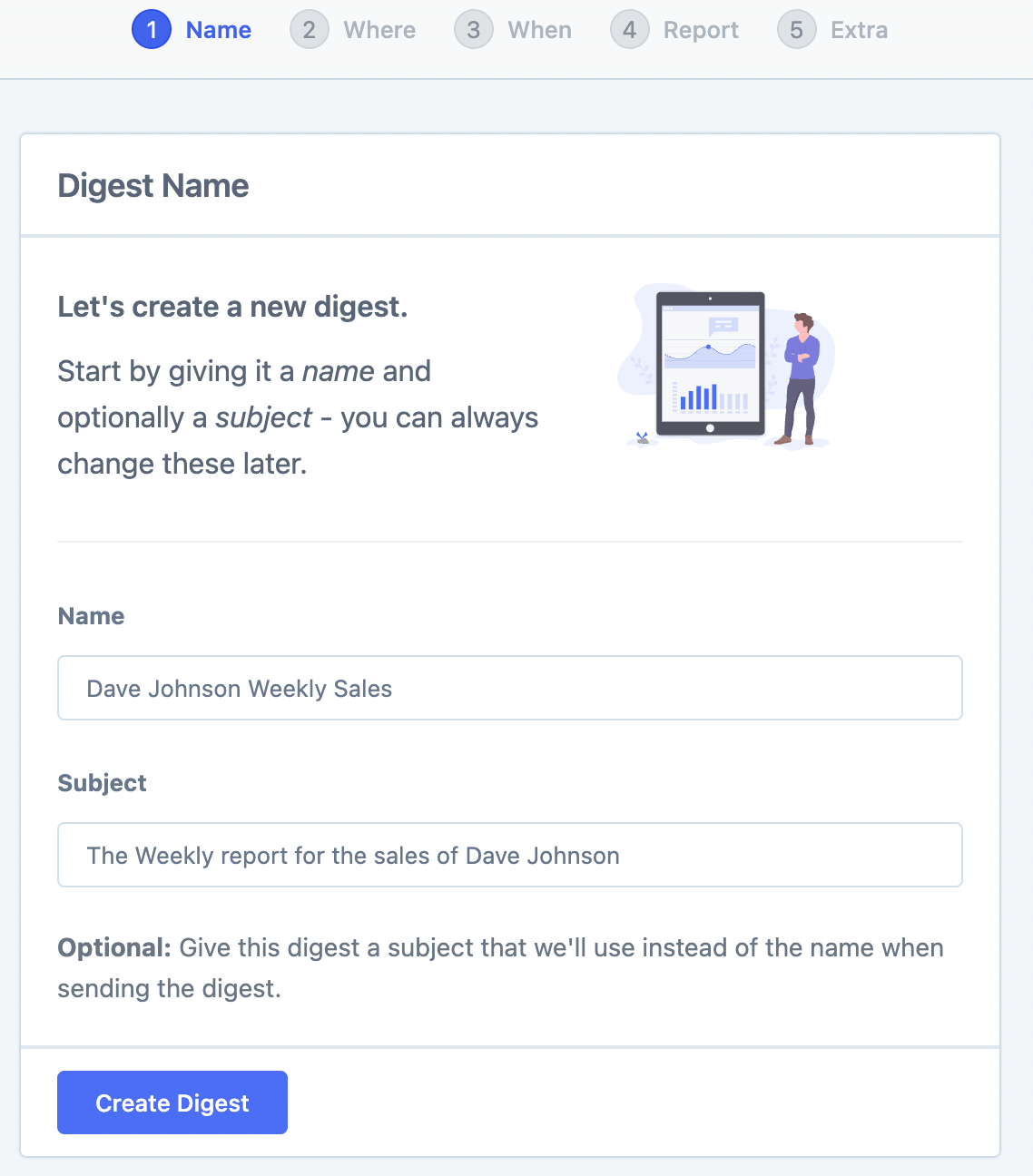
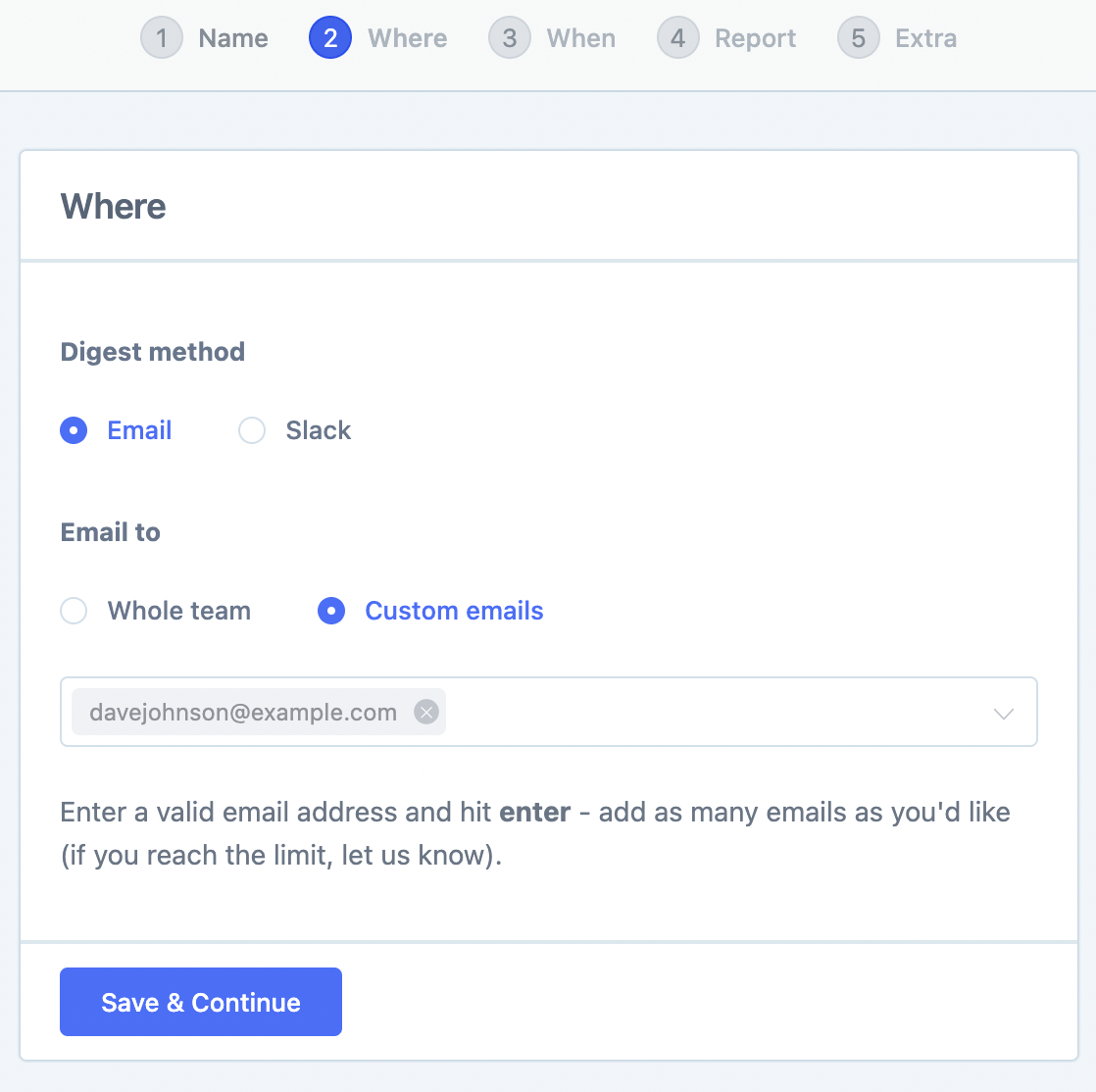
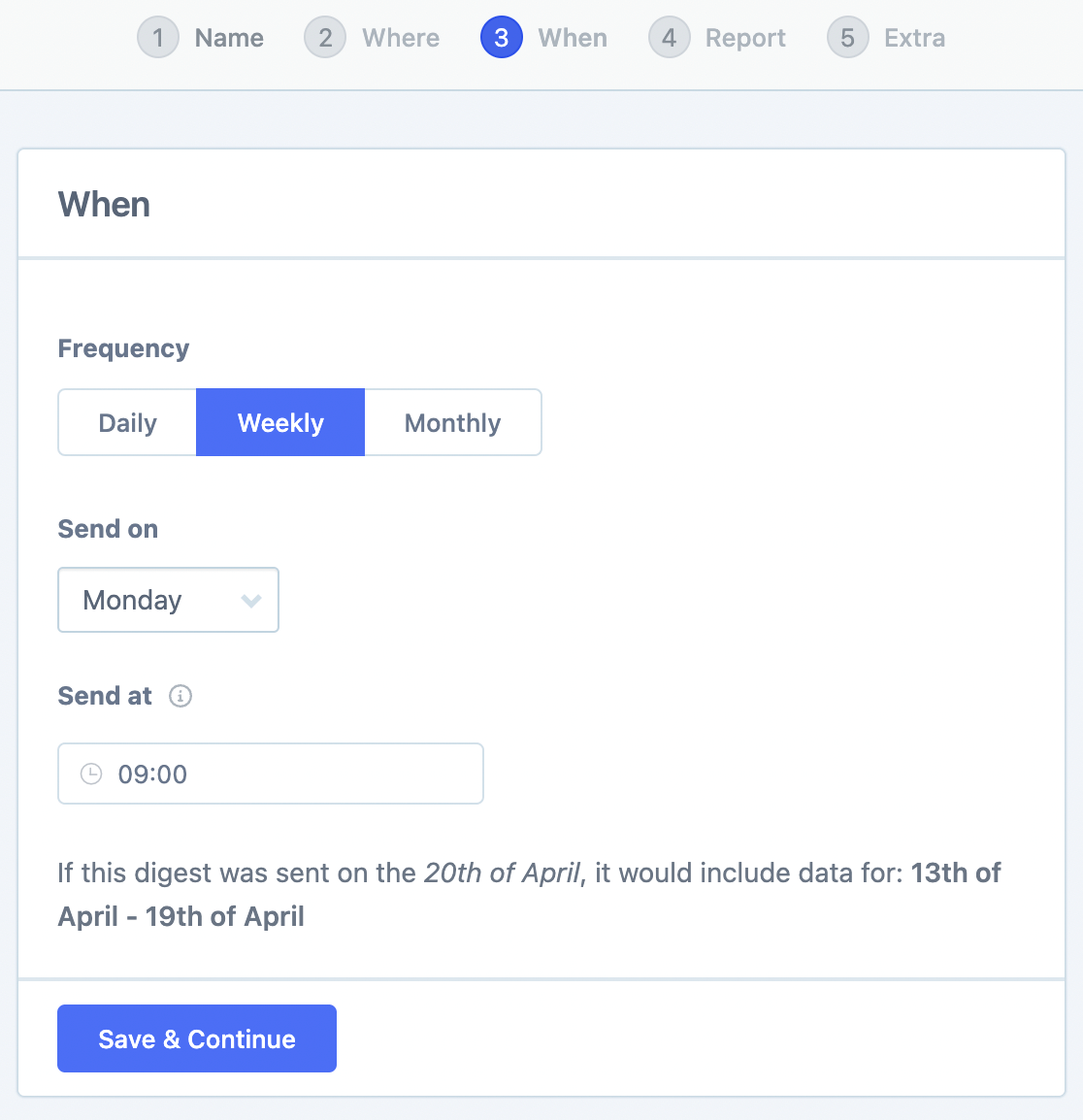
Name it, set the recipients (enter the vendor's email — they don't need a Metorik account), and set the frequency:
Add vendor-specific cards
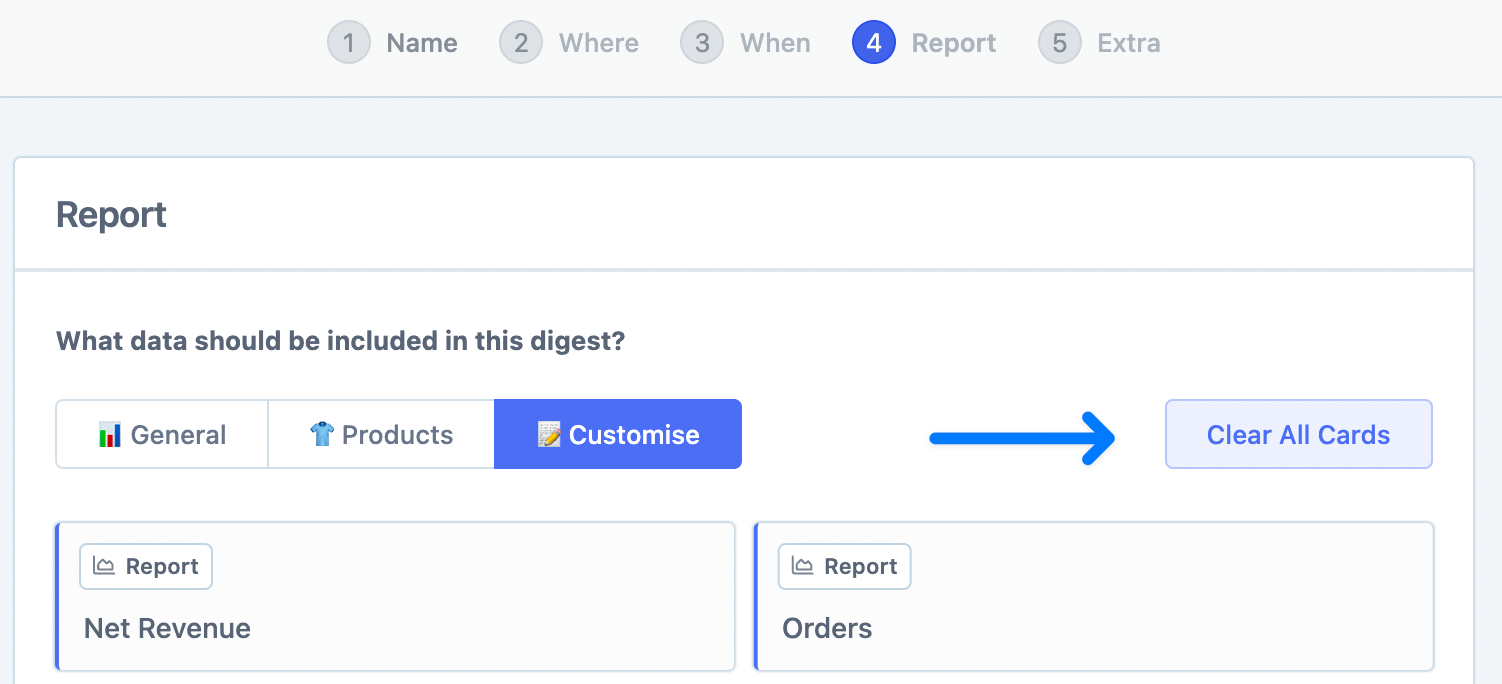
On step 4, click Customize then Clear All Cards:
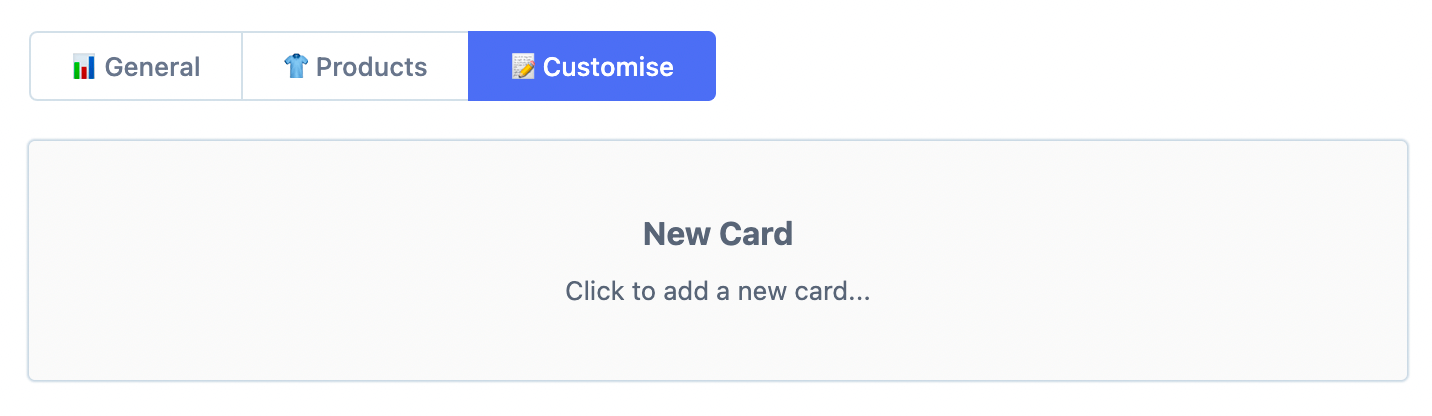
Click New Card to start adding vendor-specific cards:
Set the type of card you want to add:
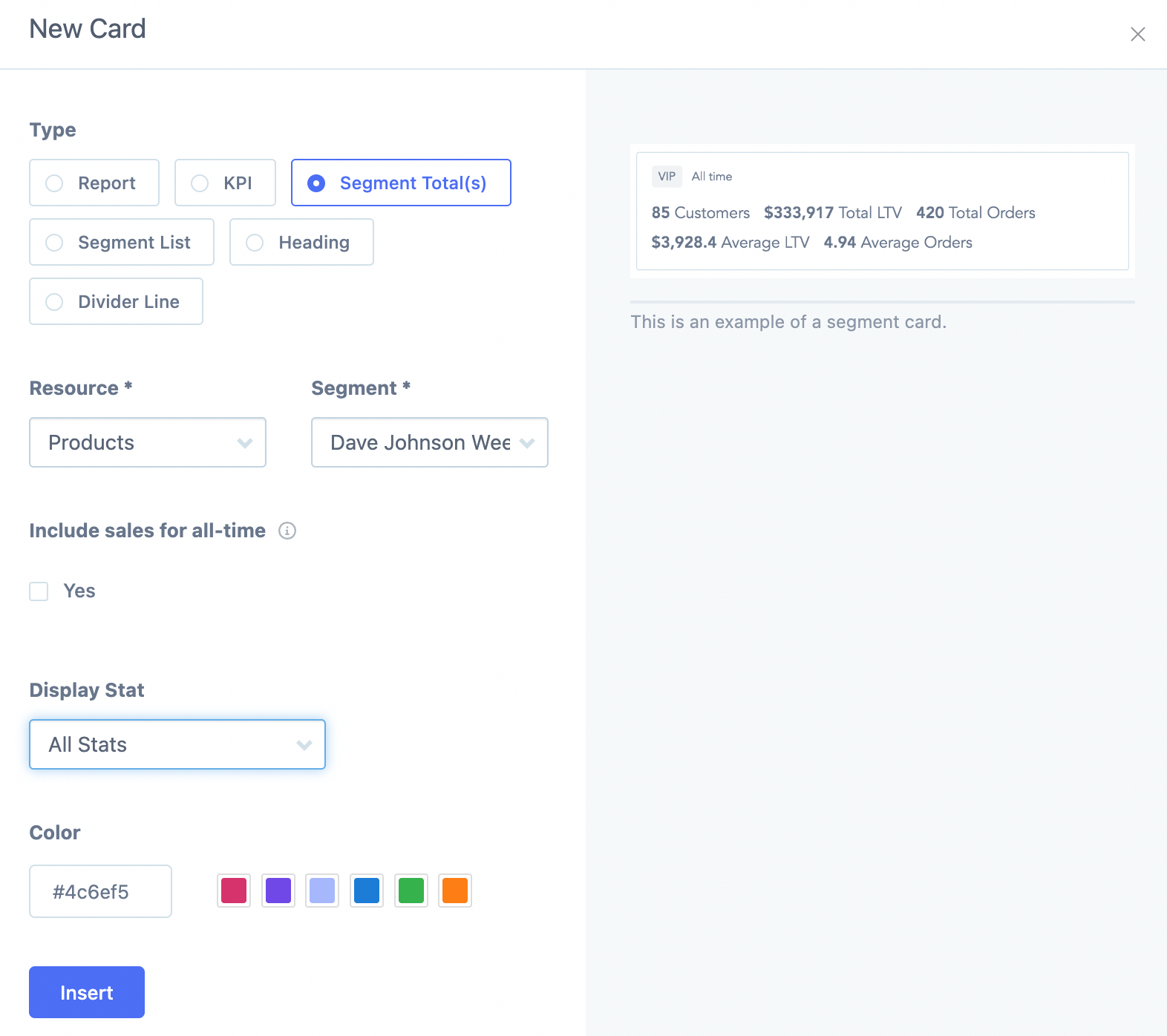
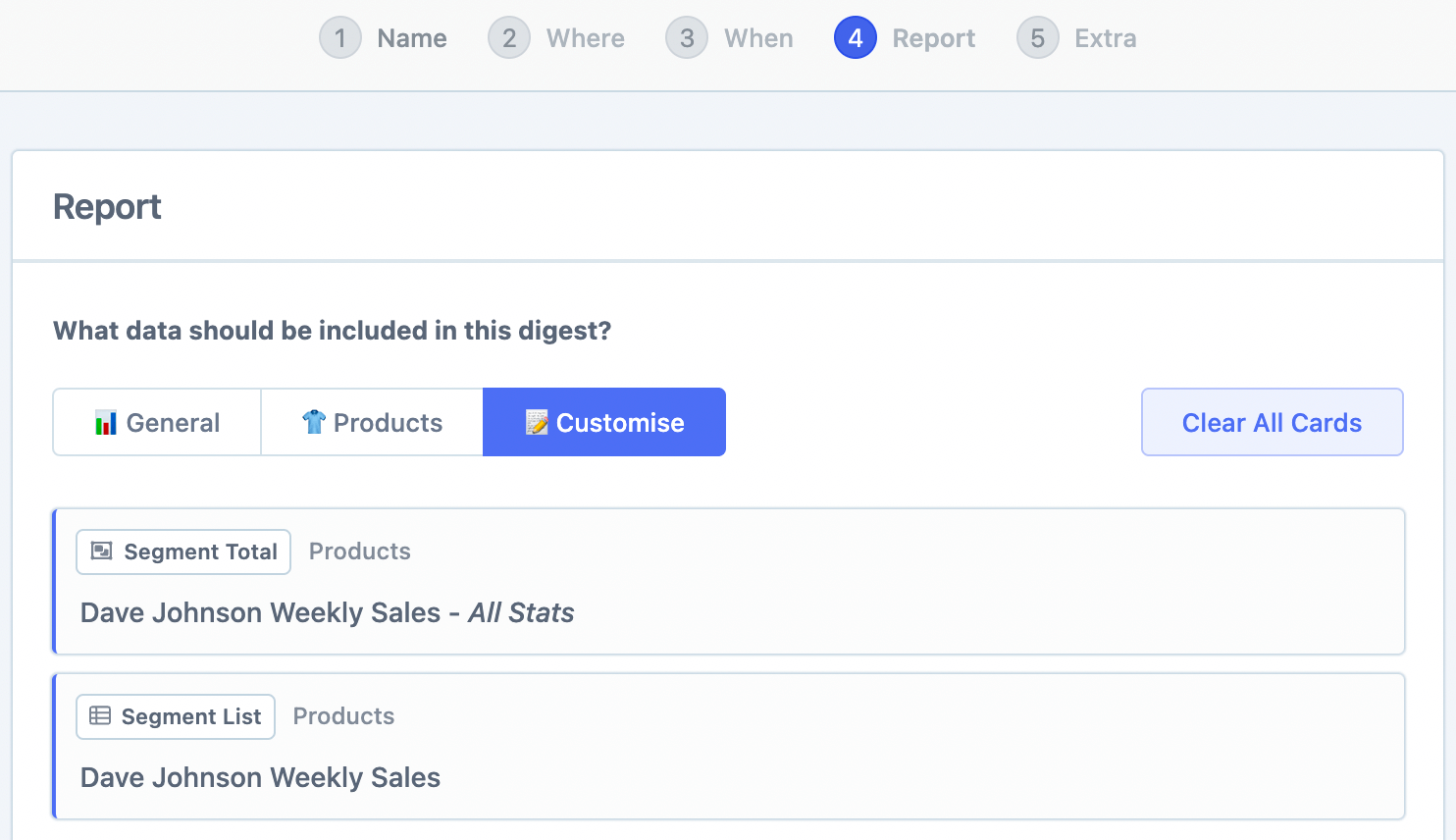
Add Segment Total and Segment List cards, setting Resource: Products, Segment: your vendor segment, and Include sales for all time: unchecked:
You can email yourself a preview of the digest before activating:
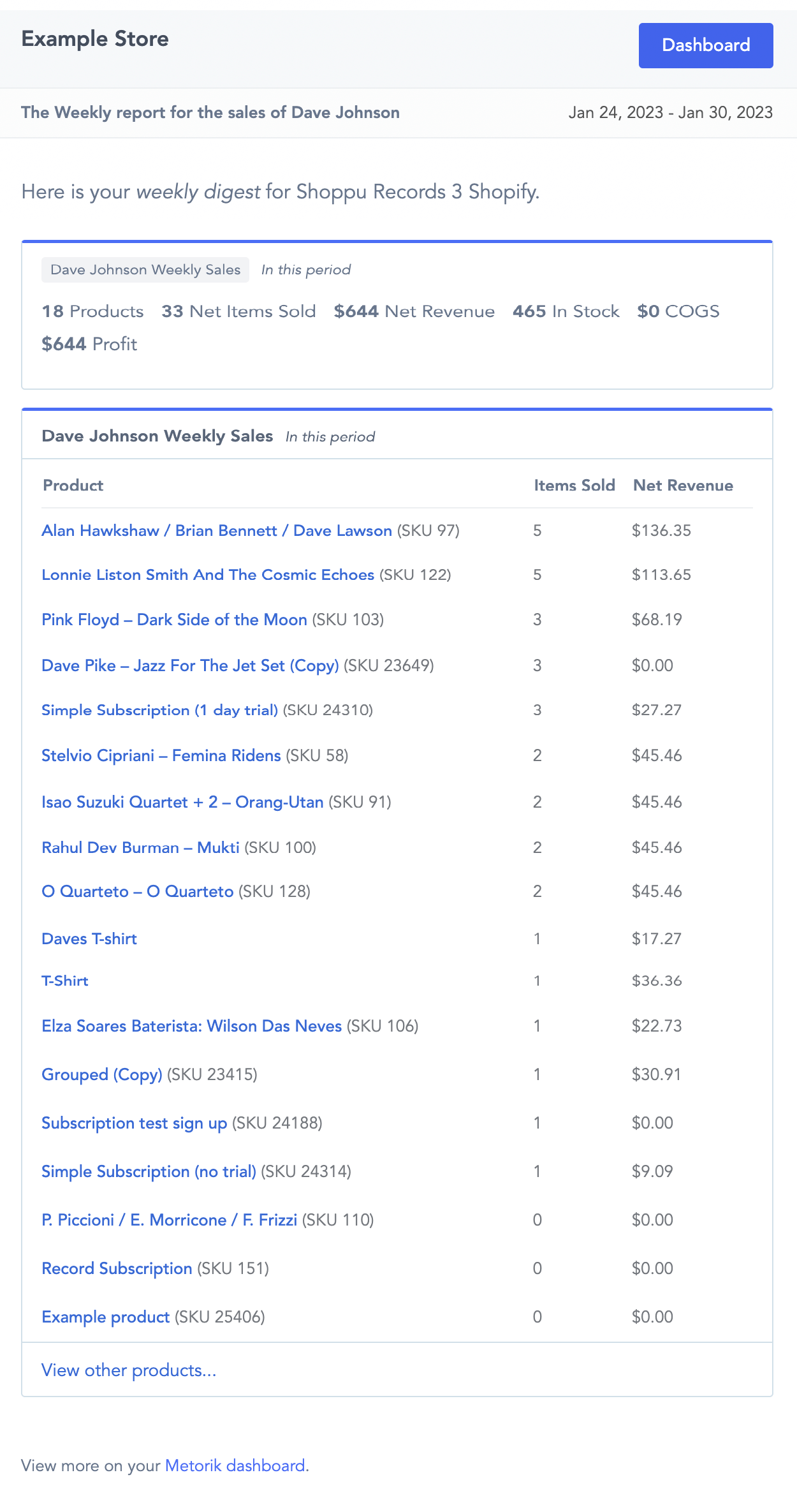
Here's what the digest email will look like for your vendor:
Click Save & Activate to start sending.
For a complete walkthrough of Digest settings, see Creating Digests.
Option 2: Create a Recurring Export (CSV file)
Load the segment and create a recurring export
From the Products page, load your vendor segment. Click Export Products to see the export view:
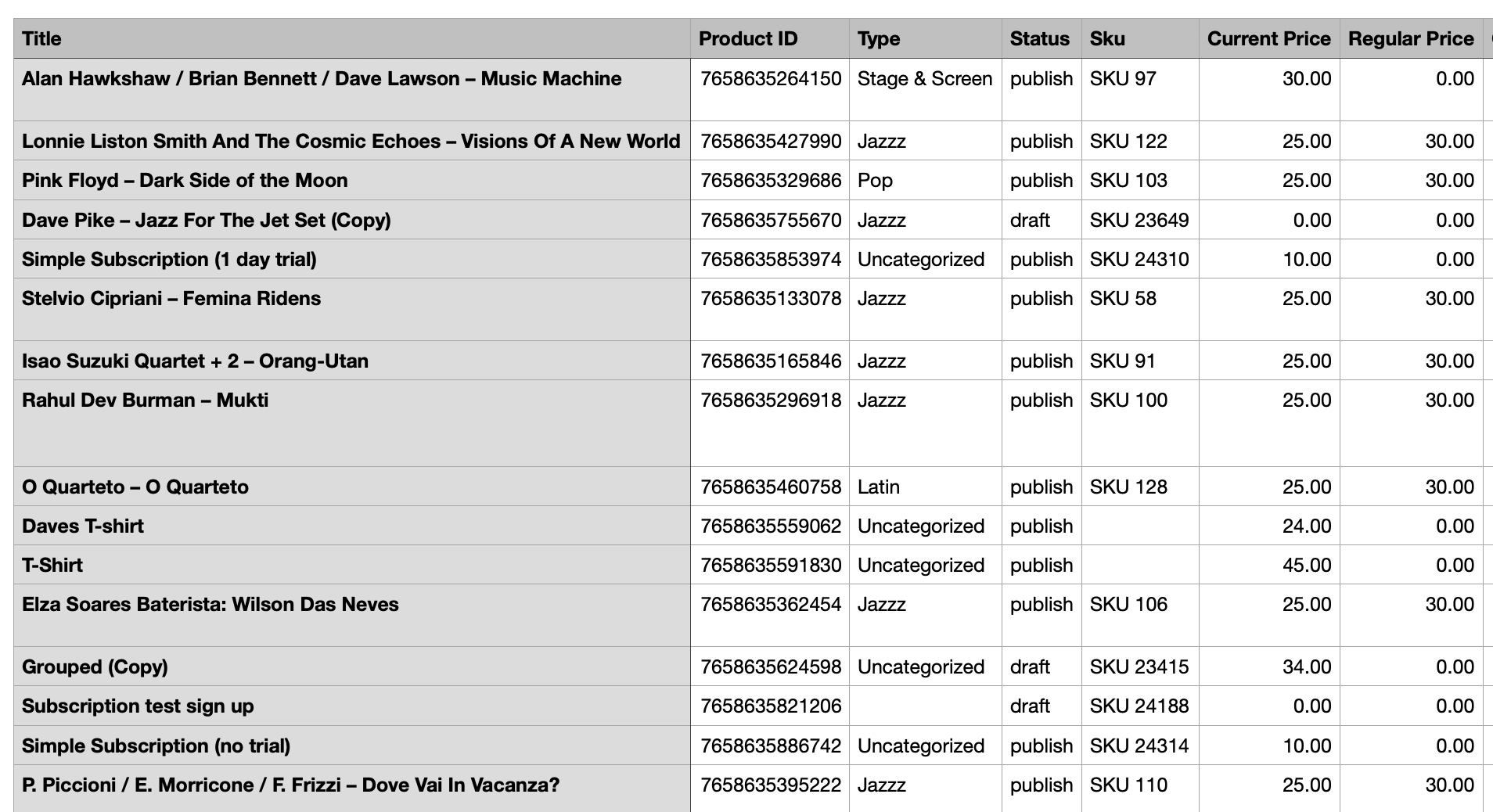
Select Recurring Export, set frequency and the vendor's email address, name it, and save.
For more on exports, see Exporting Data and Segmenting Data.