
Set weight-based shipping costs
Weight-based shipping costs let you calculate shipping costs based on the total weight of items in an order. This is useful when your actual shipping costs vary by package weight rather than flat rates. Metorik uses the product weights set in your WooCommerce or Shopify store to calculate order weights and apply your configured cost per weight unit.
Set weights and units in your store
Before configuring weight-based costs in Metorik, make sure your products have weights assigned in your store.
For WooCommerce stores
In your WooCommerce admin, go to WooCommerce > Settings > Products and set the weight unit (kg, lb, oz, or g).

Metorik automatically syncs this weight unit and uses it when calculating order weights. If you change the weight unit in WooCommerce later, sync the default weight unit using the tool at the top of the shipping cost settings page.
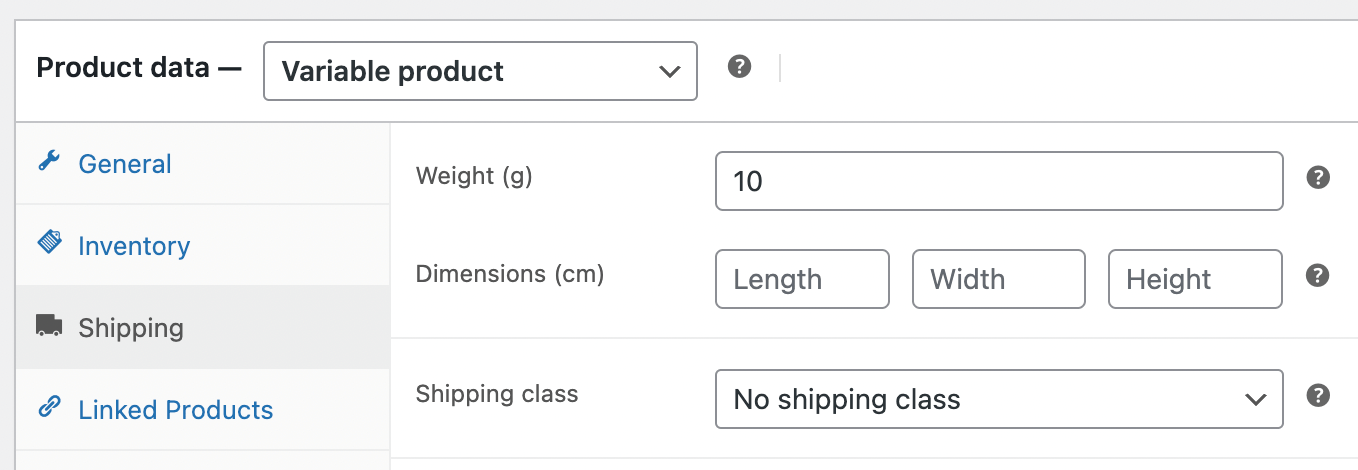
On individual product pages, set the weight for each product.
For Shopify stores
On each product page in Shopify, set both the weight and weight unit for each product and variant.
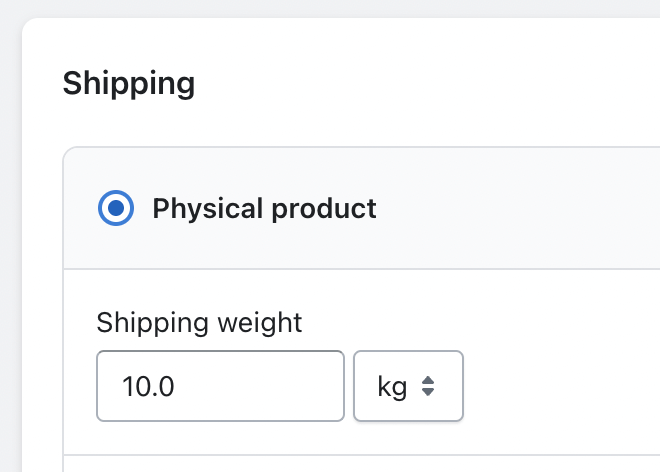
Because each product can have its own weight unit, you don't need to use the same unit across all products. Metorik automatically converts between different weight units when calculating costs.
Configure weight-based shipping costs in Metorik
Once your products have weights, configure the cost rules in Metorik's shipping costs page.
Create country rules (optional)
Country rules let you set different shipping costs based on the destination country. Select a country from the dropdown, then enter the weight cost in the designated field.
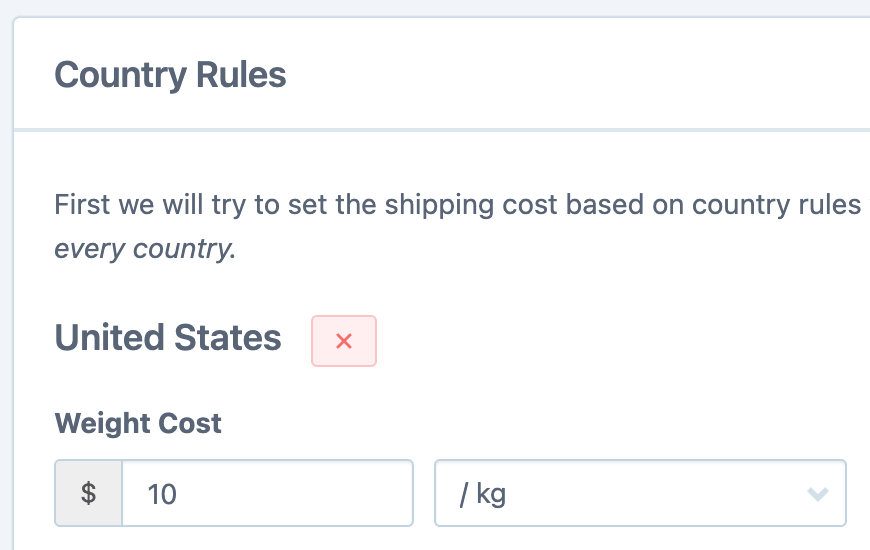
You can combine weight cost with handling cost and percentage of order total if needed.
Create shipping method rules (optional)
Method rules apply costs based on the shipping method selected at checkout. You'll see a list of all shipping method titles configured in your store.
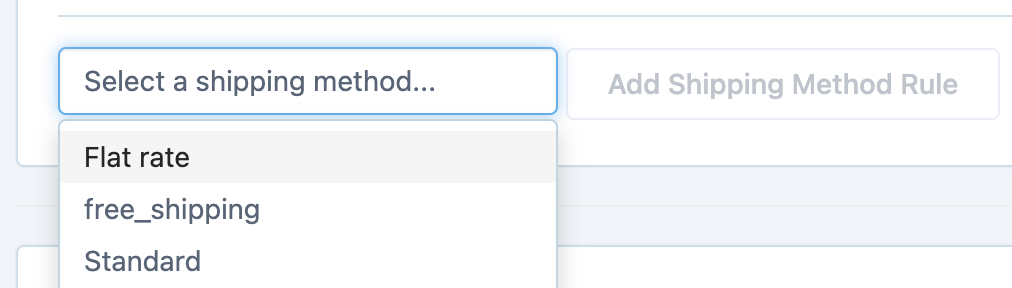
Select a shipping method, then enter the weight cost for orders using that method.
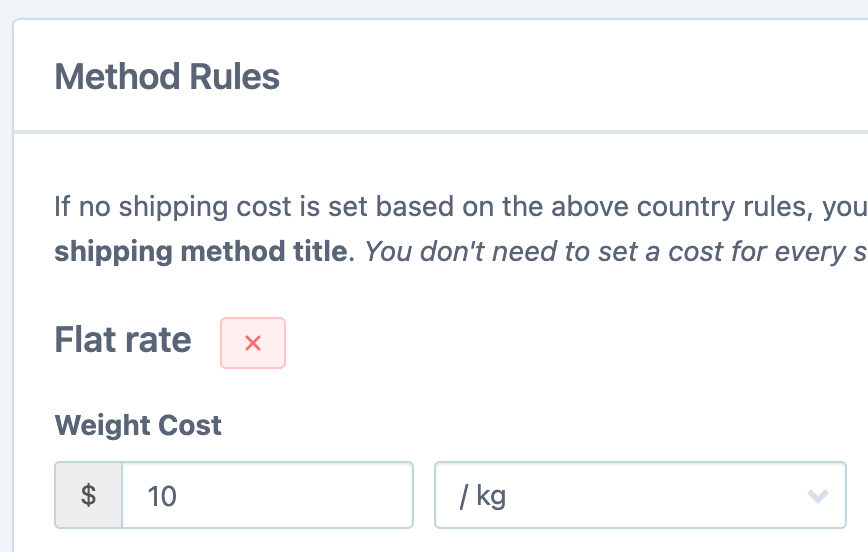
If an order has multiple shipping lines and you've set costs for each method, Metorik adds them together for the total shipping cost.
Set a backup rule (recommended)
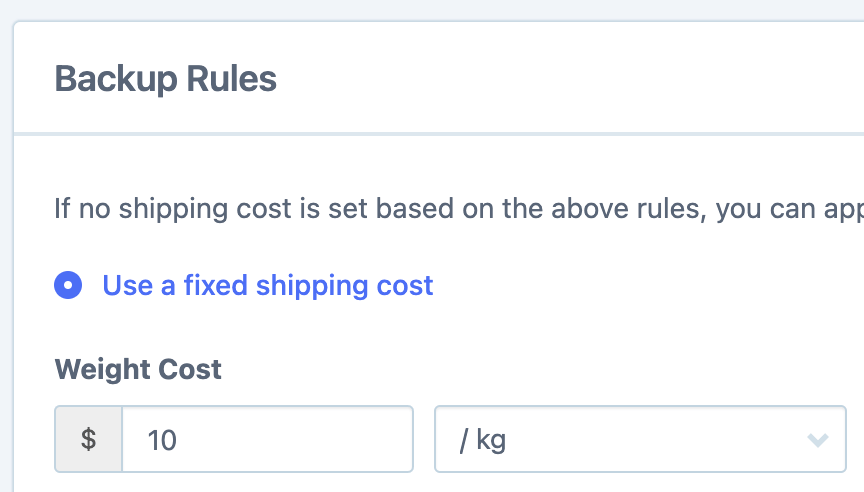
Backup rules are a catch-all cost applied when no country or method rules match an order. This ensures all orders with shipping have a cost applied.
Select Fixed cost and enter the weight cost per unit (kg/lb/oz/g). This applies a global shipping weight cost to all orders that don't match your other rules.
Save your changes
Click Save Changes at the bottom of the page. New orders will automatically have these costs applied.
For existing orders, use the Calculate button on the costs page to apply your new settings retroactively. See Setting Costs in Metorik for details on recalculating historical orders.
How weight costs work
When you set a weight cost, Metorik calculates the total weight of each order by adding up the weights of all products and variations in that order. The weight cost you configure is then multiplied by the order's total weight.
You can set weight costs using a different unit than your store's default. Metorik automatically converts between weight units (kg, lb, oz, g) when calculating costs.
What's next
After setting up shipping costs, your profit reports will show accurate shipping cost data. For a complete overview of all cost types and profit tracking, see Set up profit tracking.
For other cost types — including product costs, transaction fees, advertising spend, and extra costs — see Setting Costs in Metorik.