
Metorik API
The Metorik API lets you access your store’s data programmatically to build integrations, dashboards, or automation workflows.
To get started, you’ll need to create an API key in your store settings, then use it to authenticate your requests.
1. Create an API key
API keys are managed per store inside your Metorik dashboard.
Go to Store Settings → API Keys.
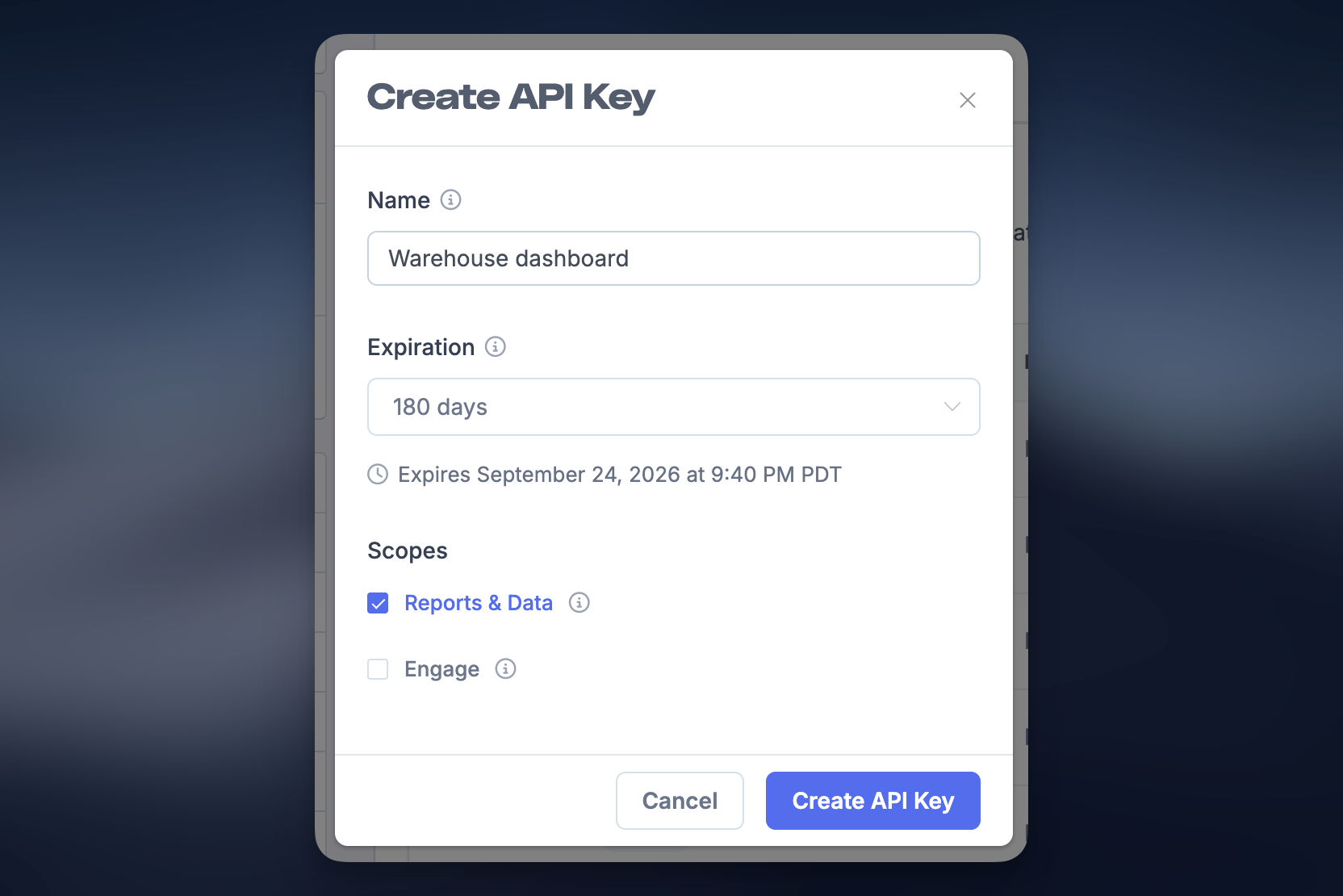
Click Create API Key.
Enter a name (e.g. “Warehouse dashboard” or “Zapier”).
Choose an expiration (or leave as never).
Select scopes:
Reports & Data – access reporting and store data.
Engage – access Engage endpoints (if needed).
Click Create API Key.
Be sure to copy and store your API key securely after creating it.
2. Manage API keys
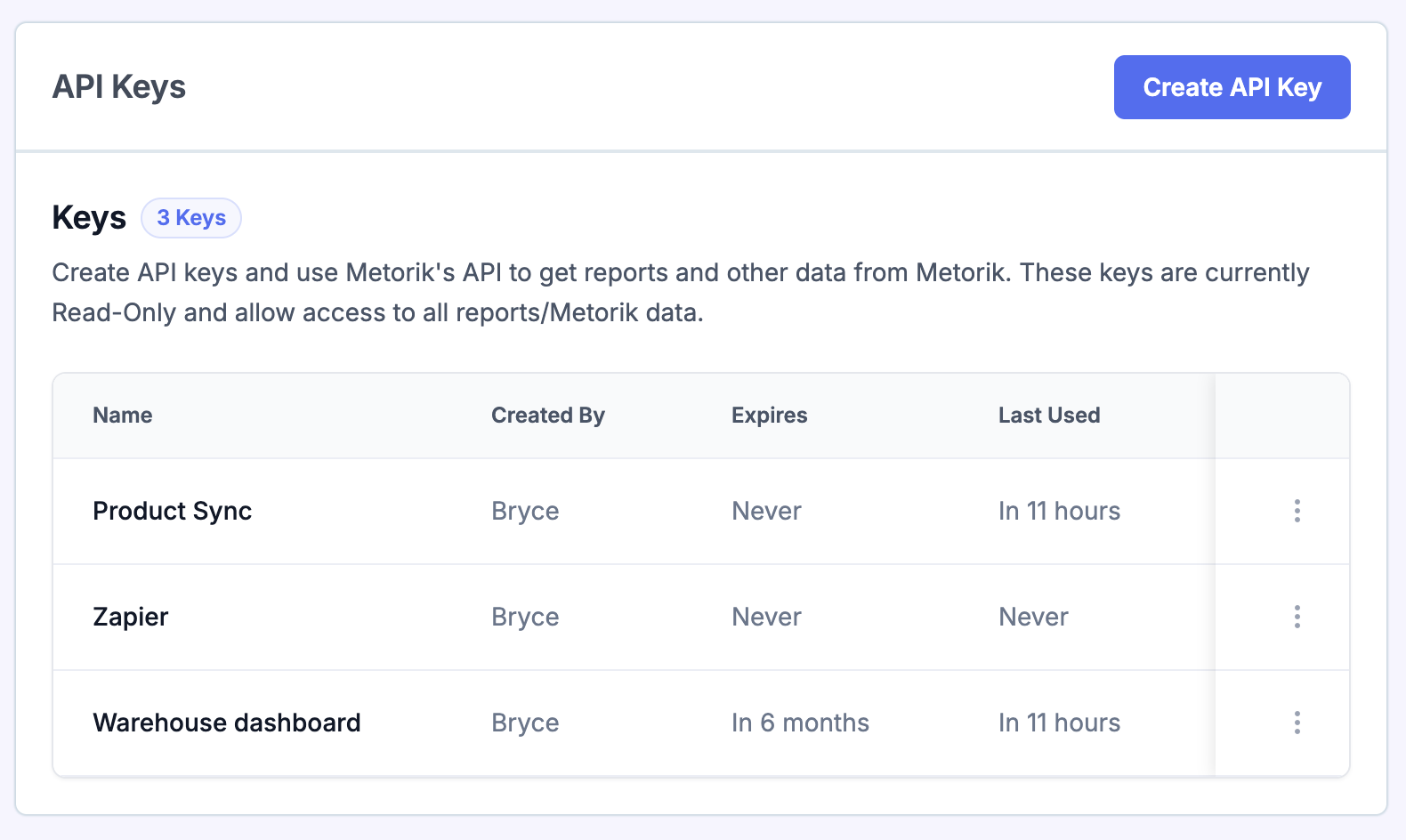
From the API Keys screen, you can:
View all keys for your store.
See when they were last used/expire.
Revoke keys you no longer need.
If a key is ever compromised, revoke it immediately and create a new one.
3. Make your first API request
All requests to the Metorik API:
Use JSON.
Are sent to the base URL:
https://app.metorik.com/api/v1/storeRequire authentication using your API key.
Your API key selects the store. Do not add your store ID to the URL. Use the same base URL for every store, with the API key created in that store’s settings.
Correct URL examples:
Store details:
https://app.metorik.com/api/v1/storeProducts:
https://app.metorik.com/api/v1/store/productsOrders:
https://app.metorik.com/api/v1/store/orders
Incorrect: /api/v1/store/12345 or /api/v1/store/12345/products. The example store ID 12345 should not appear in the path.
To check your connection, replace YOUR_API_KEY with your store’s API key and run:
curl https://app.metorik.com/api/v1/store -H "Authorization: Bearer YOUR_API_KEY" -H "Accept: application/json"For another store, use the same URL and replace the key with that store’s API key.
Example request:
curl https://app.metorik.com/api/v1/store/products \
  -H "Authorization: Bearer YOUR_API_KEY" \
  -H "Content-Type: application/json"
4. Authentication
Metorik uses Bearer authentication.
Include your API key in the request header:
Authorization: Bearer YOUR_API_KEYKeep your API key secure - anyone with access to it can read your store data. Never expose it on a public website.
Troubleshooting authentication errors
Getting a 401 Unauthorized response?
Check the request URL first. Adding a store ID, such as /api/v1/store/12345, takes the request outside the public API routes and can produce a 401 response even when you include a Bearer header.
Use /api/v1/store to check your connection, or append the resource name directly, such as /api/v1/store/products.
If the correct URL still returns an error, contact support with the request URL, HTTP status, and response body. Remove your API key before sharing the request.
5. API documentation
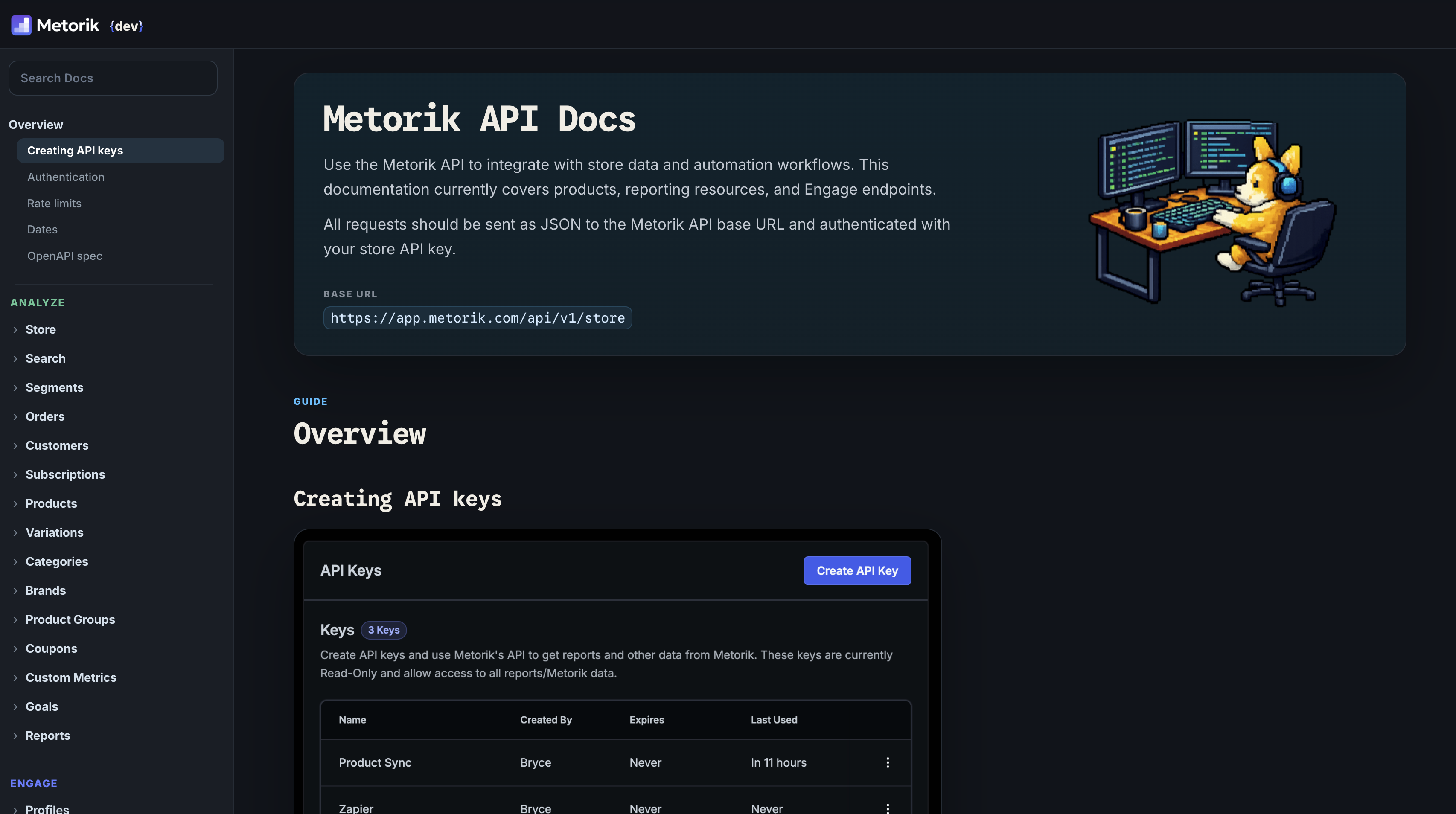
For full endpoint details, parameters, and examples, see the developer docs:
Rate limits
The overall store API limit is 1,000 requests per minute per IP address, shared with other store API requests from that IP address. Engage Profiles and Unsubscribes endpoints use this same limit.
Reports & Data endpoints additionally have a limit of 60 requests per minute per store, shared across that store's API keys. The 60-request store limit does not apply to Engage profile writes.
When you receive an HTTP 429 response, wait for the Retry-After header and retry with backoff.
Limitations & alternative integrations
Metorik does not currently have an API for managing store data such as customers, orders, or products.
If you're not using WooCommerce or Shopify and would like to sync your eCommerce data into Metorik, you can use an alternative solution like 3rd party integration solution.
Tips
Use separate API keys for different integrations.
Set expirations for better security.
Rotate keys periodically.
Never expose API keys in frontend code.