Metorik supports the Model Context Protocol (MCP), which lets you connect AI assistants like ChatGPT and Claude to your store data. Once connected, you can ask questions, build reports, and get insights about your orders, customers, products, and more—all through natural language.
Demo Video
What you'll need
A Metorik account with analyst, editor, or admin access to at least one store
An account with ChatGPT (Plus/Team/Enterprise) or Claude (Pro/Team/Enterprise)
MCP access enabled for your store (store admins can control this)
How MCP access works
MCP connections are tied to your Metorik user account, not to individual stores. When you authorize an AI assistant, you choose which stores it can access. Permissions mirror your existing Metorik access—if you're an admin on one store and an analyst on another, the AI assistant will have the same level of access for each store.
Store admins can disable MCP access for a store entirely. If disabled, no users on that store can connect AI assistants via MCP, but you can still use MCP with other stores where it's enabled.
Connect ChatGPT
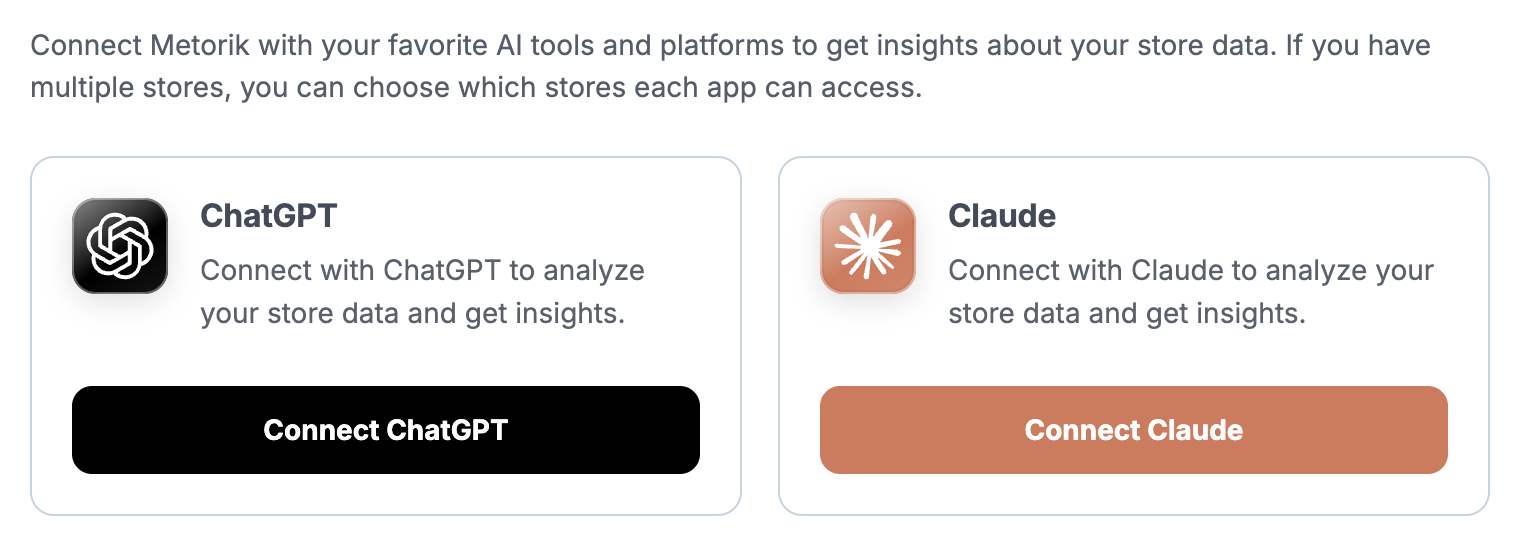
Start from the Applications page in your Metorik settings, where you can connect ChatGPT or Claude with one click.
1
Go to Applications in Metorik
Navigate to Settings → Applications. This page shows all connected apps and lets you manage their access.
2
Click Connect ChatGPT
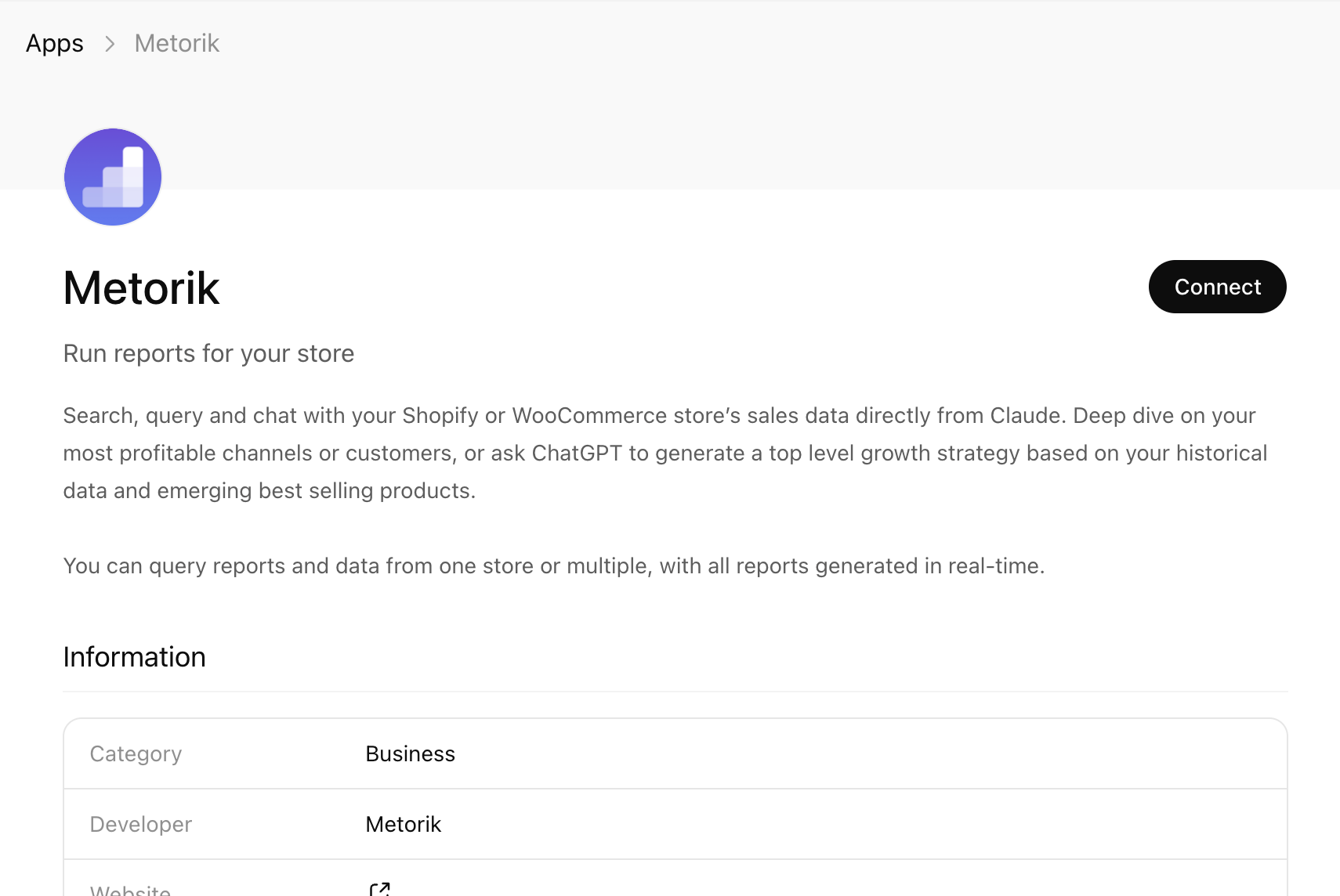
On the Applications page, click the Connect ChatGPT button. This will take you to the ChatGPT directory to install the Metorik app - click connect there.
3
Authorize ChatGPT
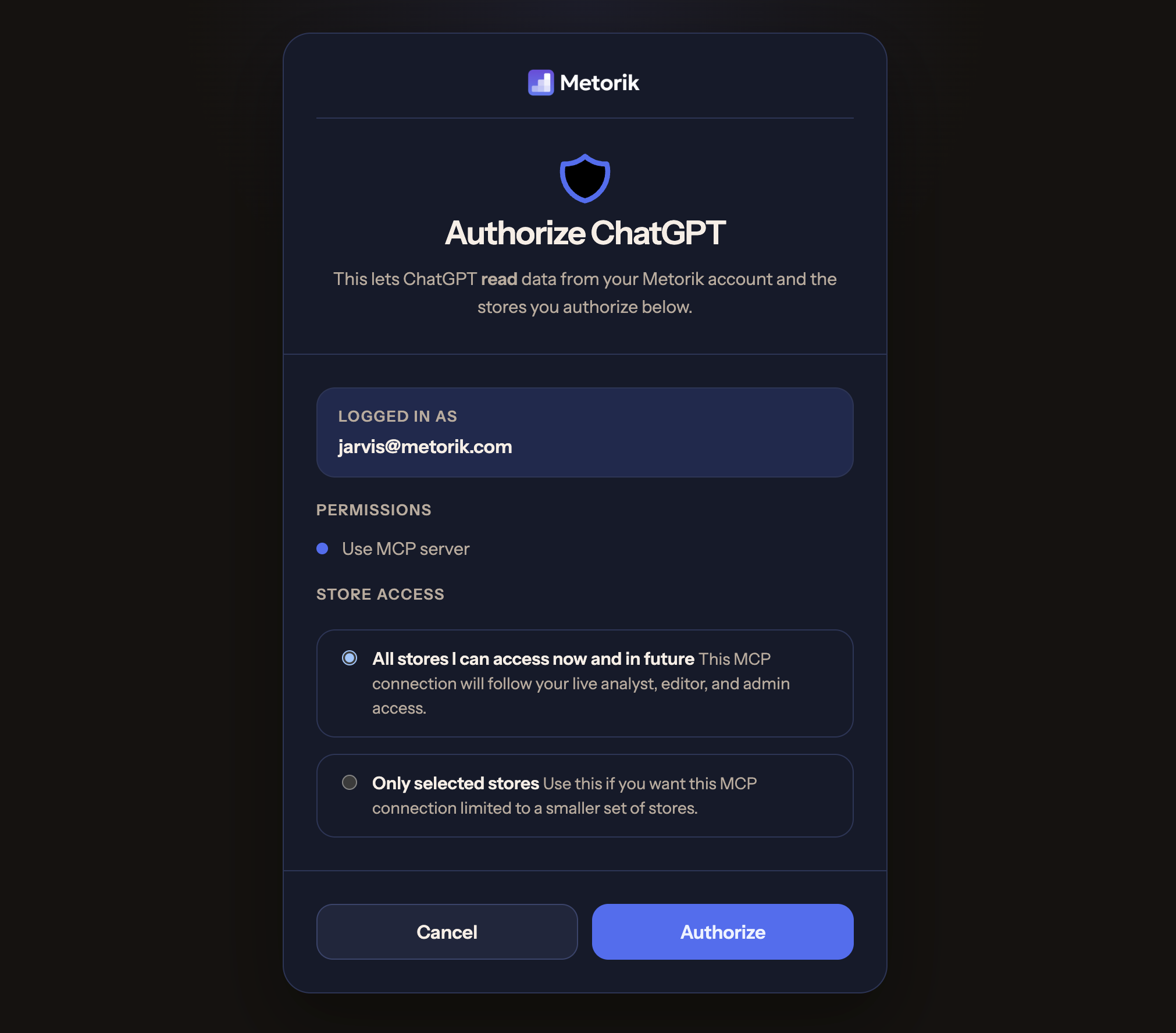
On the authorization screen in Metorik, review the permissions and choose your store access:
All stores I can access now and in future – The connection will follow your live analyst, editor, and admin access across all stores automatically.
Only selected stores – Limit the connection to specific stores you choose now.
Click Authorize to complete the connection.
4
Start using ChatGPT with your store data
Once authorized, return to ChatGPT and start asking questions about your store. ChatGPT can now access your Metorik data through the MCP connection.
For example, ask What were my sales last month?
You can also install Metorik from the ChatGPT app directory. Search for Metorik or visit the official Metorik app page.
Connect Claude
Start from the Applications page in your Metorik settings, where you can connect ChatGPT or Claude with one click.
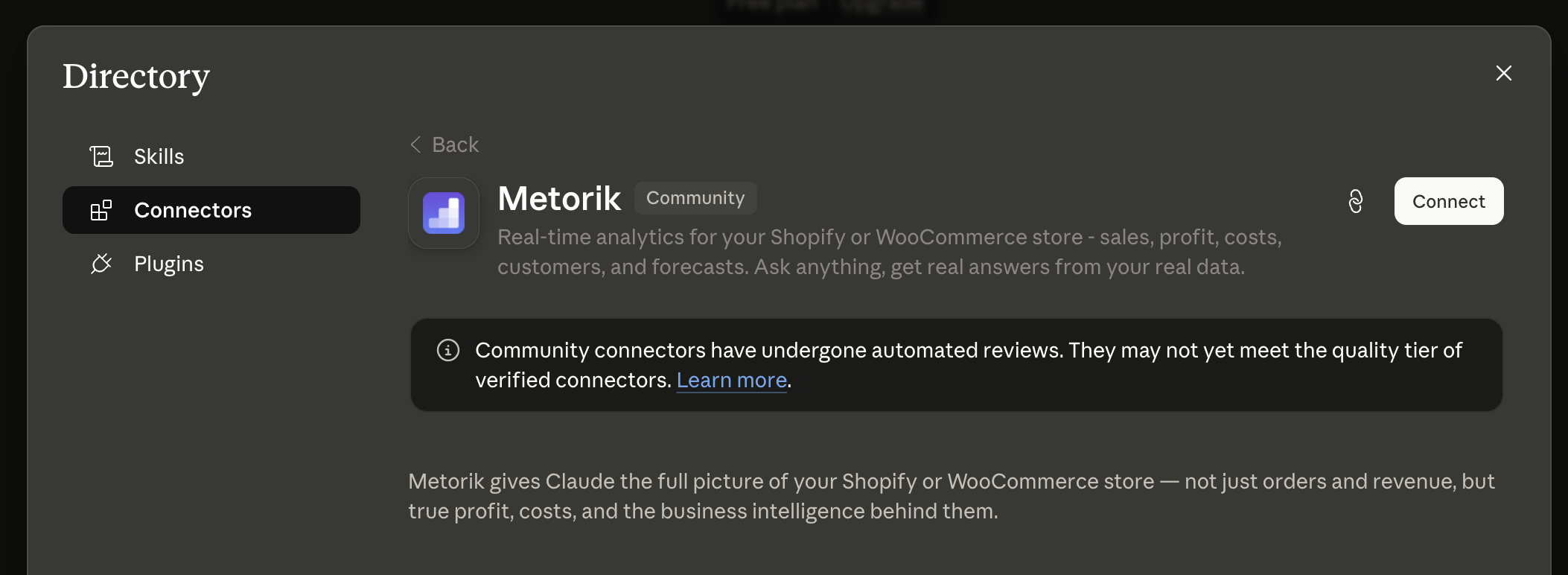
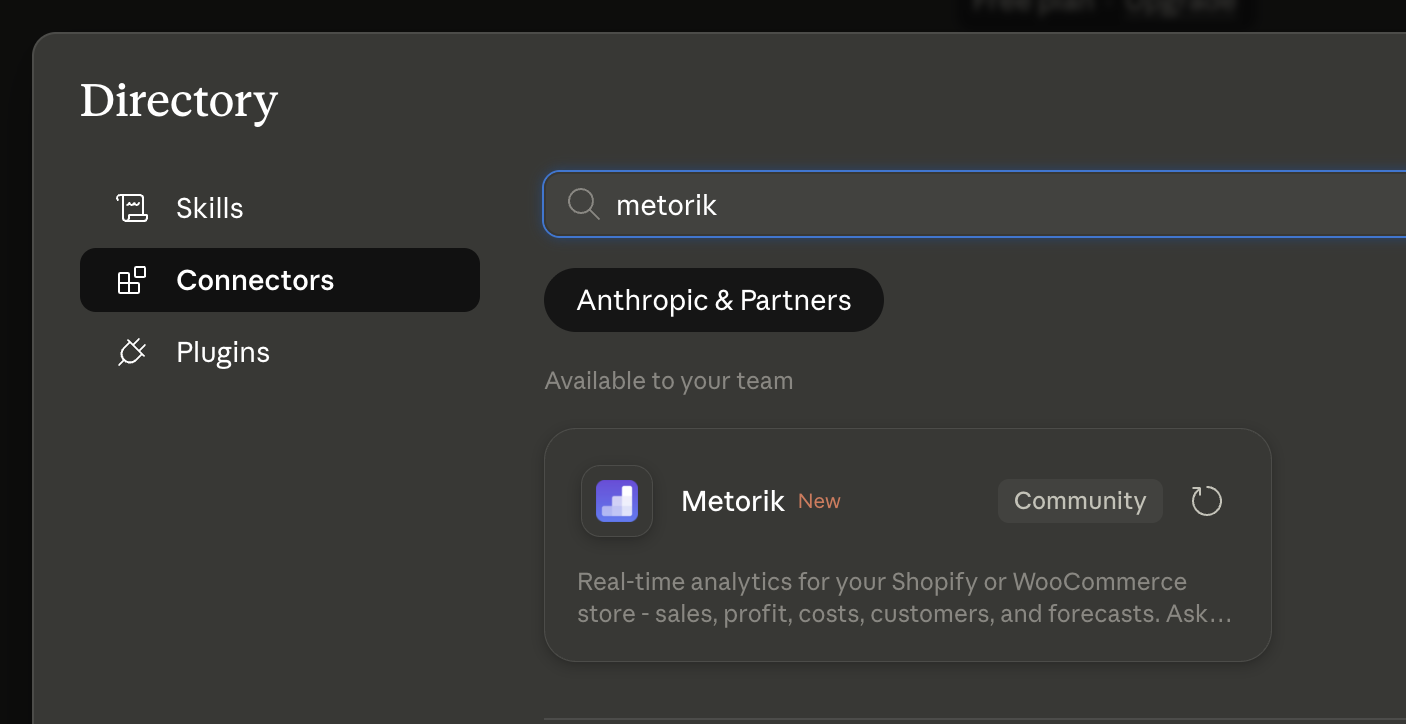
Click the Connect Claude button to open the Claude directory, where Metorik is listed as a Community connector. Click Connect there to install it.
You can also find it by searching the directory for metorik — it shows under Available to your team with a New label.
3
Authorize Claude
Review the permissions and choose your store access preference (all stores or selected stores), then click Authorize.
4
Start using Claude with your store data
Return to Claude and begin asking questions about your orders, customers, products, and analytics.
For example, ask Who are my top 10 customers?
Add Claude connector manually (optional)
Metorik is now listed in the Claude directory, so you don't need to add it manually. If you prefer, you can still add it as a custom connector in Claude:
Click Add custom connector and enter Metorik as the name.
3
Add the server URL
Enter the MCP server URL https://app.metorik.com/mcp and save the connector. Claude will prompt you to authenticate with Metorik.
Connect other MCP clients
Beyond ChatGPT and Claude's web interface, you can connect Metorik to other MCP-compatible tools like Claude Code (CLI), OpenAI Codex CLI, Cursor IDE, and Microsoft Copilot Studio. These clients require manual configuration using Metorik's MCP server URL.
The Metorik MCP server URL is: https://app.metorik.com/mcp
OpenAI Codex (CLI)
Run the following command to add Metorik as an MCP server:
This will open your browser to complete the OAuth authorization with your Metorik account.
Claude Code (CLI)
Claude Code is Anthropic's command-line tool for Claude. You can add Metorik as an MCP server using the CLI or a JSON config file.
Using the CLI:
claude mcp add --transport http metorik https://app.metorik.com/mcp
After running this command, open Claude Code and type /mcp. You'll see Metorik listed—select it to start the OAuth flow and authorize with your Metorik account.
Cursor
Cursor is an AI-powered IDE that supports MCP servers. You can add Metorik in one of two ways:
Ask Cursor to add it – In a chat, ask Cursor to add an MCP server with the URL https://app.metorik.com/mcp
Configure manually – Create or edit .cursor/mcp.json in your project, or ~/.cursor/mcp.json for global access:
After adding Metorik, go to Settings → Tools & MCPs in Cursor and click Connect next to Metorik to complete the OAuth authorization with your Metorik account.
Missive
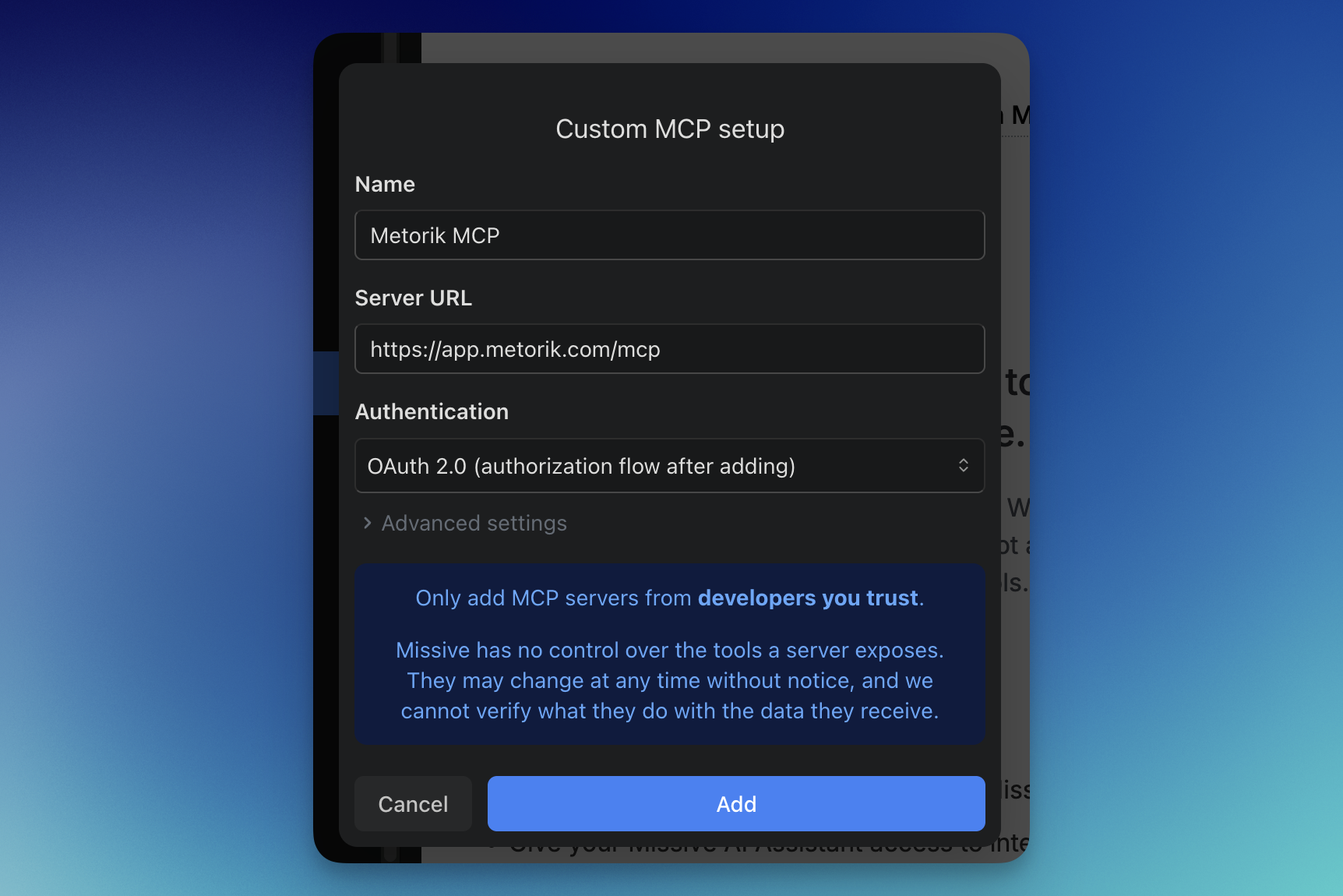
Missive is a shared team inbox app that supports MCP servers. Add Metorik as a custom MCP server from Missive's MCP settings.
Open Missive's MCP settings and choose to add a custom MCP server.
Enter Metorik MCP as the name and https://app.metorik.com/mcp as the server URL.
Set the authentication method to OAuth 2.0 (the authorization flow runs after adding).
Click Add, then complete the OAuth authorization with your Metorik account.
Microsoft Copilot Studio
Copilot Studio supports MCP servers, so you can add Metorik as a custom MCP connection. In Copilot Studio, add a new MCP tool using the Metorik MCP server URL https://app.metorik.com/mcp, then complete the OAuth authorization with your Metorik account. Microsoft's guide on connecting an agent to an existing MCP server covers the setup steps and OAuth configuration.
This works with Microsoft Copilot Studio, not the regular Microsoft 365 Copilot chat, which doesn't support custom MCP connections.
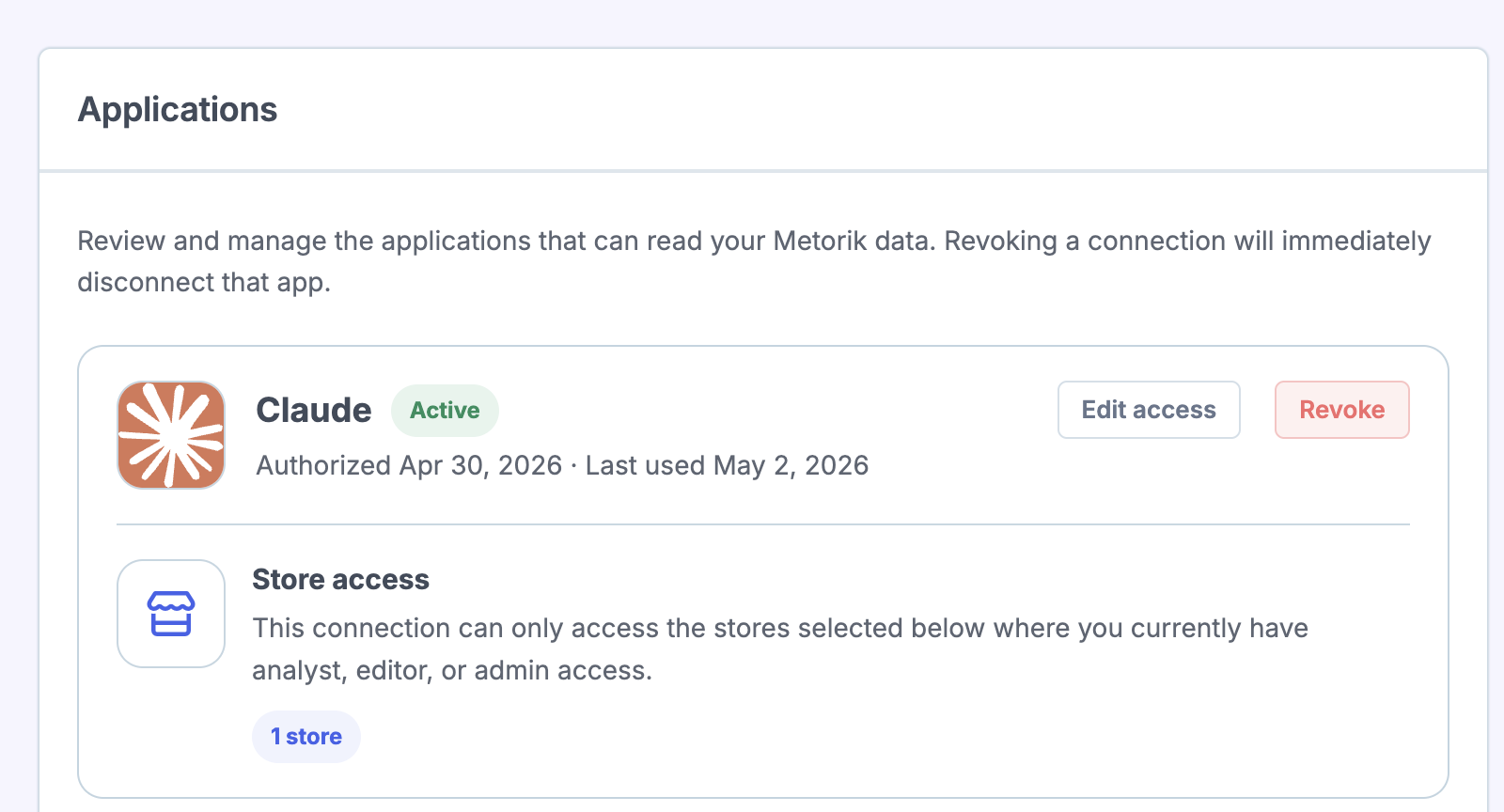
Edit access – Change which stores the app can access
Revoke – Disconnect the app entirely
Revoking a connection immediately removes the app's access to your Metorik data.
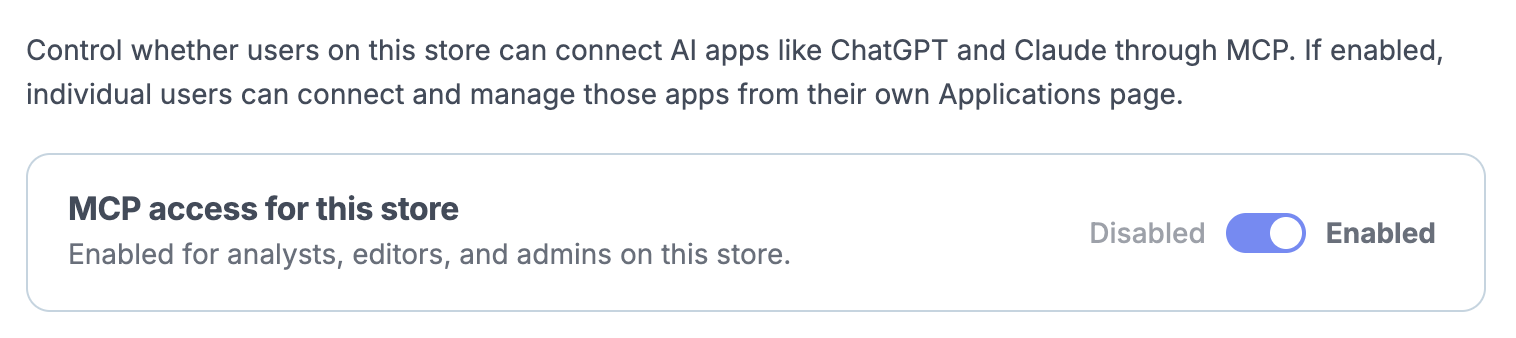
Enable or disable MCP for a store
Store admins can control whether MCP is available for their store:
Go to Store Settings for the store.
Find the MCP access for this store setting.
Toggle it to Enabled or Disabled.
When disabled, no users on that store can connect AI apps via MCP. Users can still use MCP with other stores where it's enabled.
Allow individual records through MCP
Store admins can also control whether MCP apps can access individual store records. This setting is separate from the overall MCP access toggle.
When enabled (the default), MCP apps can list and search individual records across:
Customers – view individual customer profiles and data
Orders – access specific order details
Subscriptions – view individual subscription records
Refunds – see specific refund transactions
Carts – access individual cart data (including abandoned carts)
When disabled, MCP apps are limited to aggregate reports, totals, and catalog data—they cannot retrieve individual customer, order, subscription, refund, or cart records.
For example, with Allow Individual Records enabled, your AI assistant can answer:
With Allow Individual Records disabled, those queries won't work, but these aggregate queries will still succeed:
"What were my total sales last month?"
"How many customers signed up this week?"
"Show me the top 10 products by revenue"
"What's my subscription churn rate?"
This setting is store-wide and affects all users on the store. Only store admins can change it.
To manage individual record access:
Go to Store Settings for the store.
Find the Allow Individual Records setting.
Toggle it to Enabled or Disabled.
Security & permissions
Connections use OAuth to securely authenticate your Metorik account
AI assistants only see data from stores you explicitly authorize
Access levels match your existing Metorik permissions (analyst, editor, admin)
You can revoke access at any time from Applications settings
MCP connections are per-user, not per-store. Each team member sets up their own connection and chooses which stores to include.
Usage limits
There's no specific limit on MCP requests from Metorik's side. Metorik has general rate limits, but in practice you'll rarely hit them—each request requires processing time on the AI side, so natural pauses between queries tend to keep you well within bounds.
Keep in mind that using MCP does consume tokens on your AI provider's end. You may be limited by your ChatGPT or Claude plan's message caps or token quotas. Those limits are controlled entirely by your chat provider, not by Metorik.
Available MCP tools
Metorik's MCP server provides read-only tools for querying store data, reports, and metadata.
list_stores
Lists the stores the authenticated user can access, including which store is currently selected as the default.
search_store
Searches store resources such as customers, orders, subscriptions, products, variations, categories, coupons, and refunds.
list_store_objects
Returns paginated store objects for supported resources like orders, customers, carts, and subscriptions, with optional filtering, sorting, and segment support where available.
get_store_catalog
Returns sales-focused catalog data for products, variations, categories, brands, or coupons over a date range.
get_store_catalog_by_date
Returns time-series sales data for a single product, variation, category, or coupon over a date range.
get_store_totals
Returns summary totals for the same datasets used by Metorik's main list and reporting views, such as orders, customers, and subscriptions.
get_store_report
Returns consolidated analytics for multiple report types, including time series, grouped reports, source reports, breakdown reports, custom metrics, and products bought together.
list_store_metadata
Lists supporting metadata used by the MCP tools, such as available custom metrics, report options, saved segments, and object field definitions.
get_engage_campaigns
Lists Engage campaigns or returns one campaign with optional stats. Campaigns include automations, broadcasts, and cart automations.
All MCP tools are read-only and cannot modify store data. If a tool returns a resource_link, meta.resource_link, or meta.report_link, that link points to the matching page or filtered view in Metorik. Some tools support filters, date ranges, sorting, grouping, and saved segments depending on the resource or report type.
Can I connect both ChatGPT and Claude at the same time?
Yes. One Metorik user account can have multiple MCP connections active simultaneously—including ChatGPT, Claude, and other MCP clients like Claude Code, OpenAI Codex CLI, Cursor, and Microsoft Copilot Studio. Each connection is authorized separately and can have its own store access settings.
I can't see the option to connect ChatGPT or Claude
This usually means MCP access is disabled for all your stores. Ask a store admin to enable MCP access in Store Settings. You need analyst, editor, or admin access on at least one store with MCP enabled.
The authorization screen shows "No stores available"
You need analyst, editor, or admin access to at least one store with MCP enabled. Contact your store admin to verify your permissions and the store's MCP setting.
My AI assistant says it can't access my store data
Check that the connection is still active in Settings → Applications. If the connection was revoked or you no longer have access to the store, you'll need to re-authorize.
A store admin disabled MCP—can I still use it?
You can still use MCP with other stores where it's enabled, but you won't be able to access the disabled store through AI assistants until MCP is re-enabled.