
Make sure you copied the full API key without extra spaces. Verify that the key has the Engage scope enabled — it's required for profile and unsubscribe actions.
Zapier Integration
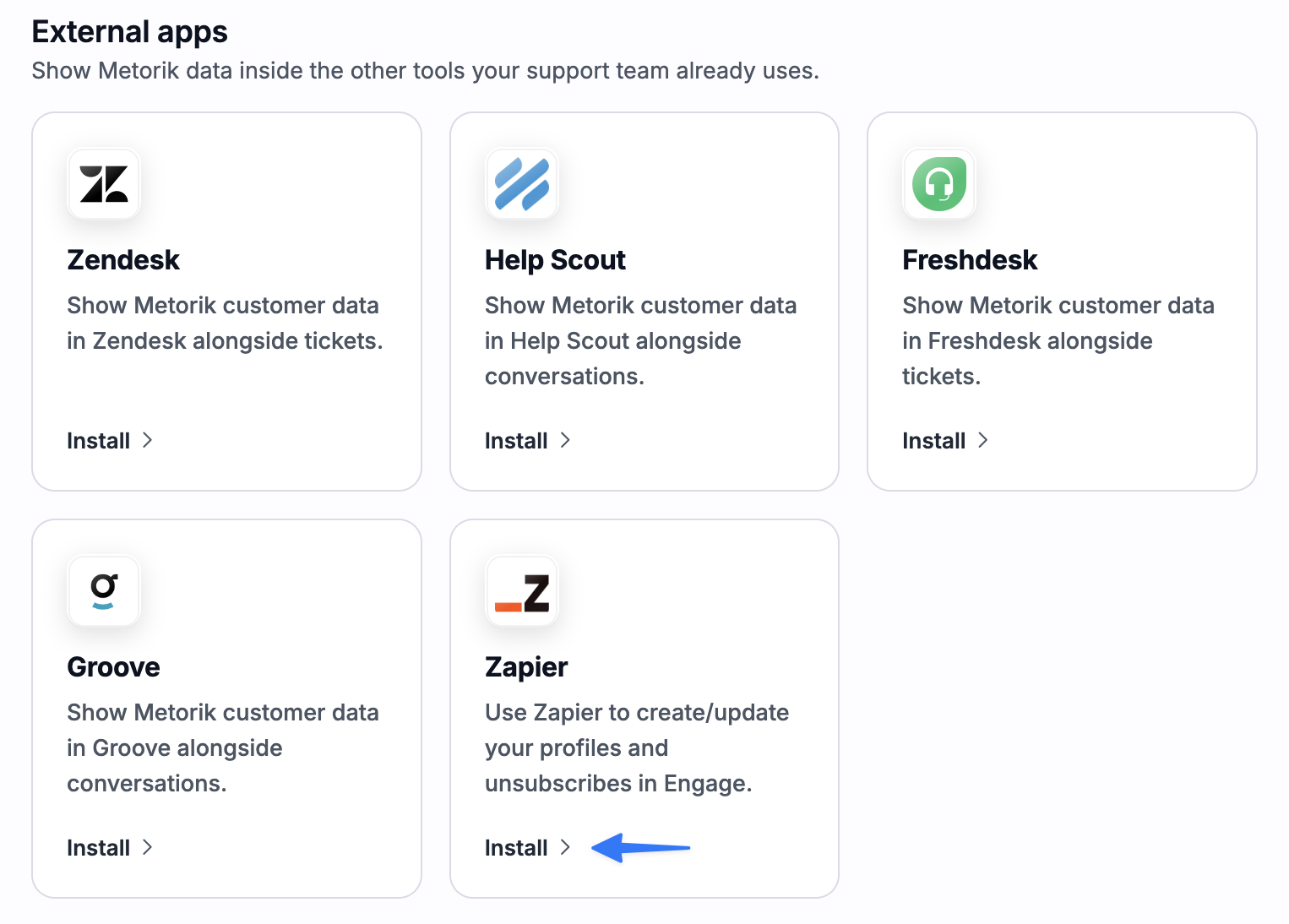
Zapier connects Metorik to thousands of other apps, allowing you to automate workflows without writing code. Use Zapier to sync profiles, manage unsubscribes, and keep your customer data in sync across your tools.
1
2
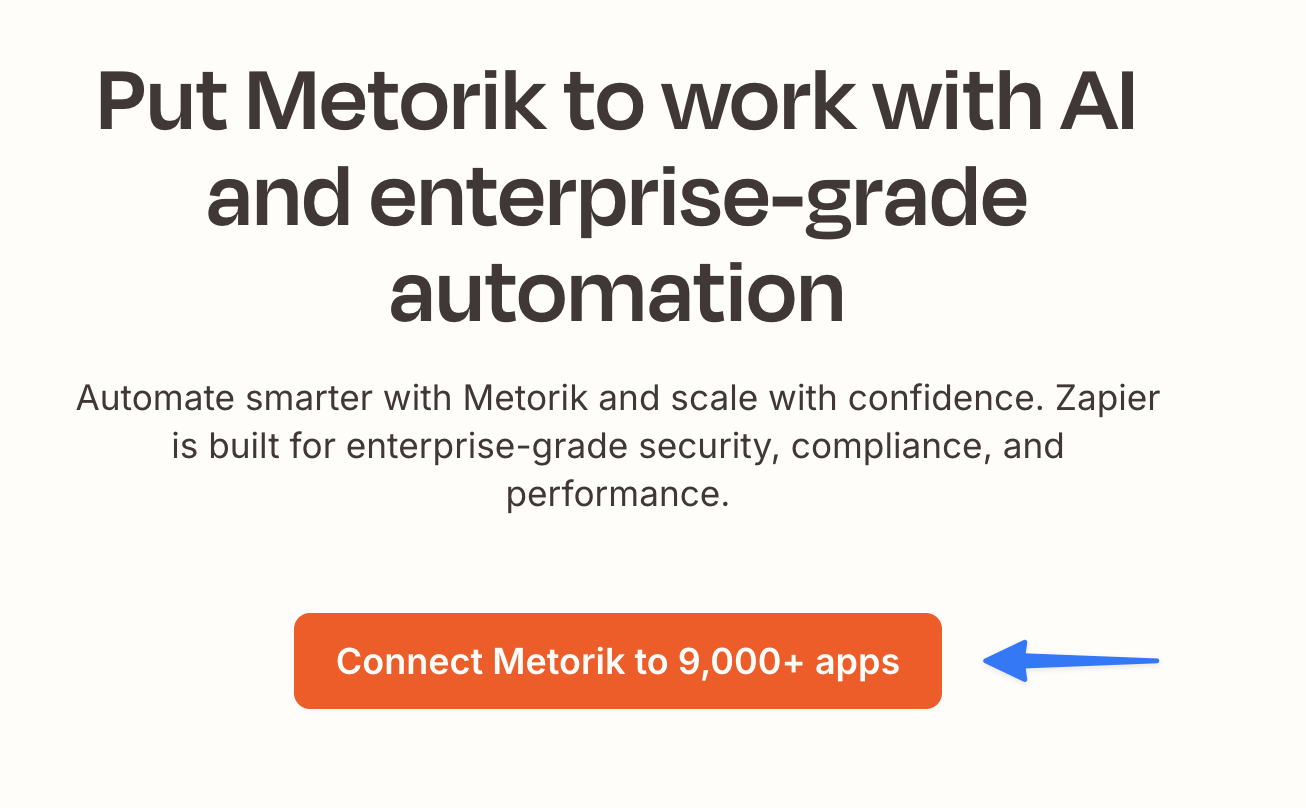
Click Connect in Zapier
Click Connect Metorik to 9,000+ apps to start the integration.
3
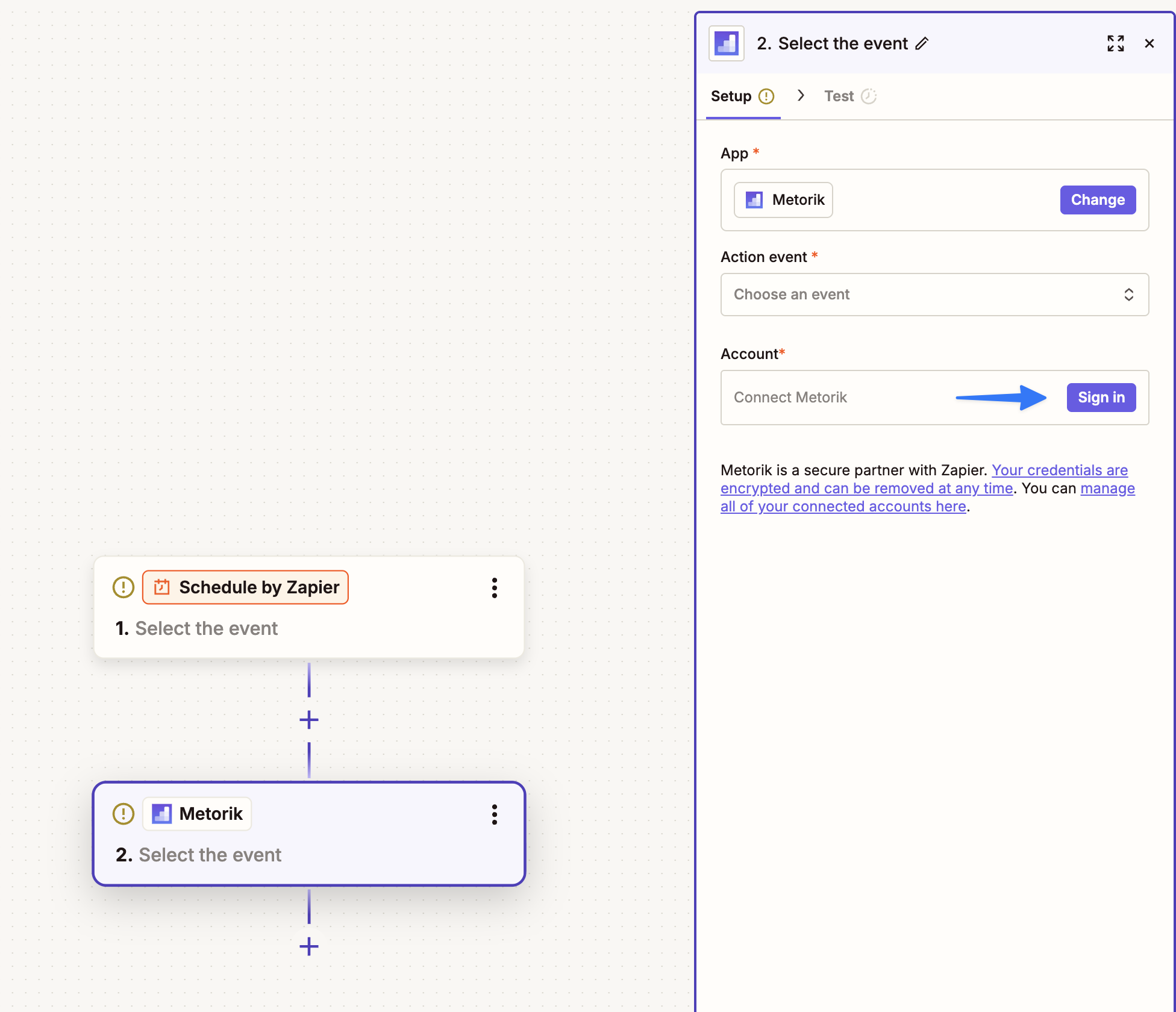
Connect Metorik in Zapier
Add Metorik as an action step in your Zap. Click Connect Metorik to start the authorization.
4
Create an API Key in Metorik
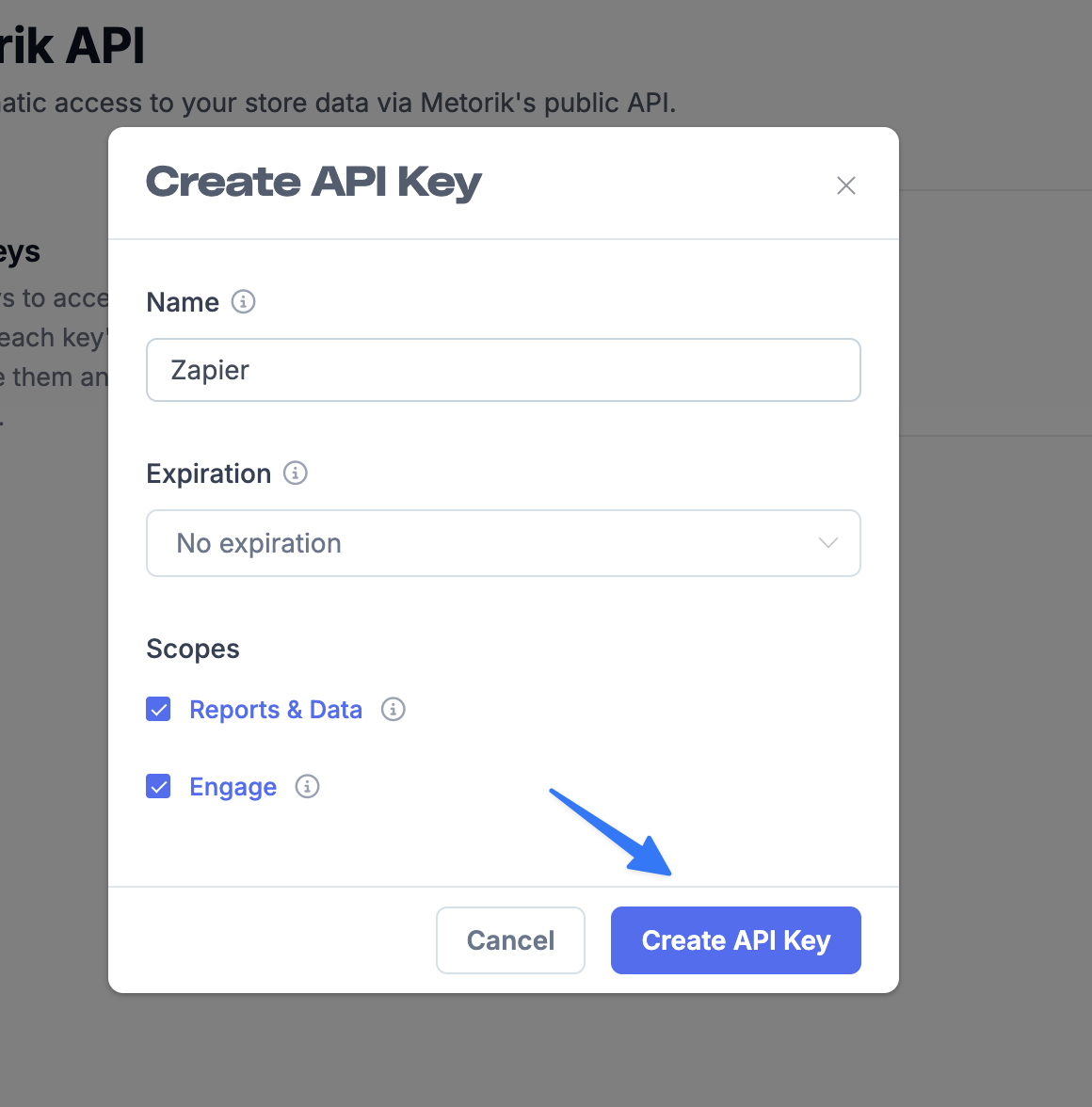
When prompted for an API key, go to your Metorik store's API Settings and create a new API key:
Enter a name, such as "Zapier".
Set an expiration or leave it as No expiration.
Select the Engage scope (required for profile and unsubscribe actions).
Click Create API Key.
Copy the API key — you won't be able to view it again.
5
Authorize Zapier
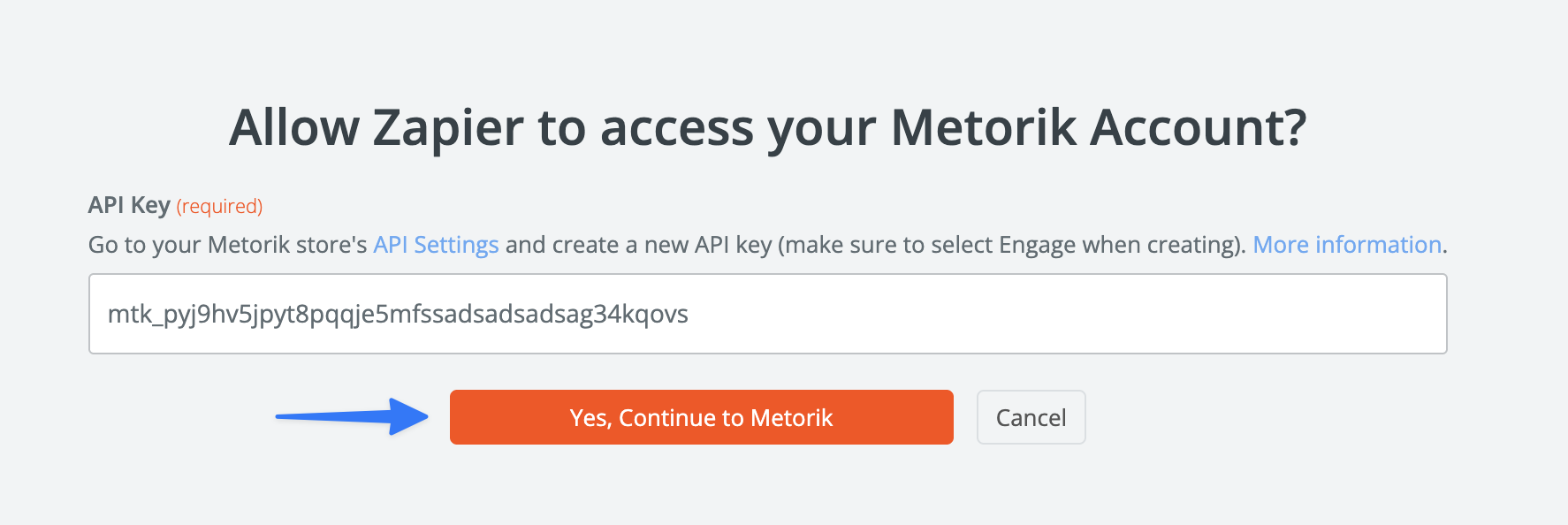
Paste the API key into the Zapier authorization page and click Yes, Continue to Metorik.
6
Select a Metorik Action
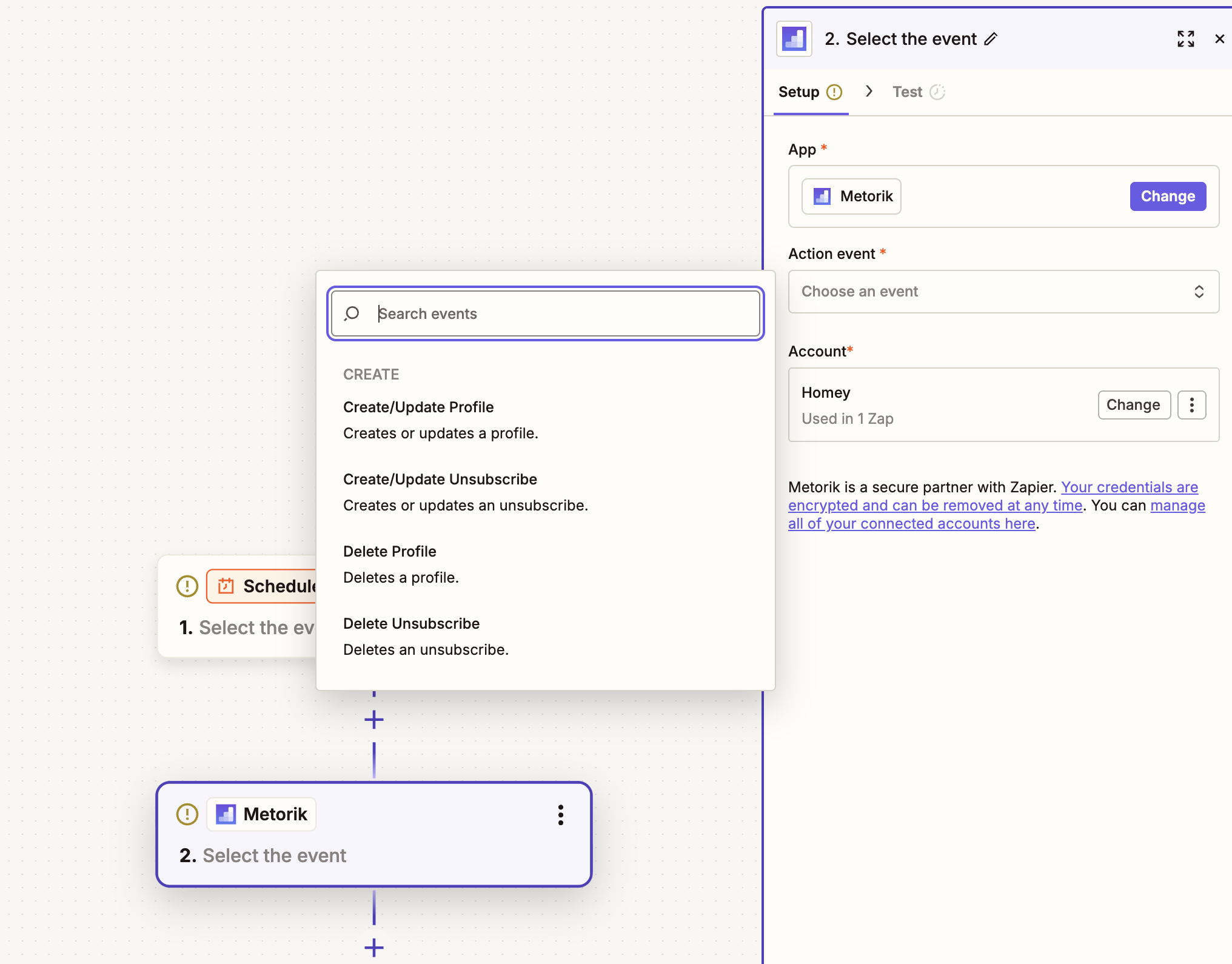
Choose the action you want Zapier to perform:
Create/Update Profile — Add or update a profile in Metorik.
Create/Update Unsubscribe — Record an unsubscribe with an optional reason.
Delete Profile — Remove a profile by email.
Delete Unsubscribe — Remove an unsubscribe record.
Troubleshooting
I can't connect Metorik to Zapier
My Zap isn't creating profiles
Check that the email field is correctly mapped from your trigger app. Metorik requires an email address for all profile actions.
For advanced workflows using webhooks, see Create Metorik Profiles Using Zapier. For detailed API key information, see Metorik API.
Was this helpful?
Was this helpful?