
Google Analytics Integration
This powerful integration brings your Google Analytics (and Google Ads data) into Metorik allowing you to see views and conversion rates within Metorik.
Connecting the integration
To start, you can connect your Google Analytics data through your store's integrations settings.
After authorising Metorik, you'll be sent back to our app to confirm the connection.
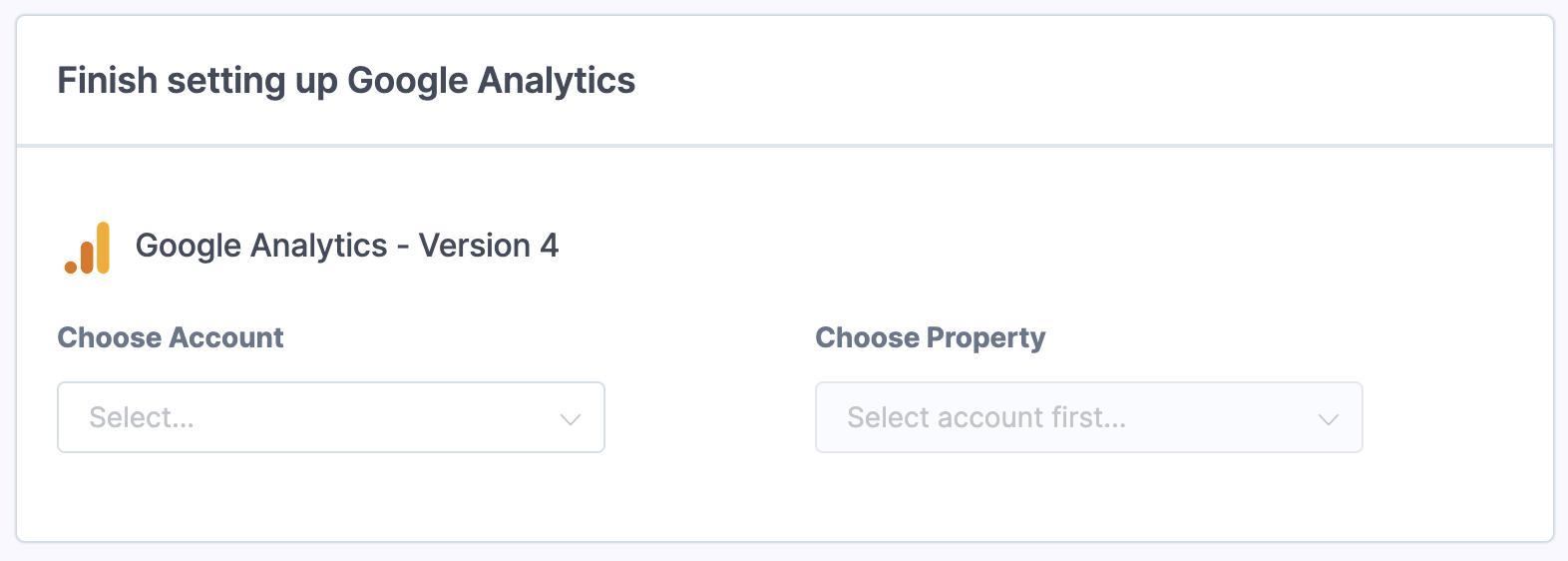
After confirming the account and property, Google Analytics and conversion rate data will be available throughout Metorik. We get the store-wide total users count from GA4. We also get ad costs from Google (see below).
After connecting, the Google Analytics Settings dialog lets you change the Earliest GA4 date, the date your GA4 data begins, and page exclusions.
The timezone you've set for the site in Google Analytics should match the timezone for your store, in order to get the most accurate information. To change the timezone, you can do the following in Google Analytics:
Go to the Admin page (rightmost link on the top of the main page)
Under View (rightmost panel of 3) select View Settings.
Under Time zone country or territory, select your desired country and time zone settings.
Additionally, we recommend setting the same currency in Google Analytics as your store's currency in Metorik (for the Google Ads integration).
Exclude pages from visitor counts
If your GA4 property also tracks a blog or news section, you can leave out visitors who only view those pages. You need an Admin role on the store and a connected GA4 property to change this setting.
Open Settings → Integrations.
Select Google Analytics.
Click Settings.
In Exclude pages from visitor counts, enter one page path per line, such as
/blogor/news.Click Save settings.
Which visitors still count?
With exclusions saved, we count GA4 users who have at least one recorded page view with a nonempty page path outside all the excluded sections during the report period.
A visitor who only views
/blogand/blog/articleis excluded.A visitor who reads a blog article and also views a shop page still counts.
A visitor who only views
/bloggerstill counts when you exclude/blog.
This changes visitor counts in Metorik, not your Google Analytics tracking. Orders and customers stay unchanged, so a lower visitor count can increase your displayed conversion rate. Page exclusions are not bot filtering and do not match individual visitors to their purchases.
Page path rules
Each path excludes that page and its subpages, with case-sensitive matching.
Enter up to 10 distinct paths, each no longer than 500 characters.
Start each path with
/. Use/blog, not a full website URL./blogmatches/blog/article, but not/bloggeror/Blog. A trailing slash is optional.Do not include query strings, fragments, wildcards, backslashes, or spaces within a path. You cannot exclude the home page with
/.
If a path is invalid, correct the line identified by the error and save again. To restore unfiltered traffic, remove every path and click Save settings.
Where exclusions apply
Your saved exclusions apply to store-wide GA4 visitors and related conversion rates, including historical GA4 reports and comparison periods.
This includes the Orders and Customers reports, dashboards, device, operating system and browser reports, traffic-based custom metrics, future digests, and the visitors API. Normal reports do not show a filtering label or icon; check your Google Analytics settings to see the saved exclusions.
Product-specific analytics and Google Ads costs are unchanged. Previously sent digests and stored Universal Analytics history are not filtered.
Changing the connected GA4 property clears page exclusions, so review them after selecting a different property. Selecting the same property keeps them.
Seeing your Views and Conversion Rate
Once connected you will be able to see your views and conversion rates in a number of different places in Metorik.
Dashboard
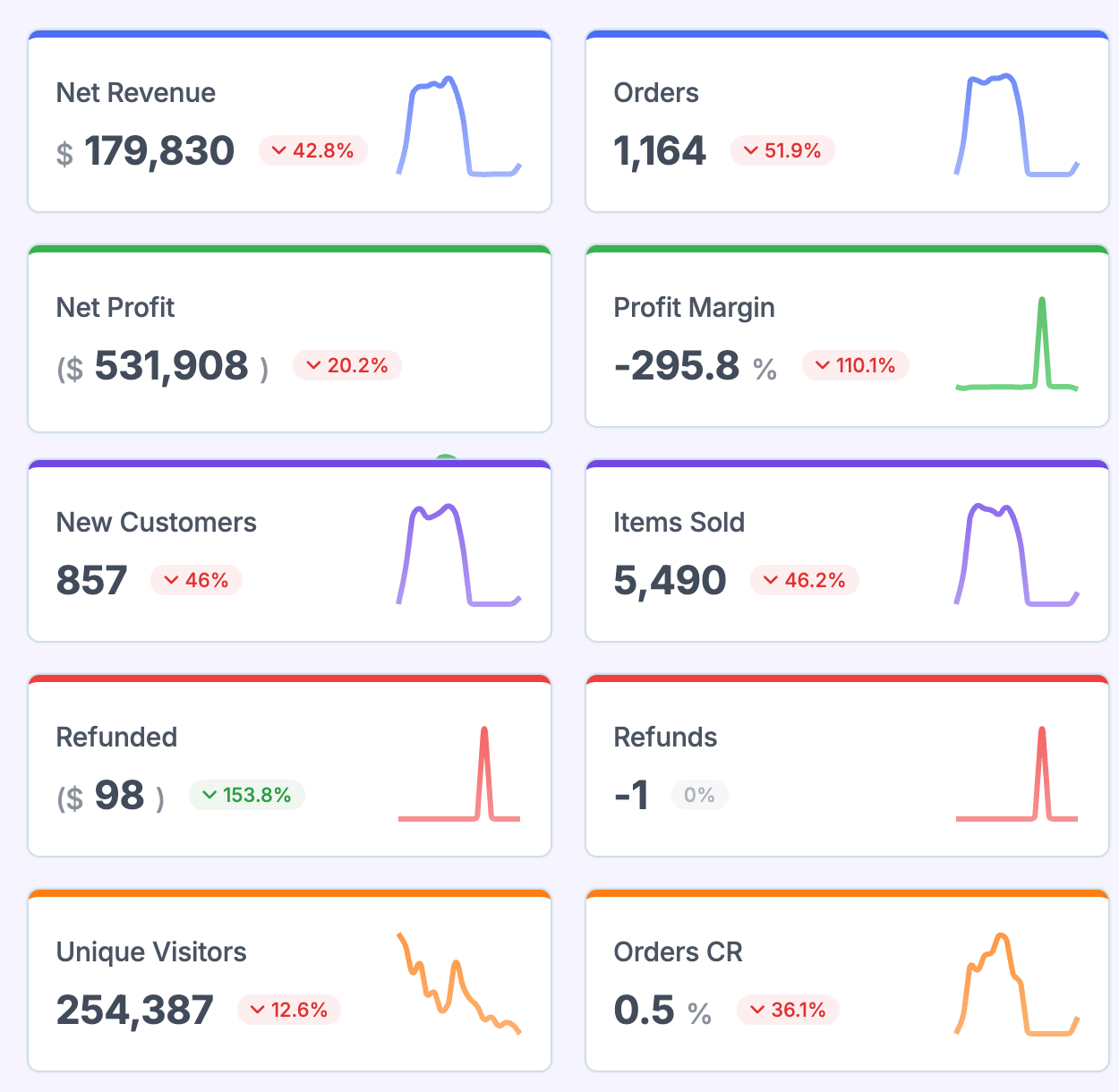
The dashboard will now have a card on the default view for views and conversion rate
Orders Report
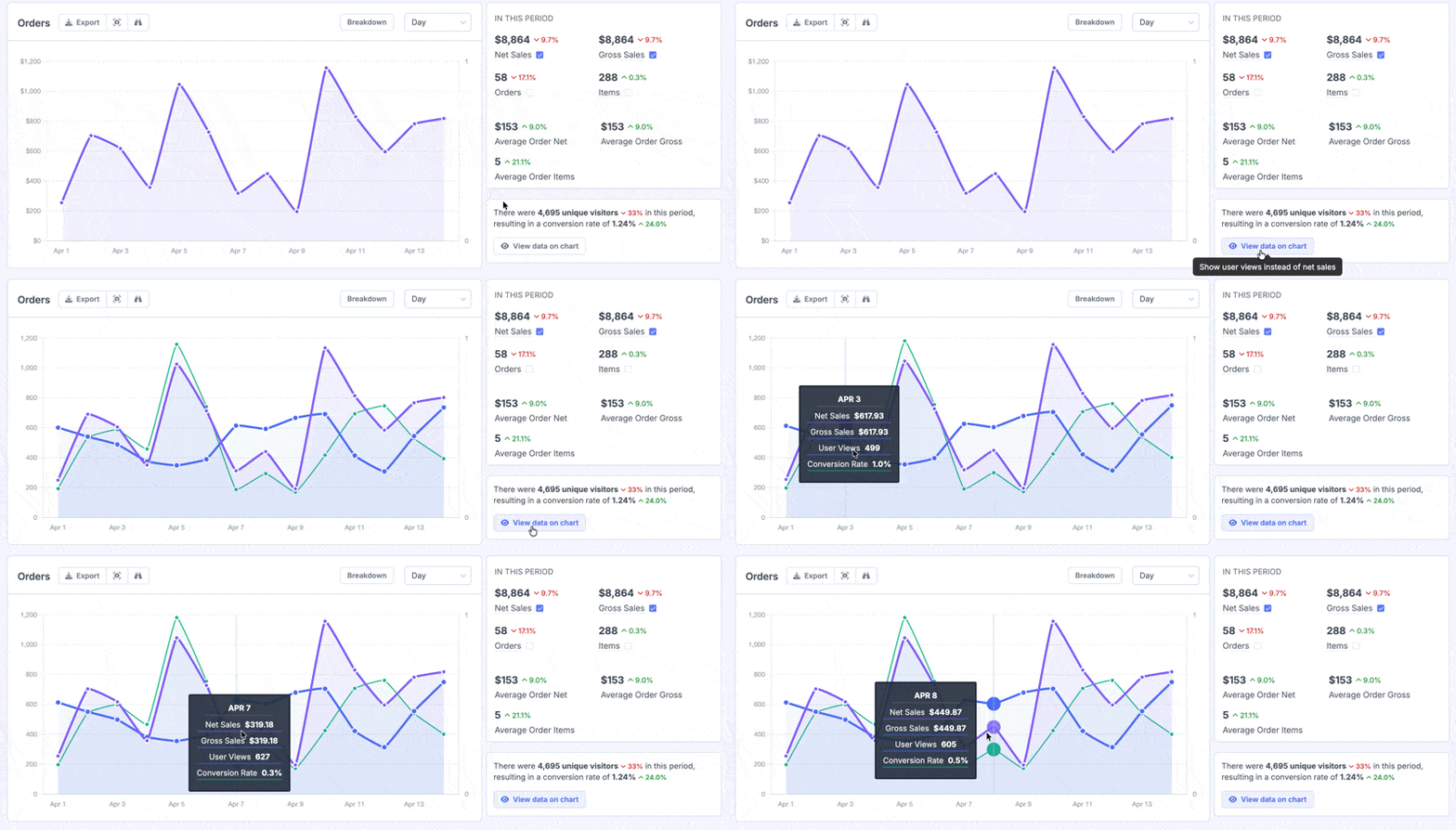
The orders report will show you views and conversion rate on the side, and you can click the view data on chart button to have it plotted on the chart:
Products Segmenting Page
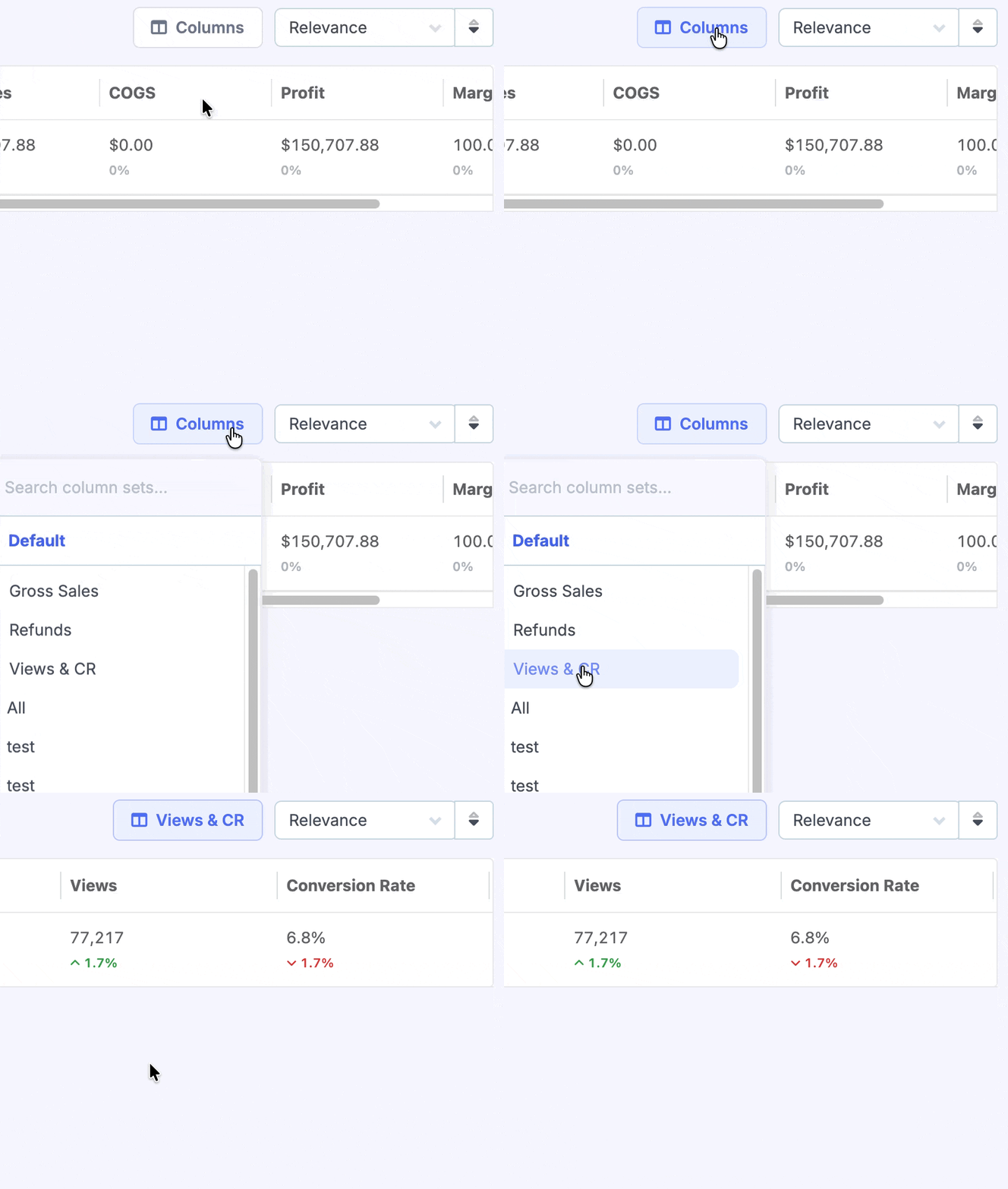
On the products segmenting page, select the Views & CR column set to add views and conversion rate columns to the table to get a breakdown per product:
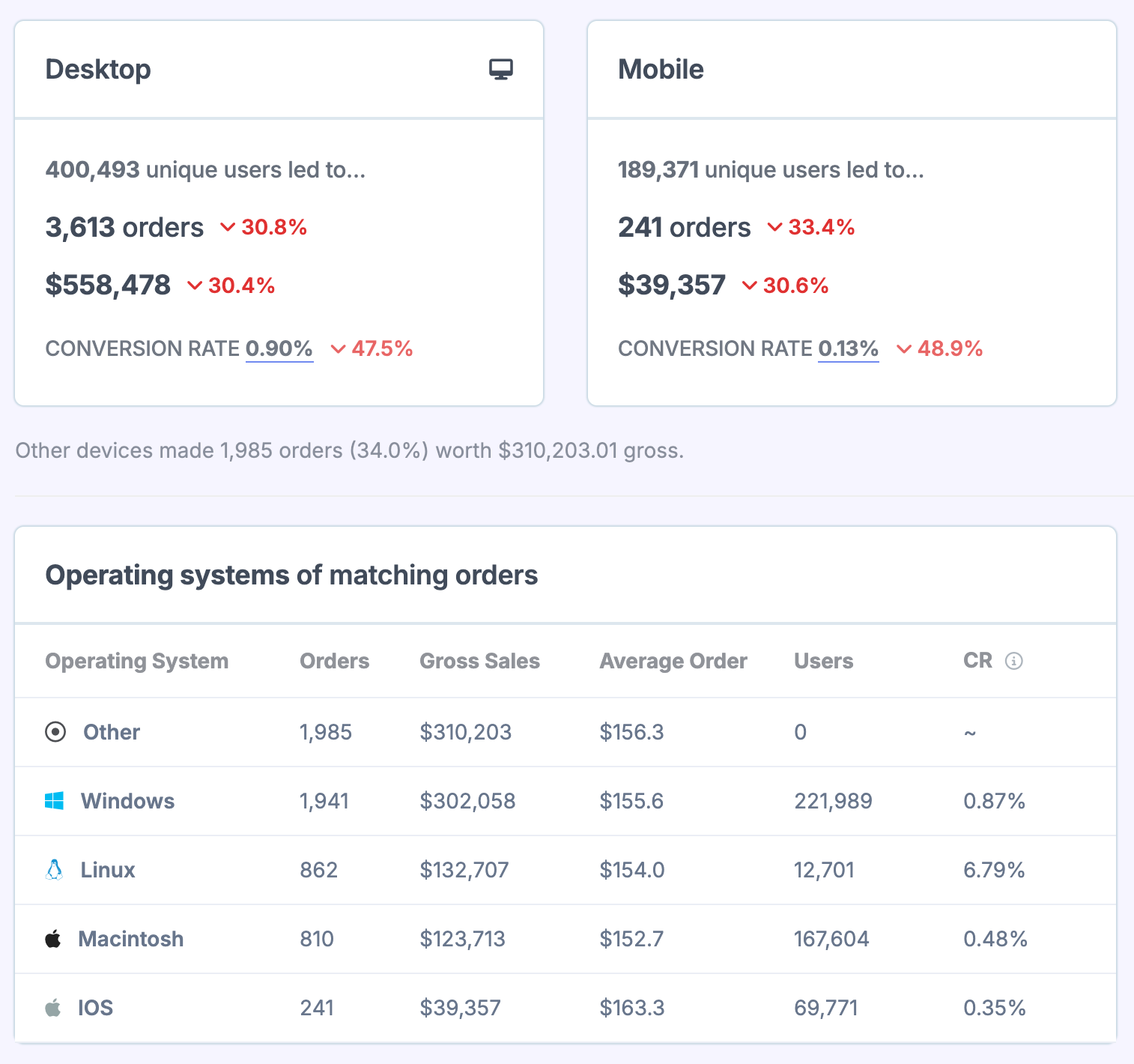
Devices Report
Will give you a breakdown of views and conversion rate by:
Desktop v Mobile
Operating Systems
Browsers
Data Delays for Google Analytics 4 (GA4)
With GA4, Google often has a delay in processing views. As such, data normally isn't available for today immediately. Metorik mirrors the data from Google Analytics, so if you can't see today or yesterday's data in Google Analytics, it won't be in Metorik until it starts showing in Google.
Understanding visitor metrics
We use the total users count from GA4 for store-wide visitor reporting, with any saved page exclusions applied. This represents distinct users who visited your store during a period—not the number of sessions or page views. A single user with multiple visits counts once as a unique visitor. For a full explanation, see What does "Unique Visitors" mean in Metorik?
Google Ads integration
Metorik offers a costs and profit system, which can be used to calculate profit for your store. One of the features it has is the ability to sync advertising costs directly from Google Ads.
We sync your Google Ads data through your Google Analytics account. For a full explanation of why we use this indirect connection, the required permissions, and the steps to link your Google Ads account to Google Analytics, see Google Ads integration.
There can be a delay in syncing data if the ad costs have not synced to Google Analytics Version 4. Once the data is available in Google Analytics, we can usually sync it automatically on our end.