Tori is currently in beta. Please let us know if you have any issues.
Tori is an AI assistant built into Metorik. It can analyse your store data, answer performance questions, create segments, explain reports, find individual records, and help you navigate Metorik using natural language.
Tori works with the currently selected store. It is store-specific and is not available from the multi-store dashboard.
What Tori can do
Tori can help with sales and reporting questions, record lookups, segments, Engage performance, navigation, and more. Here are some examples:
Sales, revenue, orders, refunds, AOV, and period comparisons
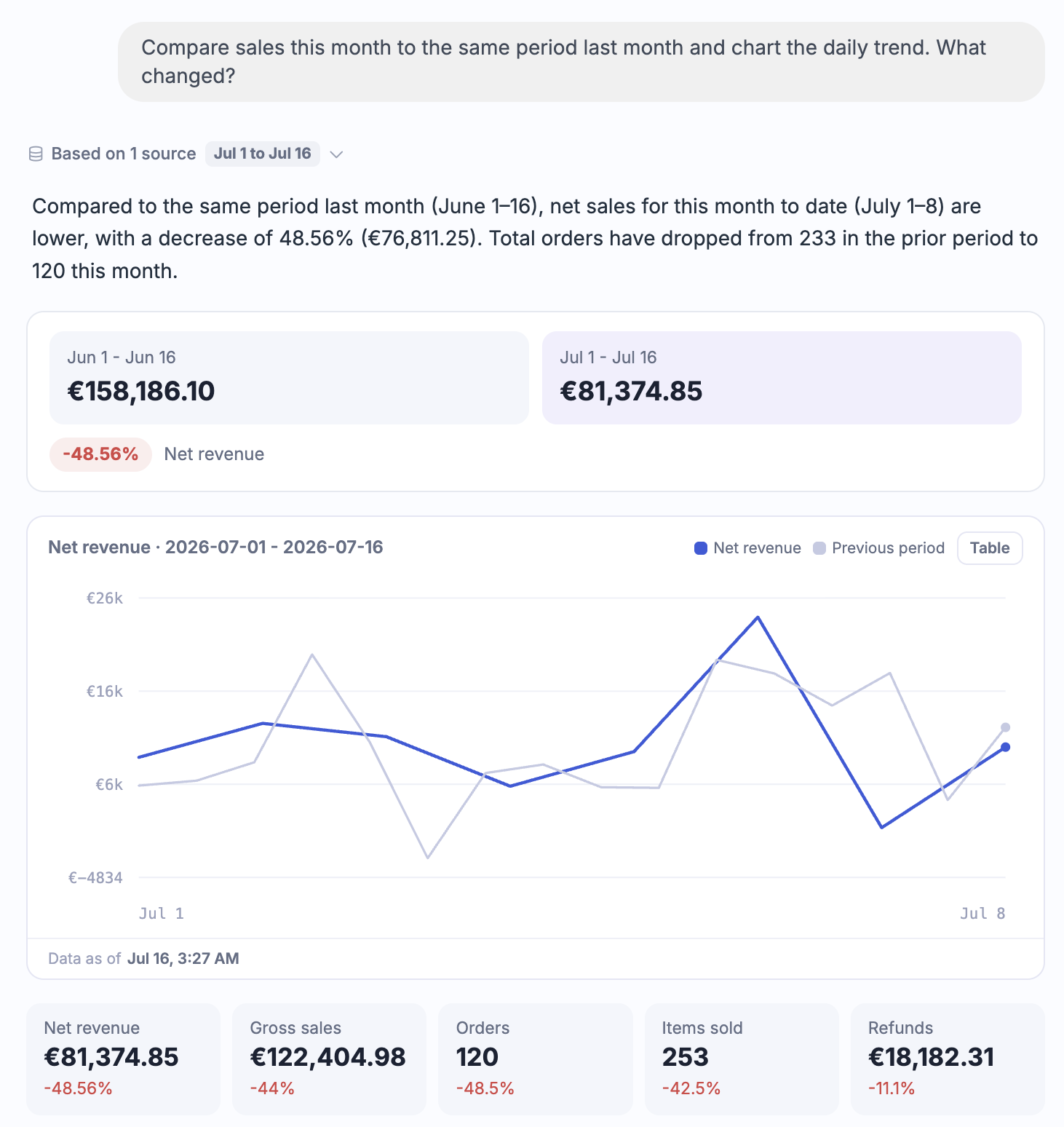
Trends over time, including charts and dimensional breakdowns
Product, variation, category, brand, and coupon performance
Customer behaviour, locations, cohorts, retention, and repeat purchases
Order, customer, subscription, and refund lookups
Subscription performance, MRR, churn, retention, plans, and upcoming renewals
Goals and custom metrics
Engage automations, broadcasts, cart recovery, and email performance
Traffic sources and attribution
Building order, customer, subscription, product, coupon, refund, or cart segments from plain-English or any language
Explaining Metorik features and finding relevant Help Center articles
Finding the correct page or setting inside Metorik
Summarising the report or resource page currently being viewed
Tori can present results as text, metrics, charts, comparisons, tables, ranked lists, goals, segments, customer cards, order cards, and links to the underlying Metorik resources.
Where to find Tori
Tori is available to admins, editors, and analysts when enabled for the store.
You can open Tori in these ways:
Select Tori in the main Metorik sidebar to open the full-page workspace
Select the sparkle icon in the top navigation to open the Tori drawer from any supported page
Ask a question through Metorik’s global search and select Ask Tori
Use an Ask Tori action on a report to send the current report and date context to Tori
The Tori drawer
The drawer lets you ask a question without leaving the page you are viewing.
From the drawer header, you can:
Start a new conversation
Open conversation history
Dock Tori beside the current page on larger screens
Switch between wider and narrower drawer layouts
Open the full Tori page
Close the drawer
When docked, you can keep viewing and interacting with the underlying Metorik page alongside the conversation.
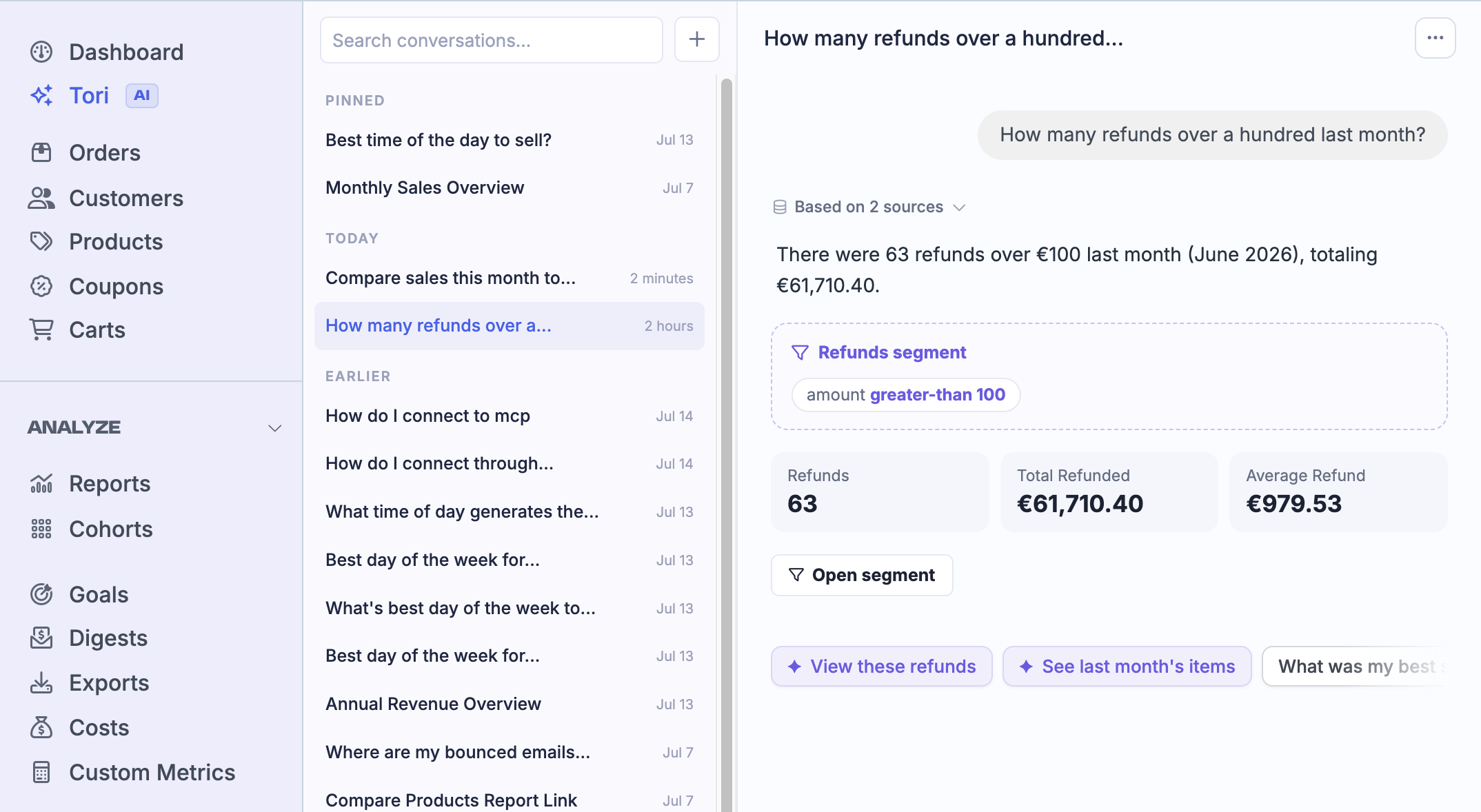
A searchable conversation sidebar with all your previous conversations
Conversation pinning
A button for starting a new conversation
Editable conversation titles
Conversation deletion
A resizable conversation sidebar
Opening a conversation from the drawer’s history can take you directly to that conversation on the full Tori page.
Start a conversation
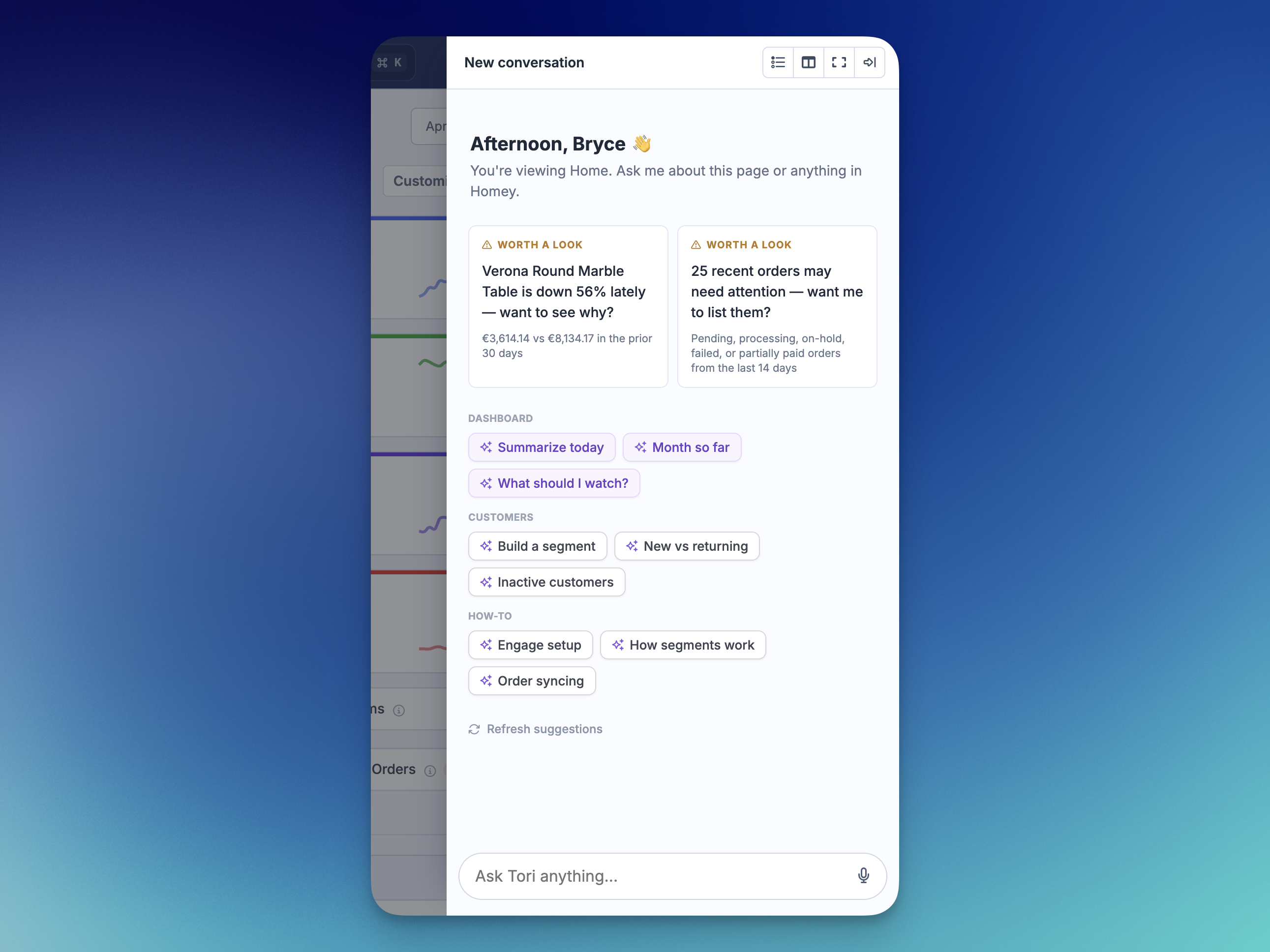
On a new conversation, Tori shows a personalised welcome screen with suggested questions.
Suggestions may be based on:
The current Metorik page
The selected report dates
Recent store performance
Sales, products, customers, marketing, subscriptions, or Engage
Relevant store conditions, such as a refund spike, changing AOV, sales pacing, product momentum, or customers worth winning back
1
Open Tori
Select Tori in the sidebar, or select the sparkle icon in the top navigation.
2
Choose a suggestion or type a question
Select a suggestion, refresh the suggestions, type your own question, or use voice input when microphone recording is supported by your browser.
3
Send the message
Press Enter to send. You can stop a response while it is being generated.
Tori understands the current page
Tori receives the current page and relevant date selection as context.
For example:
On an orders page, ask “Summarise these orders.”
On a customer, ask “What has this customer bought?”
On a product, ask “Who buys this product?”
On a report, ask “What changed in this report?”
In store settings, ask “Explain what I can do on this page.”
Dates selected in Metorik reports are used as Tori’s default unless you request another period.
Example questions
Use plain-language questions like the ones below.
Sales and reporting
“How are sales this month?”
“Compare this month to last month and chart the daily trend.”
“What was our best day of the week for sales?”
“Which countries are driving our growth?”
“Why are refunds higher this week?”
Products and coupons
“What are my top-selling products this month?”
“Which products sold the most units?”
“Which products are slowing down?”
“Which coupons generated the most sales?”
“What products are commonly bought together?”
Customers and segments
“Who are my top customers?”
“Find customers who haven’t ordered in 90 days.”
“Build a segment of customers who spent more than $500 in the last year.”
“Compare new and returning customers this month.”
“Which customers should I target with a win-back email?”
Subscriptions and Engage
“How is subscription churn trending?”
“Which plans have the most MRR?”
“What renewals are coming up?”
“Which Engage emails performed best recently?”
“How are my active automations performing?”
Help and navigation
“How do segments work in Metorik?”
“Where do I manage order syncing?”
“Take me to my customer cohorts report.”
“How do I exclude refunded orders from reports?”
Actions Tori can take in Metorik
When you ask explicitly, Tori can update the current Metorik interface.
Supported interface actions:
Applying a generated segment
Changing the primary date range
Opening a Metorik page
Changing how a grouped report is grouped
Switching between light, dark, and system colour modes
These are interface actions only. Tori’s store-data tools are read-only: it does not edit orders or customers, change commerce-platform records, send campaigns, or modify underlying store data.
Please let us know other actions you'd like Tori to take so we can improve it further.
Understanding an answer
Depending on the question, an answer may include a written summary, metrics, charts, tables, record cards, segments, links, Help Center citations, a data-source panel, and suggested follow-up questions.
You can copy an answer or rate it with the thumbs-up and thumbs-down controls.
Because Tori is an AI feature in beta, check important decisions and figures against the linked Metorik report or record.
Conversation history and privacy
Conversations are saved separately for each user and store. One team member cannot open another user’s Tori conversation through the normal conversation interface.
You can:
Search previous conversation titles and answers
Rename a conversation
Pin important conversations
Delete conversations
Continue a previous conversation with its existing context
Deleted conversations disappear immediately.
For very long or unrelated discussions, start a new conversation for a clearer result.
Tori settings
The company owner can manage Tori from Settings → Store → AI & MCP.
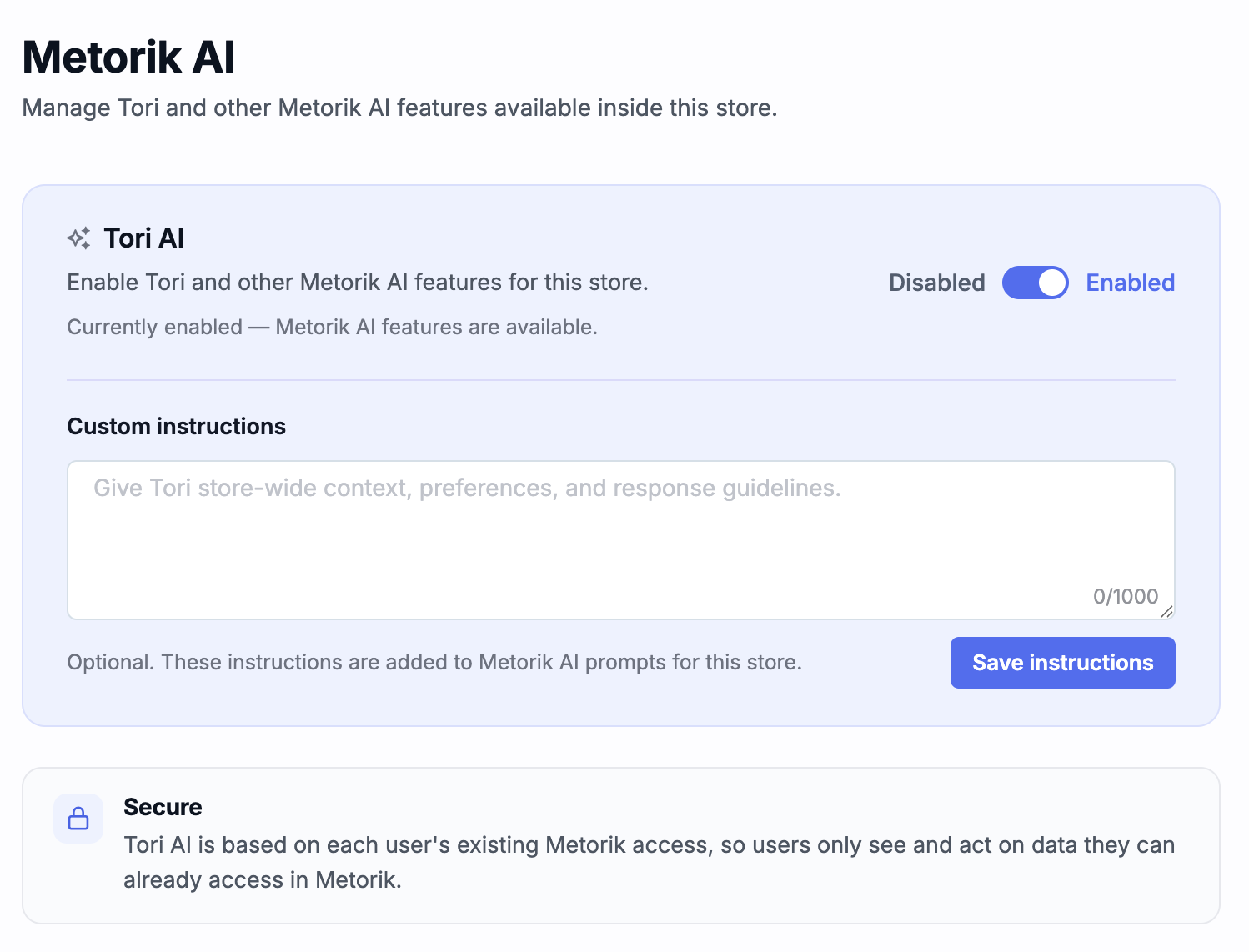
Enable or disable Tori AI
The Tori AI switch enables or disables Tori and other in-app Metorik AI features for that store.
When disabled:
The Tori sidebar item and top-navigation launcher are hidden
The /tori page is unavailable
Existing conversations are not shown until Tori is enabled again
Disabling Tori does not delete previous conversations.
Custom instructions
Custom instructions provide store-wide context and response preferences to Tori. They are optional, apply to everyone using Tori on that store, and can contain up to 1,000 characters.
Good examples include:
“Use net sales rather than gross sales unless I ask otherwise.”
“Call our customers members.”
“Our financial year starts on July 1.”
“Prioritise subscription retention and repeat purchase behaviour.”
“Keep answers concise and always mention the comparison period.”
“Ignore wholesale orders unless I explicitly ask about them.”
Use custom instructions for enduring store context. Put one-off requirements, such as a particular date range, directly in your question.
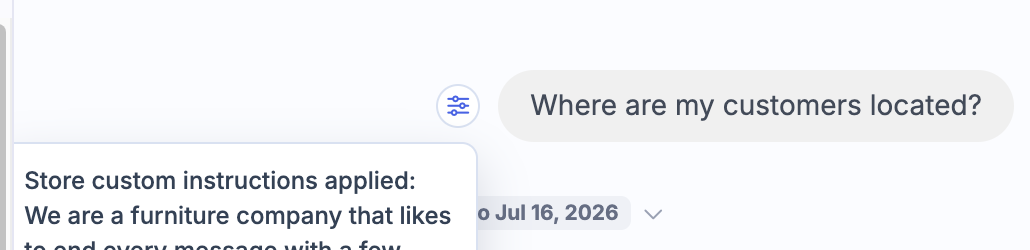
Tori still prioritises data accuracy, user permissions, and Metorik’s reporting rules over conflicting custom instructions. When custom instructions were applied, an instructions indicator appears beside the first user message in the conversation.
Security and permissions
Tori uses each user's existing Metorik access.
Admins, editors, and analysts can access Tori
Marketers and dashboard viewers do not have Tori access
Users can only access stores they already belong to
Cost and profit information requires both cost data to be enabled and the user to have the COGS permission
Store report settings, including excluded statuses, net-sales deductions, and paid-order/customer settings, are respected
Store currency and timezone are used when formatting answers and resolving dates
Data and AI privacy
No store data is sent to any AI model until you open Tori and ask a question. Your data stays in Metorik until you actively engage with Tori.
Tori is powered by Google Gemini and OpenAI. Data sent to these providers is handled securely and is not used to train their models or stored by them.
Tori versus MCP
The AI & MCP page also contains settings for connecting external AI applications such as ChatGPT and Claude. These are separate from Tori.
Tori AI is the assistant built into Metorik
MCP Access controls external AI applications connected to Metorik
With record-level access disabled, aggregate reports, totals, and catalog analysis remain available. For external AI connections, see ChatGPT or Claude via MCP.
Beta
Tori is currently in beta. We are seeking feedback and ideas. Please let us know if you run into any issues or have questions about using it.
Troubleshooting
I can’t see Tori
Check that:
The store has access to the Tori beta
Tori AI is enabled under Settings → Store → AI & MCP
You are an admin, editor, or analyst
You are viewing an individual store rather than the multi-store dashboard