
Showing Refunds on the Dashboard
Metorik counts refunds in two different ways depending on the report or context. When you add refund cards to your dashboard, you can choose which interpretation to use.
The Two Refund Types
Refund Created — refunds counted by the date the refund happened. This matches how the Revenue Report and Profit Report count refunds. Use this when you want to see the financial impact of refunds on the day they actually occurred.
Refunded Order: Created — refunds counted by the date the original order was placed. This matches how the Orders Report counts refunds. Use this when you want to see refunds attributed back to when the original sale happened.
For a full explanation of how refunds work across all reports, see Refunds in Metorik.
Adding Refund Cards to the Dashboard
You can add both refund types to your dashboard as separate cards to see them side by side.
Open the New Card Dialog
Go to your dashboard and click New Card at the bottom. For more details on customizing the dashboard, see Customising the Dashboard.
Select Segment Total(s)
Choose Segment Total(s) as the card type. This lets you display a count or value from a segment.
Choose Refunds as the Resource
In the Resource dropdown, select Refunds.
Select the Refund Type
In the Segment dropdown, choose one of:
Refund Created — to count refunds by the refund date
Refunded Order: Created — to count refunds by the order date
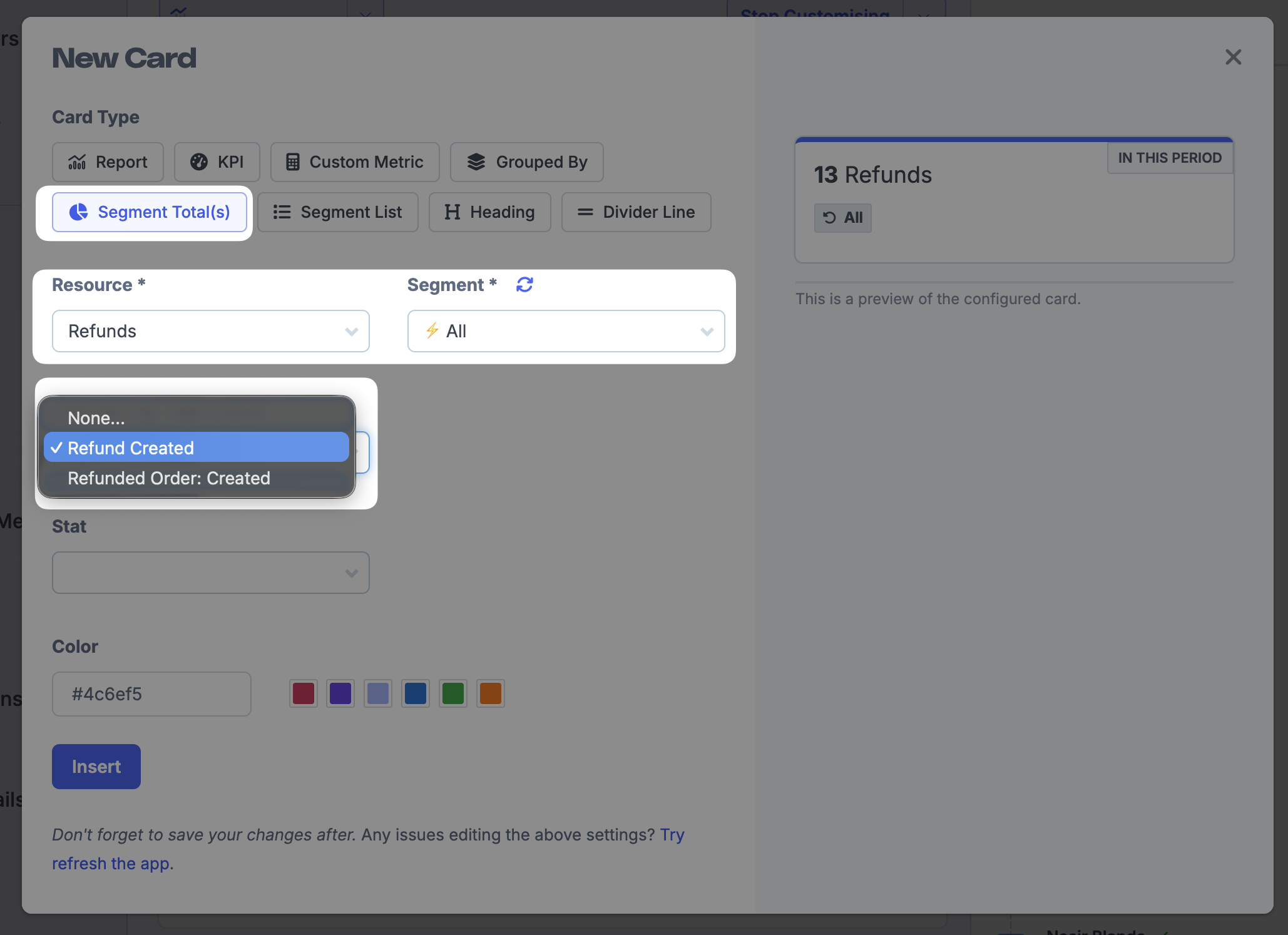
You can create two separate cards — one for each refund type — to compare them on your dashboard.
Configure and Insert
Choose the stat you want to display (e.g., count or total refunded), set a color if desired, then click Insert to add the card.
When to Use Each Type
Refund Type | Best For | Matches |
|---|---|---|
Refund Created | Seeing the daily financial impact of refunds on cash flow and profit | Revenue Report, Profit Report |
Refunded Order: Created | Understanding refunds in the context of when orders were placed | Orders Report |
If you're comparing your dashboard to a specific report, make sure you're using the matching refund type to avoid confusion.