
Viewing combined sales for multiple stores
If you operate more than one store — whether WooCommerce, Shopify, or a mix of both — Metorik's Multistore Dashboard gives you a single view of combined revenue, orders, and profit across all your stores. You can switch between individual stores, compare performance, and see totals in one place.
Add your stores to Metorik
Before you can view combined sales, you need to connect all your stores to the same Metorik account.
Connect your stores
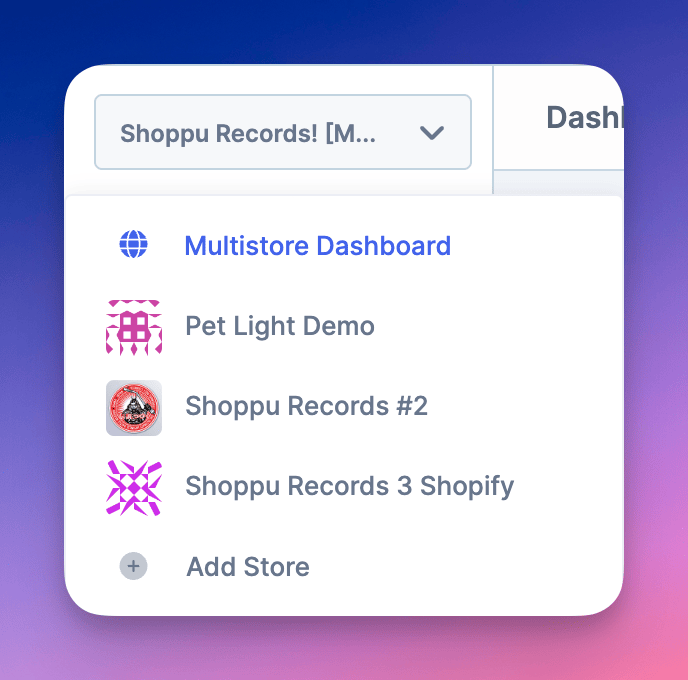
From the top-left dropdown in the Metorik app, click Add Store at the bottom of the list. Alternatively, go to your Account Settings and add a store from there.
For detailed instructions on connecting stores, see Connect your WooCommerce store or Connect your Shopify store.
Switch between stores
Once you have multiple stores connected, use the top-left dropdown to switch between them. Click any store name to view that store's dashboard and reports.
Access the Multistore Dashboard
The Multistore Dashboard shows combined metrics for all your stores in one view.
Open the Multistore Dashboard
From the top-left dropdown, select Multistore Dashboard — or go directly to app.metorik.com/multi.
View combined totals
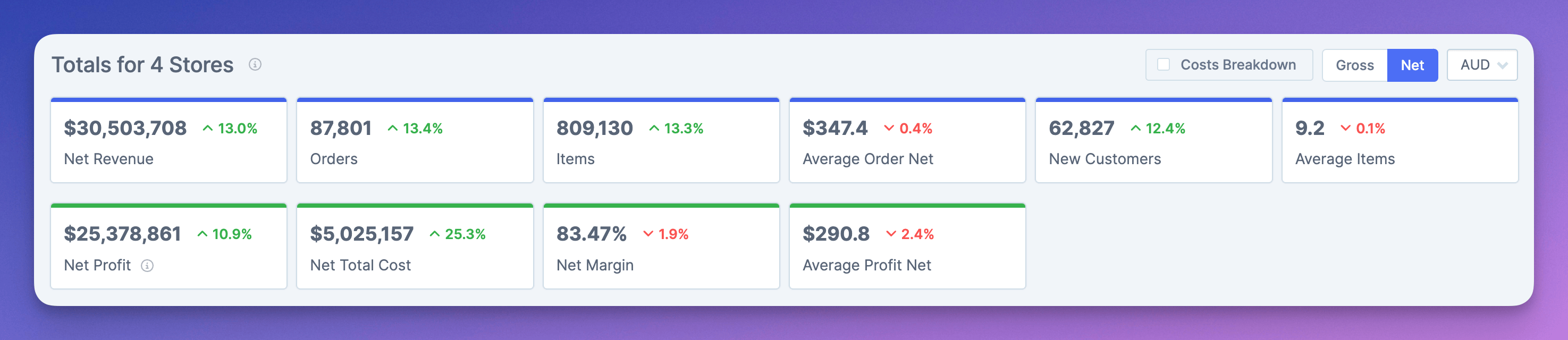
The main section displays combined totals across all your stores:
Revenue
Orders
Items sold
If you have profit tracking set up, you'll also see profit and margin totals.
View blended ROAS and POAS
When you can see COGS for at least one visible store, and at least one of your store's has ad costs, the Multistore Dashboard can also show Blended ROAS and Blended POAS total cards. These cards combine revenue or profit and ad cost across stores that have advertising cost in the period. For the formulas and inclusion rules, see Blended ROAS and POAS on the Multistore Dashboard.
View costs breakdown
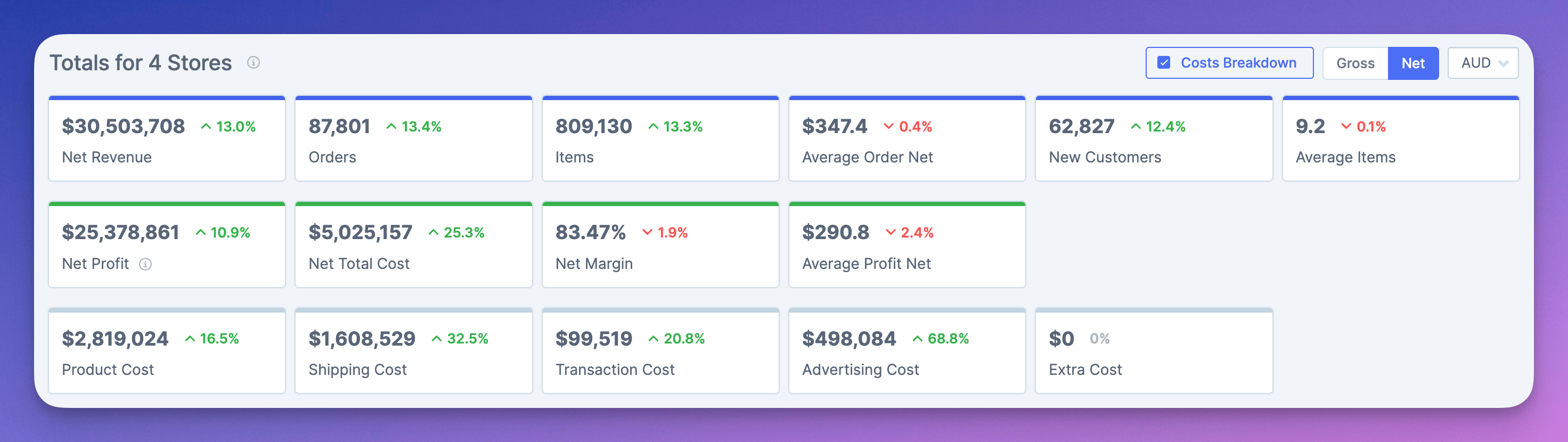
Toggle Costs Breakdown on the right side to show detailed cost totals including transaction costs, shipping costs, and other expenses across all stores.
Switch between Gross and Net values
Use the Gross/Net toggle to switch between gross totals (before refunds and cancellations) and net totals (after adjustments).
View currency totals
If your stores use different currencies, you can switch between currency-specific totals. Metorik shows combined totals for each currency used across your stores.
Use TV mode and customer search
Enable TV mode
Click the TV icon in the top section to enter TV/presentation mode. This removes the top banner area, making it ideal for fullscreen displays on monitors or TVs in your office or warehouse.

Search customers across all stores
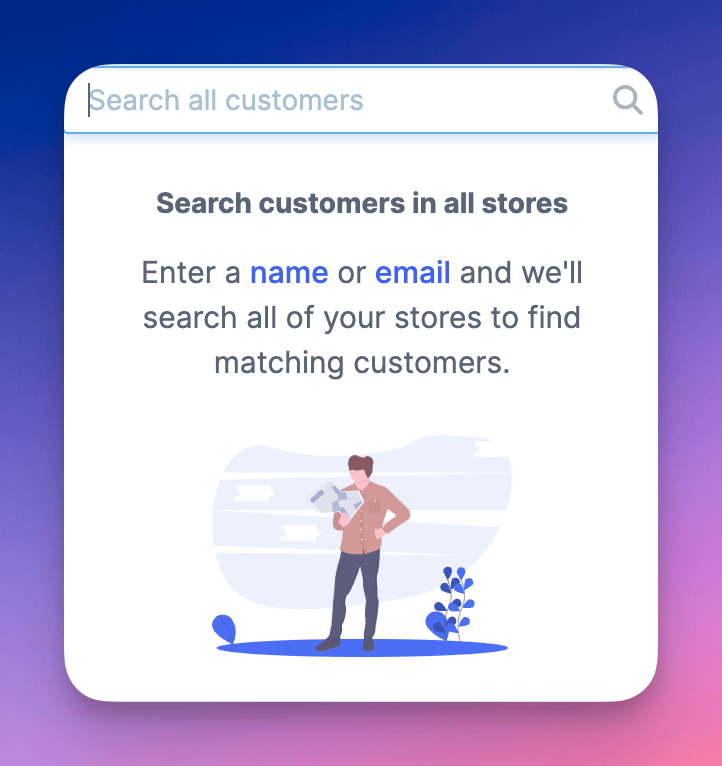
Next to the TV icon, use the customer search to find customers across all your stores. Click a result to go directly to that customer's profile in the relevant store.
Manage individual stores
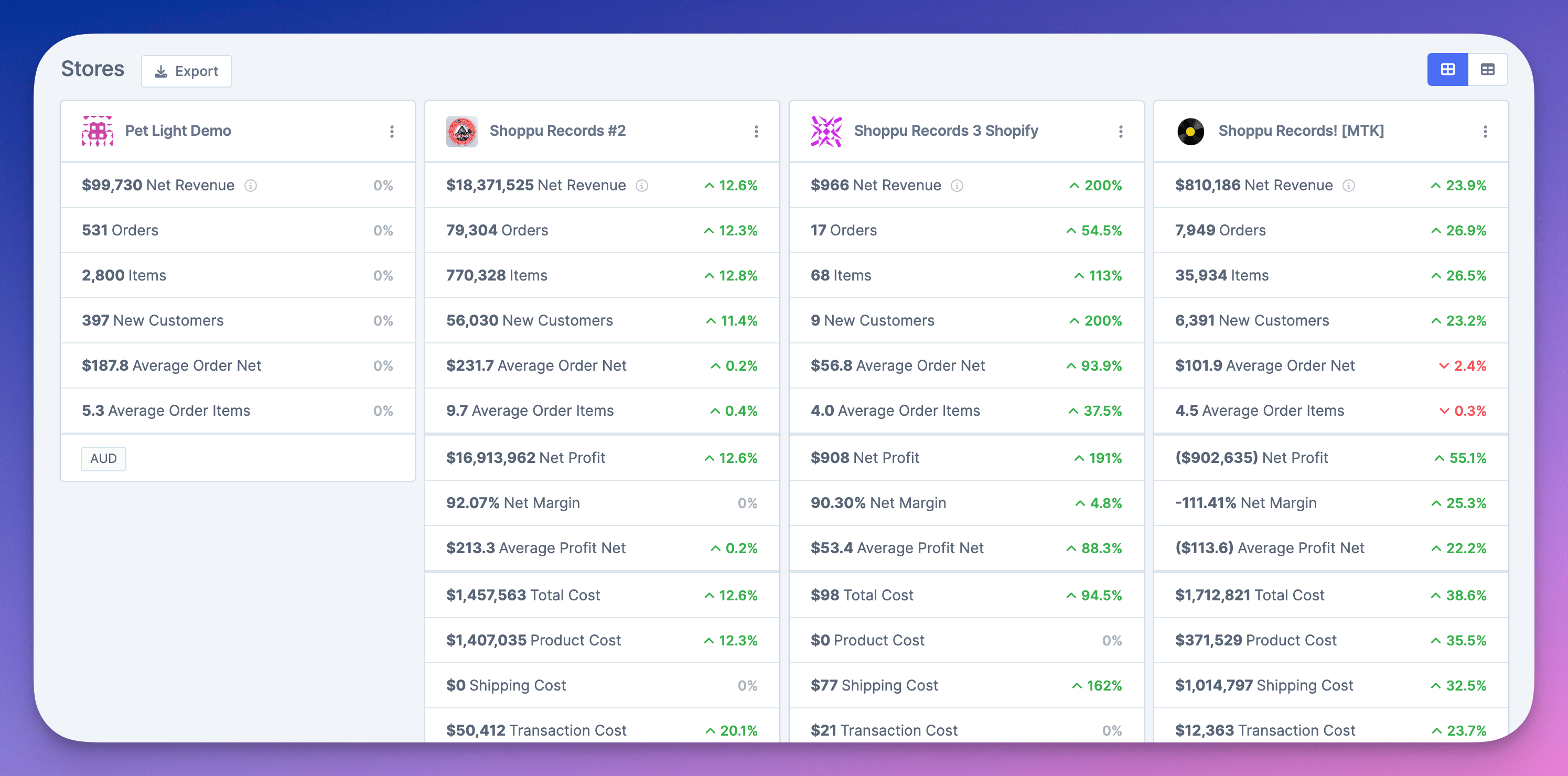
The bottom section of the Multistore Dashboard lists each store with its own stats.
View per-store stats
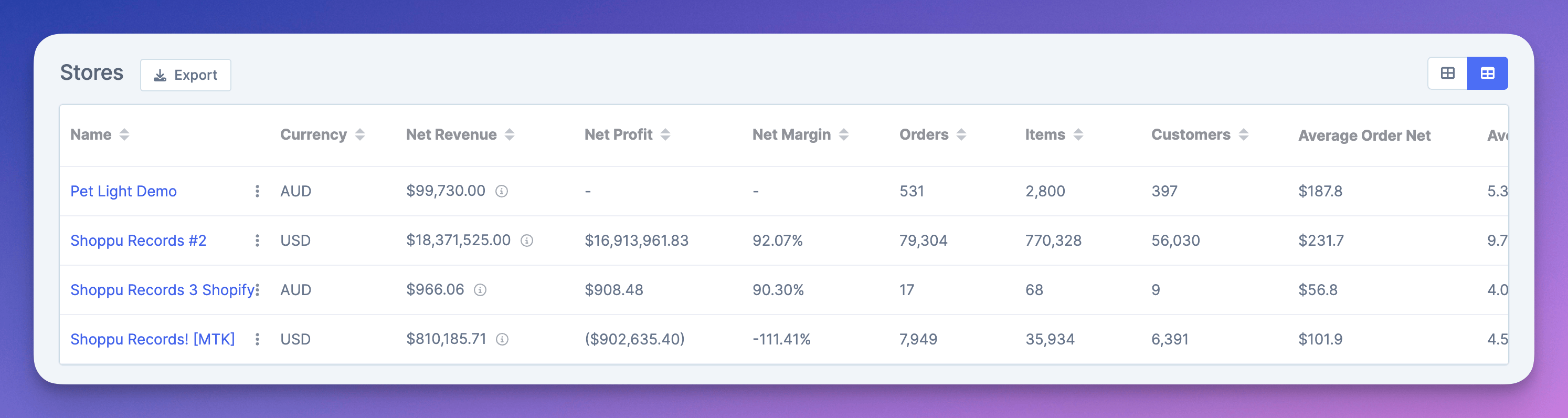
Each store card shows revenue, orders, items, and other metrics. Use the layout toggle on the right to switch between different display formats.
Access store options
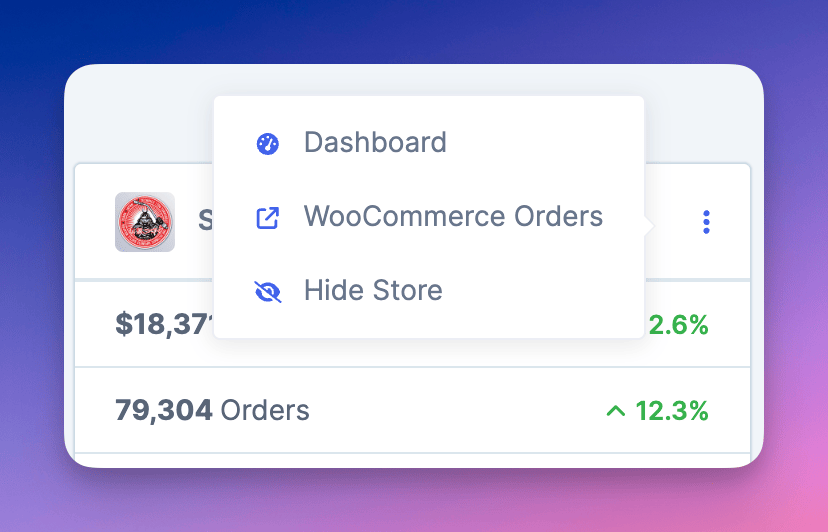
Click the dropdown menu on any store card to:
Go to store — Open that store in the Metorik app
Go to orders — Open the orders page on your actual store's website
Hide store — Remove that store's stats from the combined totals
Restore hidden stores
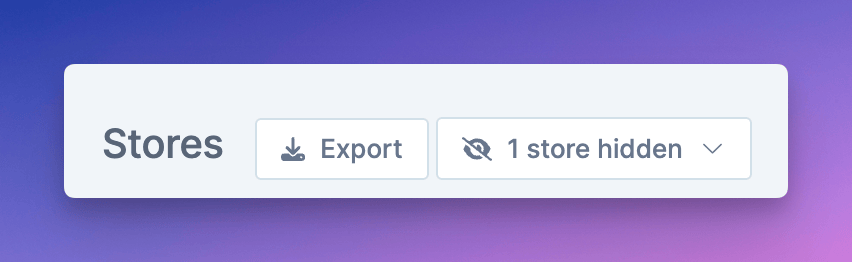
If you've hidden a store from the dashboard, click the Restore button and select which store(s) to show again. Hidden stores are excluded from combined totals until restored.
What's next
Set up profit tracking to see combined profit and margin totals