
Shopify: Manually installing the Metorik tracking script
The Metorik tracking script captures source information and Engage attribution on your Shopify storefront. If you previously disabled the script, you can restore it by adding it directly to your Shopify theme: Shopify's platform changes prevent us from recreating the original automatic installation after it has been removed.
Installing the script manually does not delete historical tracking data.
Install the script
Open the theme code editor
In your Shopify admin, go to Online Store > Themes. Open the menu for your active theme and select Edit code.
Create the script file
Create a new file named mtk.js in the Assets folder and paste in the full contents below:
"use strict";

var mtkGetParams = function(custom_params) {
    var query_string = {},
        query = custom_params ? custom_params : window.location.search.substring(1),
        vars = query.split('&');

    for (var i = 0; i < vars.length; i++) {
        var pair = vars[i].split('=');
        if (typeof query_string[pair[0]] === 'undefined') {
            query_string[pair[0]] = pair[1];
        } else if (typeof query_string[pair[0]] === 'string') {
            var arr = [ query_string[pair[0]], pair[1] ];
            query_string[pair[0]] = arr;
        } else {
            query_string[pair[0]].push(pair[1]);
        }
    }

    return query_string;
}

/**
 * Cookie helper method.
 */
var mtkCookie = function(name, value, ms) {
    if (arguments.length < 2) {
        // read cookie
        var cookies = document.cookie.split(';')
        for(var i=0; i < cookies.length; i++) {
            var c = cookies[i].replace(/^\s+/, '')
            if(c.indexOf(name+'=') == 0) {
                return decodeURIComponent(c.substring(name.length+1).split('+').join(' '))
            }
        }
        return null
    }

    // write cookie
    var date = new Date()
    date.setTime(date.getTime()+ms)
    document.cookie = name+"=" + encodeURIComponent(value) + (ms ? ";expires="+date.toGMTString() : '') + ";path=/"
}

/**
 * Keys to process.
 */
const mtkKeys = [
    'mtke',
    'utm_campaign',
    'utm_source',
    'utm_medium',
    'utm_term',
    'utm_content',
    'utm_id',
];

/**
 * Go through each key.
 */
var mtkCartAttributes = {};
mtkKeys.forEach(function (key) {
    var cookieKey = 'mtk_' + key;
    var noteKey = '_metorik_' + key;

    /**
     * Continue if cookie not set and key exists.
     */
    if (! mtkCookie(cookieKey) && key in mtkGetParams()) {
        /**
         * Set in cart attributes to POST.
         */
        mtkCartAttributes[noteKey] = mtkGetParams()[key];

        /**
         * Set a cookie for 12 hours so we don't store again.
         */
        mtkCookie(
            cookieKey,
            true,
            1000 * 60 * 60 * 12 // 12 hours
        );
    }
});

/**
 * Track the referring site if not from this site.
 */
if (!mtkCookie('mtk_referer') && document.referrer && ! (document.referrer.indexOf(location.protocol + "//" + location.host) === 0)) {
    /**
     * Set in cart attributes to POST.
     */
    mtkCartAttributes['_metorik_referer'] = document.referrer;

    /**
     * Set a cookie for 1 day so we don't store again.
     */
    mtkCookie(
        'mtk_referer',
        true,
        1000 * 60 * 60 * 24 // 1 day
    );
};

/**
 * If have cart attributes to process, API request to set cart.
 */
if (Object.keys(mtkCartAttributes).length) {
    var xhr = new XMLHttpRequest();
    xhr.open('POST', '/cart/update.json', true);
    xhr.setRequestHeader('Content-Type', 'application/json');

    xhr.send(JSON.stringify({ attributes: mtkCartAttributes }));
}Add the script line to theme.liquid
Open Layout > theme.liquid and add the following line immediately before the closing head tag in the file:
<script src="{{ 'mtk.js' | asset_url }}" defer></script>Save your changes
Save the theme file to finish the installation.
Add this line only once. If you change themes later, or update your theme, check that the new theme includes both the file and this line.
Your Metorik connection settings may still show the script as disabled because they don't detect a manual theme installation. This does not prevent tracking from working.
Do not click Start Tool in your Metorik connection settings to restore tracking. That tool deletes Metorik's additional details from historical orders.
Test that tracking is working
Run this test in a fresh private or incognito browser session so cookies from earlier visits don't affect the results. You don't need to place an order to complete the first two checks.
Visit your store with test tracking parameters
Open a fresh private or incognito browser session.
Take your storefront's home page URL and append
?utm_source=metorik_test&utm_medium=email&utm_campaign=manual_script_test.Visit that URL, then add a product to your cart.
Check the cart attributes
In another tab in the same private browser session, open your store's URL with /cart.js at the end. Look for an attributes section containing these values:
"attributes": {
  "_metorik_utm_source": "metorik_test",
  "_metorik_utm_medium": "email",
  "_metorik_utm_campaign": "manual_script_test"
}
The order of these fields doesn't matter. Their presence confirms that the script saved the tracking information to your Shopify cart.
Place an order to verify tracking in Metorik
Return to your storefront and complete checkout in the same browser session. If you're using a development store, use its test-payment setup.
Once the order has been placed:
Open it in Shopify and check that Additional details contains the
_metorik_*fields above.Allow time for the order to sync into Metorik.
Find the order in Metorik and open its Source & session section.
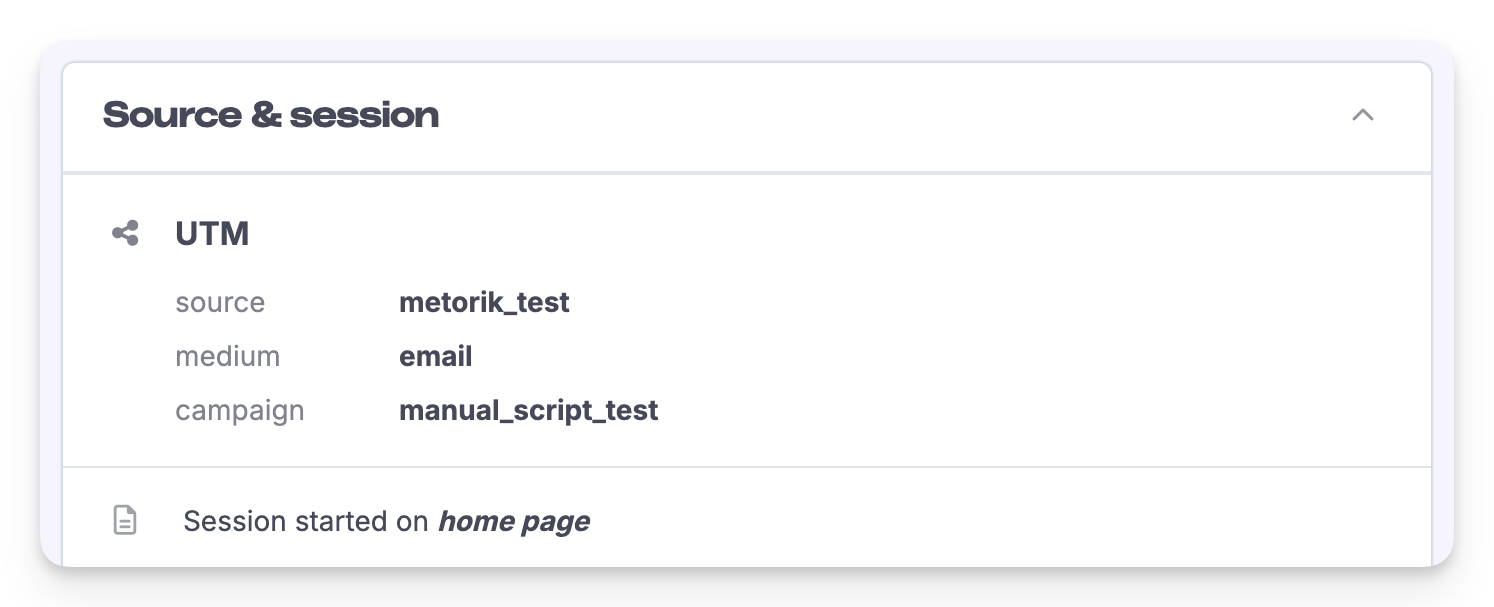
This confirms the tracking information reached the order and is available in Metorik.
Test Engage attribution
To test Engage separately, click a storefront link from a real Engage email sent to an email address you control, then complete checkout in that same browser session. The email link supplies the Engage tracking parameter, and after the order syncs you can check its Engage attribution in Metorik.
The UTM test above verifies source tracking; it does not create an Engage conversion.
Using a third-party checkout
If you use a third-party checkout, it must preserve the _metorik_* cart attributes when creating the Shopify order. Follow the order test above using your usual checkout to confirm this.
Installing this script does not add direct abandoned-cart tracking for third-party checkouts. Metorik relies on Shopify checkout events with an email address to capture Shopify carts.