
Yes. In the audience step, add filters for products purchased, total spent, customer tags, or any other customer attribute. Each email in your flow can have different filters if you want to branch the journey based on customer behavior.
Customer Welcome Flow
A customer welcome flow is a series of emails sent to new customers at different intervals after they join. Instead of a single welcome email, you can create a multi-touch onboarding experience—like an immediate welcome, a follow-up on Day 2, and a check-in on Day 7.
In Metorik Engage, you build flows by creating separate automations with the same trigger conditions but different delay periods. Each email in the flow is its own automation, allowing you to control timing, content, and audience filters independently.
1
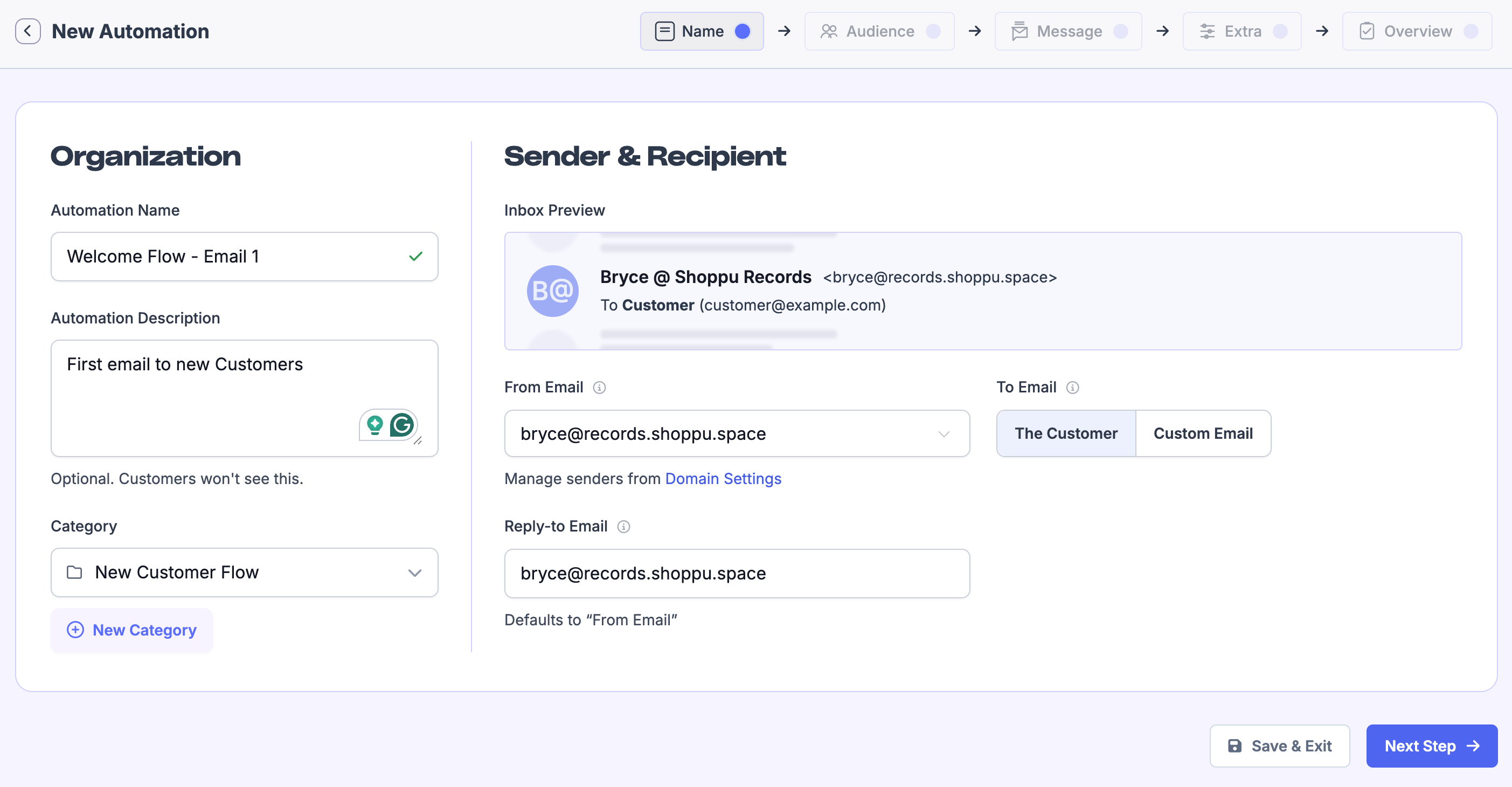
Create the first welcome email
Start by creating a new automation and naming the new Automation and adding the Sender & Recipient.
2
Set up the audience for immediate sending
For the first email to send immediately when a customer joins, use a filter like Customer joined in the past 1 day. This triggers the email as soon as someone becomes a customer.
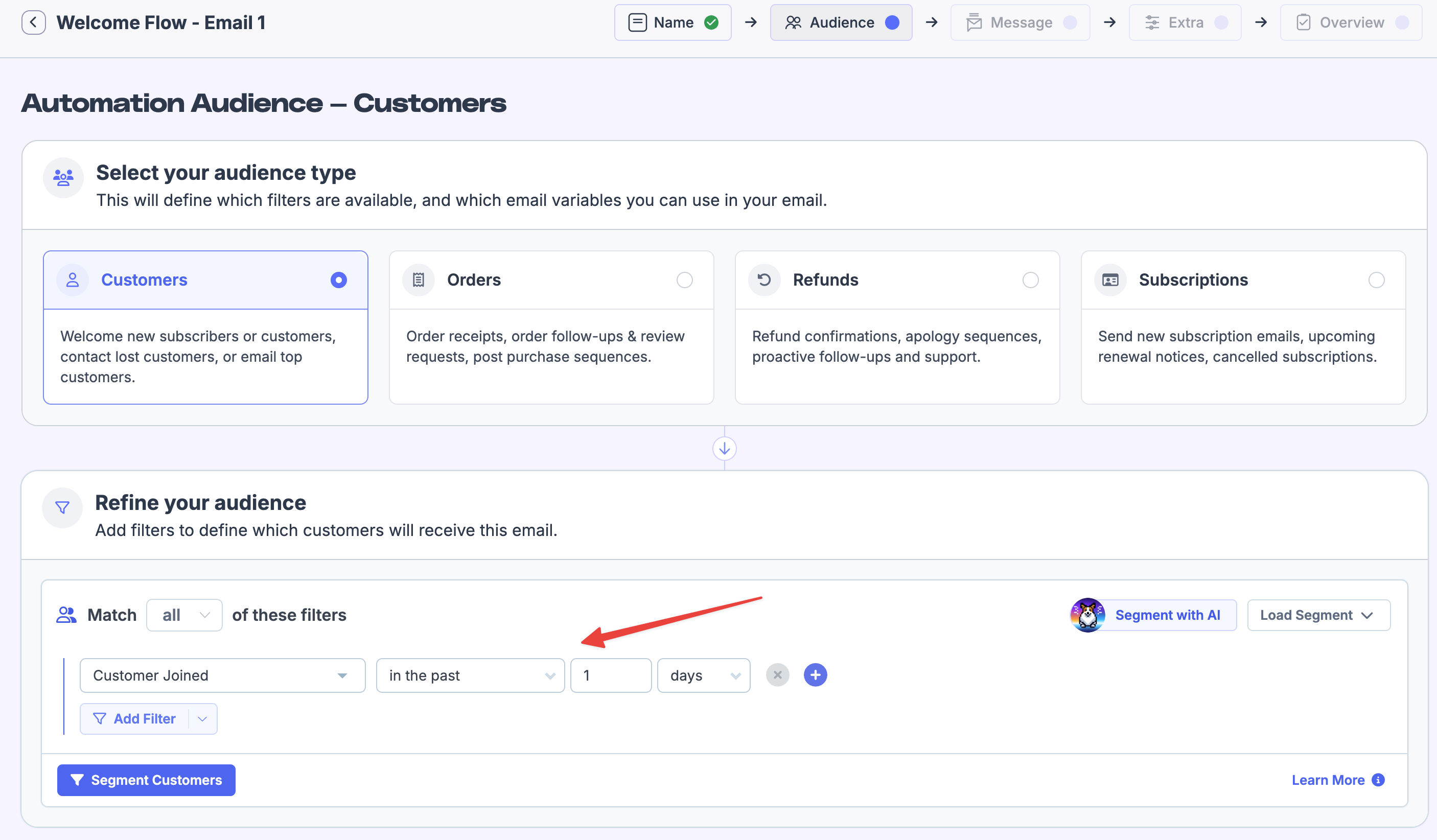
You can add more filters to target specific segments—like customers who purchased certain products, spent a minimum amount, or live in a particular region. Learn more in the segmenting guide.
3
Compose your message
Write your welcome email in the message builder. Guide on using the email builder here
4
Activate without sending to current matches
When activating the automation, you'll see an option to send to existing customers who already match the rules. Leave this unchecked—you only want the flow to apply to new customers going forward.
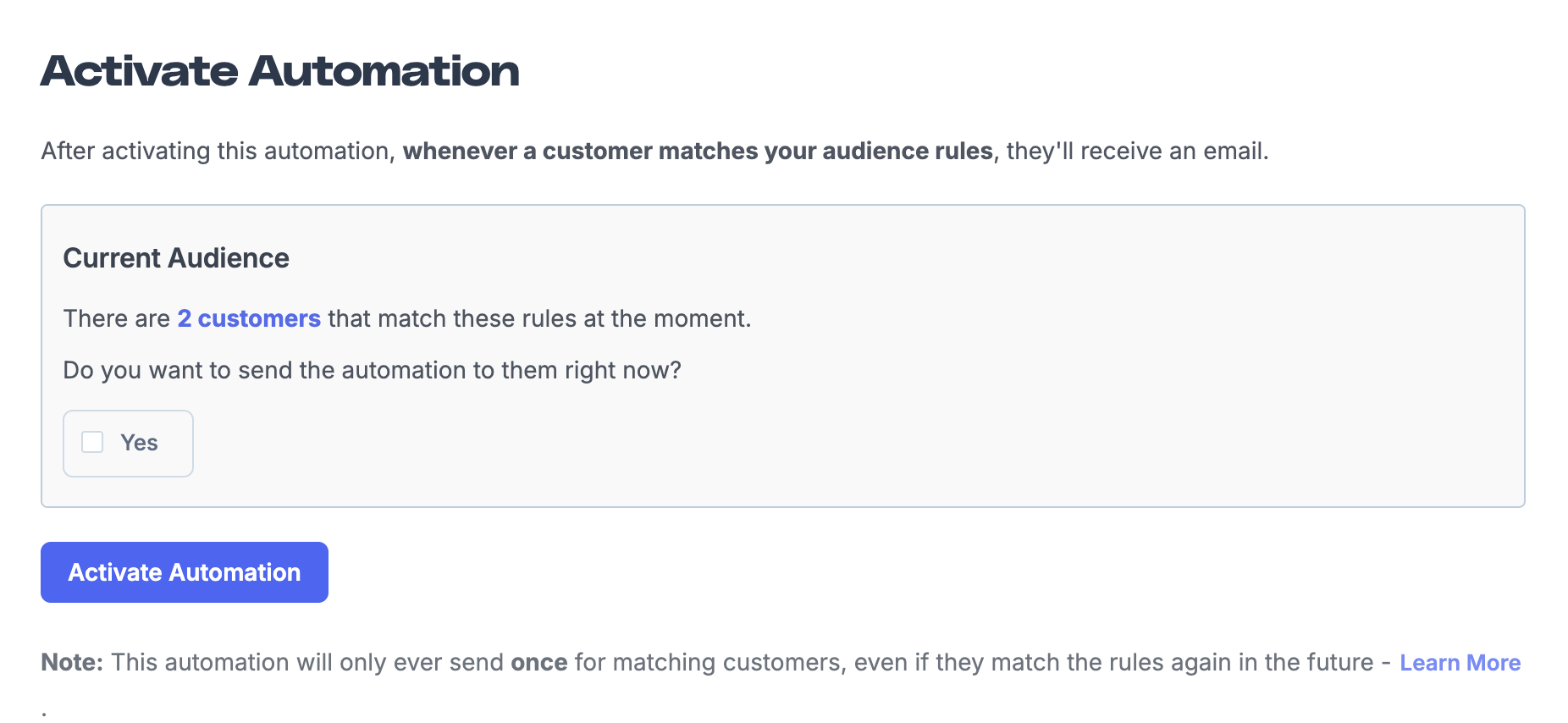
Click Activate Automation. Your first welcome email is now live.
5
Duplicate for follow-up emails
To create the next email in your flow, duplicate the first automation from the automations list. This copies your settings so you don't have to start from scratch.
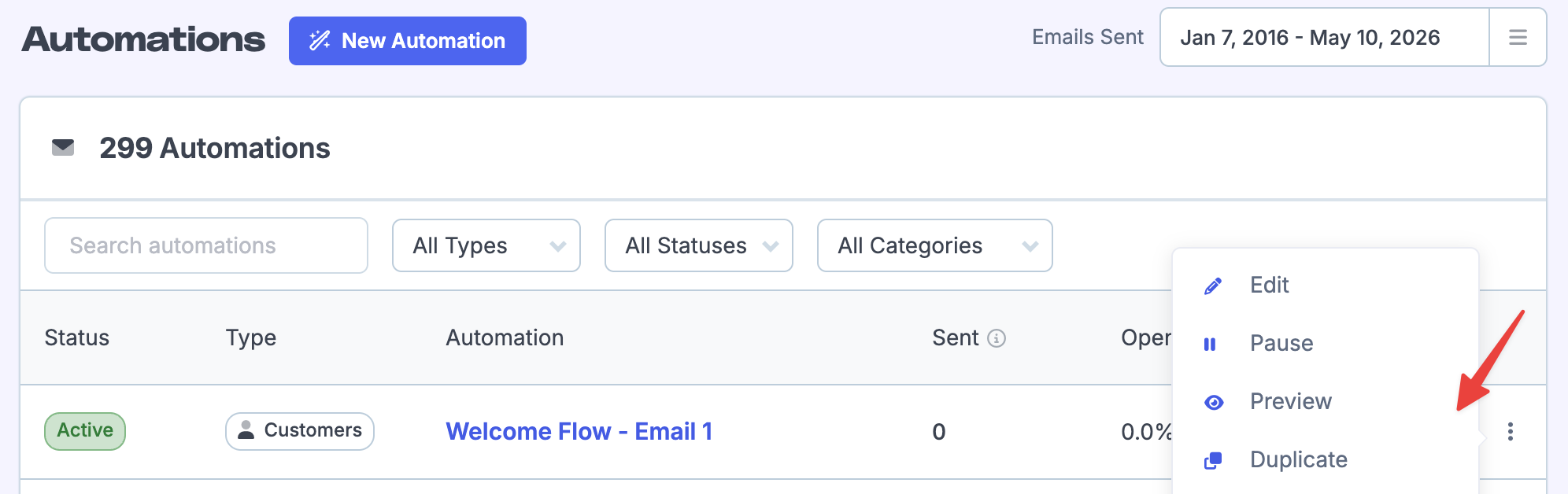
Rename the copy (e.g., "Welcome Flow - Email 2") and adjust the message content for this stage of the journey.
6
Add a delay filter for follow-ups
For delayed emails, change the timing filter to Customer joined over X days ago. The word "over" creates the delay—Metorik will wait until the customer has been in your system for that many days before sending.
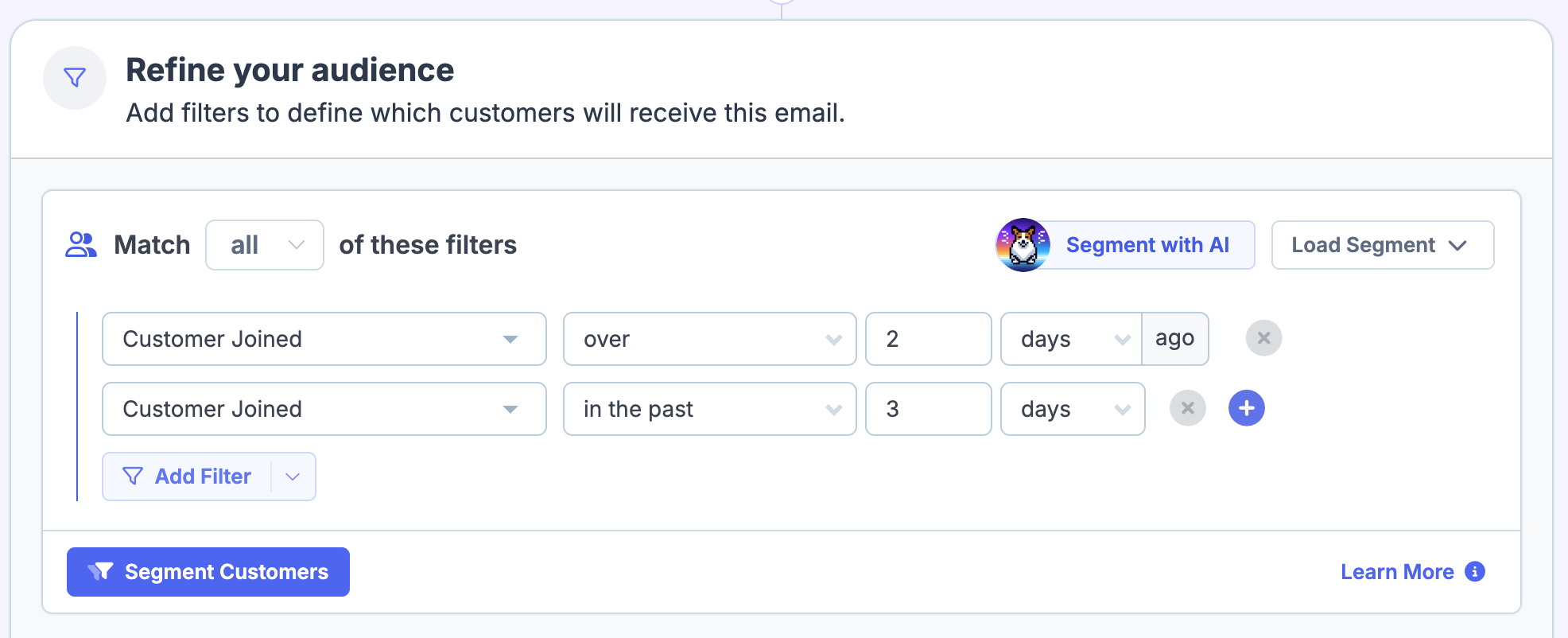
Important: Add a second filter to make sure that it doesn't go out to very old customers i.e in the past 3 days.
7
Activate each follow-up
As with the first email, activate each follow-up without sending to current matches. This ensures the flow only applies to customers who join after activation, and each email arrives at the intended interval.
Repeat these steps for additional emails in your flow—Day 3, Day 7, or any other cadence you need.
Common flow patterns
5-email welcome series: Immediate, Day 2, Day 3, Day 4, Day 7
3-email onboarding: Immediate, Day 3, Day 7
Coupon incentive: Include a dynamic coupon code in a later email to encourage a second purchase
Can I add filters for specific products or customer segments?
What happens if a customer unsubscribes mid-flow?
If a customer unsubscribes from any Engage email, they're added to the Unsubscribe list and won't receive future emails from any automation. Learn more in the Engage Unsubscribes guide.
Was this helpful?
Was this helpful?