
Engage Unsubscribes
Learn: Is an unsubscribe link required?
Whenever a customer unsubscribes from an Engage email, they'll be added to the Unsubscribes list. You can view this from the Unsubscribes page (under Engage > Settings > Unsubscribes).
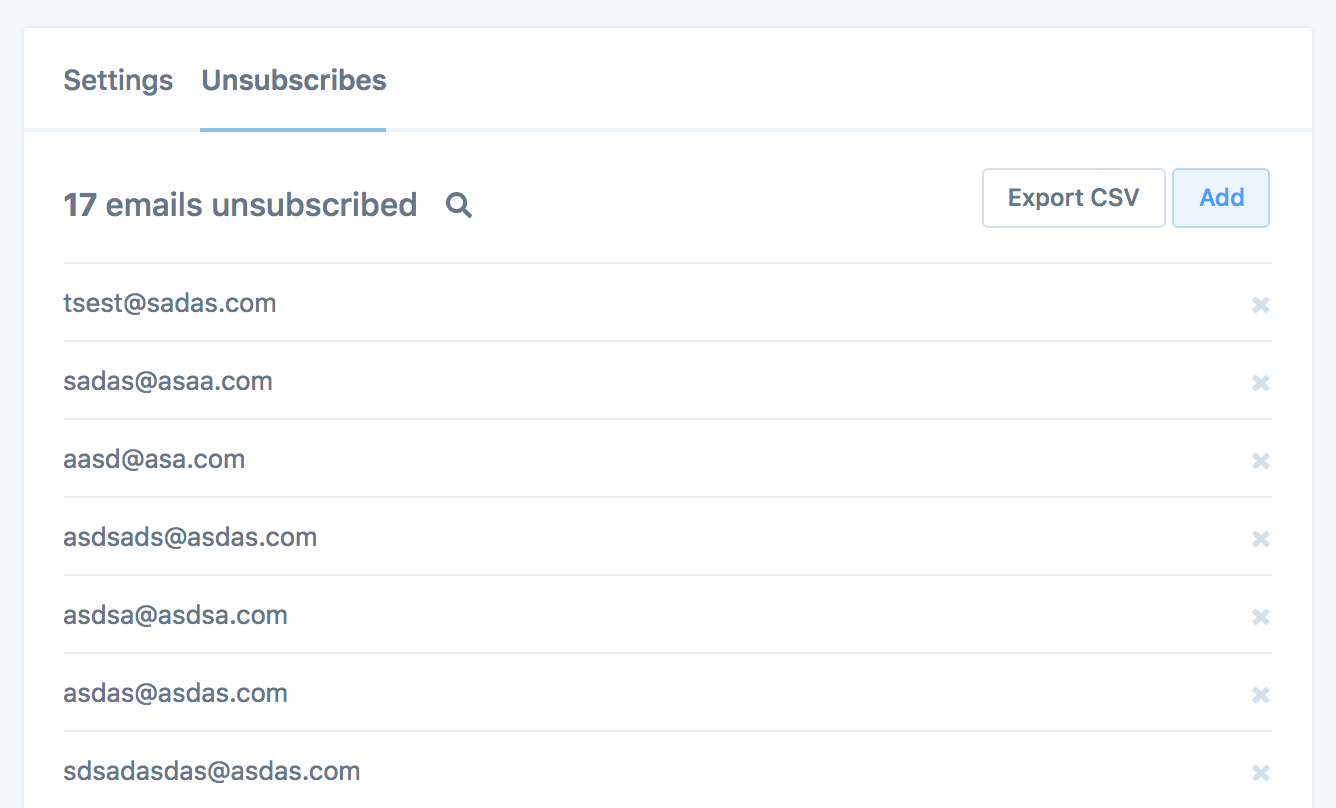
From there, you can do a few things like:
Remove emails from the unsubscribes list (click the times (x) on the right).
Add new unsubscribes (in bulk - see below).
Search through the unsubscribes list.
Export all existing unsubscribes.
See the automation/email that caused an unsubscribe (if the unsubscribe wasn't manually imported).
About removing unsubscribes
Remove an email from the unsubscribes list by clicking the times (x) on the right of its row. This works for any unsubscribe, including contacts who unsubscribed themselves by clicking the unsubscribe link in an email they received.
Only resubscribe someone who unsubscribed themself when they've explicitly asked you to, such as when they unsubscribed by accident. Emailing them again without their permission will likely get your email marked as spam, which hurts your deliverability and can get your account paused with Metorik.
Importing / adding unsubscribes
If you have an existing list of emails you want to add to the unsubscribes list - like emails that have already unsubscribed to your MailChimp campaigns - you can add them to the list by clicking the Add button on the top right.
It will open up the add emails popup, where you can input a list of emails to unsubscribe. You can enter up to 2,500 emails at once (if you have a large list, send us a message and we can add it manually for you or increase the limit). You should enter one email per line, or optionally you can comma-separate them.
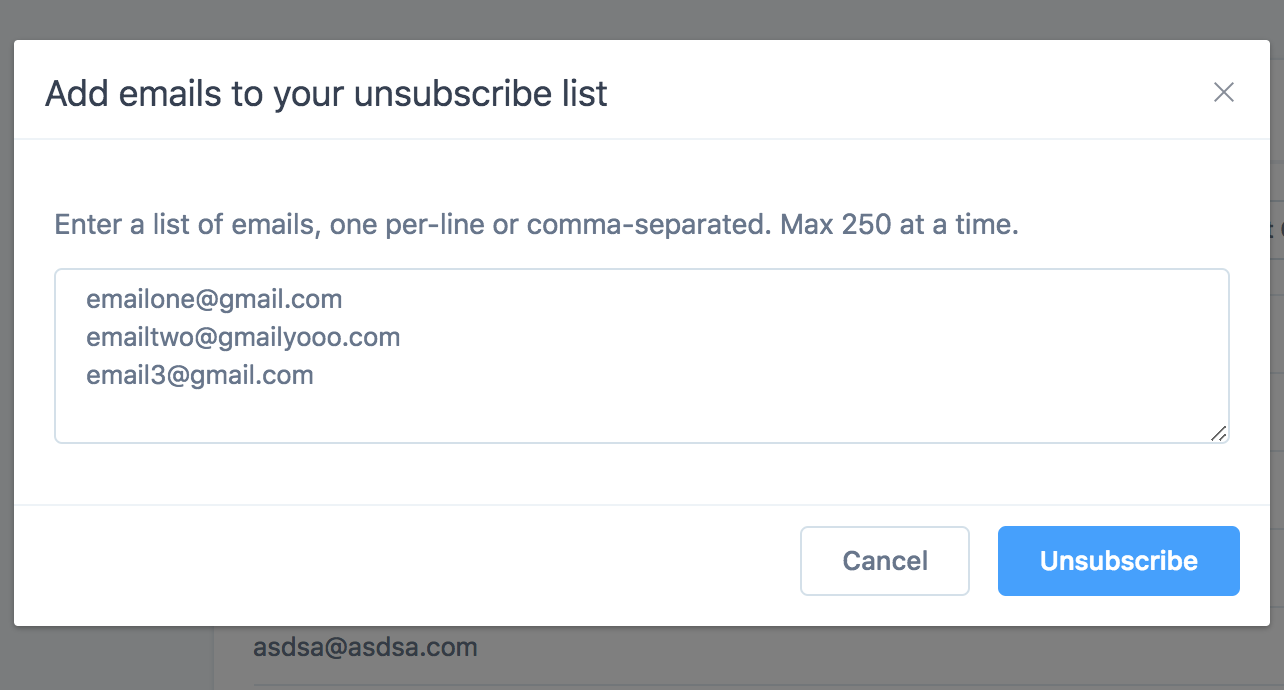
Click the unsubscribe button and it will then unsubscribe each email.
If you also send through another platform like MailChimp, you may want to export the unsubscribe list from MailChimp and import it into Metorik each month (and vice versa).
Exporting unsubscribes
Similarly, you may want to export the unsubscribe list from Metorik so you can be sure those email addresses will be unsubscribed from your campaigns sent by other applications like MailChimp.
To do so, click the Export CSV button on the top right.

It will then export a CSV of every email unsubscribed and the date/time they unsubscribed. If you have a large number of emails unsubscribed and the export is timing out, please let us know and we'll manually export it for you.
Unsubscribes API
Visit our Engage Unsubscribes API guide