
Edit an activated automation in Metorik Engage
After an automation is activated, you can edit its audience directly without duplicating it or losing stats. Changes to the message or settings still require duplicating the automation, editing the copy, and archiving the original.
Edit the audience directly
Go to Tools > Engage > Automations and open the automation you want to change.
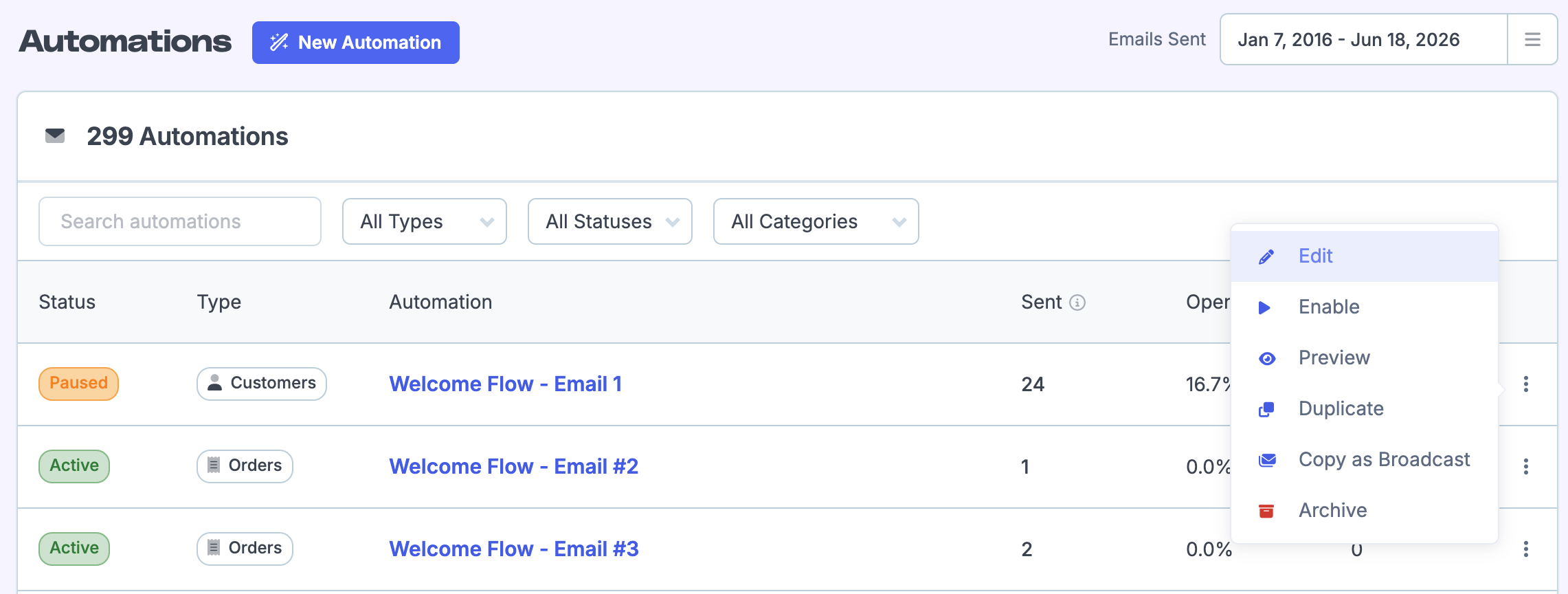
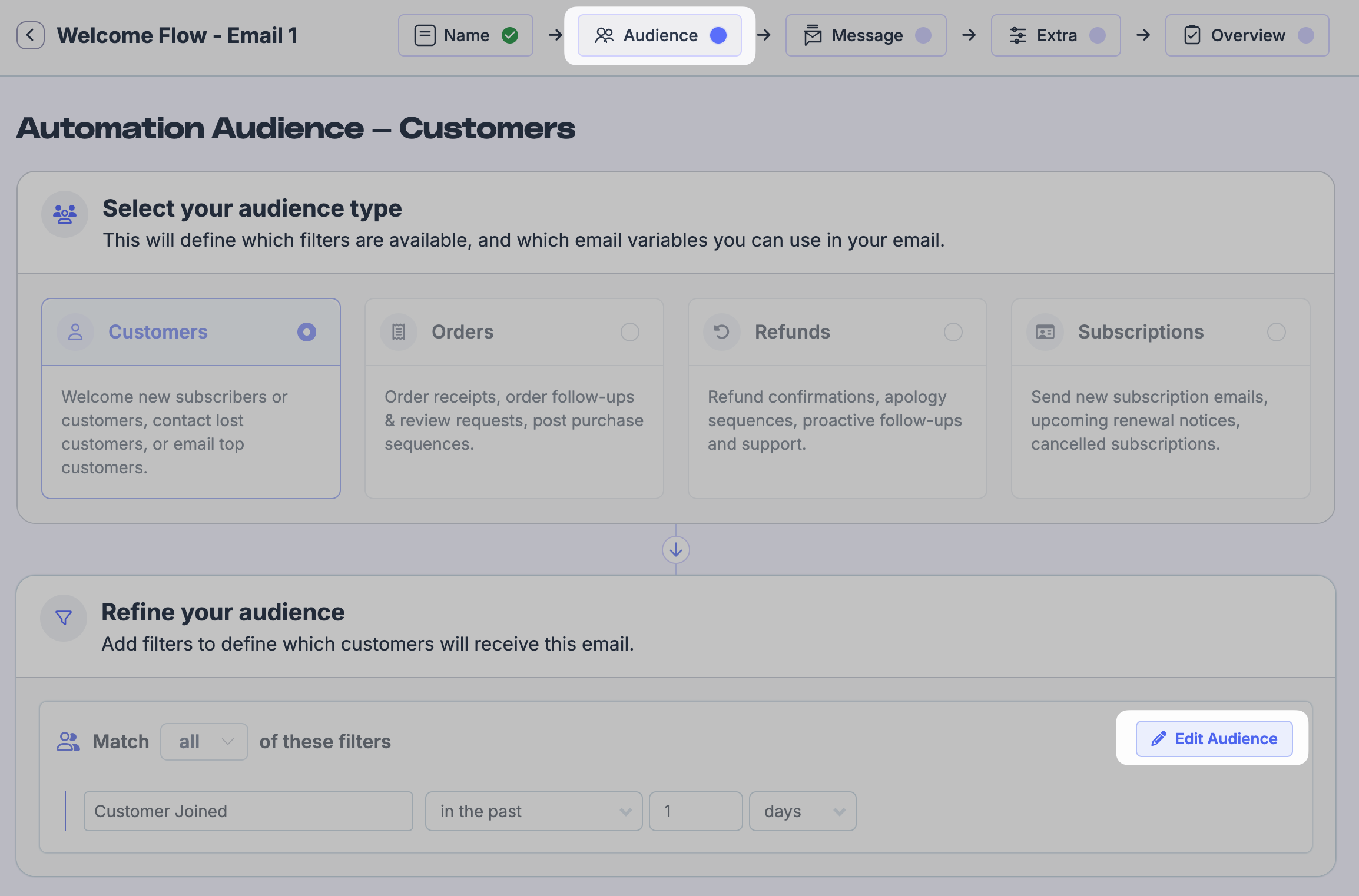
Click the edit icon next to the Audience step.
Adjust the segment rules to match your new audience criteria.
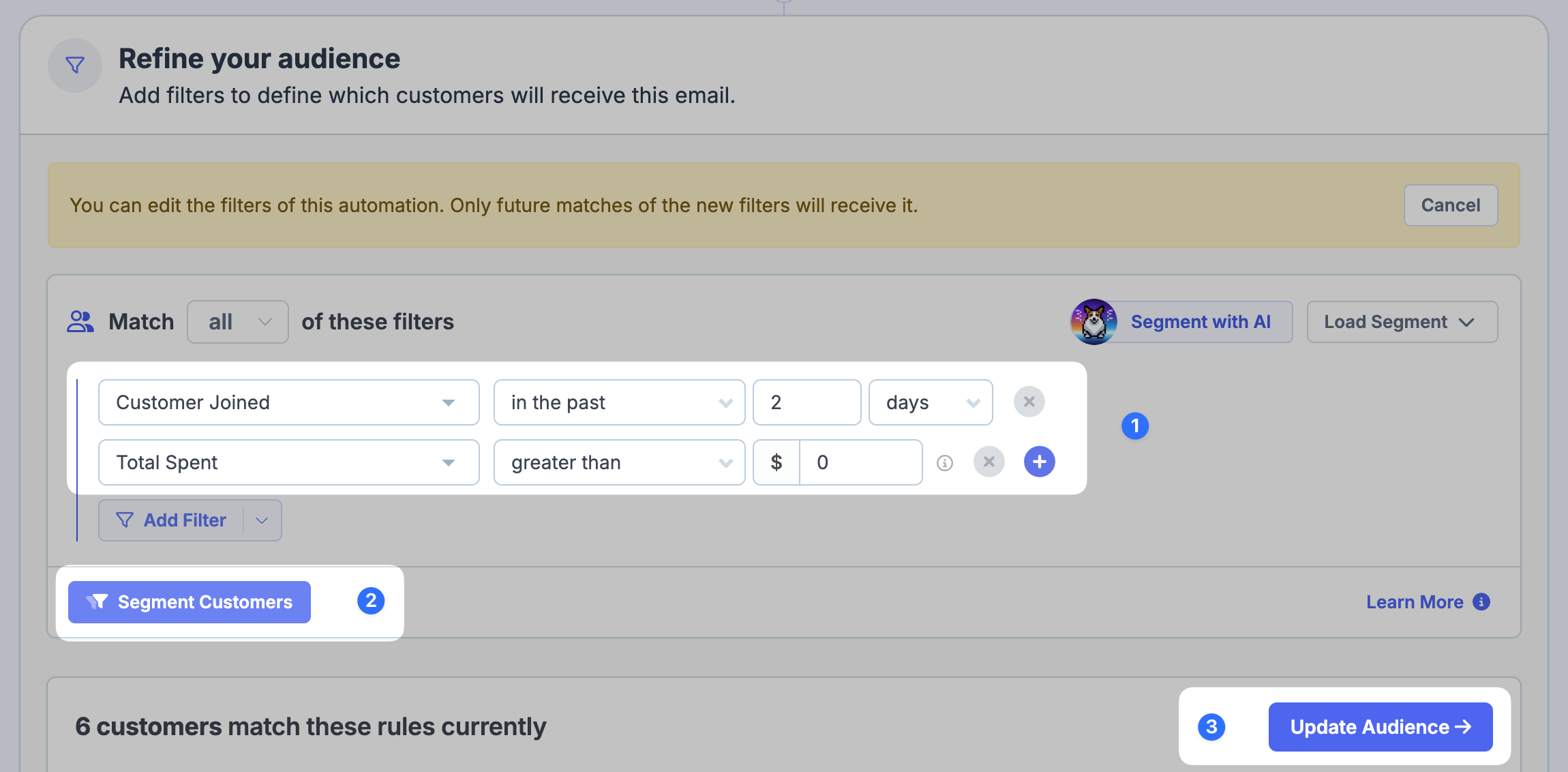
Click Save & Continue to confirm the updated audience.
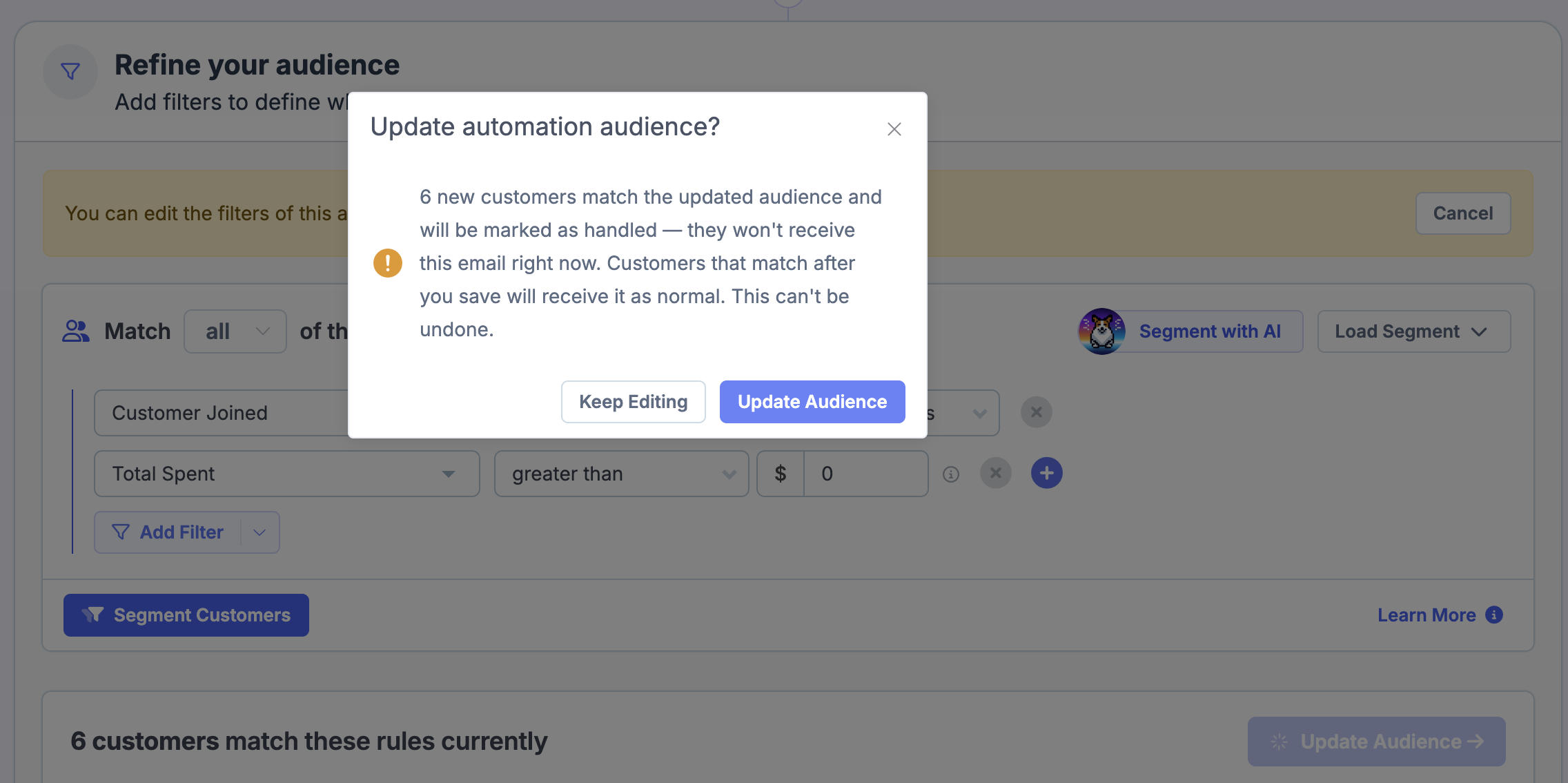
Confirm the prompt to apply the audience change. The automation will update with the new segment rules while keeping its existing stats and sending history.
Edit message or settings by duplicating
Once an automation is activated, you cannot change its message or settings directly. To make those changes, duplicate the automation, edit the copy, and then archive the original.
Go to Tools > Engage > Automations in your Metorik dashboard.
Find the automation you want to change.
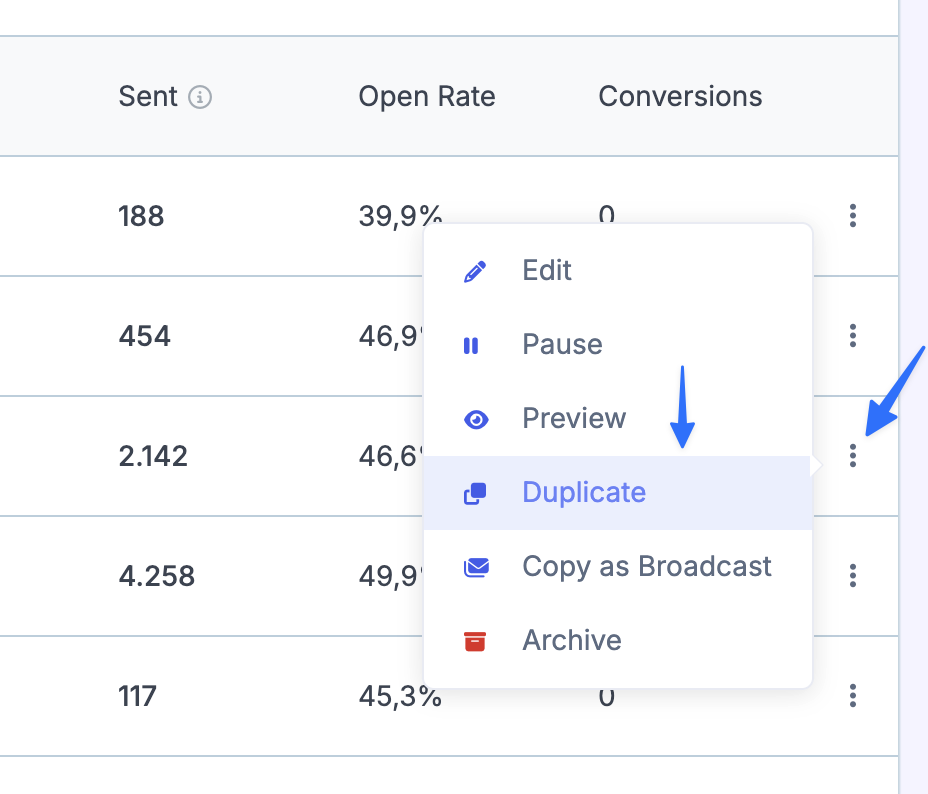
Click the three vertical dots on the right side of the automation row and choose Duplicate.
Metorik creates a copy of the automation in a draft state.
Edit and activate the copy
Open the duplicated automation.
Update the message or settings as needed.
Click Activate to start sending the updated automation.
Archive the original automation
Return to the Automations list.
Find the original automation.
Click the three vertical dots and choose Archive so it stops sending.
Only one version of an automation should be active at a time to avoid duplicate emails to the same audience.