Use Report Exclusions to leave test orders, staff purchases, or other matching records out of your reports without deleting them.
Set up exclusions
Store admins can save up to three order rules and three customer rules. A record is excluded if it matches any enabled rule.
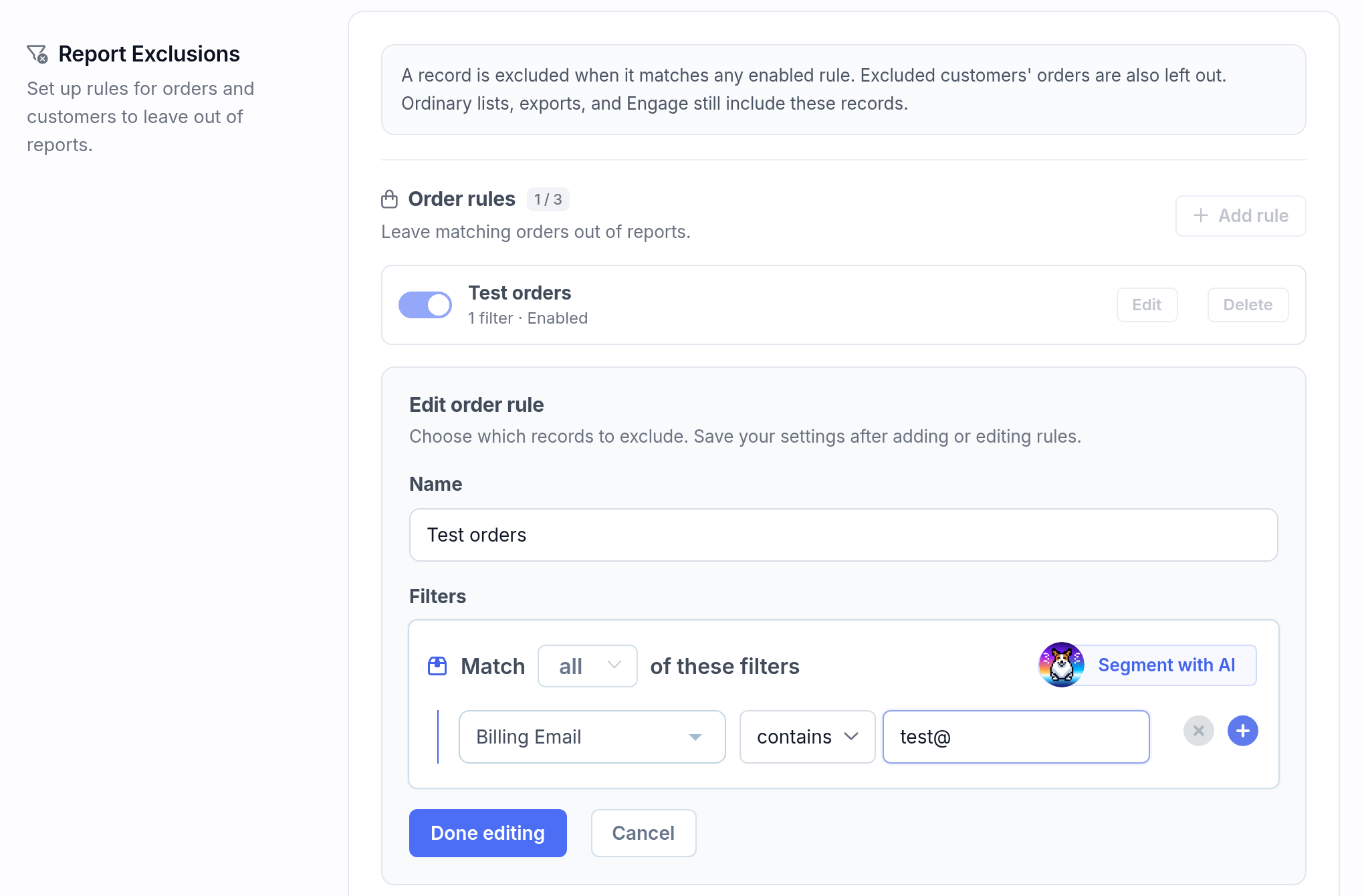
Open Store Settings → Reports → Report Exclusions.
Click Add rule under Order rules or Customer rules.
Name your rule and choose its filters. Match all conditions or any condition.
Click Add rule, then Save report settings.
For example, use Billing Email contains test@ to identify your test orders.
Order rules exclude whole matching orders. Customer rules exclude matching customers and their orders. Product, category and SKU filters do not remove individual line items.
Available filters
Choices depend on your platform and synced data.
Orders: Order ID, Order Number, Order Total, Order Item Count, Order Status, Fulfillment Status, Order Products, Order Product Categories, Line Item SKU, Customer, Customer Role, Order Created, Order Paid, Order Completed, Order Updated, Billing Email, Billing Country, Shipping Country, Payment Method ID, Payment Method Title, Shipping Method Title, Shipping Method ID, Created Via, Order Type, Tags, Transaction ID, and synced custom order fields.
Customers: Customer ID, Customer Role, Email, Billing Email, Billing Country, Billing State, Billing City, Billing Zip/Postcode, Customer Joined, Customer Updated, First Name, Last Name, Tags, Metorik Tags, Shopify Tags, Products Purchased, and Order Line Item Titles.
Order Tags and Fulfillment Status are Shopify filters. Customer tag-source choices depend on your platform. Custom-field filters use synced order fields.
Edit or remove a rule
Click Edit, make your changes, then click Done editing. Switch a rule off to keep it for later, or click Delete to remove it.
Click Save report settings to apply changes and refresh the Last Month preview.
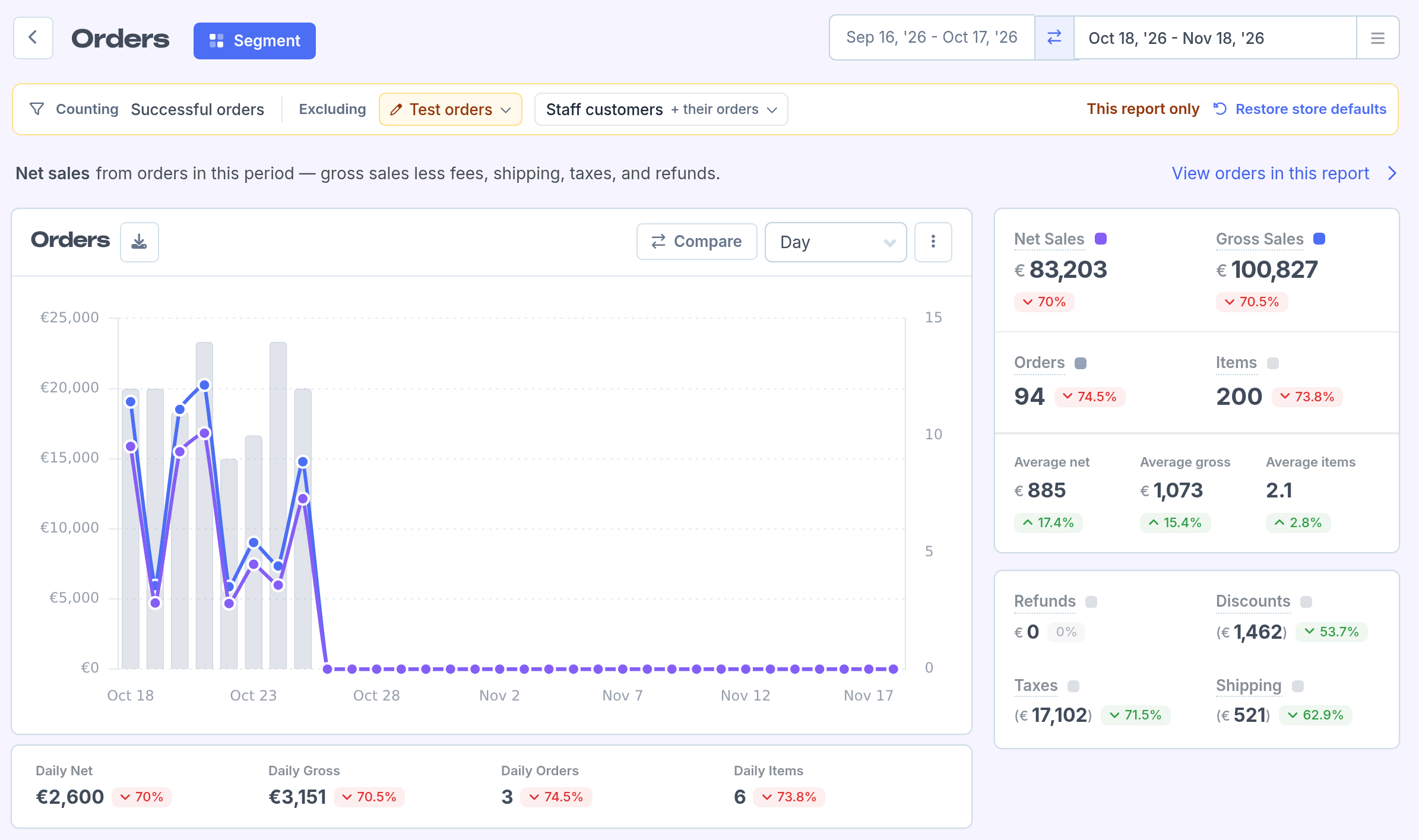
Change one report
Click a rule under Excluding.
Choose Turn off for this report or Edit for this report. Click Done after editing.
These changes leave store defaults unchanged and reset when you leave the report. Use Restore store defaults to reset them immediately.
View and export matching records
Click View orders in this report, or the equivalent link in another report.
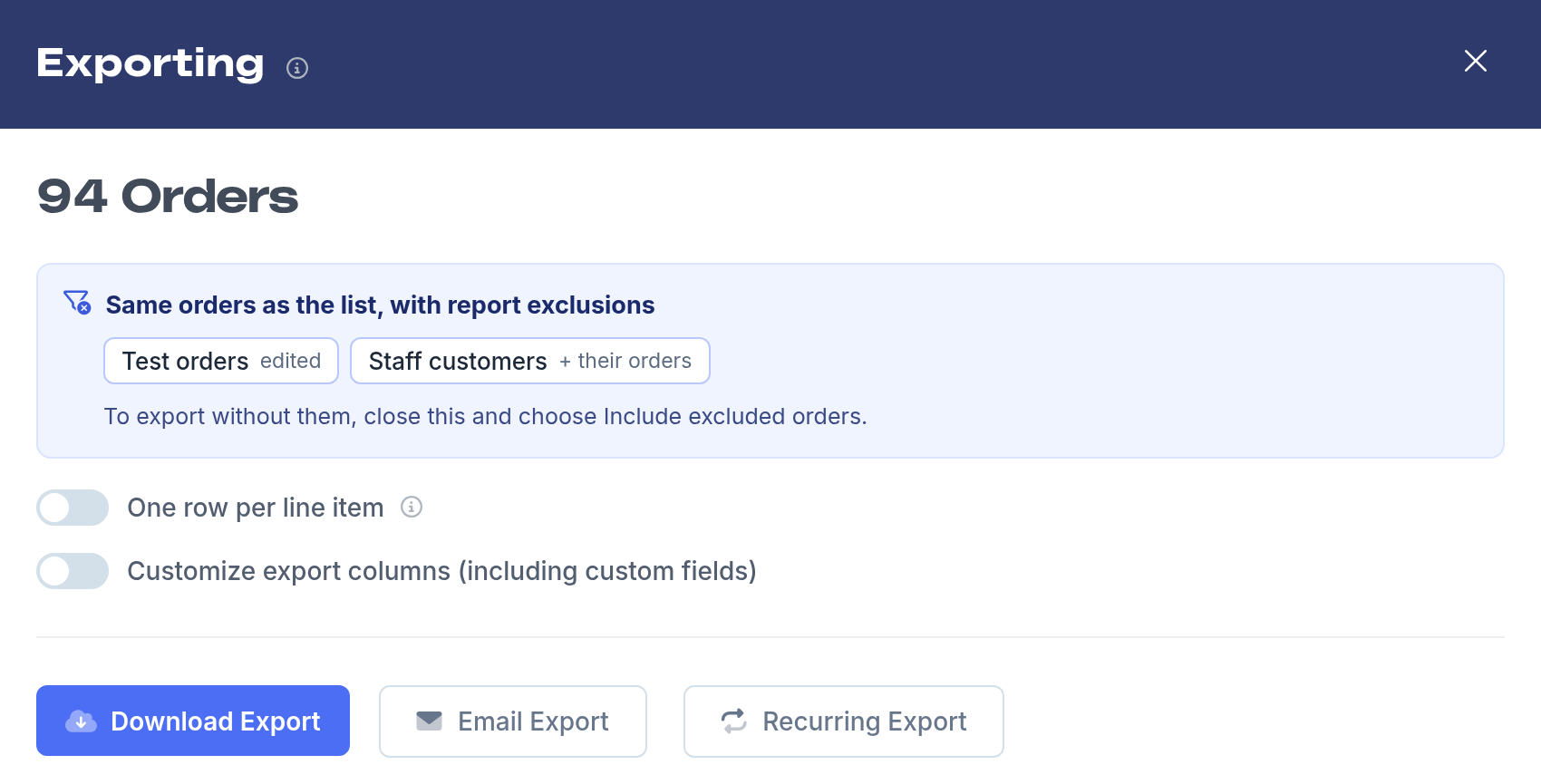
Click Export. The export keeps that list’s exclusions, including report-only edits.
To export without exclusions, close the drawer, click Include excluded orders, then reopen Export. Saved and recurring list exports retain the chosen scope.
What stays unchanged?
Ordinary lists, customer timelines, Engage eligibility, stored customer statistics, billing and tracking stay unchanged. Explicit saved order, customer, refund and subscription segments, including digest segment cards, keep their own filters.
Historical subscription snapshots, including MRR, remain unfiltered. See subscription report exclusions for the live-report differences.