
Set up Metorik on Apple Watch
Use Metorik on Apple Watch to check store numbers, follow goals, browse order lists, and ask Tori questions. You'll need the Metorik beta app on your paired iPhone, watchOS 11 or later, and admin, editor, or analyst access to the store.
Connect your Watch
Install the Watch companion app before looking for its settings in Metorik on your iPhone.
Open the Watch app on your iPhone.
Install Metorik from the available apps.
Open Metorik on your iPhone and sign in.
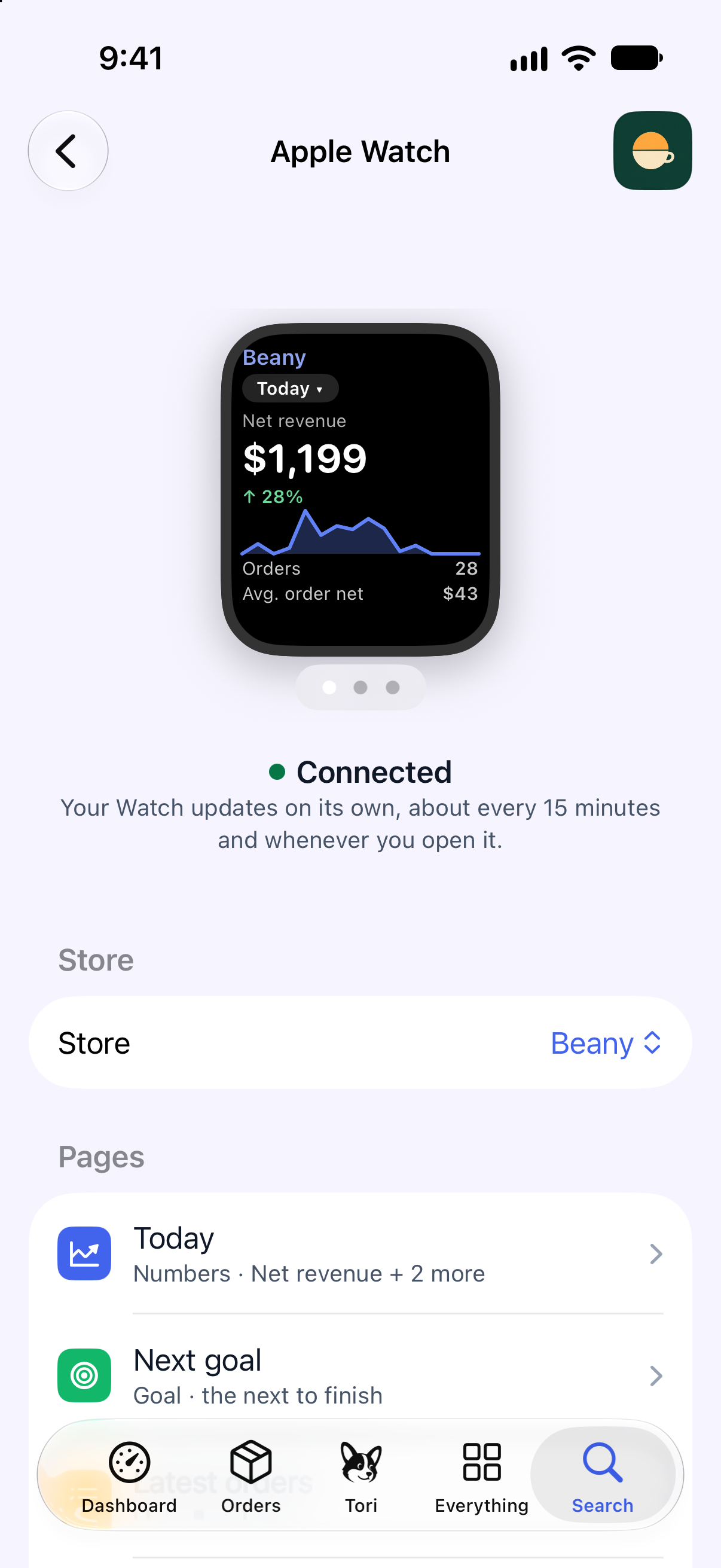
Under Everything, choose Apple Watch.
Keep Metorik open until the Watch status is Connected.
If the companion app isn't available in the Watch app, check Metorik's details in TestFlight for a compatible Watch build.
Choose your store and pages
Configure Watch pages from your iPhone. You can keep up to six pages and choose their order.
In Metorik's Apple Watch settings, choose a Store. Use Same as this iPhone to follow the selected iPhone store, or choose a fixed store.
Tap an existing page to edit it, or tap Add a page.
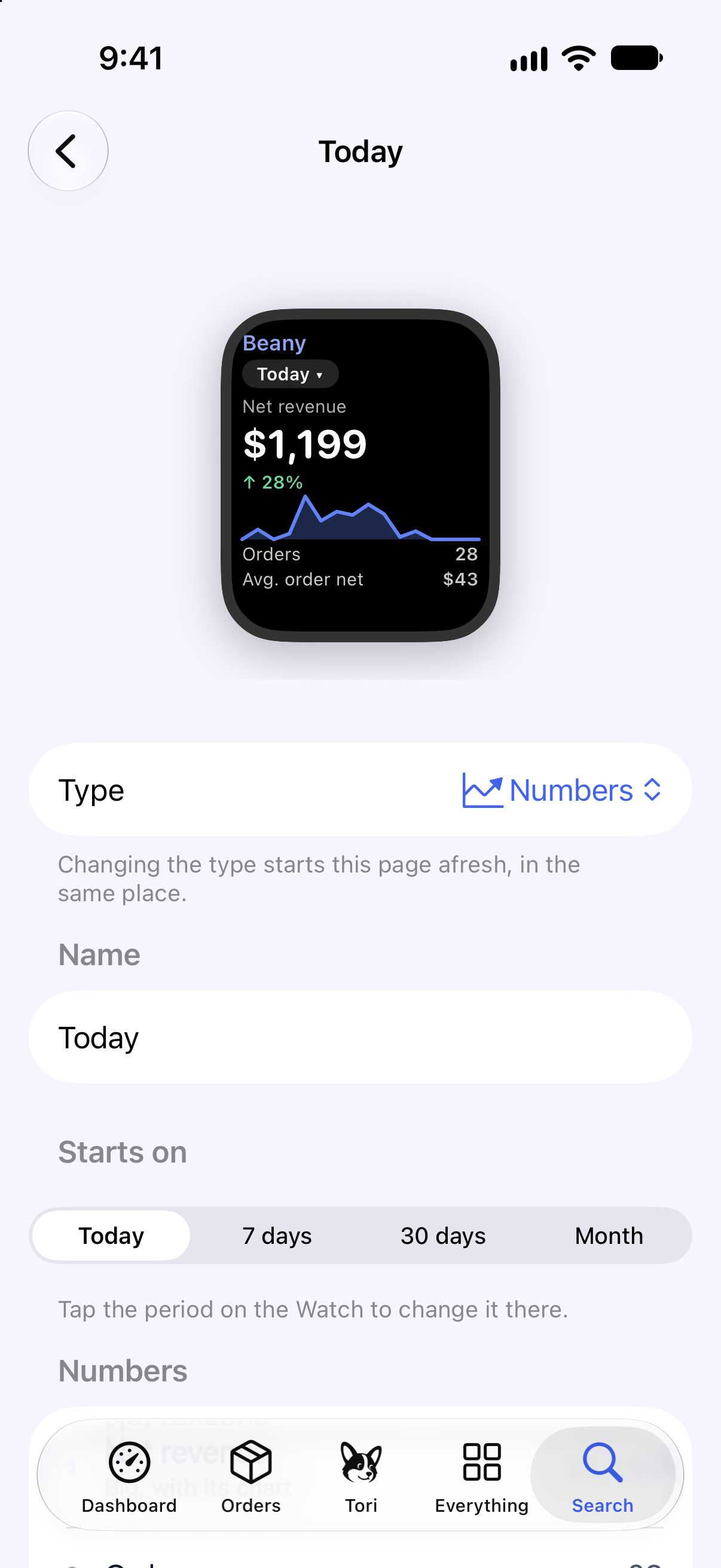
Choose Numbers, Goal, List, Breakdown, or Tori.
Choose the content and period available for that page.
The first page in the list opens first on your Watch. Touch and hold a page in the iPhone settings to reorder it, or swipe left to remove it. Turn the Digital Crown on your Watch to move between pages.
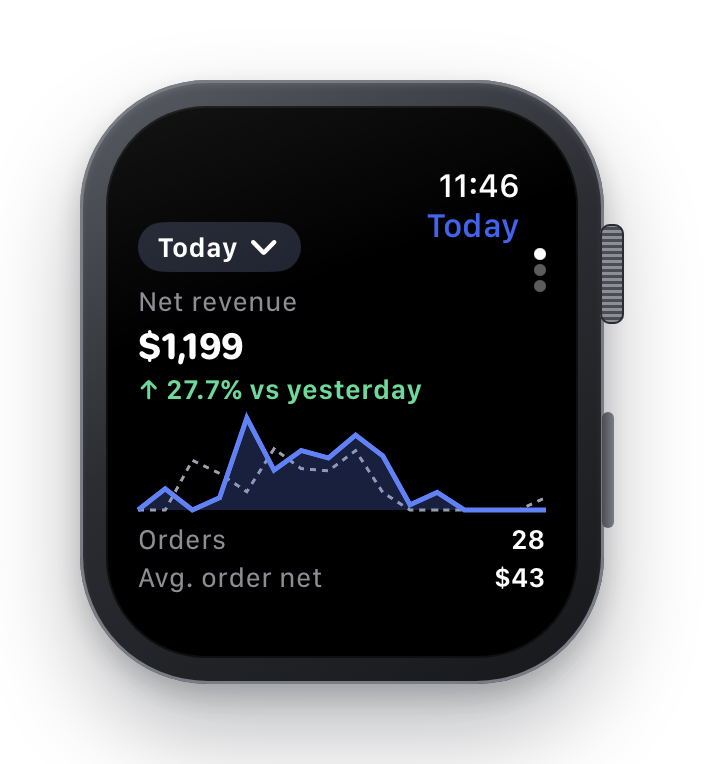
Numbers: choose up to four figures. The first is shown as the main number with its chart.
Goal: choose a goal or follow the next goal to finish.
List: show latest orders or a saved order segment. Turn off Show customer names in that page's settings if you only want order numbers visible.
Breakdown: choose an available product, category, or country breakdown.
Tori: ask a question by voice or text on your Watch. Watch Tori is read-only and doesn't change store data.
Add a watch-face complication
Complications give you access to Metorik from a compatible watch face.
Touch and hold your watch face.
Tap Edit.
Choose a complication position.
Select a Metorik complication from the available choices.
Refresh or reconnect
Your Watch requests its own updates, about every 15 minutes and when you open Metorik on it. watchOS controls background scheduling, so figures aren't guaranteed to update at an exact time.
If the Watch asks you to reconnect, open Metorik on the paired iPhone and check the connection in Apple Watch settings. You must still have access to the selected store. Cost and profit figures require your usual cost permissions.
For connection problems that continue, use Help → Report an issue on your iPhone. Include your Watch model and the message shown on it.