
Open the store and its dashboard in Metorik, then check the widget's settings again. Your role and current store access determine which choices are available.
Set up Metorik widgets on iPhone and iPad
Add Metorik widgets to see store numbers, orders, goals, or dashboard cards without opening the app. You'll need the Metorik beta app, a signed-in account, and admin, editor, or analyst access to the store.
Add a widget
Sign in to Metorik and open your store before configuring its widgets.
Touch and hold an empty area of your Home Screen.
Tap Edit.
Choose Add Widget.
Find Metorik.
Choose a widget and size.
Tap Add Widget.
Choose what it shows
Each widget has its own store and content choices. Available options depend on the widget, your store, and your permissions.
Touch and hold the widget.
Tap Edit Widget.
Choose the store and content.
Choose the period and comparison when those options are available.
Store numbers: revenue, orders, or customers.
Latest orders and To process: recent orders or orders awaiting processing.
Goal and Goals: progress towards your store's goals.
Dashboard widget: choose a metric, KPI, goal, segment total, order list, breakdown, or subscription summary from the available options.
Dashboard card: choose a card from a dashboard you've opened in the app.
All stores: today's net revenue for your selected stores, ordered by revenue or name. Leave the store selection empty to include every eligible store.
Tori: tap to ask about your store in the app.
Cost and profit figures still require permission to view costs. The All stores widget shows individual stores in their own currencies, rather than combining them into one converted total.
Pin a dashboard card
Dashboard cards become available to the widget after you've opened that store's dashboards in the app. Not every dashboard card is supported as a widget.
Open the dashboard containing your card in Metorik.
Add a Dashboard card widget to your Home Screen.
Open its Edit Widget settings.
Choose the Store and Card.
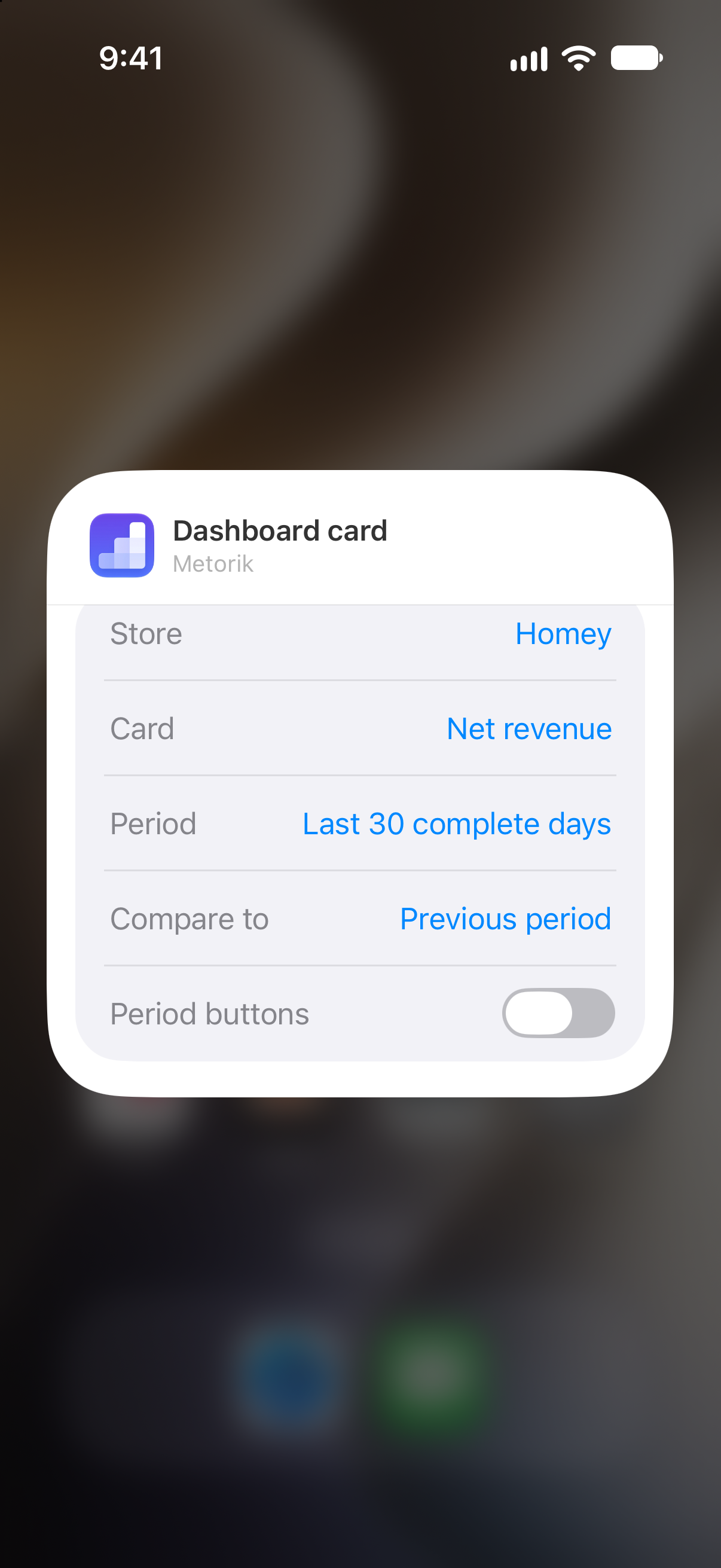
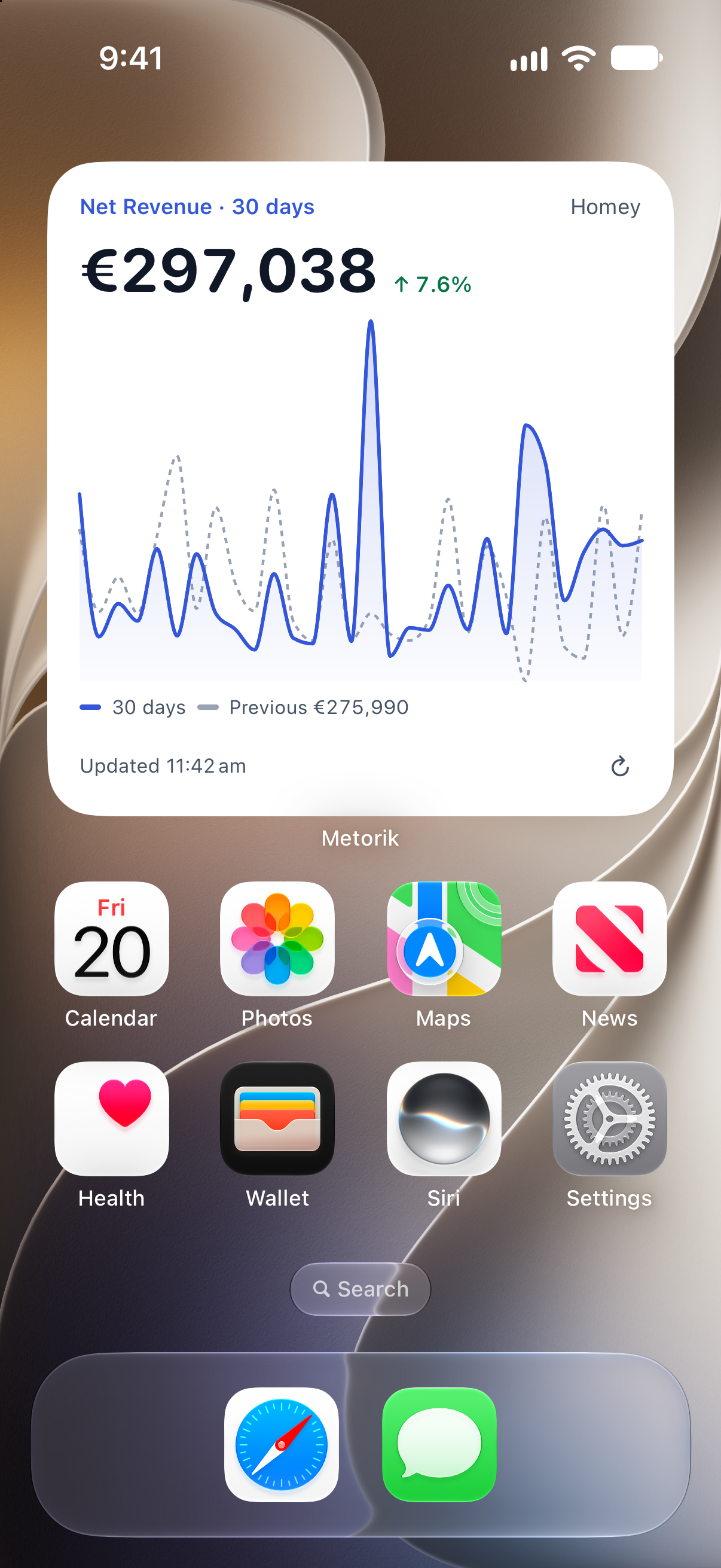
The widget follows the selected card's place on the dashboard. If you change or remove that card, review the widget's selection too.
Understand refreshes
Widgets request updates about every 15 minutes, but iOS controls when background refreshes run. Widgets are not a live sales feed.
Opening Metorik requests fresh widget data. Server caching and iOS scheduling still affect when the new figures appear. A Saved label means cached figures are being shown, not a confirmed fresh result.
Troubleshoot a widget
A store or dashboard card is missing
A card can't be shown or has been removed
Edit the widget to choose another supported card. Removing a card from its dashboard doesn't choose a replacement for the widget.
The figures haven't updated
Open Metorik with an internet connection and check that you can still access the store. Allow time for iOS to refresh the widget. A background update isn't guaranteed at an exact interval.
If a widget still won't load, use Help → Report an issue in Metorik. Include the widget type, store, and the message it displays.
Was this helpful?
Was this helpful?