
Order and Subscription Notes
In this article
What is an order note?
An order note serves two main functions:
They automatically log any action that has taken place regarding a specific order such as payment and shipping details.
They allow you to log manual entires that are specific to the order.
WooCommerce order/subscription notes
In WooCommerce, you will find any order/subscription notes on the individual order/subscription page. You can also add a note here as well.
You can also add a note directly within Metorik by heading to the order/subscription page in Metorik:
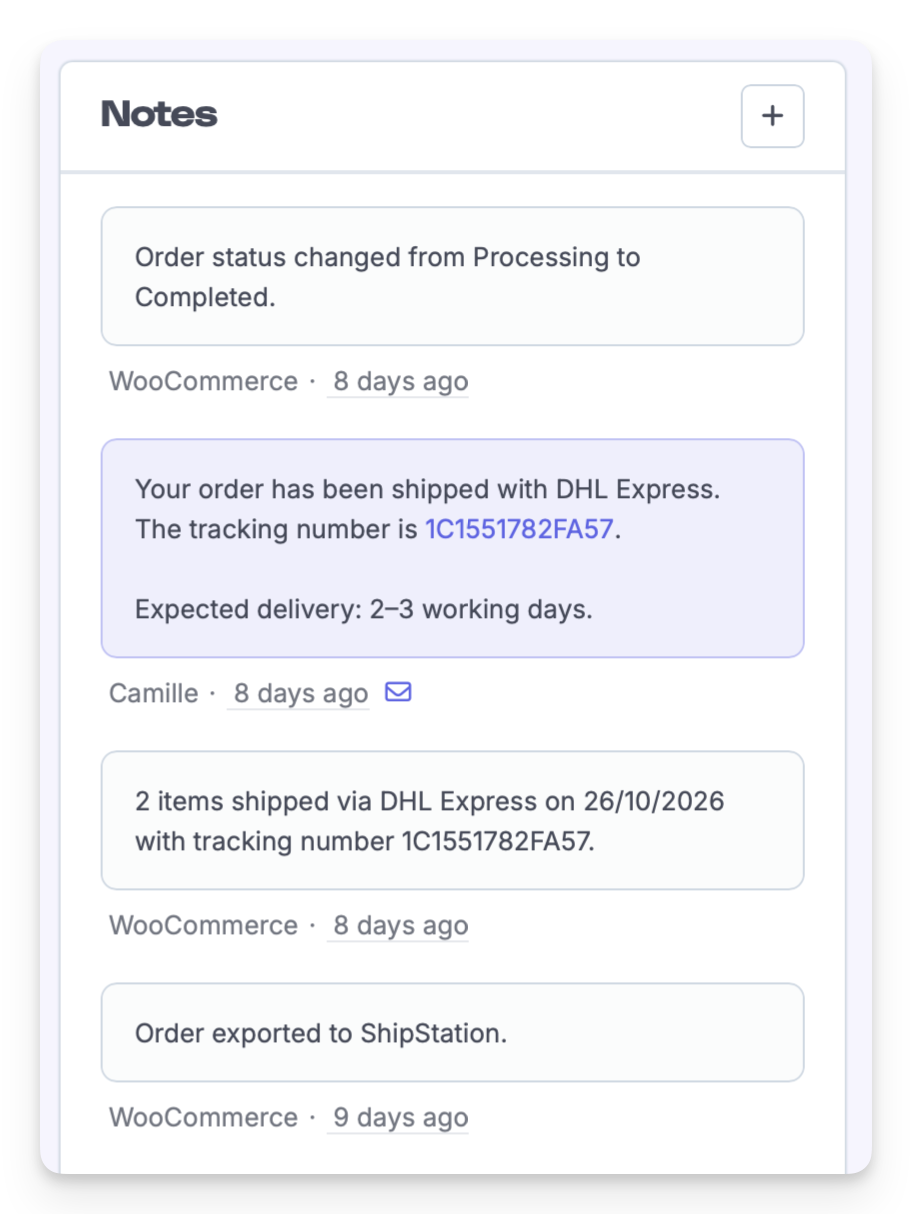
Use the dropdown to choose if the note should be private (just for internal use) or a customer note. If you choose a customer note, WooCommerce should send them an email (this is completely separate to Metorik).
Note Syncing
WooCommerce stores can also opt in to Note Syncing from the store connection settings in Metorik:
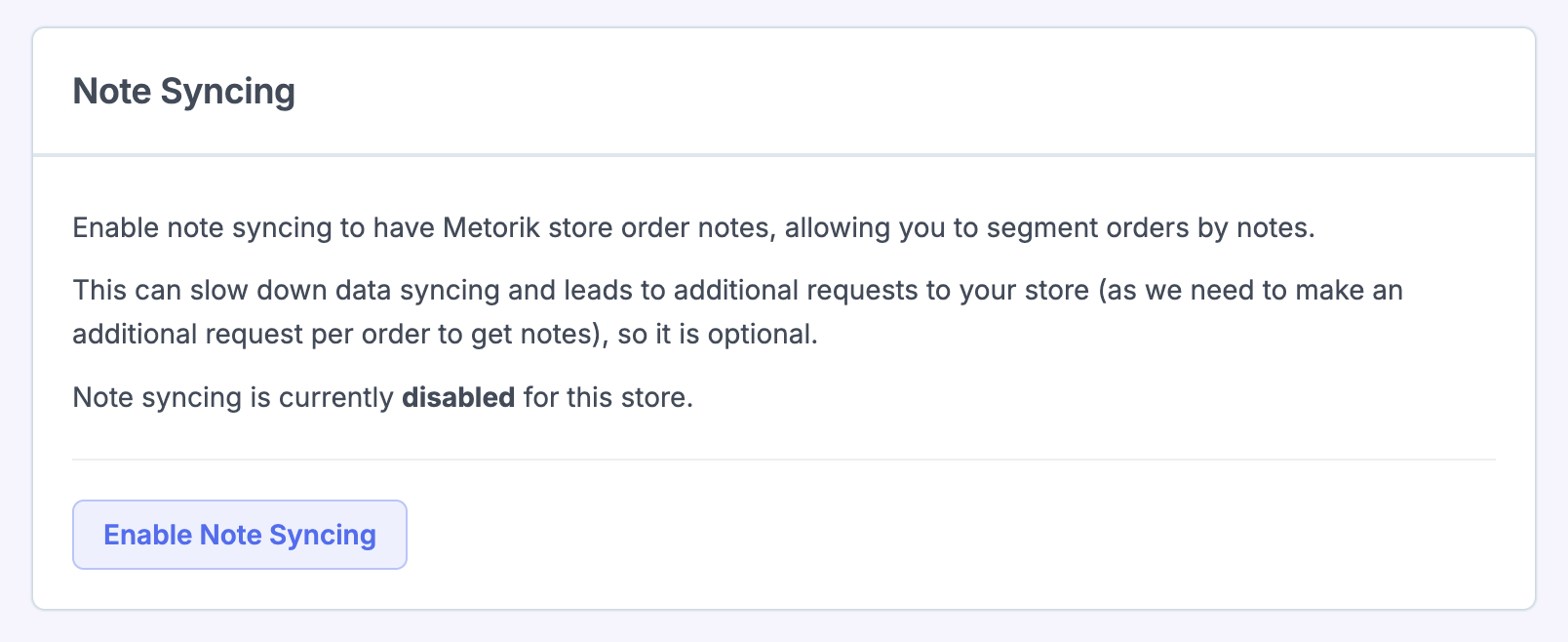
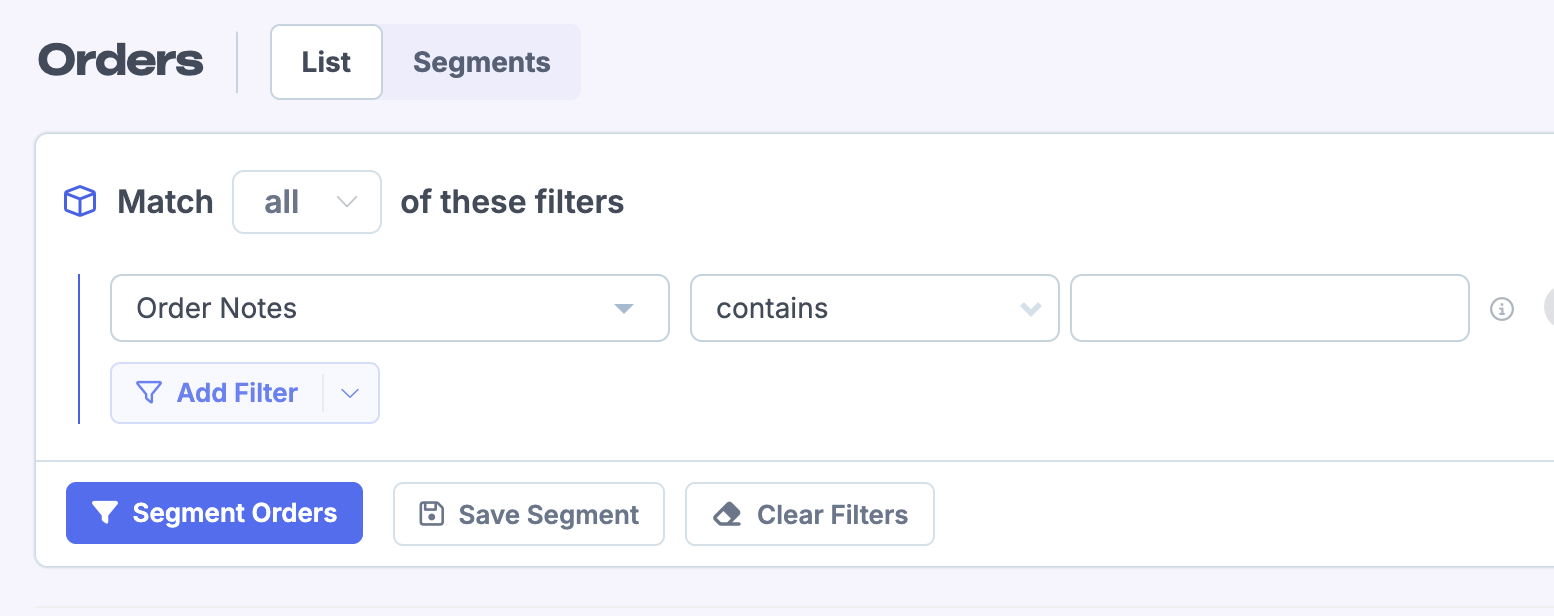
Once enabled, Metorik will automatically sync past order notes and future notes, allowing you to segment by them on the orders page:
Shopify order notes
In Shopify, you will find all order notes in the timeline section on the individual order page (located at the bottom of the page):
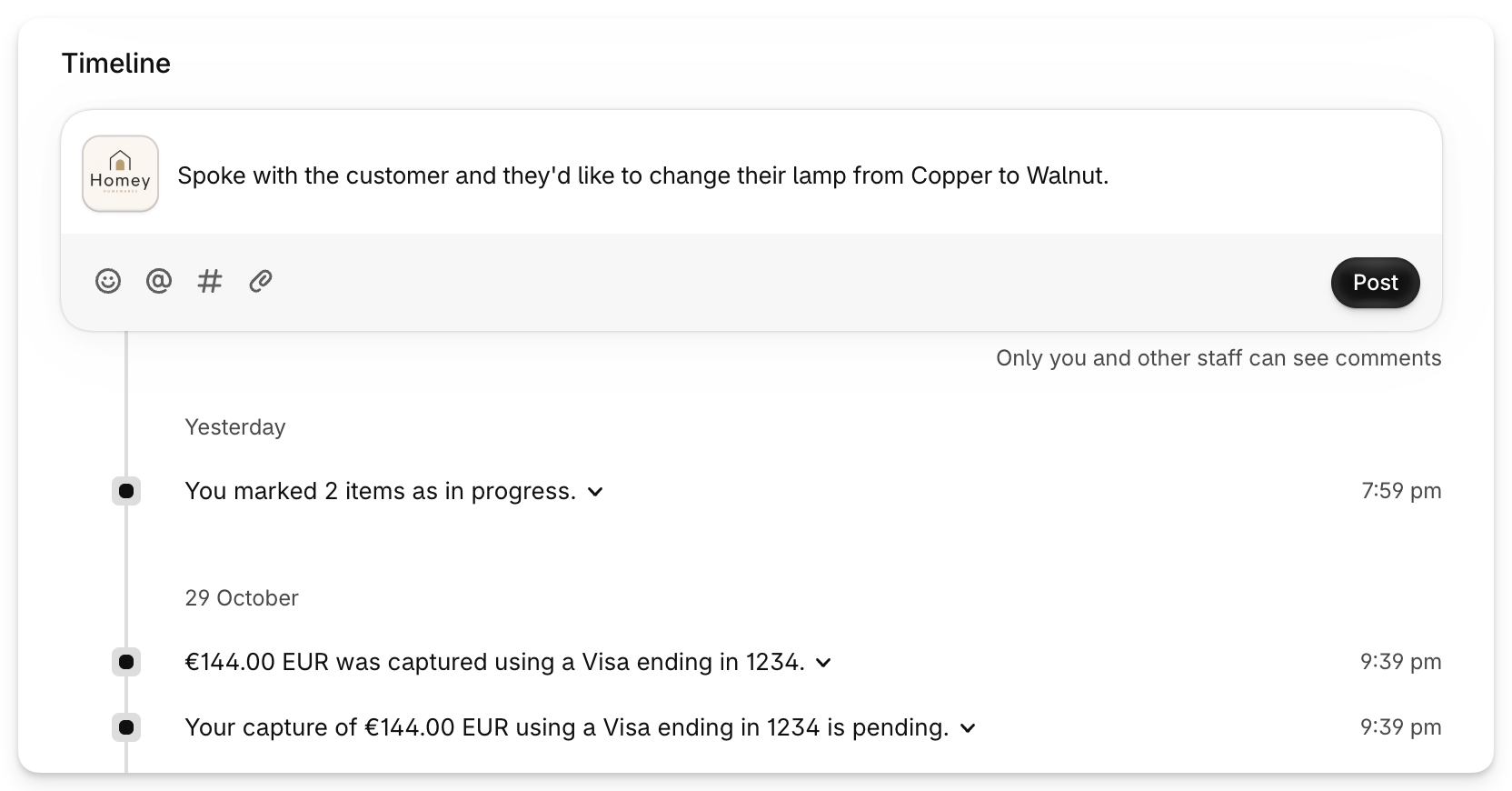
These will also show on the individual order page in Metorik.
Since at the time of writing this post, Metorik doesn't support Shopify subscriptions, you won't be able to see subscription notes.
Exporting notes
If you've turned on Note Syncing for your WooCommerce store, you can include synced notes in your order and subscription exports:
Go to the orders page (or the subscriptions page) and apply any filters or segments you'd like.
Click Export.
Turn on Customize export columns.
Add the Order Notes column (or Subscription Notes for subscriptions).
Download or email your export.
Each order's notes appear in a single cell, one note per line, with the newest note first.
Each line shows the date and time (in your store's timezone), who added the note, and the note itself. Notes sent to the customer are marked [Customer]. HTML formatting such as links is removed, so the text is easy to read in a spreadsheet.
A few things to know:
Notes can only be exported with one row per order. If you turn on One row per line item, the notes column isn't available.
Notes aren't included in exports by default. You need to add the column yourself.
To keep files working in Excel and Google Sheets, each note is shortened to 1,000 characters, and each cell includes up to 250 notes or about 30,000 characters in total. If an order has more, the oldest notes are left out and the cell ends with a line like "... 12 older notes not exported".
Exports with notes are larger, so exports of more than 1,000 orders that include notes are sent by email instead of downloaded.
Note Syncing is only available for WooCommerce stores.