
Metorik Tags
Use Metorik Tags to label customers and profiles, individually, in bulk, through CSV imports, or through the Profiles API. Labels such as VIP, Wholesale, or Trade Show help you find groups of people and save them as segments.
Tags belong to your Metorik store and are stored separately from Shopify tags. We don't sync Metorik tags back to Shopify or WooCommerce. Admins, editors, and marketers can edit tags.
Add or remove tags for one person
Editing one person's tags changes their tag selection, without deleting the tags from your store.
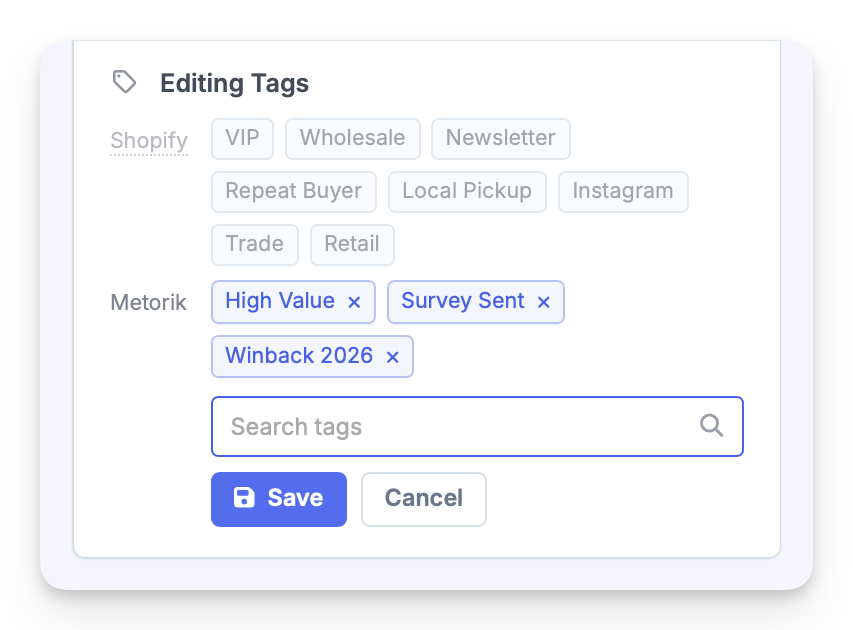
Open the person from Customers or Profiles.
In the Tags section, click Add tags or Edit.
Search for an existing tag, or type a new name and choose the option to add it.
Remove any tags you no longer want in the selection.
Click Save.
Click a tag on the person's page to view the matching customer or profile list.
Tags when adding or editing a profile
The profile form loads an existing person's Metorik tags when their email matches a customer or profile.
From Profiles, click Add Profile.
Choose Add or Update Single Profile.
Enter their email address and wait for the lookup to finish.
Choose the tags in the Tags field.
Click Add Profile.
For an existing profile, use its Edit form and click Edit Profile to save the full selection. Clearing the selection removes all of that person's Metorik tags.
If the email matches a store customer, their name, company, and country stay locked, but you can update their tags. If the lookup fails, click Retry lookup; editing and submission stay disabled until the check succeeds.
Add or remove tags in bulk
Bulk actions keep unrelated tags and can target selected people or everyone matching your current segment.
Open Customers or Profiles and apply any filters you need.
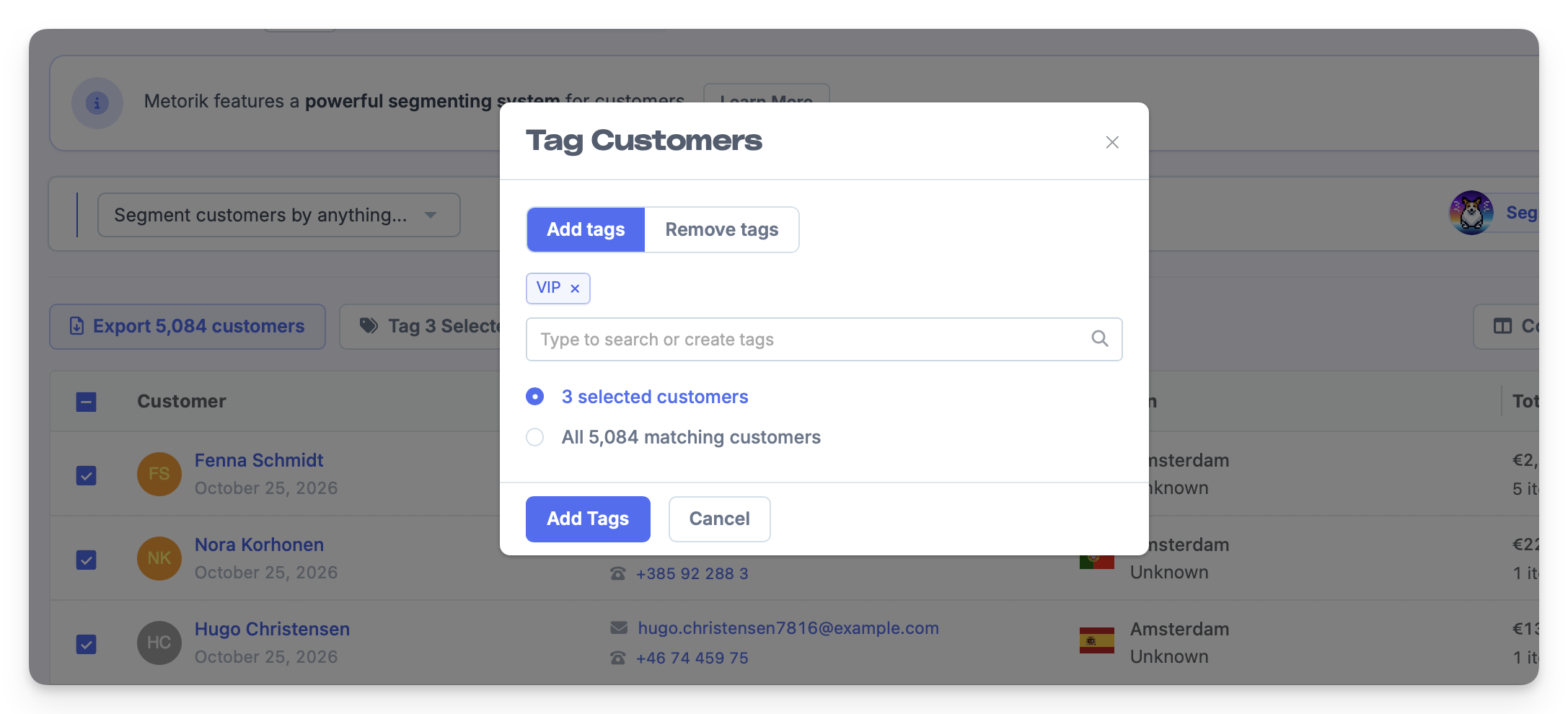
Select rows and click the button to tag your selection, or click Tags without selecting rows to target the current segment.
Choose Add tags or Remove tags.
Select the tags.
Check whether the scope is selected people or everyone matching the segment.
Click Add Tags or Remove Tags.
Actions affecting more than 5,000 people run in the background and can take a few minutes.
Import tags from a CSV
CSV tags are additive and apply to new profiles and existing customers or profiles matched by email.
From Profiles, click Add Profile.
Upload your CSV file and click Next.
Map a Tags column for tags that vary per row.
Choose any shared tags under Tag everyone in this import.
Click Upload.
Separate multiple tag names with commas within the Tags cell, for example VIP, Wholesale. When preparing a CSV as plain text, quote a cell containing commas so it stays in one column.
Row tags and whole-import tags are combined without replacing existing tags. Blank Tags cells don't remove tags. Use the individual editor or bulk removal to remove assignments.
Each person can have up to 250 tags. A row fails if it would exceed this limit or a mapped tag name contains < or >, or exceeds 100 characters. The failed row leaves existing profile fields, properties, consent, and tags unchanged; valid rows still import.
Check the import's failure report for rows that need correcting.
Manage tags
The Tags tab from Customers or Profiles lets you manage the store's tag list, including unused tags.
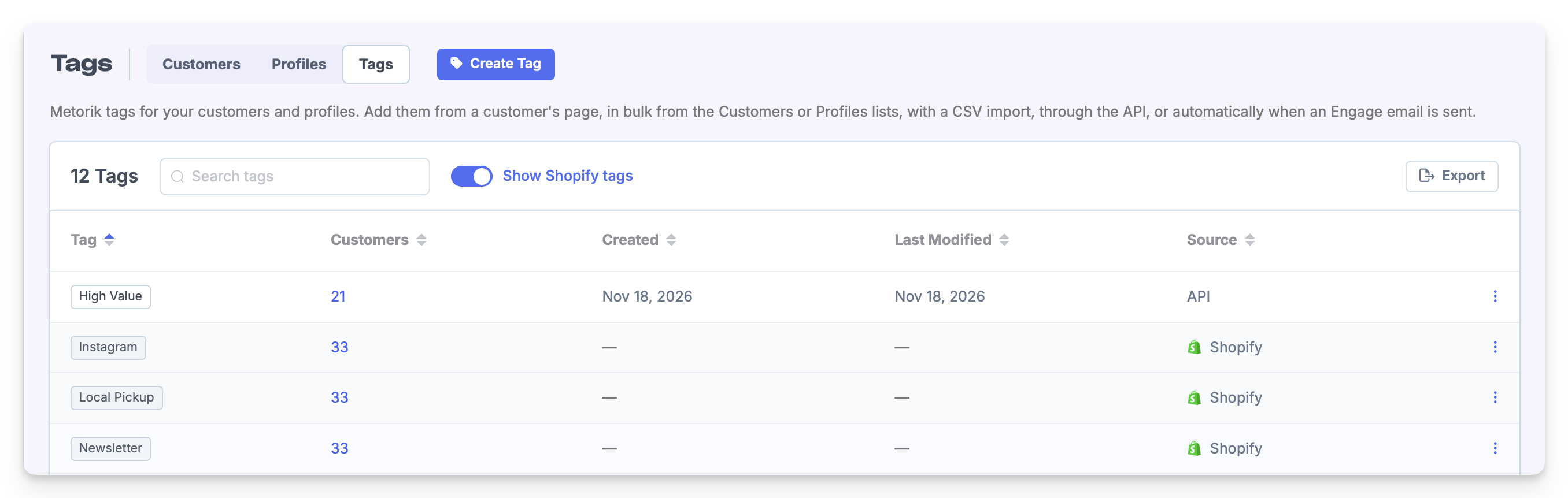
Click Create Tag to create a tag before assigning it.
Search or sort the list, inspect usage counts, and use View Customers or View Profiles from a tag's menu.
Choose Rename Tag to change its name. Entering an existing tag's name offers Merge Tag, which keeps people assigned to either tag without duplicate assignments.
Choose Delete Tag to remove the tag from everyone and delete it from the store. Segments filtering by that tag will no longer match those people.
Click Export to download every tag matching the current search, sort, and Shopify toggle, including rows beyond the current page. The CSV includes Tag, Customers, Created, Last Modified, and Source.
Find tagged people and export their data
New tag filters match complete names case-insensitively, so VIP matches vip but not VIP-old.
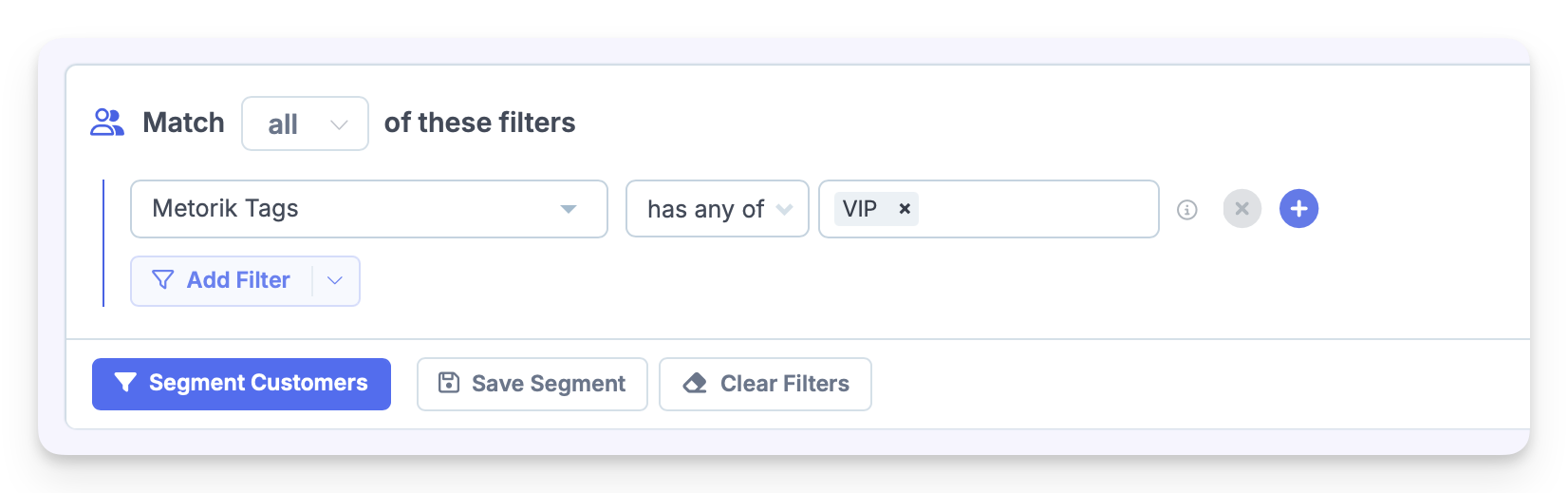
Filter by any, all, or none of your chosen tags, or find people with any tags or no tags. Existing saved segments using older text filters keep their previous matching behaviour.
Save your filters as a segment to reuse them in reporting and Engage audiences. Learn how in Segmenting Data.
Customers offers selectable tag columns, and Profiles shows Tags in its default columns. Customer and profile exports include Metorik tags by default unless your customised export columns omit them.
Metorik tags and Shopify tags
Shopify tags are synced from Shopify and are read-only here. A Metorik tag and Shopify tag with the same name remain separate.
On Shopify stores, the Customers Tags filter and combined table column include both sources. Use Metorik Tags or Shopify Tags to keep them separate. Customer exports always use separate Metorik Tags and Shopify Tags columns.
On the Tags management page, Show Shopify tags is off by default. Turning it on adds read-only Shopify rows and their customer counts.
If counts aren't ready, they are prepared in the background. The page shows a preparation notice and updates automatically; CSV export stays disabled until ready. Shopify counts are cached for up to an hour, so they aren't guaranteed to reflect changes immediately.
Use tags through the Profiles API
The Profiles API manages Metorik tags only, including for an existing customer matched by email.
tagsreplaces the complete set.add_tagsadds tags.remove_tagsremoves tags.Omitted tag fields leave tags unchanged.
Operations apply in that order. Each field accepts an array or comma-separated string, with up to 25 normalised tags per field and a final maximum of 250 per person.
The response's profile.tags contains sorted Metorik tags only, preserving saved casing. It doesn't contain synced Shopify tags. Integrations that previously read Shopify tags from this field need updating.
For setup and request details, see the Engage API guide.
Tag names and limits
Each person can have up to 250 Metorik tags.
Names can contain spaces and be up to 100 characters, but can't contain commas,
<, or>.Repeated whitespace and line breaks become single spaces.
Names match case-insensitively, so VIP and vip refer to the same tag.
Accents and emoji remain distinct, so Café and Cafe are different tags.
Tags apply to customers and profiles, not orders or products.