Team Member Role: Admin
As an admin, you can do everything with a store on Metorik except for deleting it (unless you're the company owner). That includes editing the store settings, accessing all the reports, exporting data, updating orders, creating digests, creating product groups, and more.
For an overview of everything you can do in the dashboard, you may want to reference the Editor guide.
To access the store settings, you can click the 'store settings' link in the navigation or from your personal settings page.
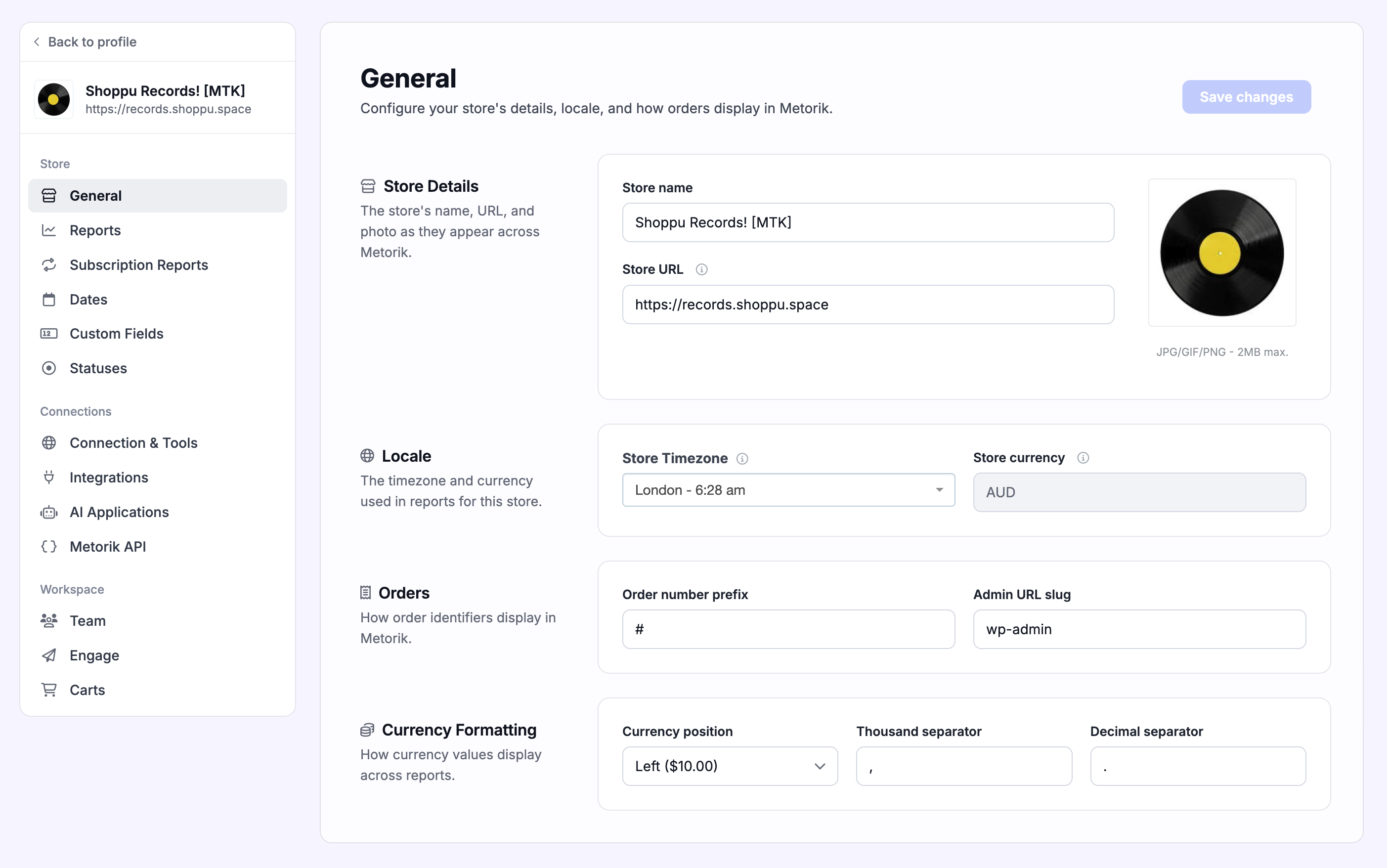
The first thing you can do is update the settings, including the name, URL, timezone, and more: There's also an area for updating settings related to reports, like what kind of data should be included in reports:
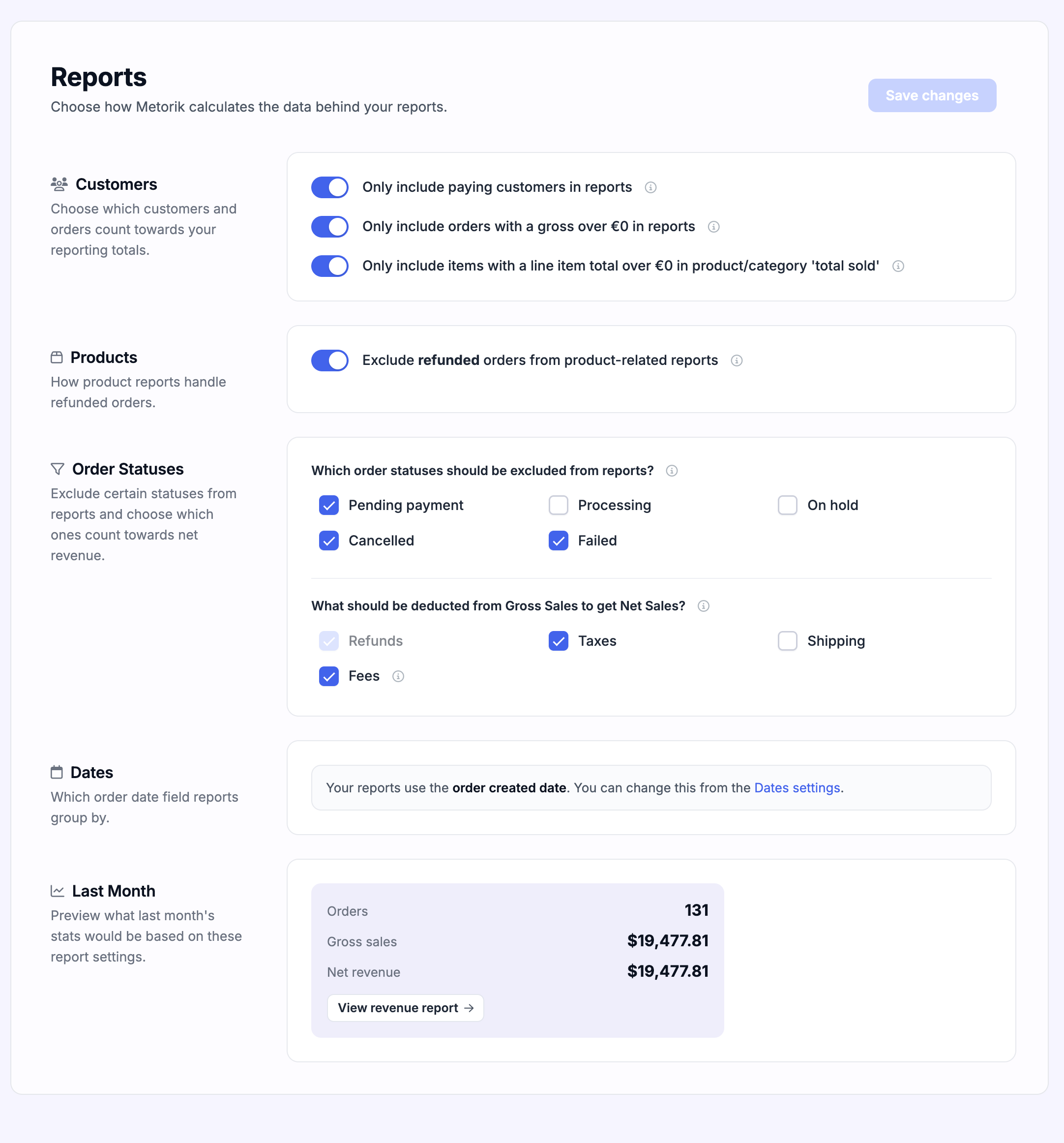
Report Settings
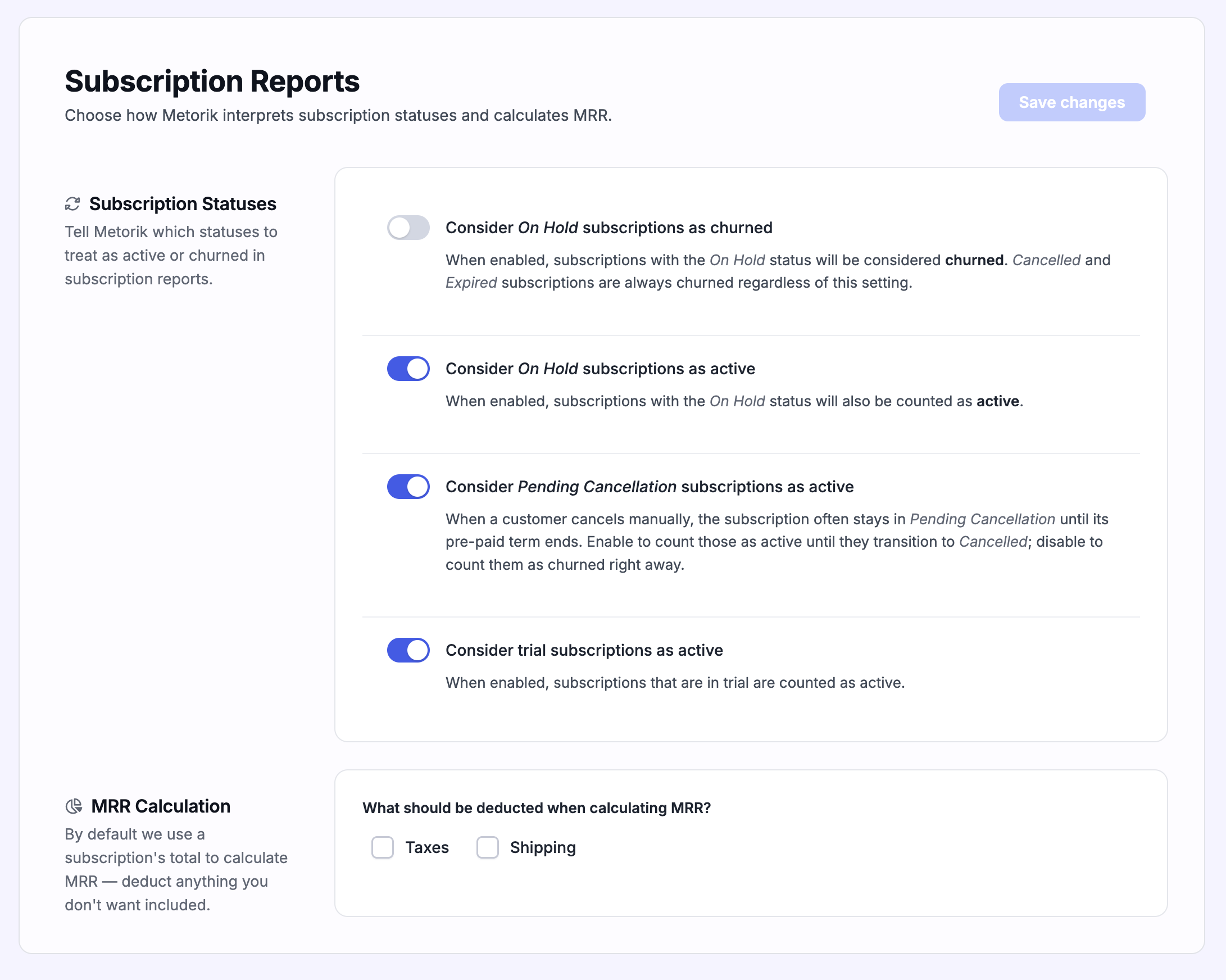
Subscription Report Settings
Date Settings
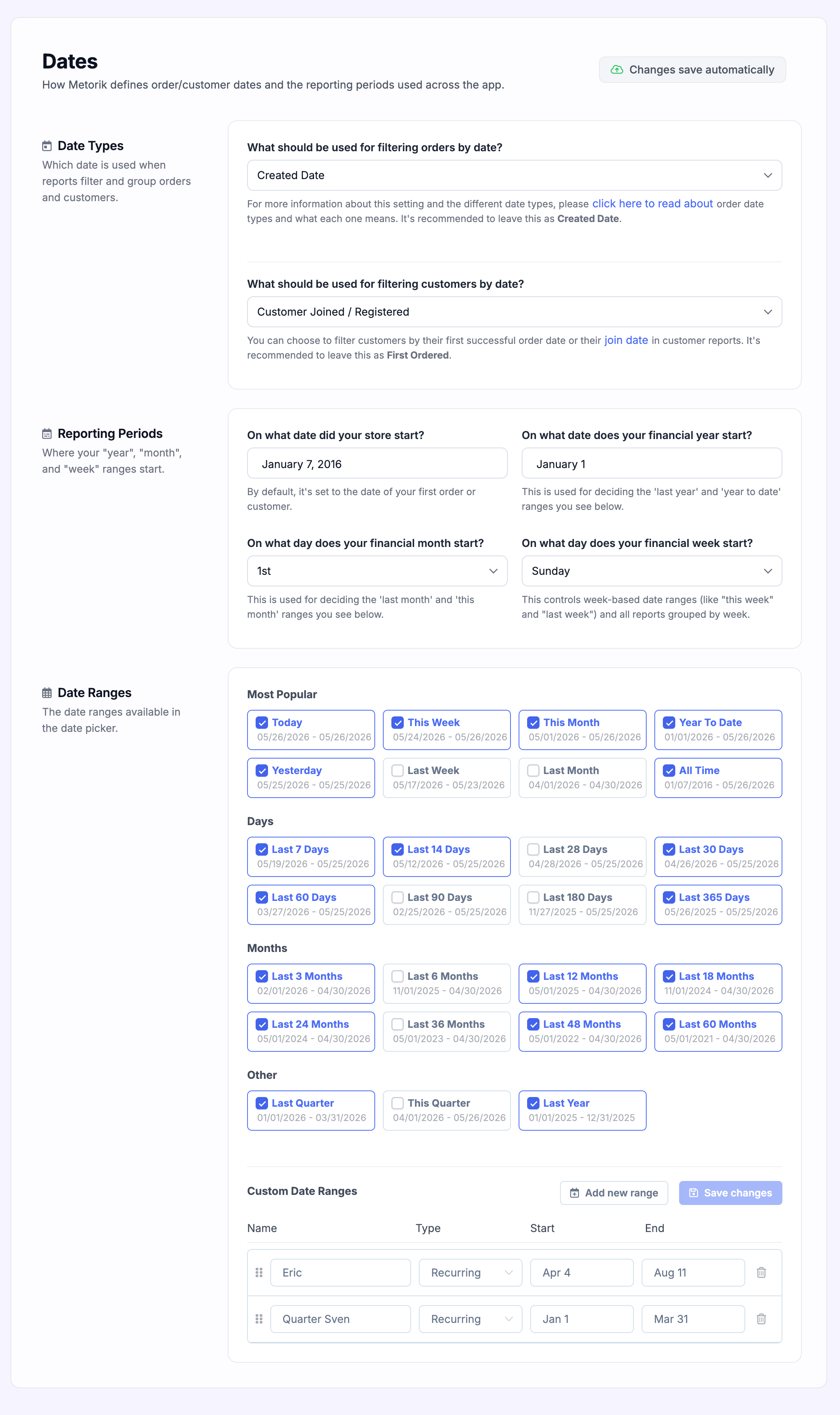
Head to the Dates area to configure the dates that Metorik will use, like which date should be used for filtering orders by date and the financial year your store uses:
Connection Settings
Under the connection & tools area, you can verify that the store is connected and re-connect it if not.
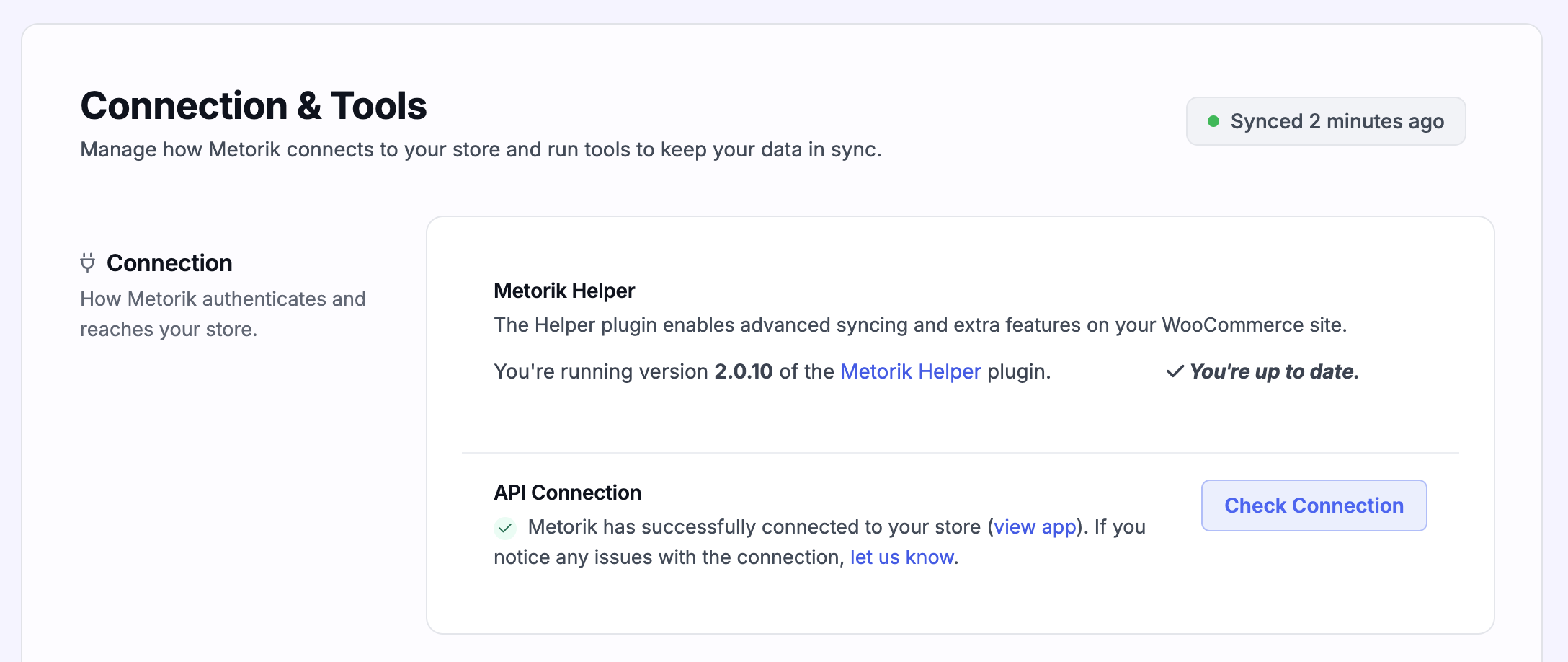
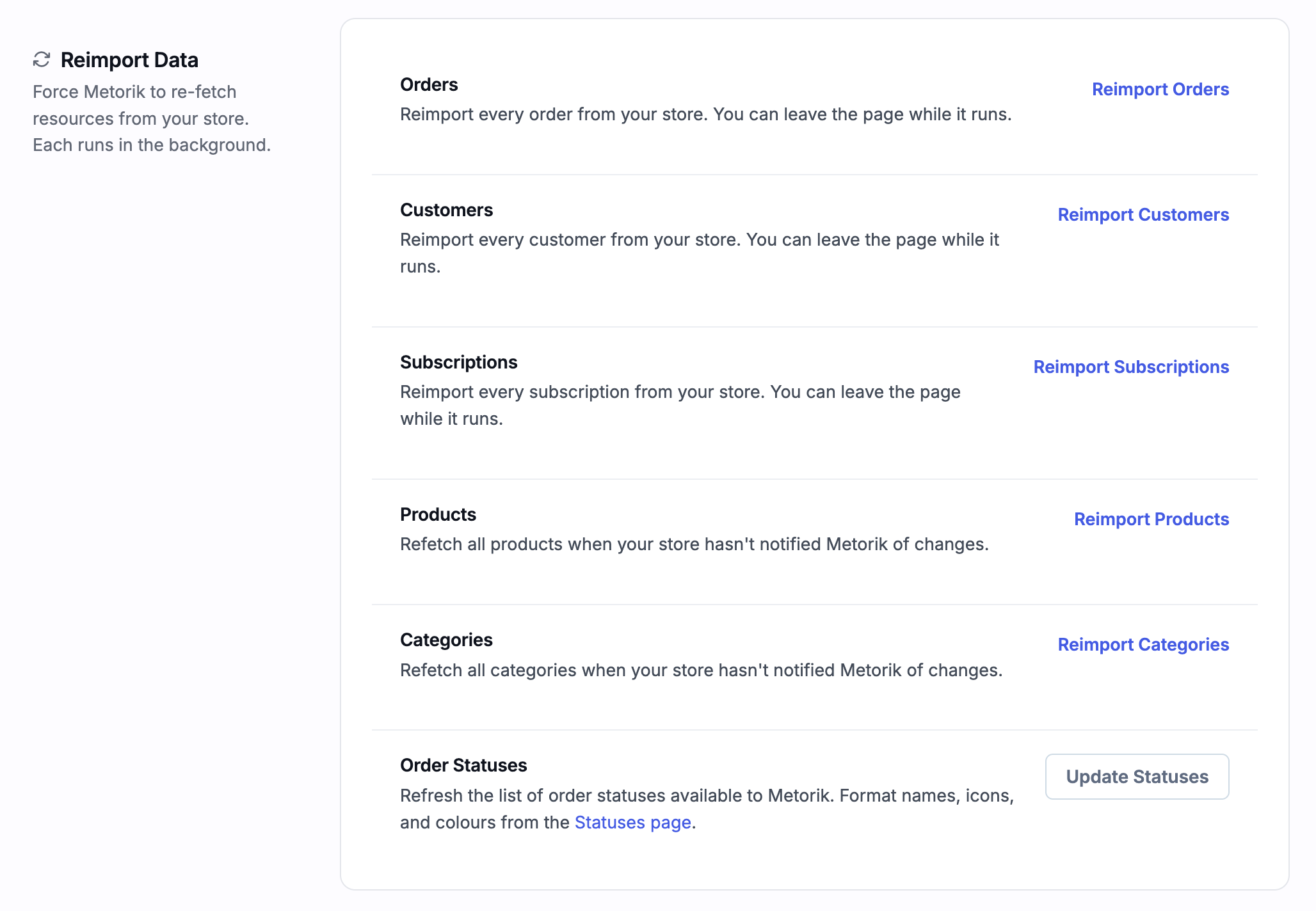
You'll also find several tools that may be helpful. Most of the time, you'll never need to use these, but they're there if you do!
Integrations
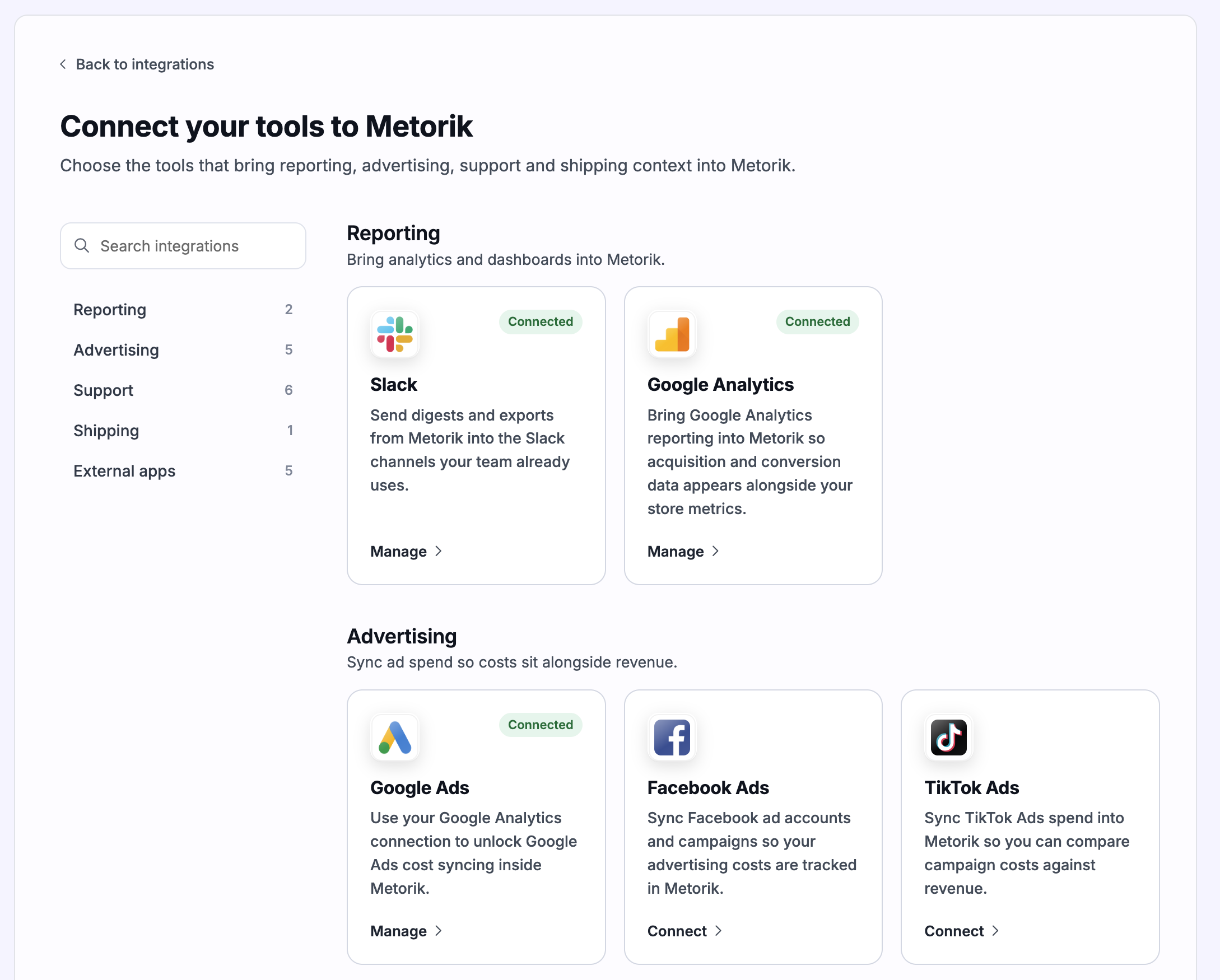
On the integrations page, you can manage the store's connected integrations and add more.
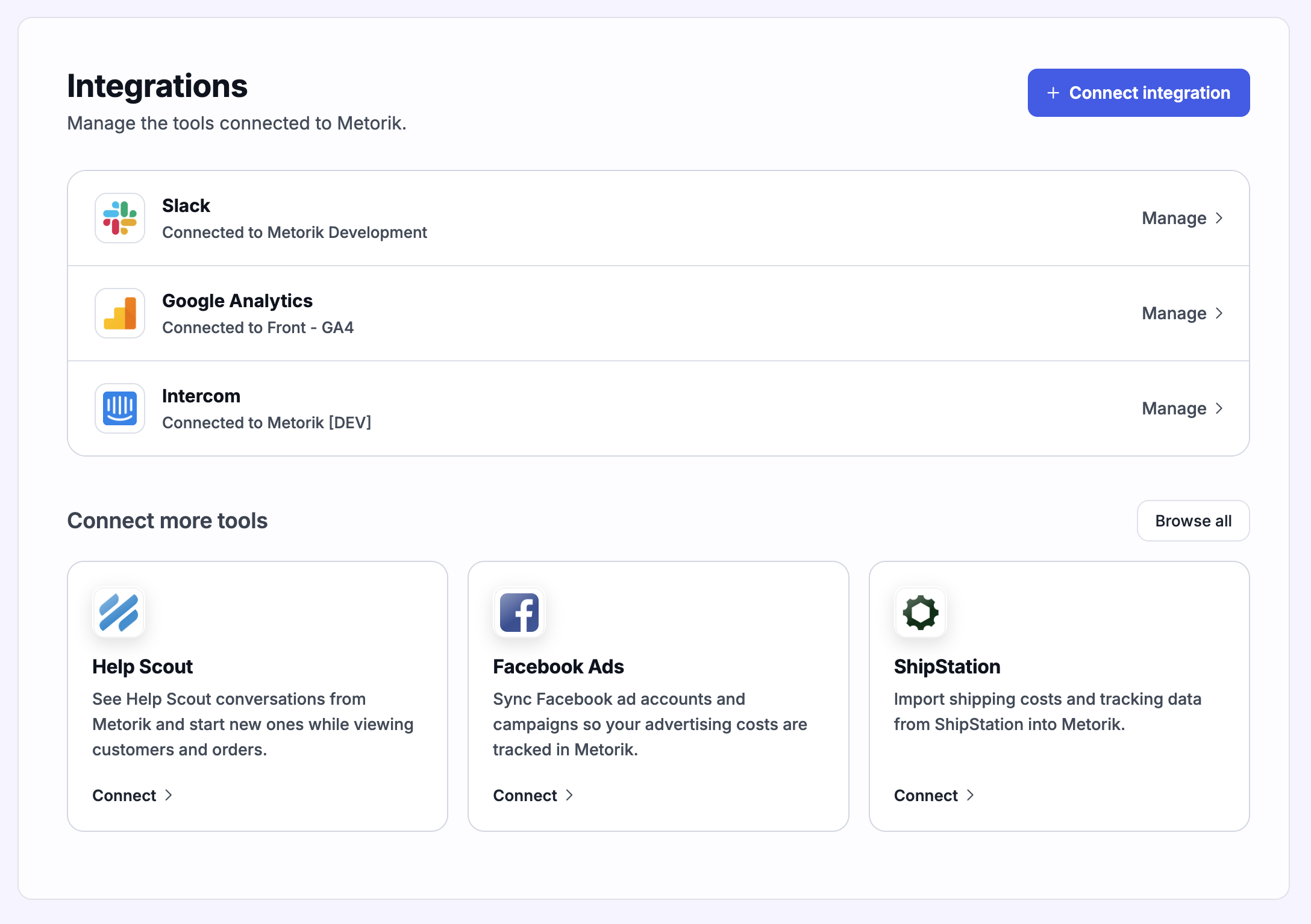
Click the blue "Connect Integration" button to search and add other integrations:
AI Applications
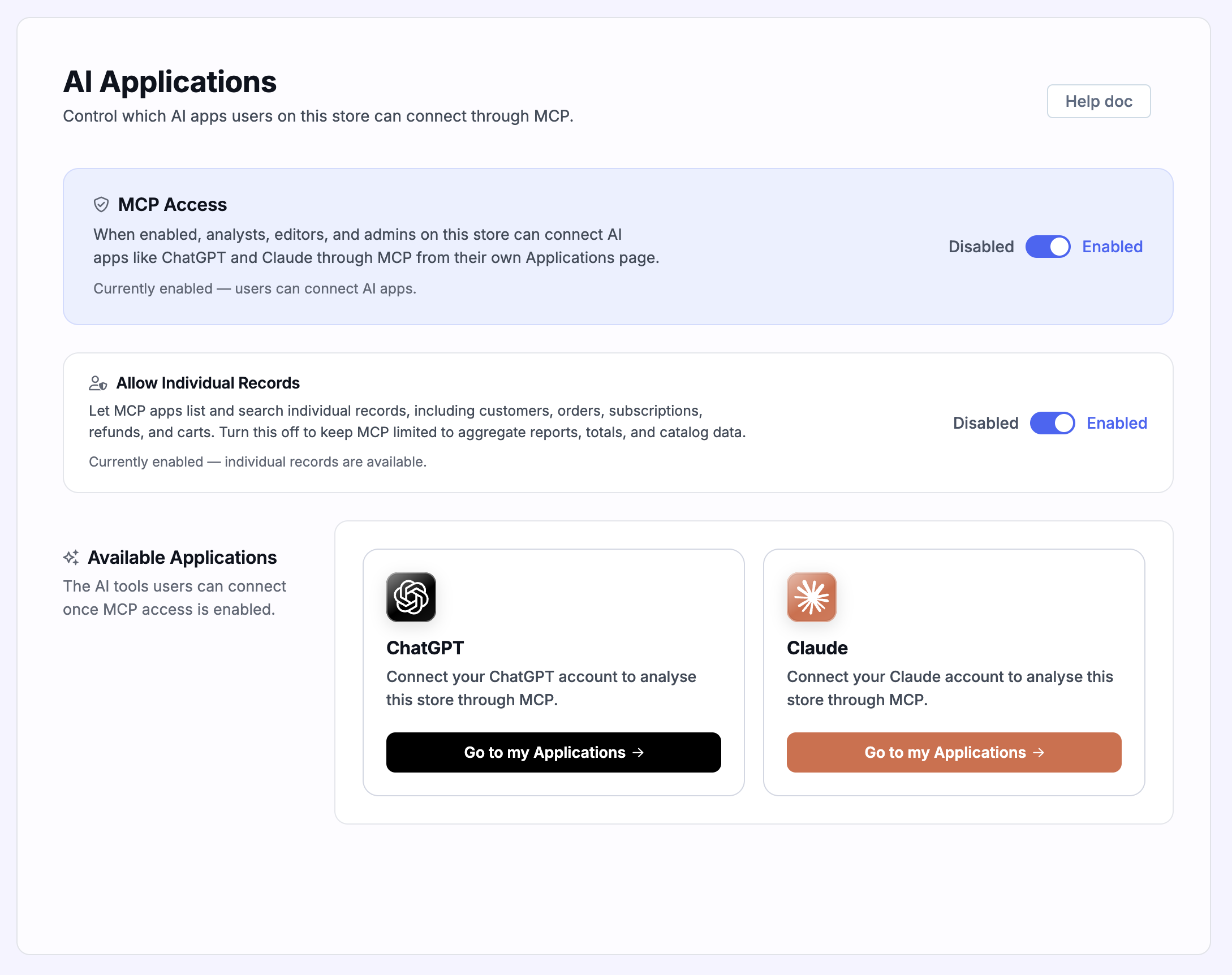
On the AI Applications page, you can control which AI apps users on this store can connect through MCP. You can enable or disable MCP access and choose whether to allow MCP apps to list and search individual records.
Metorik API
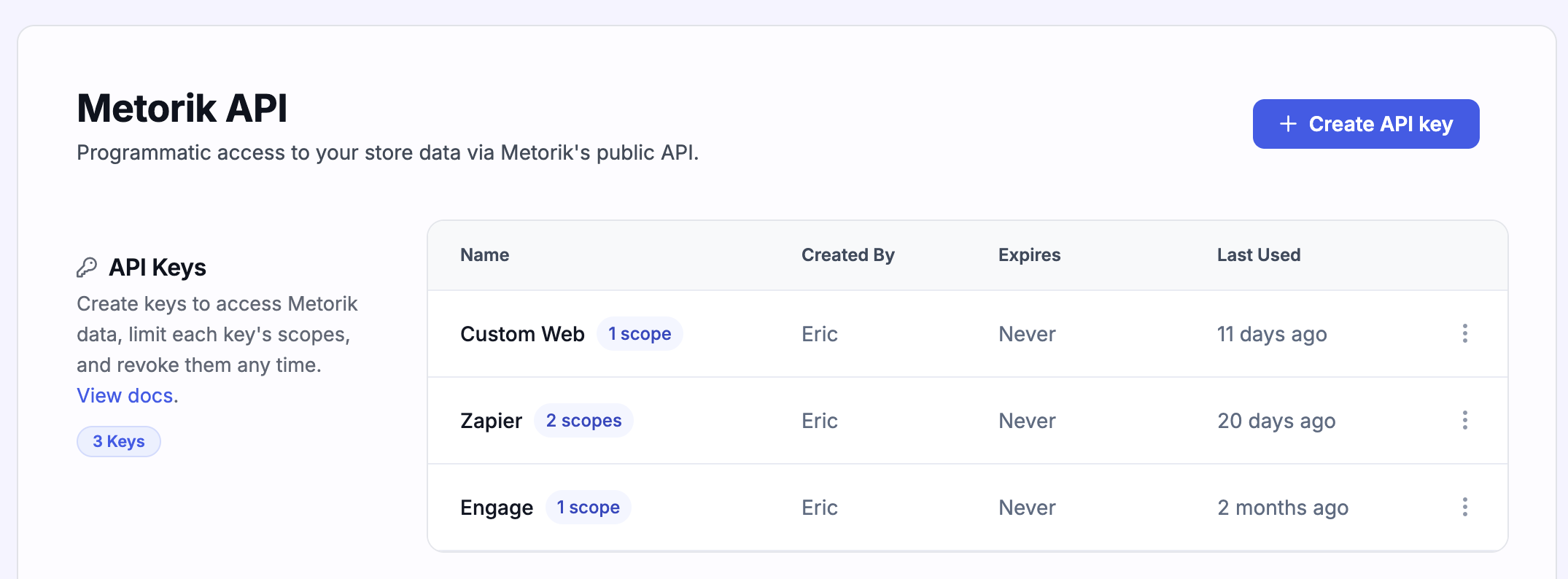
This is also where you will find your API keys to allow you to add Metorik data to other services. You can create keys with specific scopes, view who created them, when they expire, and when they were last used.
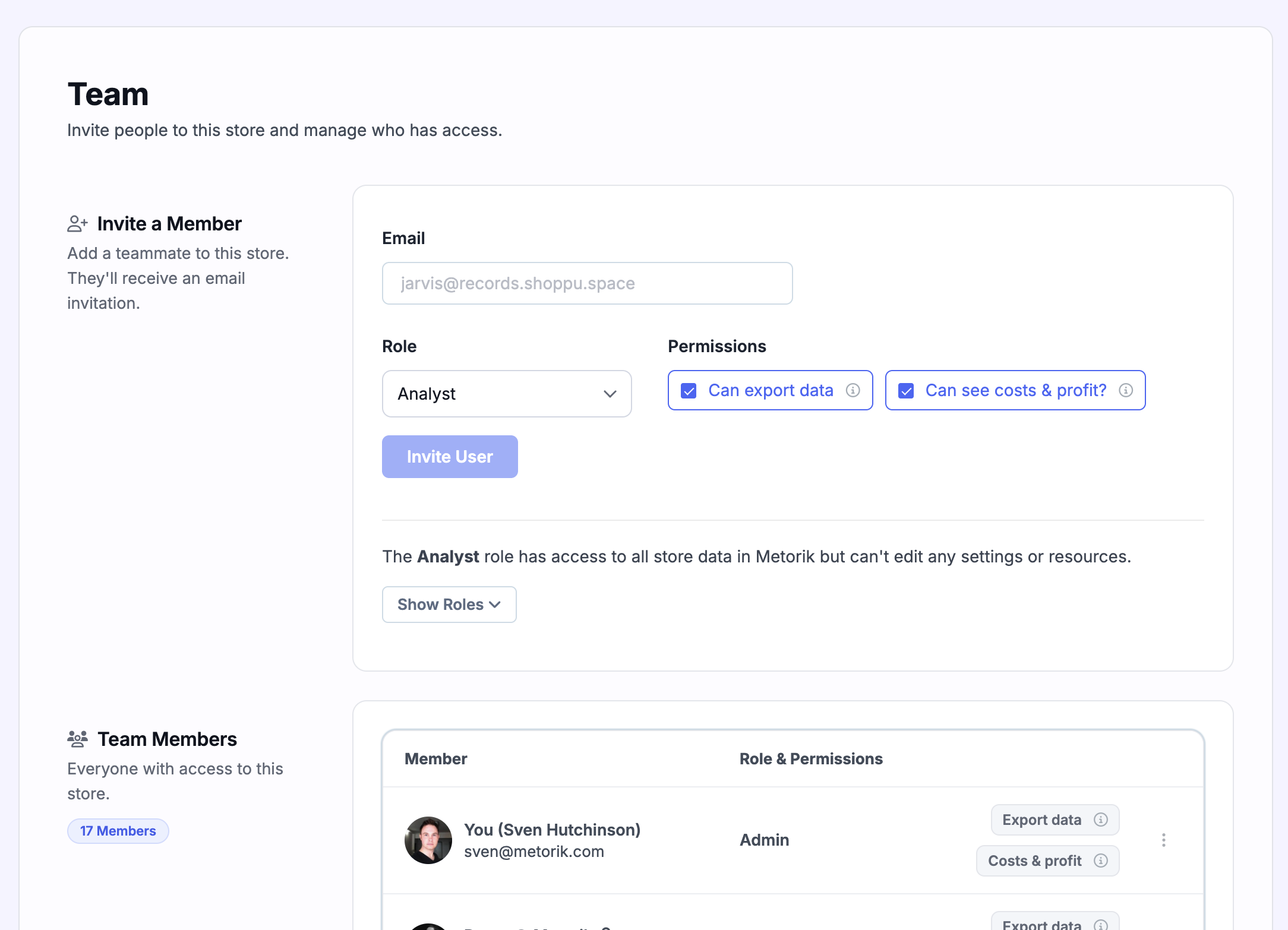
Manage Team
Finally, on the manage team page, you can manage the team and invite new team members. You can also see the last time that each team member used Metorik: