
How can I enable 2FA on my account?
Set up 2FA in your browser
Start by going to your personal settings here.
At the bottom, you'll find a 2FA section:
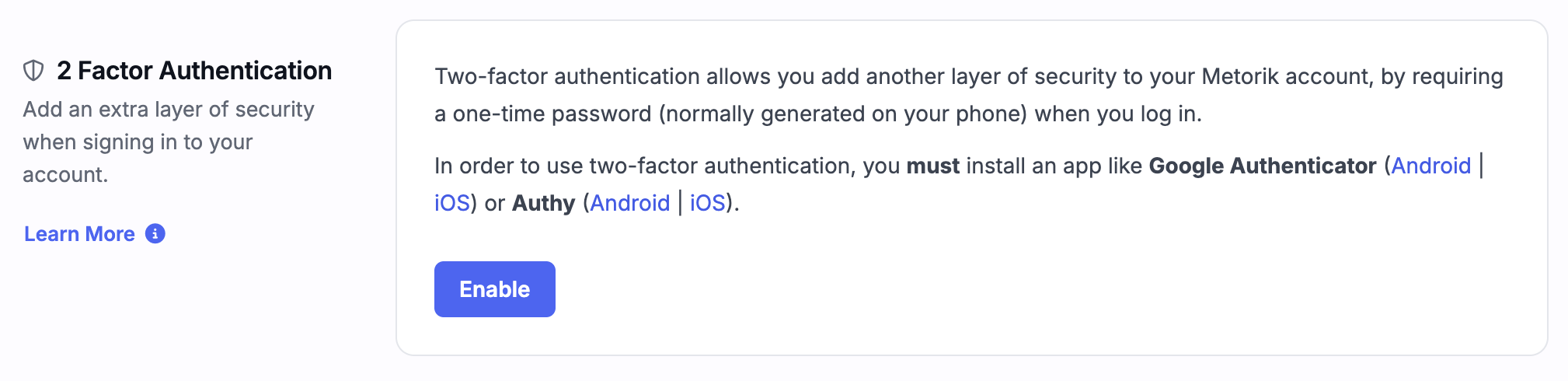
Before you continue, ensure that you have a two-factor authentication app installed on your phone. If you don't have a preference, here are some that we'd recommend:
When you're ready, click the Enable button. This will open up a dialog:
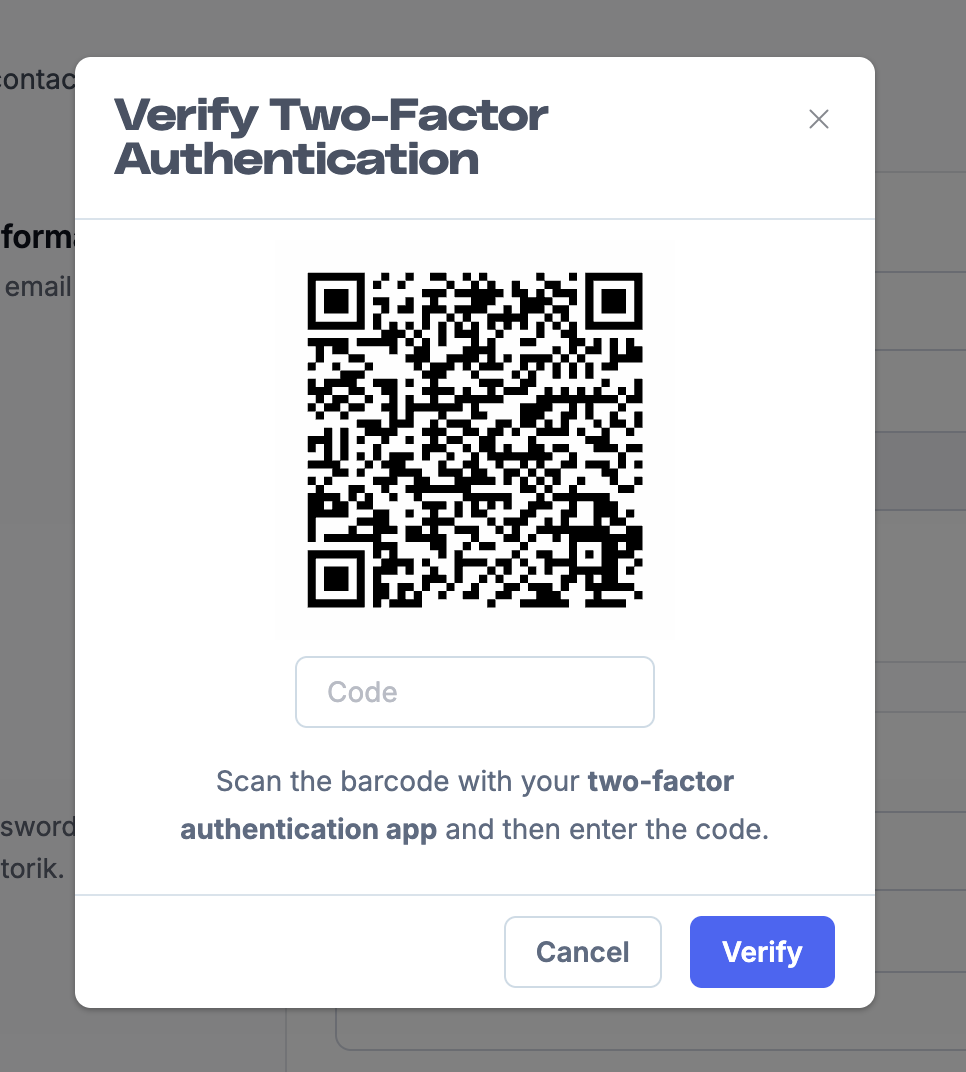
In your 2FA app, find the add an account section. It should then open up the camera on your phone. With that, scan the QR code displayed. Your app will then give you a 6 digit code.
Enter that code into the dialog and if you've entered it correctly, it'll verify it and close the dialog.
You're not done yet though! The next part is pretty important. After setting up 2FA, you're given an emergency reset token. Please write this down and keep it somewhere safe. If you ever lose your 2FA device or are unable to get the code from it, you'll be able to enter this to disable 2FA on your account.
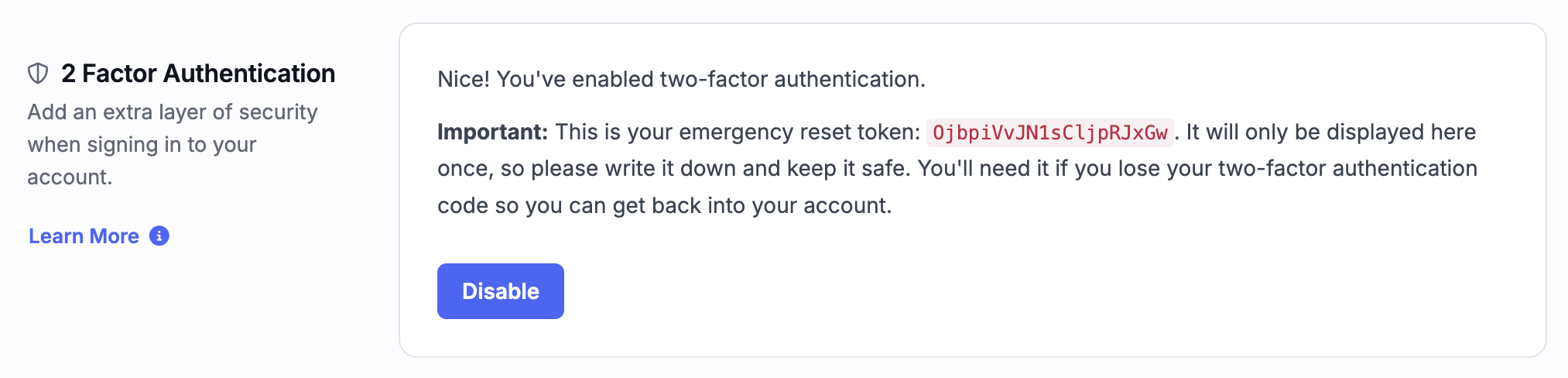
OK, now you're done.
Next time you login, you'll be prompted for your 2FA code.
If you use WordPress.com to login and have 2FA set up (in Metorik), you'll still be prompted for your 2FA code.
Set up 2FA in the iPhone and iPad app
Use an authenticator on the same device, copy a setup key, or show a QR code for another device. You don't need to scan a QR code displayed on the phone you're using.
Open Profile from Everything.
Choose Password and sign-in.
Choose Two-factor.
Choose a setup method from the options below.
Open in authenticator app: add Metorik to a compatible authenticator, such as Passwords or Google Authenticator, then return to Metorik for the code.
Copy setup key: paste the key into your authenticator as a one-time password. Return to Metorik and tap Enter the code.
Show QR code: scan the code with an authenticator on another device, then tap Enter the code.
Finish setup by saving your recovery information:
Enter the six-digit code from your authenticator.
Use Copy or Save to keep the emergency reset token somewhere safe.
Turn on I've saved my token.
Tap Done.
If you can't open a compatible authenticator from the app, use Copy setup key instead.
App lock is separate from 2FA
Two-factor authentication protects your account when you sign in. The optional app lock under Profile → This iPhone protects access to the app on that device, using the available biometric authentication or device passcode.
Use Lock after to choose when the app locks after you leave it. Hide numbers on Lock Screen is a separate control for widget and Live Activity number privacy; enabling the app lock alone doesn't enable it.
Disabling 2FA
Disabling two-factor authentication on your Metorik account is quite easy too. Simply go to your account settings here, and head to the 2FA area down the bottom. You can then click the disable button to immediately remove 2FA from your account.