Getting started with the iPhone and iPad app
Use the Metorik beta app on your iPhone or iPad to view your stores, explore reports, and work with your data. You'll need an existing Metorik account and iOS or iPadOS 26 or later.
Explore the features in Metorik for iPhone and iPad.
Install the beta
The beta is distributed through TestFlight, separately from our Mac and Windows desktop apps.
Install Apple's TestFlight app on your iPhone or iPad.
Open the Metorik beta invitation on that device.
Accept the invitation.
Tap Install for Metorik.
You can also find the invitation under Download iOS App in your user menu on the Metorik website.
Sign in
Use your existing Metorik sign-in. Create your account on the web first if you don't have one.
Open Metorik.
Enter your email and password, or tap Continue with Google.
Enter your email verification or two-factor code if requested.
For an account created with WordPress.com, choose Other sign-in options, then Sign in with WordPress.com.
Find your stores and pages
The pages you can use depend on your role in the selected store. Packers, marketers, and dashboard viewers won't see the same tabs as admins.
Stores: use the store button or find Stores under Everything to choose a store. Select All stores to compare stores where you have analytics access.
Dashboard: view your store's numbers and dashboards when your role includes analytics.
Search: find records, pages, and settings by name.
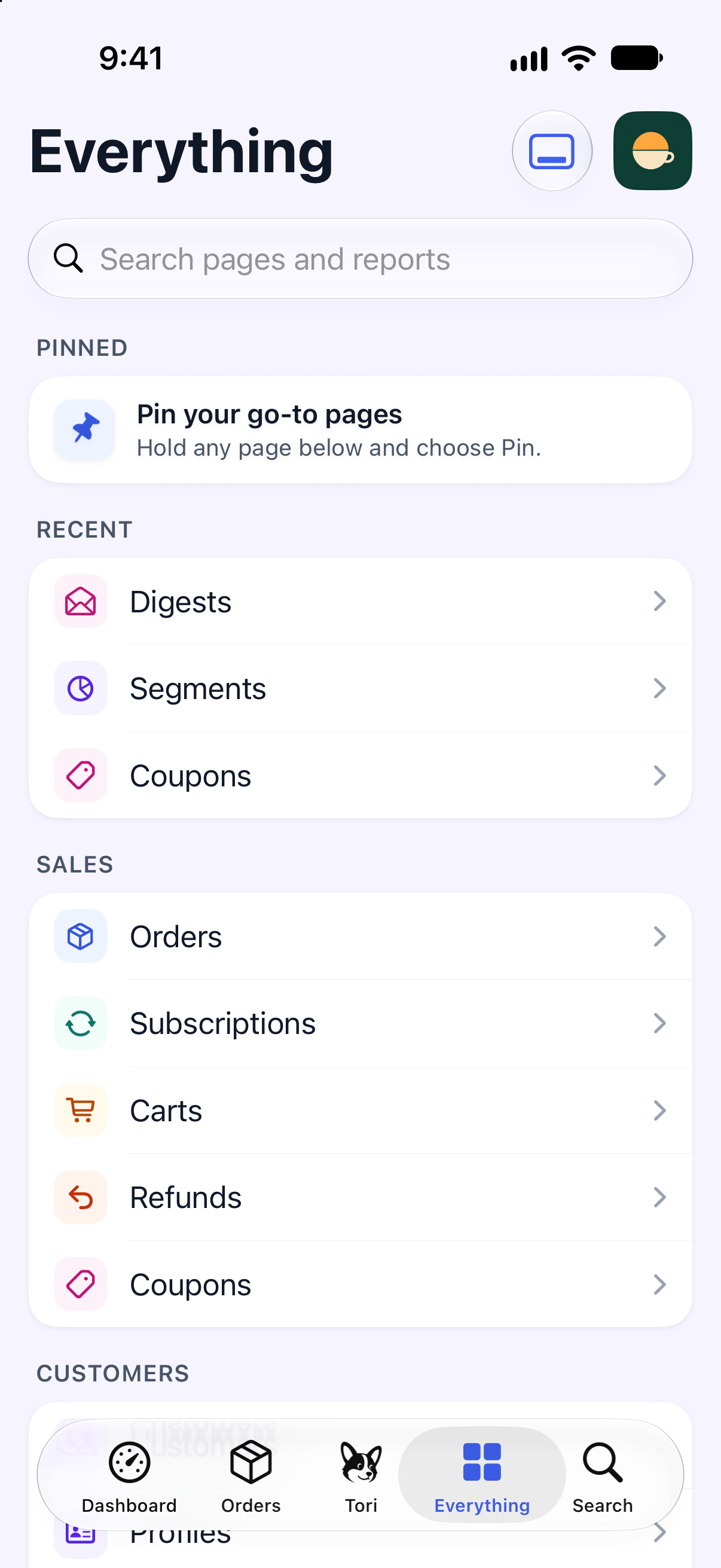
Everything: find the directory of pages available to your role. On iPad, you can also use the sidebar.
The app remembers its selected store separately from your browser. Switching stores in one doesn't change the store selected in the other.
Connect a store
You can add a store from the app and approve its connection with Shopify or WooCommerce.
Open Stores.
Choose Add a store.
Choose your platform and enter your store details.
Complete the authorization with your store.
The initial import can take from a few minutes to several hours. Import progress can appear on your Lock Screen and in the Dynamic Island when supported and allowed on your device. Allow notifications to receive Store ready when an import you started finishes.
Our Data Syncing guide explains what happens during the import.
Manage notifications and security
App controls and account security have separate settings.
Settings → Notifications: check this device's notification permission and find your digest choices.
Digests → Sent to me: choose which email digests also send an iPhone notification.
Profile → Password and sign-in: manage your password and two-factor authentication.
Profile → This iPhone: choose an app lock and its delay. This is separate from account two-factor authentication.
Update the beta
Updates arrive through TestFlight. Each beta build is available for up to 90 days after it is uploaded.
Turn on Automatic Updates for Metorik in TestFlight, or use Update when a new build is available. If a build expires, check TestFlight for a newer compatible build.
Get help
Use Help under Everything for help-center articles, Message support, or Report an issue.
If you can't sign in or open the app, email [email protected]. Include your device model, OS version, and the Metorik version shown in TestFlight.